Preview every page
Read the document as you fill in the form.
Create a VAT invoice with a live checklist. Review the business details, dates and rate breakdown before downloading.
8 things missing
If the supply happened on a different day from the invoice date, add it.
For a sale of £250 or less including VAT, a simplified VAT invoice can be used if your customer agrees.
Based on official guidance from HM Revenue & Customs, checked 22 October 2026. This tool helps you lay out an invoice; it is not tax advice.
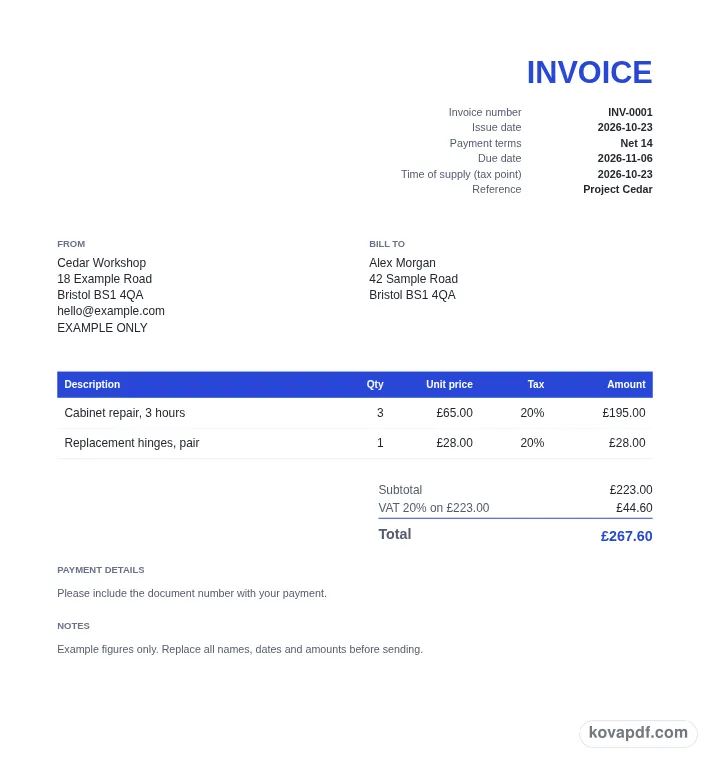
These pictures show the same document generator with fictional example details.
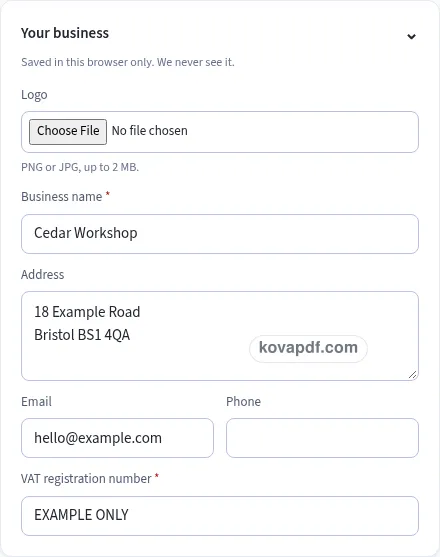
Replace the example names and contact details in the form. Keep only information that belongs in this document.
Check the page preview after changing the text. Read the amounts, dates and page breaks before exporting.
Use the download controls above the preview. Open the saved file and give it one final read before sharing.

Read the document as you fill in the form.
Compare Classic, Modern and Minimal layouts.
Save a copy when the names and figures are right.
The generator works on this device.
Use A4 or Letter and check the page breaks.
Return to the form to correct a detail before sharing.
These are fictional details. Choose an example, then replace them with your own.
Enter your business name, address and VAT registration number. Add the customer's name and address in the next card. Keep both address blocks readable so the person checking the invoice can see who supplied the work and who received it.
Choose the invoice number and issue date, then add each description, quantity, unit price and VAT rate. Use the tax point field when the supply took place on a different day. Check every line before moving to the totals.
Look through the checklist beside your preview. For a currency other than GBP, enter the sterling exchange rate. Read the rate breakdown, make any corrections in the form, and download the PDF when the required fields are complete.
A full VAT invoice brings together the details of the supply and the people involved. Start with a unique invoice number, the date of issue and the time of supply, also called the tax point. The form keeps those dates separate because the supply may have happened on a different day. If that is the case, enter it rather than leaving the tax point blank. When both dates are the same, the checklist can use the issue date.
Your business name and address belong with your VAT registration number. The customer block needs the customer's name and address. A short business name alone does not fill the address check. Read each block in the preview as if you were receiving the invoice for the first time. The layout gives the two parties their own labelled space and wraps longer addresses within that space.
Each item needs a description, quantity, VAT rate and unit price. Add enough detail to tell one item from another without turning the description into a long message. Payment instructions and other comments have their own fields below the items. The checklist also looks for the total excluding VAT and the total VAT shown in sterling. Its missing rows take you back to the relevant field.
The available line choices are 20%, 5%, zero-rated at 0%, and Exempt. Select the choice for the item you are entering. Exempt appears as a word in the tax column and does not produce a VAT totals row. A zero-rated group has a row showing zero VAT, so it remains visible in the breakdown. The generator does not decide which choice applies to your work.
VAT is calculated on each rate group's net amount after that group's share of a discount. The displayed breakdown identifies the rate and the net amount it applies to. If several items use the same rate, their amounts are grouped before the tax is rounded. Review the individual item rates as well as the combined figures, especially after copying numbers from an earlier job.
For an invoice in a currency other than GBP, the exchange-rate field asks how many GBP equal one unit of that currency. The totals then include Total VAT in GBP. Enter the rate you intend to use and check the result before downloading. The field is required for this foreign-currency layout. Switching back to GBP removes the need for that conversion field.
For a sale of £250 or less including VAT, a simplified VAT invoice can be used if your customer agrees. This page lays out the full VAT invoice details and keeps its checklist visible, so you can review the information you entered. It does not make a decision about your particular sale or replace your own review of it.
If you turn off VAT registration, the VAT column and VAT rows disappear. The checklist then covers general invoice details: the number, issue date, your business name, customer name, an item, and a due date or payment terms. Your existing descriptions stay in the form, making it possible to adjust the document without starting every field again.
Use the paper and style controls to check how the finished invoice reads. A longer item list continues onto more pages with repeated table headings. Look at the final page too, where the totals and payment instructions appear. Download a copy with a clear number in its filename, and keep that number with the job record you use to track the invoice. Saved business details remain in this browser; clearing them removes the saved draft from this browser as well.
Use a unique invoice number, issue date and tax point. Include your business name, address and VAT registration number, the customer's name and address, and each item's description, quantity, unit price and VAT rate. Review the total excluding VAT and the VAT total in sterling.
Open Invoice details and use Time of supply (tax point). If the supply happened on a different day from the invoice date, add that day. The checklist accepts the issue date when the supply date has been left empty.
Choose the invoice currency, then fill in the exchange rate into GBP. The generator adds a sterling VAT total beside the other totals. Check both the entered rate and that converted figure before saving the PDF.
A zero-rated item is included in a 0% VAT breakdown showing a zero tax amount. An exempt item is marked Exempt in its tax cell and has no VAT row in the totals. Choose the status separately for each item.
Yes. Fill out the required fields and use Download PDF. You can review multiple pages in the browser preview first. There is no account step between completing this form and downloading its document.
The invoice is assembled on your device. Its business details and draft are saved only in this browser when storage is available. Use Clear saved details if you want to remove that saved information after finishing.