ZIP to PDF
Convert everything inside a .zip at once — one merged PDF in the right order, or a folder of separate ones.
- Keeps your layout
- Works on any device
- Deleted after processing
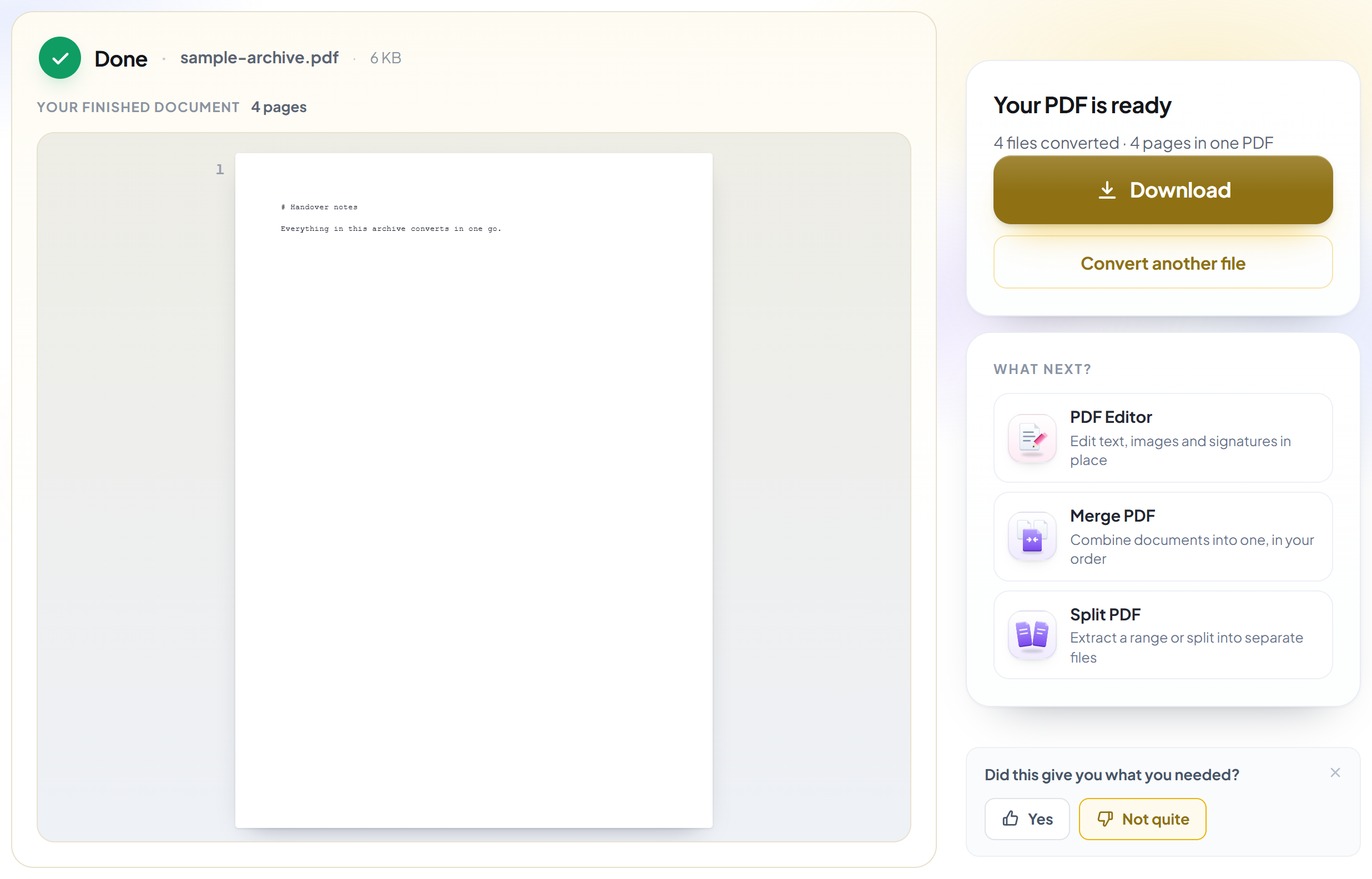
- Everything inside converted
- One merged PDF, in order
- Or a folder of separate files
- Folder order kept
.zip
Upload a .zip to turn everything inside it into PDF
Word, Excel, PowerPoint, OpenDocument, images, text, CSV and PDFs · deleted as soon as the result is built
Drag & drop file here
or choose a file from your device
How it works
ZIP to PDF in three steps
Upload your archive
Drag a .zip onto the panel, or click it to pick one. Documents, spreadsheets, slides, images, text and any PDFs already inside are all converted.
Choose what you get back
One merged PDF is the default, because that is usually what an archive of scans or chapters was for. Files are ordered numerically, so page2 comes before page10 rather than after it.
Download your PDF
Anything that could not be converted is listed by name with the reason, so nothing disappears without being mentioned.
How to convert everything in a .zip to PDF
One merged document in the right order, or a folder of separate ones.
Upload your archive
Drag a .zip onto the panel, or click it to pick one. Documents, spreadsheets, slides, images, text and any PDFs already inside are all converted.

Choose what you get back
One merged PDF is the default, because that is usually what an archive of scans or chapters was for. Files are ordered numerically, so page2 comes before page10 rather than after it.

Download your PDF
Anything that could not be converted is listed by name with the reason, so nothing disappears without being mentioned.
Frequently asked questions about ZIP to PDF
Do I get one PDF or many?
Your choice, and one merged PDF is the default -- usually what an archive of scans or chapters is actually for. Choosing 'a PDF for each file' returns them separately in a new .zip instead.
What order will the files be in?
Sorted by name, numerically -- so page2 comes before page10. Plain alphabetical sorting gets that backwards, which quietly shuffles almost every scanned document that has ever been zipped. You can sort by the date in the archive instead.
What if some files in the archive can't be converted?
The rest still convert. Every file that was left out is listed by name with the reason on the result screen, so nothing disappears silently.
Which files inside the zip are supported?
.docx, .doc, .rtf, .odt, .xlsx, .xls, .ods, .pptx, .ppt, .odp, images, .txt, .csv, .md and any PDFs already inside. Up to 100 files per archive.
Can it open a password-protected zip?
No. Encrypted archives cannot be read -- unzip it first, then zip it again without a password.
Is it free?
Yes. Every tool works without paying and without an account. Files can be up to 200 pages and 80 MB, and a run that fails costs you nothing.
Do I need to create an account?
No. All tools work without signing in. An account raises your hourly allowance and lets you see what you have processed.
What happens to my file?
It travels over an encrypted connection into a directory created for that single request, is processed, is returned to you, and the working copy is deleted as the request finishes. We keep a record that an operation ran — never the filename or the contents.
ZIP to PDF guides and articles
Related tools
All PDF tools · 5 step-by-step guides · How your files are handled