Compress PDF
Make a PDF file smaller for email, upload or storage. Text stays sharp at every level — only the images inside are resampled. To cut the number of pages instead, use SmartShrink.
- Free to use
- Works on any device
- Deleted after processing
- Text stays vector-sharp
- Sized for email
- Every page kept
- The original is untouched
Make a heavy PDF smaller
Text stays sharp at every level · your upload is deleted as soon as the smaller file is built
Drag & drop file here
or choose a file from your device
How it works
Compress PDF in three steps
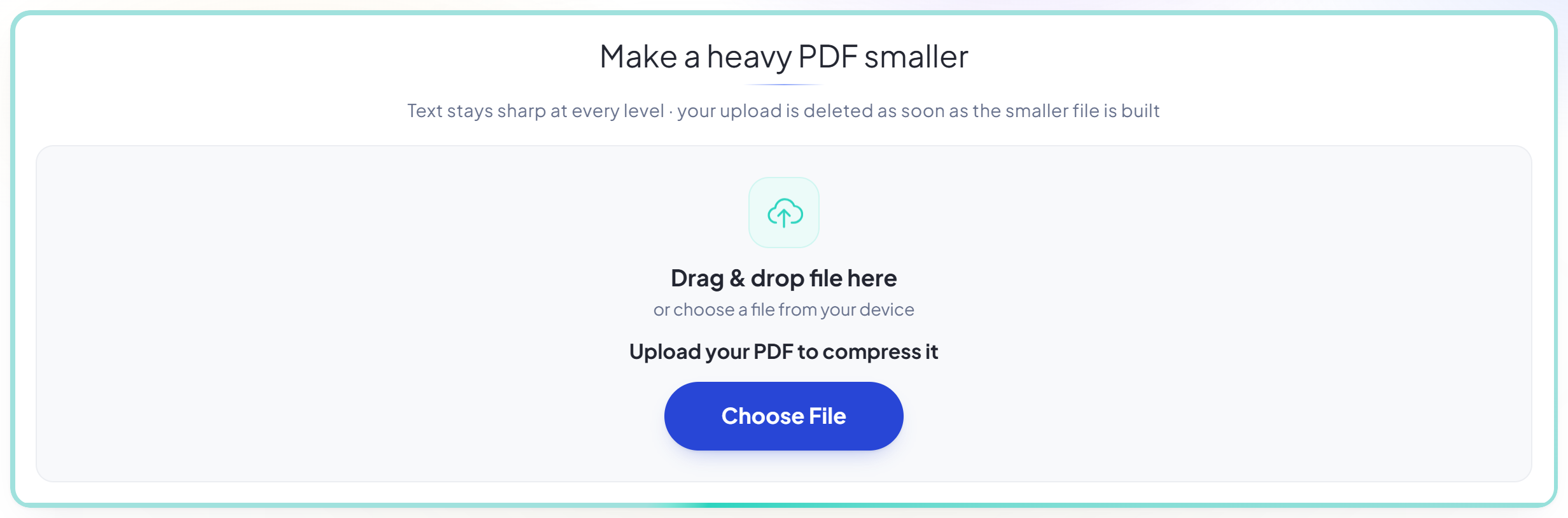
Upload your PDF
Drag your file onto the upload panel, or click it to pick one from your device. Nothing is sent anywhere until you start the job, and the working copy is deleted the moment it finishes.
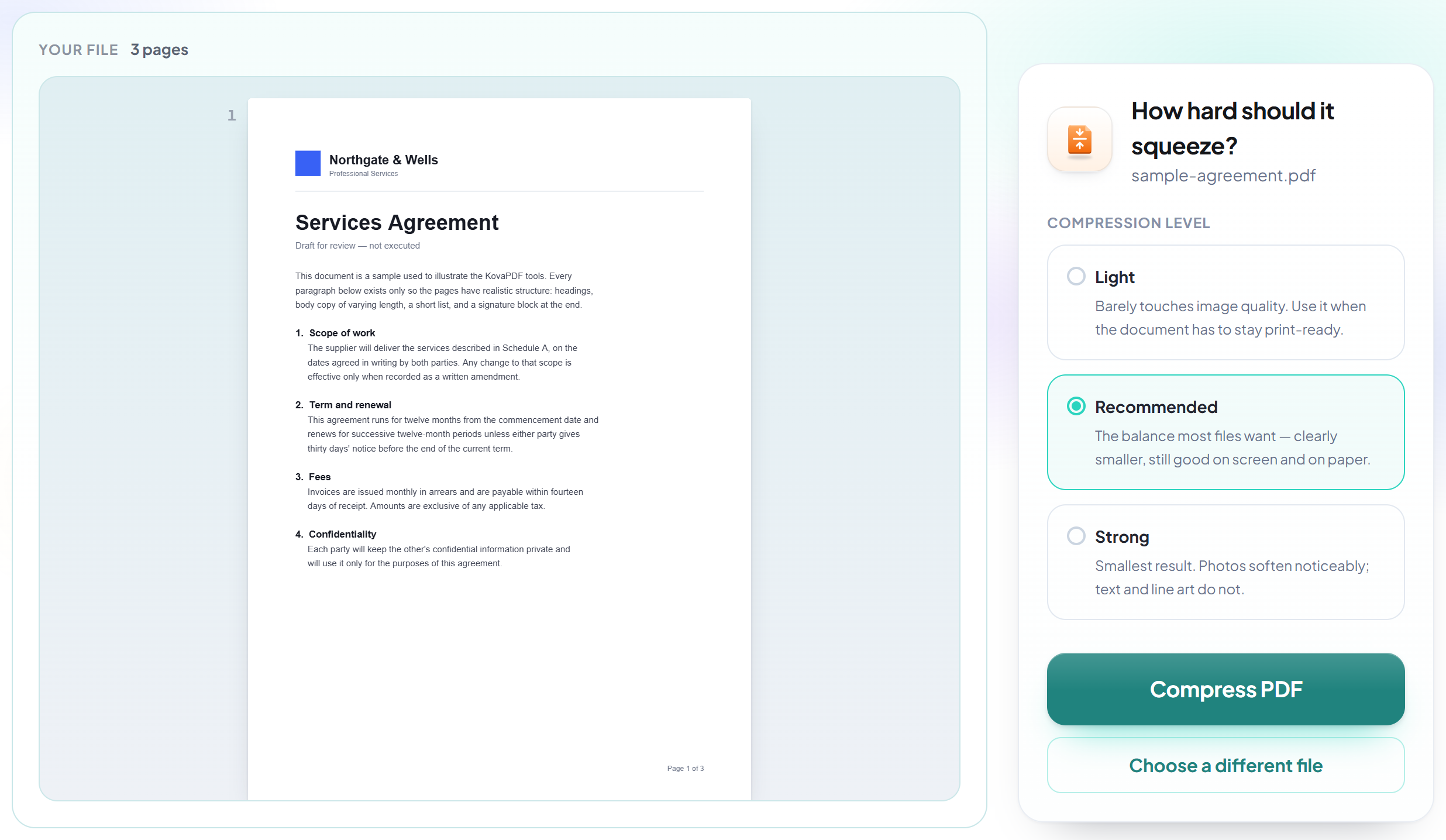
Start the compression
Images are resampled and redundant data is stripped while the text stays vector-sharp, so the document still prints cleanly at full size.
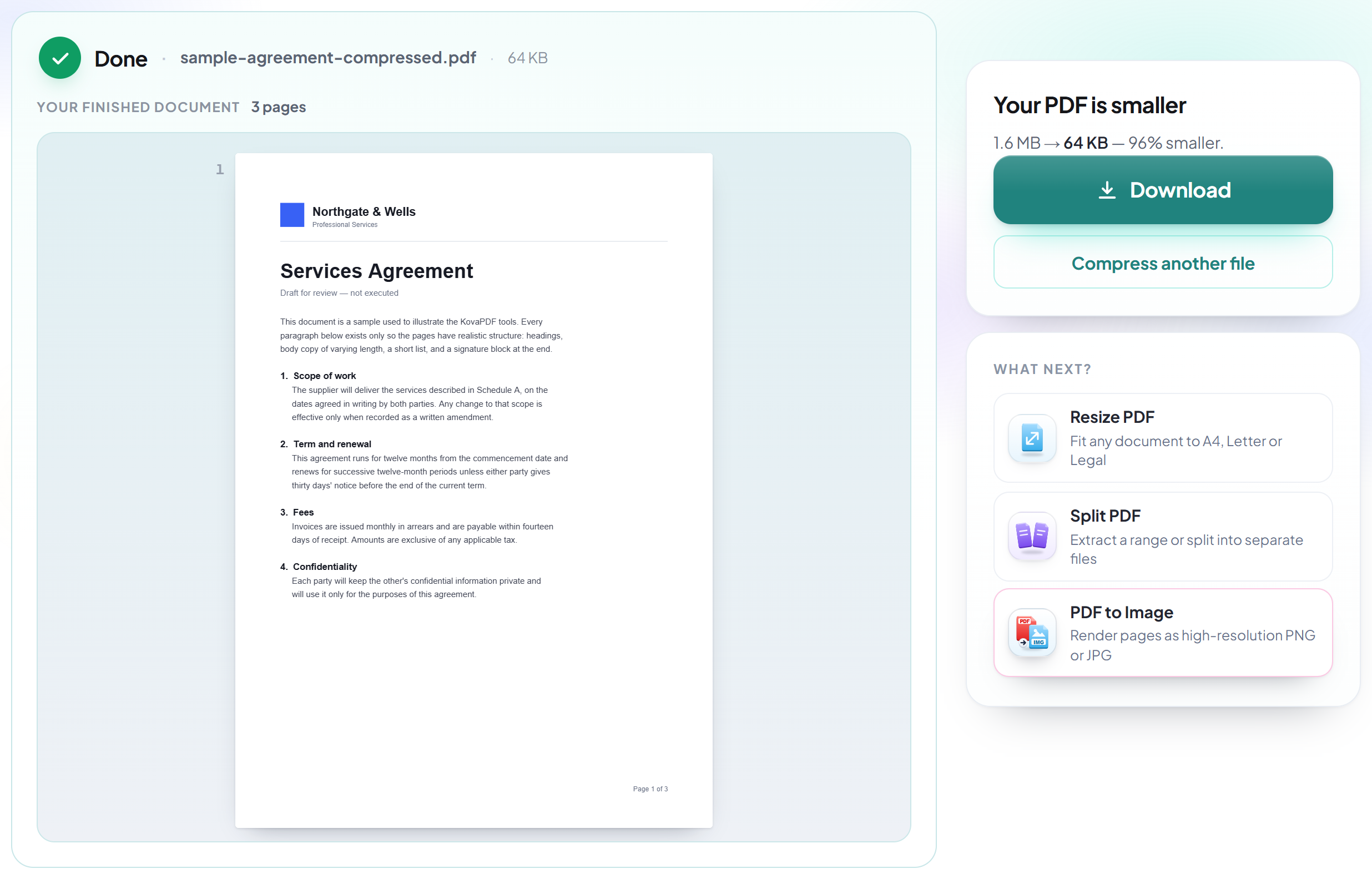
See the saving and download
You are shown the before and after size and the percentage saved, so you can judge whether the trade was worth it. Your original stays untouched on your own device either way.
How to compress a PDF
Make a heavy document small enough to email, without turning the text to mush.
Upload your PDF
Drag your file onto the upload panel, or click it to pick one from your device. Nothing is sent anywhere until you start the job, and the working copy is deleted the moment it finishes.
Start the compression
Images are resampled and redundant data is stripped while the text stays vector-sharp, so the document still prints cleanly at full size.
See the saving and download
You are shown the before and after size and the percentage saved, so you can judge whether the trade was worth it. Your original stays untouched on your own device either way.
Frequently asked questions about Compress PDF
How much smaller will my file get?
It depends entirely on the contents. Image-heavy documents and scans routinely drop by 80–95%. A text-only PDF is already near its minimum size and may not shrink at all.
Will the text become blurry?
No. Text is stored as vector instructions, not pixels, so it stays sharp at any zoom and prints at full quality. Only embedded photographs and scans are resampled.
What if the compressed file is bigger?
That happens with already-optimised files, because the document structure gets rewritten. The tool tells you when it occurs — keep your original, it is the better copy.
Is it free?
Yes. Every tool works without paying and without an account. Files can be up to 200 pages and 80 MB, and a run that fails costs you nothing.
Do I need to create an account?
No. All tools work without signing in. An account raises your hourly allowance and lets you see what you have processed.
What happens to my file?
It travels over an encrypted connection into a directory created for that single request, is processed, is returned to you, and the working copy is deleted as the request finishes. We keep a record that an operation ran — never the filename or the contents.
Compress PDF guides and articles
Step-by-step
Related tools
All PDF tools · 5 step-by-step guides · How your files are handled