Reduce PDF Size on iPhone
Pick the PDF from Files, tap Compress, save the smaller copy. All in Safari, no app to install.
- Free to use
- Works on any device
- Deleted after processing
- Text stays vector-sharp
- Sized for email
- Every page kept
- The original is untouched
Choose the PDF on your iPhone to make smaller
Text stays sharp at every level · your upload is deleted as soon as the smaller file is built
Drag & drop file here
or choose a file from your device
Everything Compress PDF can do
Make a PDF file lighter for email, upload or storage by re-encoding the images inside it, while every page stays. Free, in your browser.
How hard it squeezes
- Light: barely touches image quality, so the document stays print-ready
- Recommended: clearly smaller, still good on screen and on paper
- Strong: the smallest result, made for photo-heavy documents
- To a size: 100 KB, 200 KB, 500 KB, 1 MB or a size you type
- Only the images inside are resampled
What stays sharp
- Text stays vector text, not a picture of text
- Fonts stay embedded, so it opens the same everywhere
- Line art and diagrams keep their clean edges
- Every page kept, and the page count stays the same
- Page size, orientation and order all unchanged
The size you end up with
- The before and after size, both shown on the result screen
- The percentage saved, measured from the two real files
- When a size limit cannot be reached, the smallest size it could make, said plainly
- Your original file stays exactly as it is on your computer
- One compressed PDF to download, named after your document
How it works
Reduce PDF size on iPhone in three steps
Tap the box
Choose the PDF in Files: On My iPhone, iCloud Drive or Downloads.
Recommended is chosen
Tap Strong for the smallest file, or To a size and type the limit an app or form asked for.
Download the smaller PDF
Safari saves it in Files, in Downloads, ready to attach or upload.
Reduce PDF size on iPhone: a visual walkthrough
The three screens you go through, photographed on this page with a two-page PDF of phone photos, the kind of file that is usually too big to send.
Choose the PDF from Files
Tap the box and Safari opens Files. Look in Downloads for something you saved from Mail or the web, or in iCloud Drive and On My iPhone.

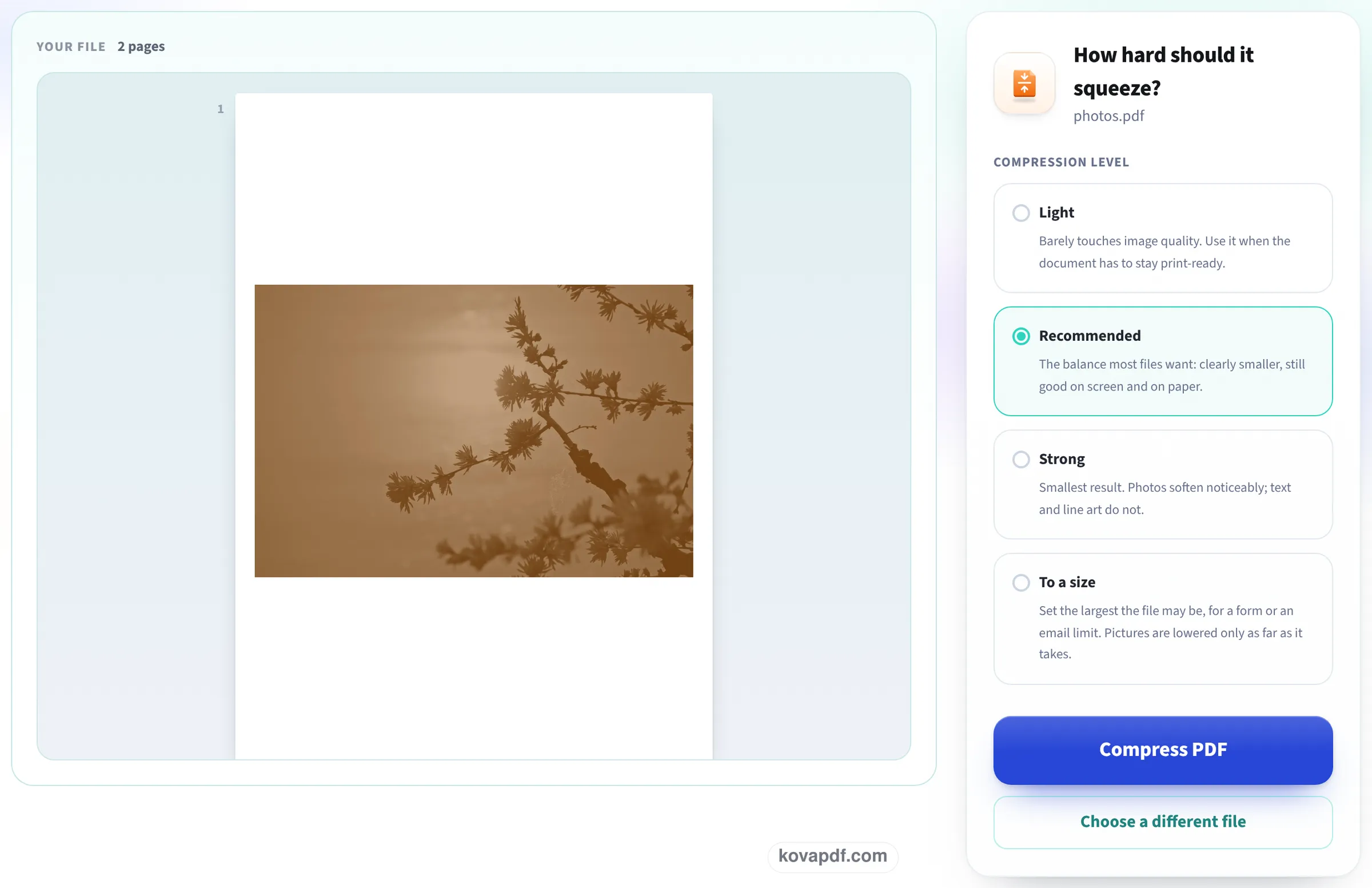
Keep Recommended, or pick another level
The first page appears beside the levels. Recommended is selected and suits email and most forms; tap Strong for the smallest file or To a size for an exact limit.
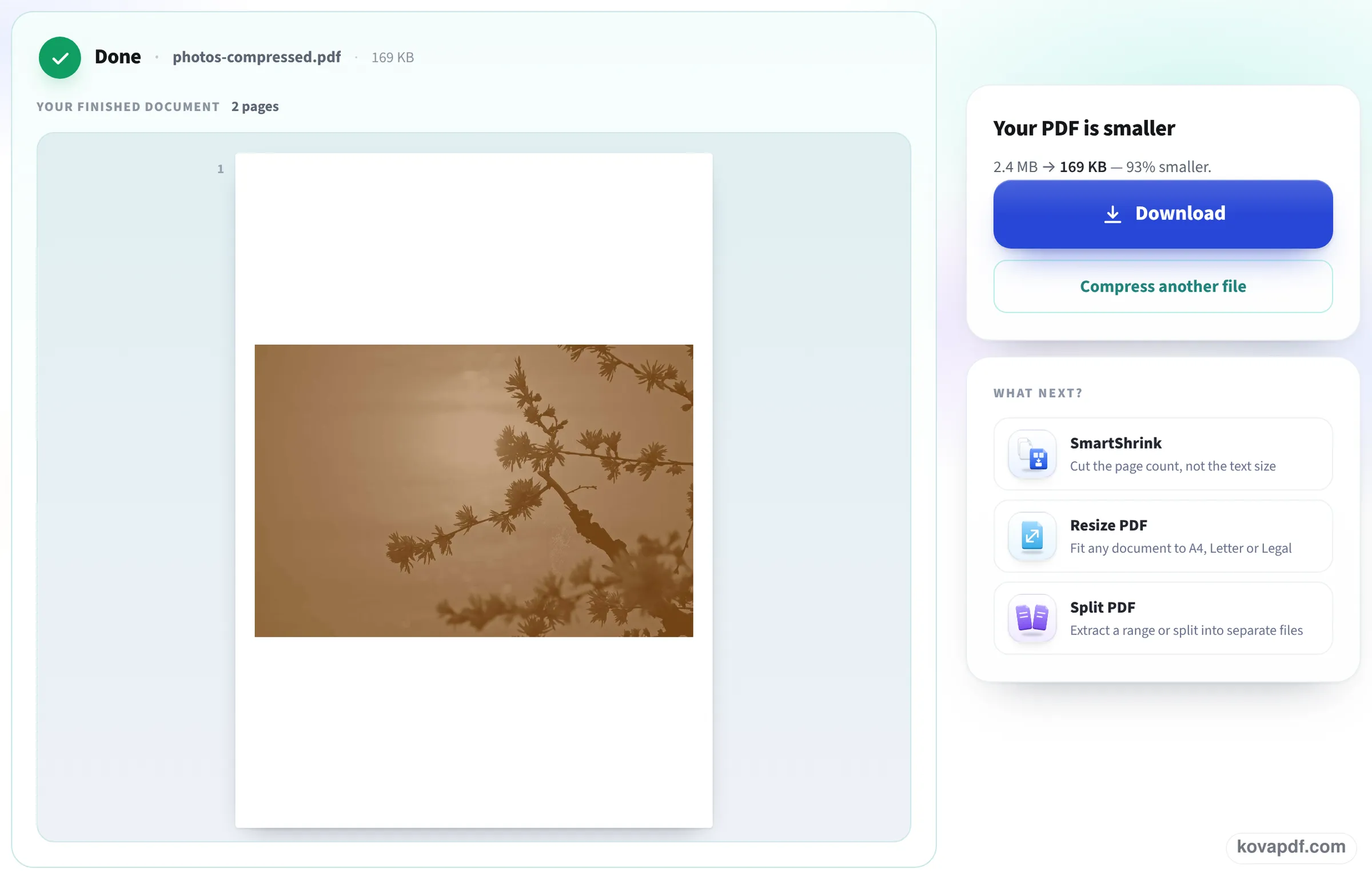
Check the new size and save it
The result gives the size before and after. Tap Download and the smaller PDF goes to Downloads in Files, ready to attach.
What we compressed at iPhone screen size
We ran this page in a 390 × 844 window with a PDF made from four phone-size photos, and compared other files at each level on the same tool. Measured on October 22, 2026.
| Original | Recommended | Strong | |
|---|---|---|---|
| 4 phone photos (3840 px), as made on Convert iPhone photos to PDF | 6.09 MB | 532 KB (photos now 150 DPI) | not run |
| 1-page color scan | 1.29 MB | 134 KB | 50 KB |
| 3-page gray scan | 4.53 MB | 429 KB | 158 KB |
On the phone-size window, the upload box and the Compress button fit on the first screen. The photo PDF took 2.1 seconds from tapping the button to the download being ready.
On Recommended, the four photos looked the same on screen as before (0.3% of pixels changed noticeably on the first page). Their pixel count dropped, which only shows if you zoom far in or print a photo large.
Checked again on 24 October
A new PDF of four HEIC phone photos (made on Convert iPhone photos to PDF), dropped on this page as it opens and compressed with the button. We opened the download and measured every photo inside. Measured on October 24, 2026.
| Original | Recommended | Photos inside | Visible change | Ready in | |
|---|---|---|---|---|---|
| 4 phone photos, A4 pages | 6.50 MB | 554 KB (91% smaller) | 150 DPI, 1140 px wide on a landscape photo | 0.14% of pixels | 3.1 s |
The same four pages came back in the same order. The photos lost pixels you only miss when printing large; on screen the pages look as before.
Why Compress in the Files app does not help
Touching and holding a PDF in Files and choosing Compress makes a ZIP archive, not a smaller PDF. A ZIP of a PDF is barely smaller, because PDFs are already packed, and many forms and apps will not accept a ZIP at all.
Some PDF apps have their own Reduce or Optimize option, often behind a subscription. This page does the job in Safari for nothing, and tells you the new size before you send the file.
Sending a big PDF from your iPhone
After compressing:
- Mail: tap the attachment button and choose Attach File, then Downloads.
- Upload forms in Safari: when the form asks for the file, tap Browse and pick the compressed copy in Downloads.
- Still too big? Use To a size and type the limit, or split the PDF into two files with Extract pages.
- Going to compress photos anyway? Choosing a size limit when you make the PDF from photos saves a step.
What to expect
PDFs of photos and scans usually lose 80 to 95% of their size on Recommended. A PDF of plain text, such as an e-ticket or a letter from a word processor, is usually small already and will barely change; the result screen says so honestly.
Read next: Compress PDF on Mac · Convert iPhone photos to PDF · Compress PDF for email
Frequently asked questions about Reduce PDF size on iPhone
How do I make a PDF smaller on my iPhone?
Open this page in Safari, tap the box, choose the PDF in Files and tap Compress. The smaller PDF is saved in Files, in Downloads.
Can the Files app reduce PDF size?
Not really. Compress in Files makes a ZIP archive, which is hardly smaller and is not a PDF. You need a tool that lowers the resolution of the pictures inside, which is what this page does.
Is there a free way without an app?
Yes, this page. It runs in Safari, and the free plan covers occasional files.
How small will my PDF get?
It depends on what is inside. Photos and scans shrink a lot: our two photo PDFs of about 6 MB came down to 532 KB and 554 KB. Text-only PDFs are already small and change little.
My form says the PDF must be under 2 MB. What do I do?
Choose To a size and type 2000 (the size box counts in KB). The tool lowers the picture resolution only as far as it takes to fit.
Is my PDF uploaded?
Yes, to our server, over an encrypted connection. It is deleted as soon as the smaller copy has been built.
Reduce PDF size on iPhone guides and articles


Related tools
All PDF tools · 15 step-by-step guides · How your files are handled
Also: Compress PDF · Compress PDF on Mac