Enhance a Scan or Photo
Sharpen, denoise and lift the contrast on a scanned page or a blurry photo. Takes a scanned PDF or a JPG, PNG or WebP image — to make a scanned PDF searchable instead, use OCR PDF.
- Free to use
- Works on any device
- Nothing to install
- Contrast lifted
- Background speckle cleared
- Takes a PDF or an image
- Text left where it was
PDF · JPG · PNG
Clean up a scan or a photo of a page
PDF, JPG, PNG or WebP · your upload is deleted as soon as the cleaned-up file is built
Drag & drop file here
or choose a file from your device
How it works
Enhance Scan in three steps
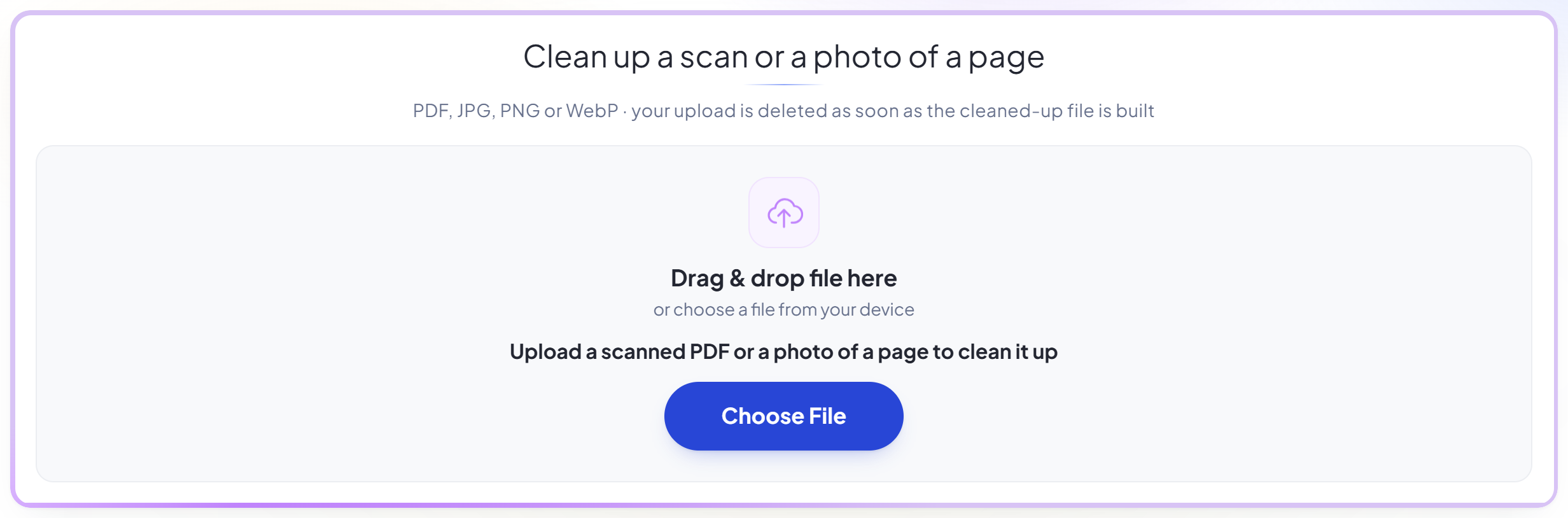
Upload your scan
Drag your file onto the upload panel, or click it to pick one from your device. Nothing is sent anywhere until you start the job, and the working copy is deleted the moment it finishes.
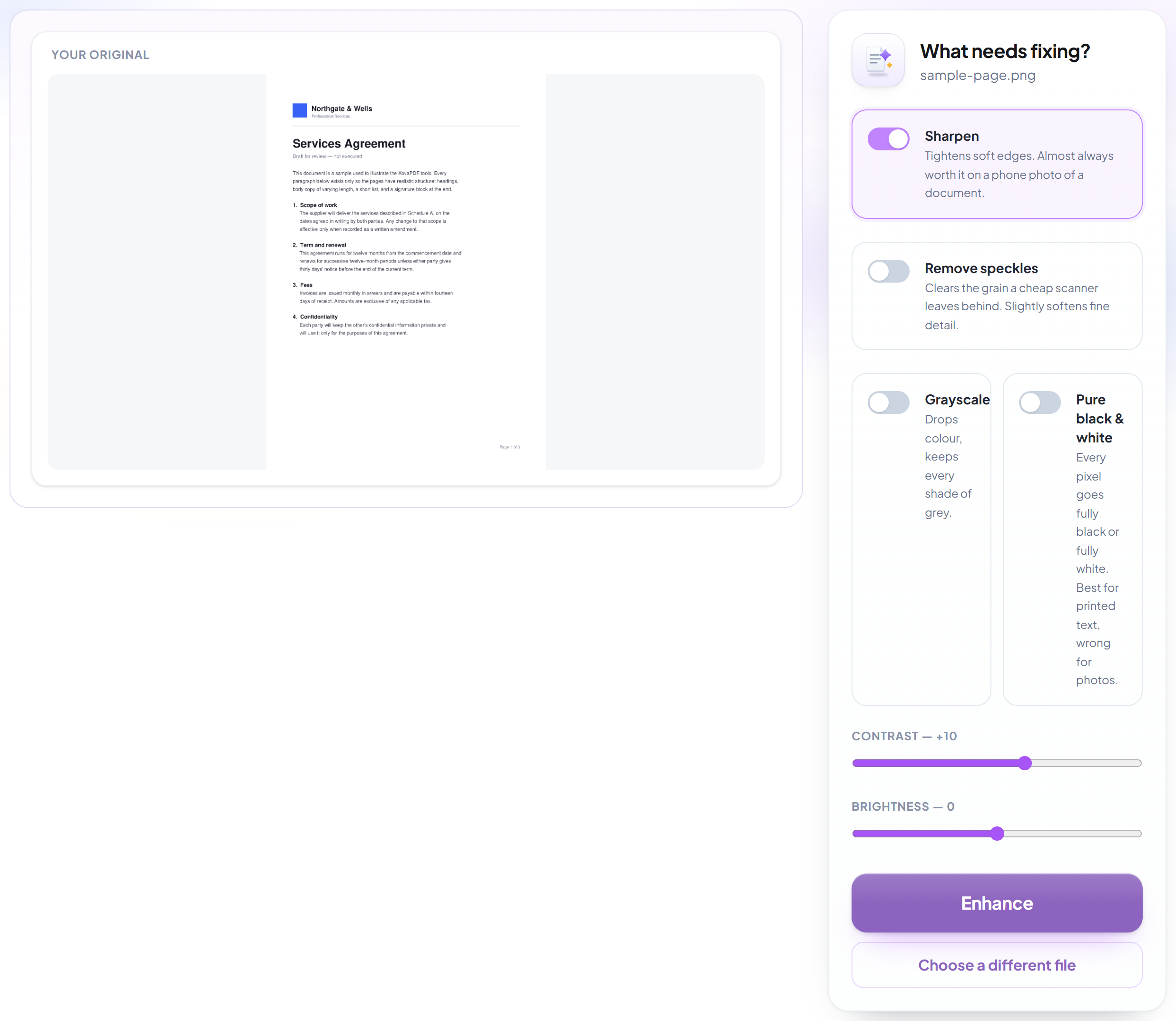
Let it clean the pages
Contrast is lifted, background speckle is removed and faint text is sharpened, which also makes text recognition noticeably more accurate afterwards.
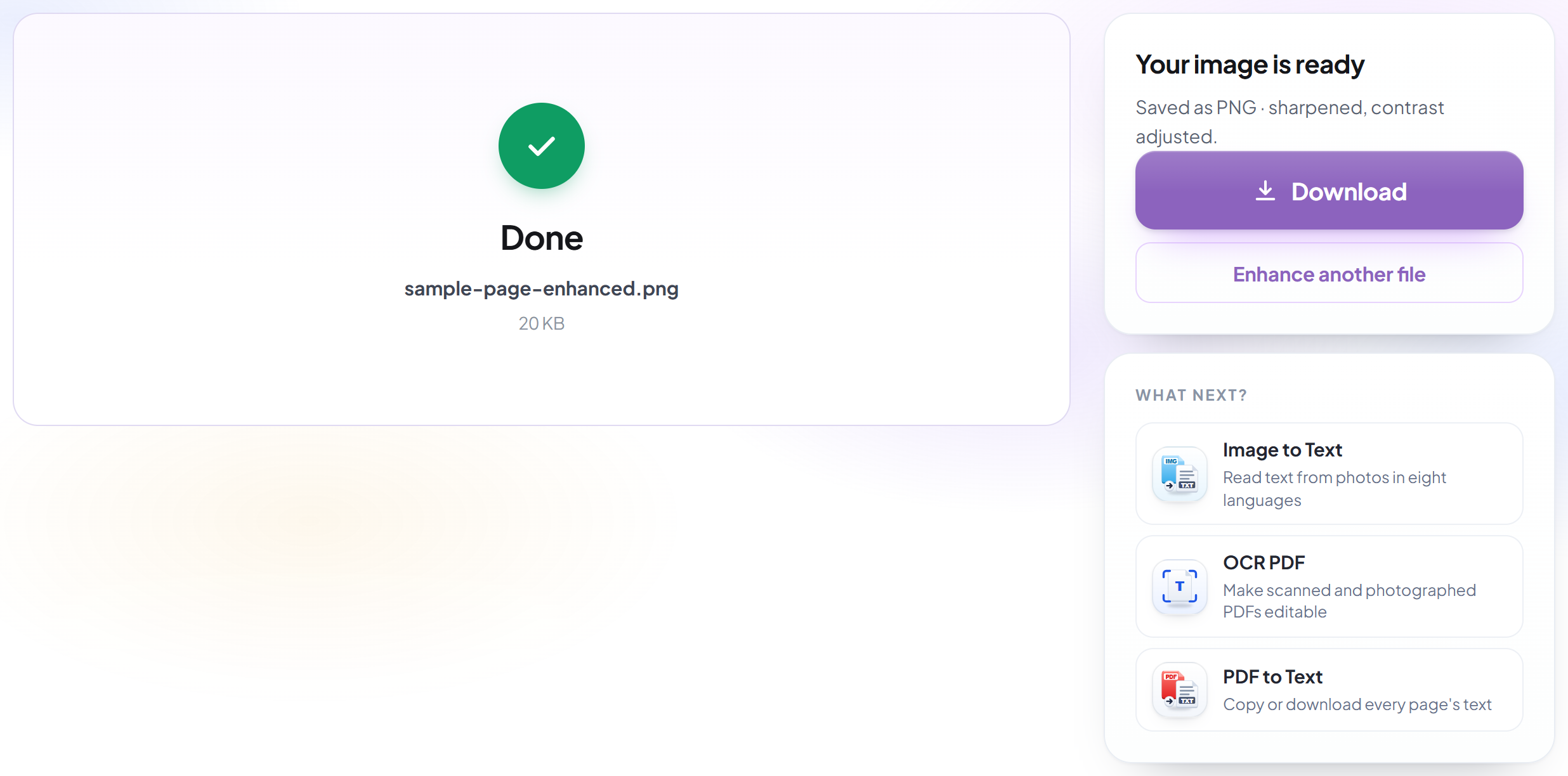
Download the clean copy
You keep both: the enhanced document downloads as a new file and your original is untouched.
How to enhance a scanned PDF
Clean up a grey, speckled or crooked scan so it reads — and recognises — properly.
Upload your scan
Drag your file onto the upload panel, or click it to pick one from your device. Nothing is sent anywhere until you start the job, and the working copy is deleted the moment it finishes.
Let it clean the pages
Contrast is lifted, background speckle is removed and faint text is sharpened, which also makes text recognition noticeably more accurate afterwards.
Download the clean copy
You keep both: the enhanced document downloads as a new file and your original is untouched.
Frequently asked questions about Enhance Scan
What does enhancing actually change?
It lifts contrast, clears background speckle and sharpens faint text, which makes a grey or unevenly lit scan easier to read.
Does it help text recognition?
Yes, noticeably. Cleaning a scan before running OCR is one of the most effective ways to improve accuracy.
Can I enhance a scanned PDF, or only an image?
Both. Upload a scanned PDF and every page is cleaned and returned as a PDF with the same page sizes. Upload a photo or a JPG, PNG or WebP scan and you get a cleaned image back.
What happens to a PDF that already has selectable text?
Cleaning a page means redrawing it, so text that was selectable becomes part of the picture. The words are still there to read but can no longer be selected or searched, and you are told when that applies to your file. Your original upload is never changed.
Is it free?
Yes. Every tool works without paying and without an account. Files can be up to 200 pages and 80 MB, and a run that fails costs you nothing.
Do I need to create an account?
No. All tools work without signing in. An account raises your hourly allowance and lets you see what you have processed.
What happens to my file?
It travels over an encrypted connection into a directory created for that single request, is processed, is returned to you, and the working copy is deleted as the request finishes. We keep a record that an operation ran — never the filename or the contents.
Enhance Scan guides and articles
Related tools
All PDF tools · 5 step-by-step guides · How your files are handled