Edit PDF
Add text, images, shapes, highlights and signatures, then rotate, delete, reorder or crop pages — every edit is saved directly into your PDF.
- Free to use
- Works on any device
- Nothing to install
- Type straight onto the page
- Images, shapes and signatures
- Pages reordered or removed
- Saves a real PDF
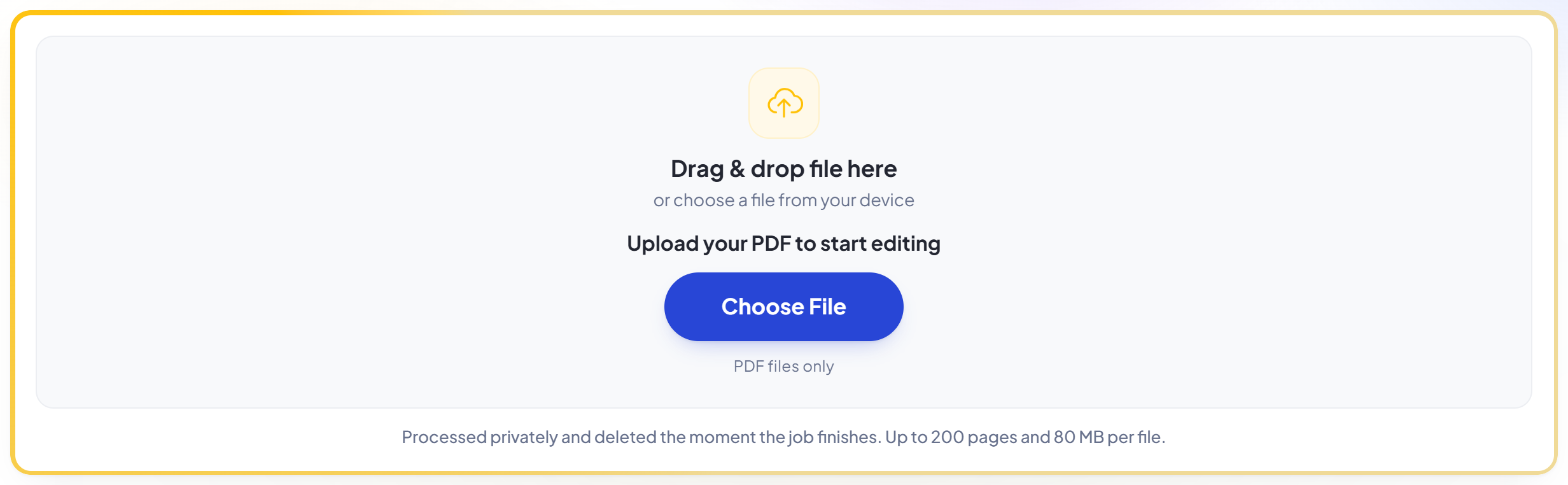
Drag & drop file here
or choose a file from your device
Upload your PDF to start editing
PDF files only
Processed privately and deleted the moment the job finishes. Up to 200 pages and 80 MB per file.
How it works
PDF Editor in three steps
Upload your PDF
Drag your file onto the upload panel, or click it to pick one from your device. Nothing is sent anywhere until you start the job, and the working copy is deleted the moment it finishes.
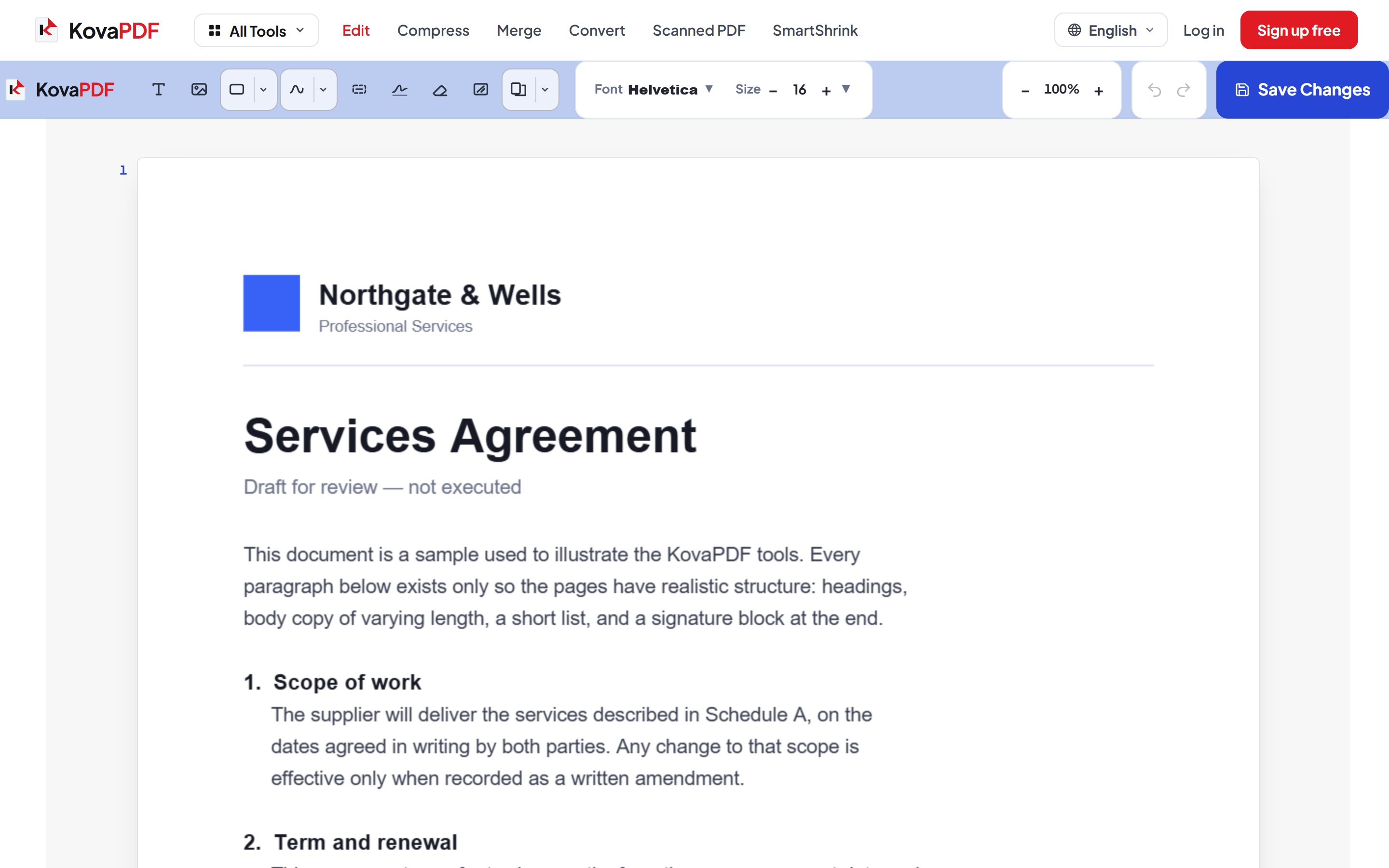
Edit it directly on the page
The document opens in the editor with your text already selectable. Click any line to retype it, or use the tool rail to add text, images, shapes, highlights and signatures anywhere you like.
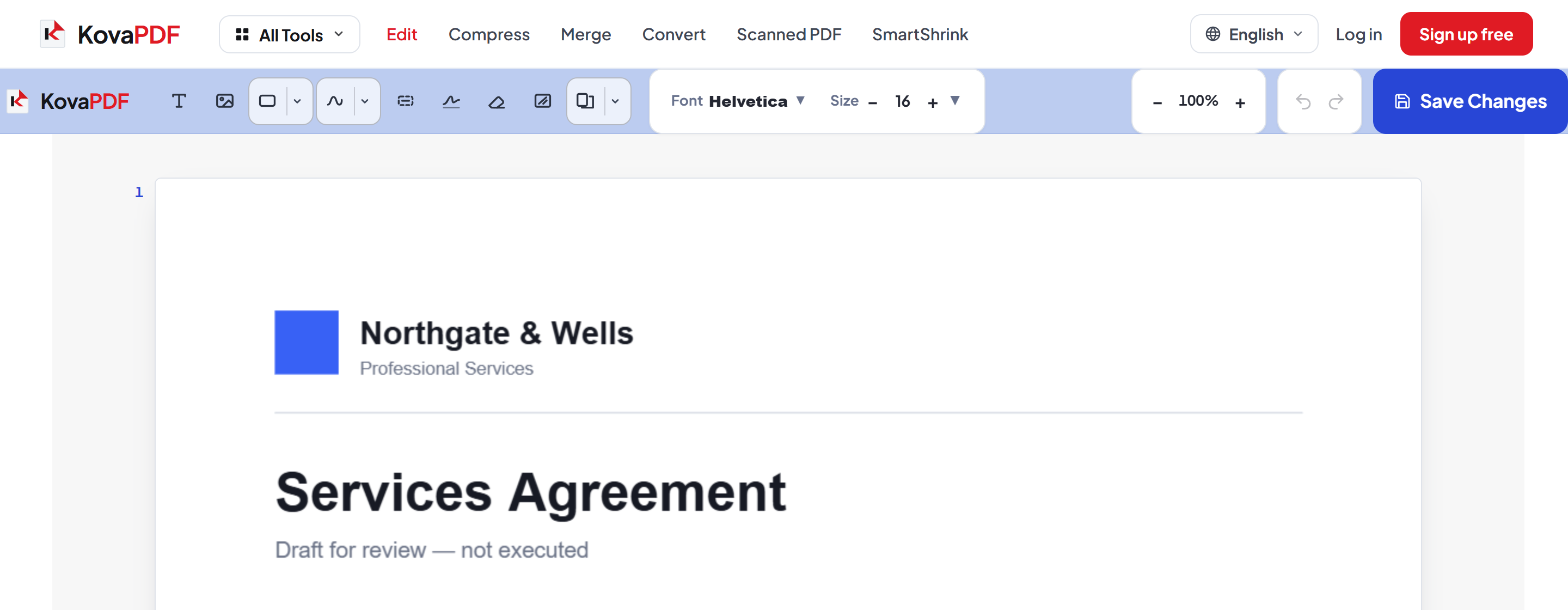
Save and download
Save Changes writes your edits into the document itself and gives you a preview before the download. Fonts stay embedded, so the file opens correctly everywhere.
How to edit a PDF online
Three steps, no installation, and a real PDF at the end — not a picture of one.
Upload your PDF
Drag your file onto the upload panel, or click it to pick one from your device. Nothing is sent anywhere until you start the job, and the working copy is deleted the moment it finishes.
Edit it directly on the page
The document opens in the editor with your text already selectable. Click any line to retype it, or use the tool rail to add text, images, shapes, highlights and signatures anywhere you like.
Save and download
Save Changes writes your edits into the document itself and gives you a preview before the download. Fonts stay embedded, so the file opens correctly everywhere.
Frequently asked questions about PDF Editor
Can I edit the existing text in a PDF?
Yes. Click any line and retype it — the editor matches the original font, size and position so a correction does not stand out. If clicking does nothing, the page is a scan with no text layer; use the OCR PDF tool for that.
Do my edits actually save into the PDF?
Yes. Changes are written into the file itself with fonts embedded, so the downloaded PDF opens correctly in Acrobat, Preview, Chrome and anywhere else.
Can I sign a PDF?
Yes. The Signature tool lets you draw a signature and place it anywhere on the page. It is a visual signature drawn into the document, not a cryptographic digital signature certificate.
Is it free?
Yes. Every tool works without paying and without an account. Files can be up to 200 pages and 80 MB, and a run that fails costs you nothing.
Do I need to create an account?
No. All tools work without signing in. An account raises your hourly allowance and lets you see what you have processed.
What happens to my file?
It travels over an encrypted connection into a directory created for that single request, is processed, is returned to you, and the working copy is deleted as the request finishes. We keep a record that an operation ran — never the filename or the contents.
PDF Editor guides and articles
Step-by-step
Related tools
All PDF tools · 5 step-by-step guides · How your files are handled