Fill a PDF form on iPhone
Tap a box and type. Text boxes and check boxes work on the phone, and the saved form can still be edited later.
- Free to use
- Works on any device
- Nothing to install
- Type straight onto the page
- Images, shapes and signatures
- Pages added or removed
- Saves a real PDF
Drag & drop file here
or choose a file from your device
Choose the PDF form on your iPhone
PDF files only
Deleted after processing. Up to 200 pages and 50 MB per file.
Everything the PDF Editor can do
Change what is on the page: the words already printed there, images, shapes, signatures and the pages themselves.
Text on the page
- Click any line and retype it in place
- Keeps the document's own embedded font while you edit
- Start a new text box anywhere on the page
- Sixteen typefaces and twenty sizes, Bangla included
- Bold, italic, underline, text colour and highlight
- Left, centre or right alignment, plus case changes
Images and signatures
- Place a PNG or JPEG anywhere on a page
- Draw a signature and drop it where you want it
- Knock out a white background in one click
- Halve opacity, duplicate, and change layer order
Drawing and marks
- Rectangle, circle, line, arrow, checkmark and crossmark
- A freehand pen and a highlighter
- Whiteout to cover anything already printed
- An eraser that removes text, shapes and drawings alike
Pages
- Reorder, rotate and duplicate pages from thumbnails
- Delete pages, or insert blank ones anywhere
- Watermark, header and footer on the same toolbar
While you work
- Undo and redo with Ctrl+Z
- Zoom from 50% to 300%
- Read every page in a preview before downloading
How it works
Fill PDF form on iPhone in three steps
Tap the box and pick the form
Choose it in Files, or one you saved from an email.
Tap a field and type
Each box of a fillable form opens for typing; tap check boxes to tick them. No boxes? Tap the page and type anywhere.
Save
Tap Save and download the filled form to Files.
Fill PDF form on iPhone: a visual walkthrough
A volunteer sign-up form filled in a phone window turned sideways, the layout Safari gets on an iPhone: choosing the form, typing in its boxes, and saving it.
Pick the form
Tap Choose File and pick the PDF in Files. A fillable form opens with its boxes ready: every field becomes a box you can tap.

Tap each box and type
We tapped Full name, Email, Phone, Date of birth and Address in turn and typed into each, then ticked Weekends and Evenings. The keyboard goes away when you tap outside the form.
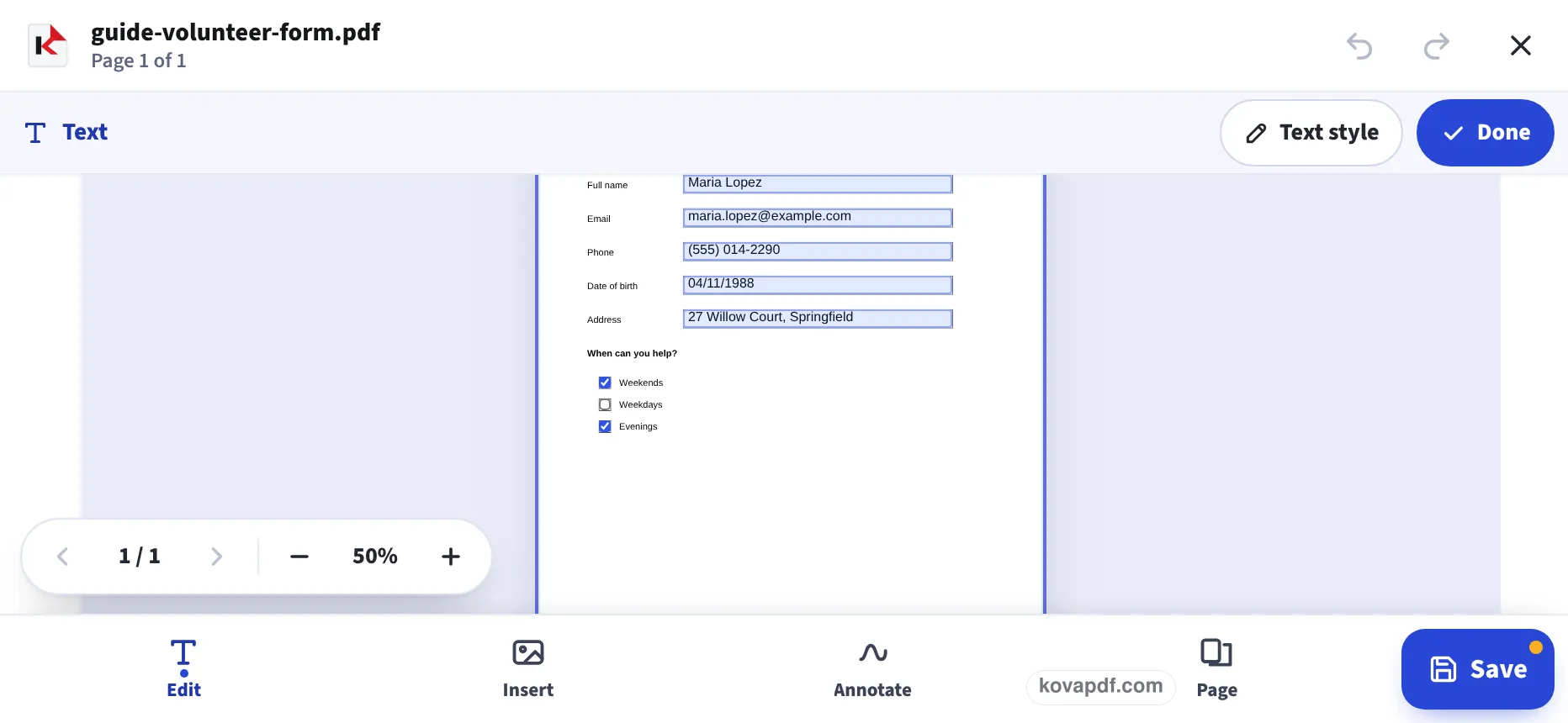
Tap Save
Save writes the answers into the form's own fields and opens the filled form, ready to download to Files. Open it again later and every answer can still be changed.
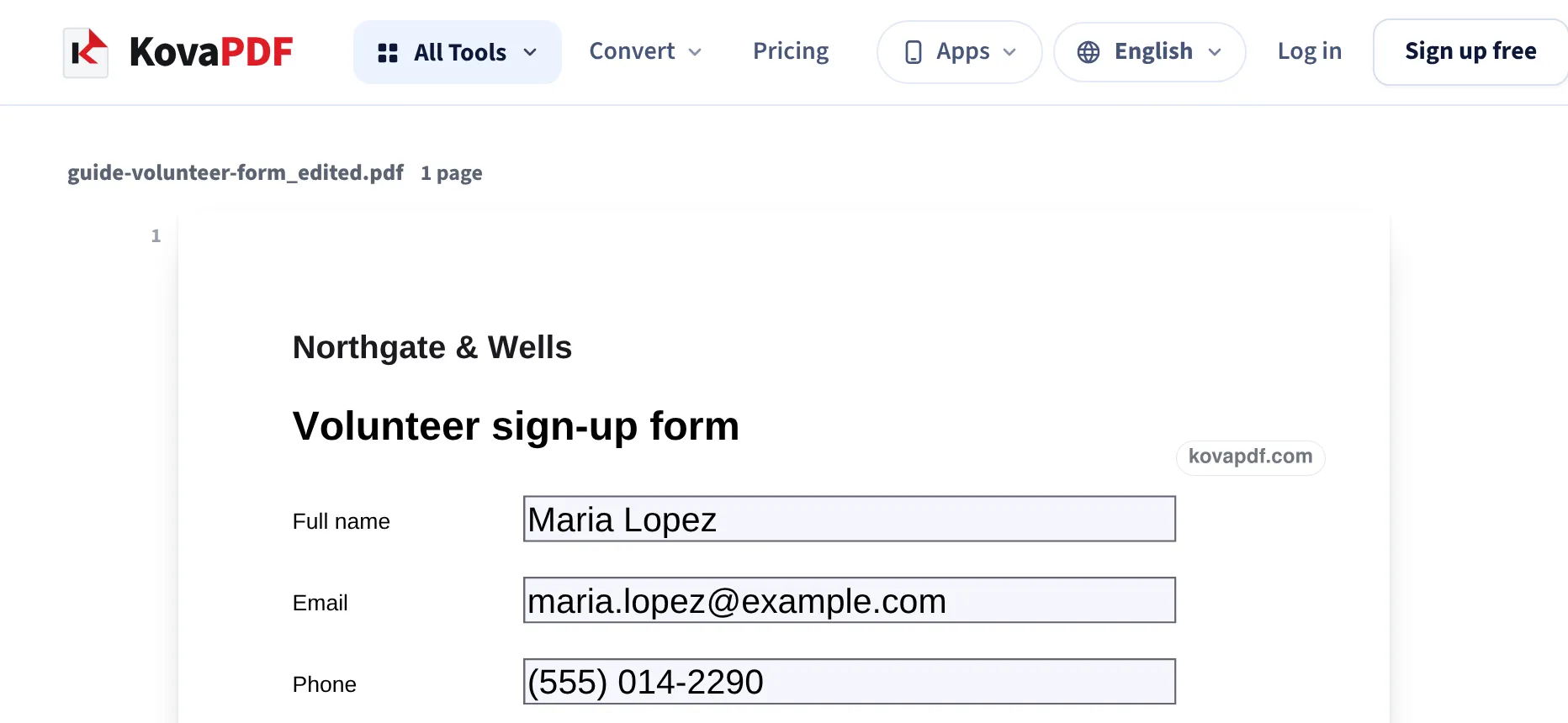
A form filled at iPhone size, then read back
We made a volunteer sign-up form with five text boxes and three check boxes, filled it on this page in a 390 × 844 window, tapped Save and read the fields of the saved PDF. A second run in a 1366 pixel window gave the same file. Measured on October 24, 2026.
| Field | Typed on the phone | Read back from the saved PDF |
|---|---|---|
| Full name | Maria Lopez | Maria Lopez |
| maria.lopez@example.com | maria.lopez@example.com | |
| Phone | (555) 014-2290 | (555) 014-2290 |
| Date of birth | 04/11/1988 | 04/11/1988 |
| Address | 27 Willow Court, Springfield | 27 Willow Court, Springfield |
| Weekends / Weekdays / Evenings | ticked / left / ticked | Yes / Off / Yes |
All eight fields came back exactly as entered, and they were still form fields: the saved PDF can be opened again and corrected. The empty form was 10,928 bytes and the filled one 8,847 bytes, because the editor writes a clean copy.
Typing on a small screen
A few habits make forms quicker on a phone:
- Tap the next box directly rather than hunting for a Next key.
- Dates: type them the way the form shows, for example MM/DD/YYYY on US forms.
- If the form also needs a signature, open the saved PDF in Sign a PDF on iPhone.
Forms without boxes
Many forms are just printed lines, often because they were scanned. Tap on the line where the answer belongs and type: the editor adds your text there. Use a size close to the printed text, usually 10 or 11 pt, and black or dark blue.
Why the boxes stay fillable
Some apps flatten a form when saving: the answers become part of the page and can no longer be corrected. Here the answers are saved into the form's own fields, which is what most offices and online systems expect, and you can open the file again to fix a typo. Our page Fill out a PDF form online goes through the same checks on a computer.
Read next: Fill out a PDF form online · Sign a PDF on iPhone · Edit a PDF on iPhone
Frequently asked questions about Fill PDF form on iPhone
How do I fill out a PDF form on my iPhone?
Open this page in Safari, pick the form, tap each box and type, tick the check boxes, then tap Save. The filled form is saved in Files.
Do I need an app to fill PDF forms on iPhone?
No. It works in Safari with nothing to install.
What if the PDF has no fillable boxes?
Tap the page where the answer goes and type. The text is added on top of the form.
Can I change my answers later?
Yes. The answers are saved in the form's fields, so opening the PDF again lets you correct them.
Can I sign the form on my phone too?
Yes. Open the filled PDF on Sign a PDF on iPhone and draw or type your signature.
Is my form uploaded?
The form is filled in your browser. When you tap Save it is built on our server and deleted as soon as your download is ready.
Fill PDF form on iPhone guides and articles


Related tools
All PDF tools · 15 step-by-step guides · How your files are handled
Also: PDF Editor · Fill out a PDF form online