Edit a PDF on iPhone
Open the PDF in Safari, tap to type or change text, fill and sign, then tap Save. There is no app to install.
- Free to use
- Works on any device
- Nothing to install
- Type straight onto the page
- Images, shapes and signatures
- Pages added or removed
- Saves a real PDF
Drag & drop file here
or choose a file from your device
Choose the PDF on your iPhone to edit
PDF files only
Deleted after processing. Up to 200 pages and 50 MB per file.
Everything the PDF Editor can do
Change what is on the page: the words already printed there, images, shapes, signatures and the pages themselves.
Text on the page
- Click any line and retype it in place
- Keeps the document's own embedded font while you edit
- Start a new text box anywhere on the page
- Sixteen typefaces and twenty sizes, Bangla included
- Bold, italic, underline, text colour and highlight
- Left, centre or right alignment, plus case changes
Images and signatures
- Place a PNG or JPEG anywhere on a page
- Draw a signature and drop it where you want it
- Knock out a white background in one click
- Halve opacity, duplicate, and change layer order
Drawing and marks
- Rectangle, circle, line, arrow, checkmark and crossmark
- A freehand pen and a highlighter
- Whiteout to cover anything already printed
- An eraser that removes text, shapes and drawings alike
Pages
- Reorder, rotate and duplicate pages from thumbnails
- Delete pages, or insert blank ones anywhere
- Watermark, header and footer on the same toolbar
While you work
- Undo and redo with Ctrl+Z
- Zoom from 50% to 300%
- Read every page in a preview before downloading
How it works
Edit PDF on iPhone in three steps
Tap the box and pick the PDF
From Files, iCloud Drive, or a PDF you saved from Mail.
Tap to edit
Tap a line to change it, or tap empty space to type. Edit, Insert, Annotate and Page sit in the bar along the bottom.
Save
Tap Save, then download the edited PDF to Files.
Edit PDF on iPhone: a visual walkthrough
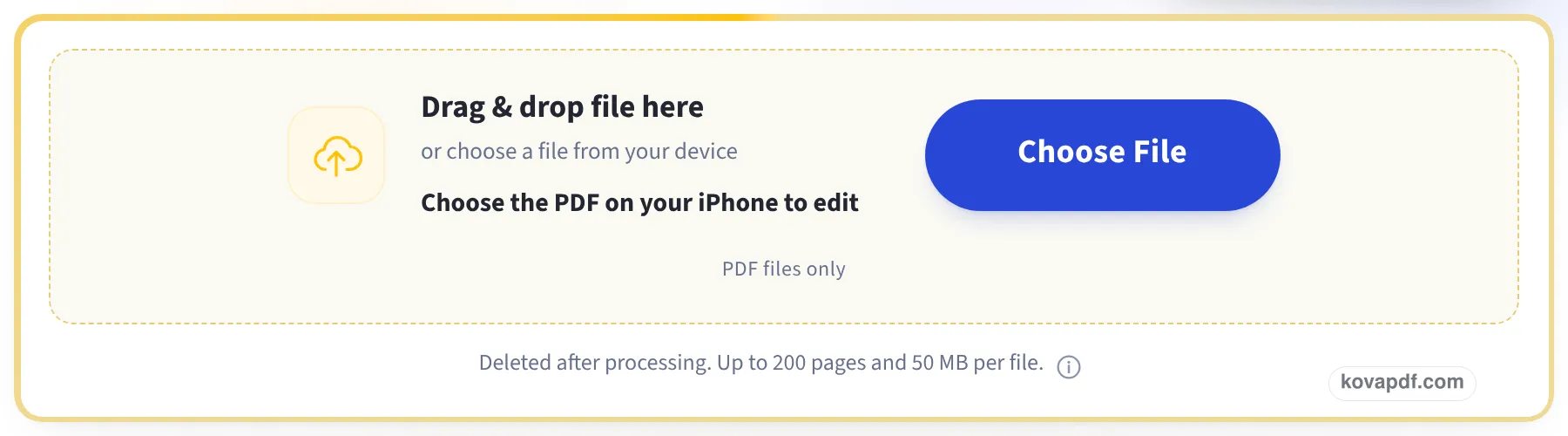
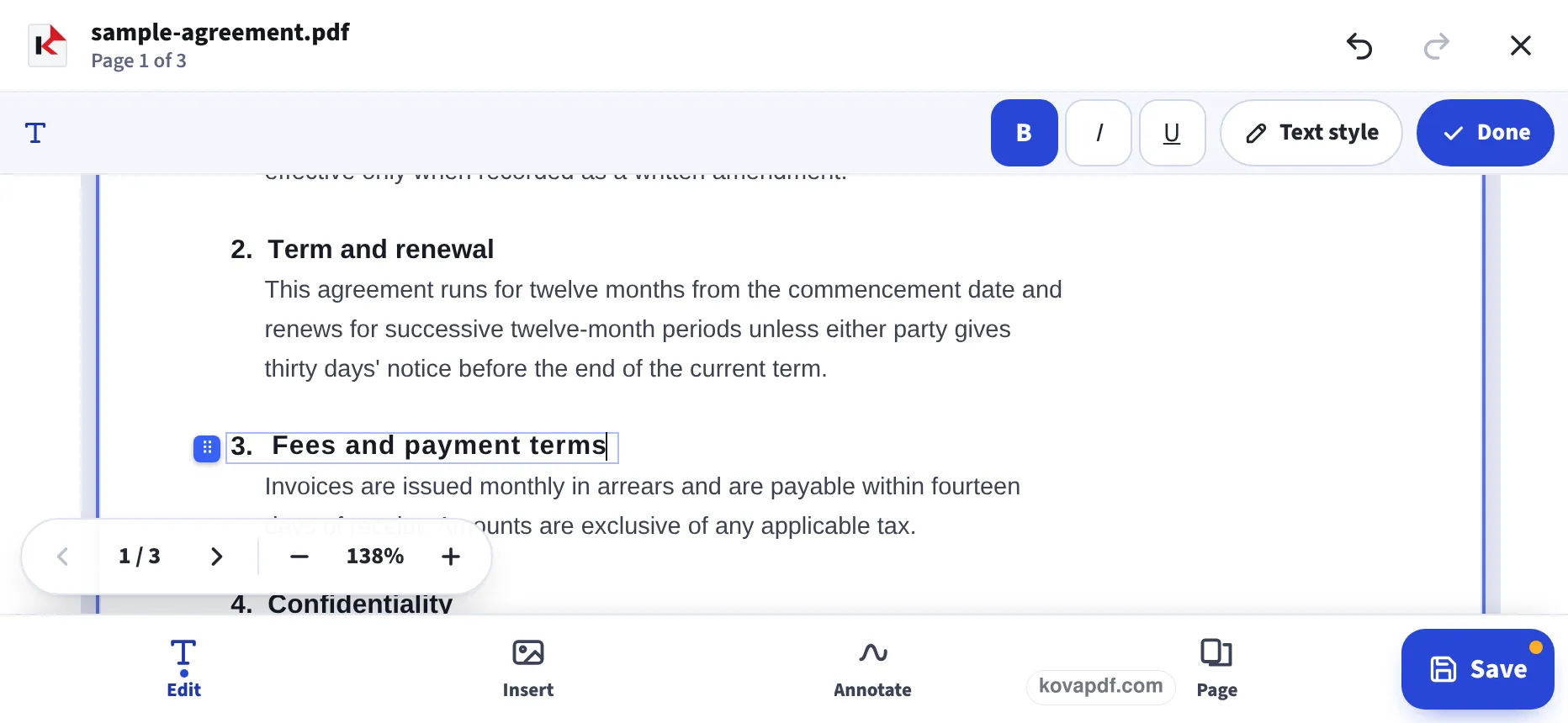
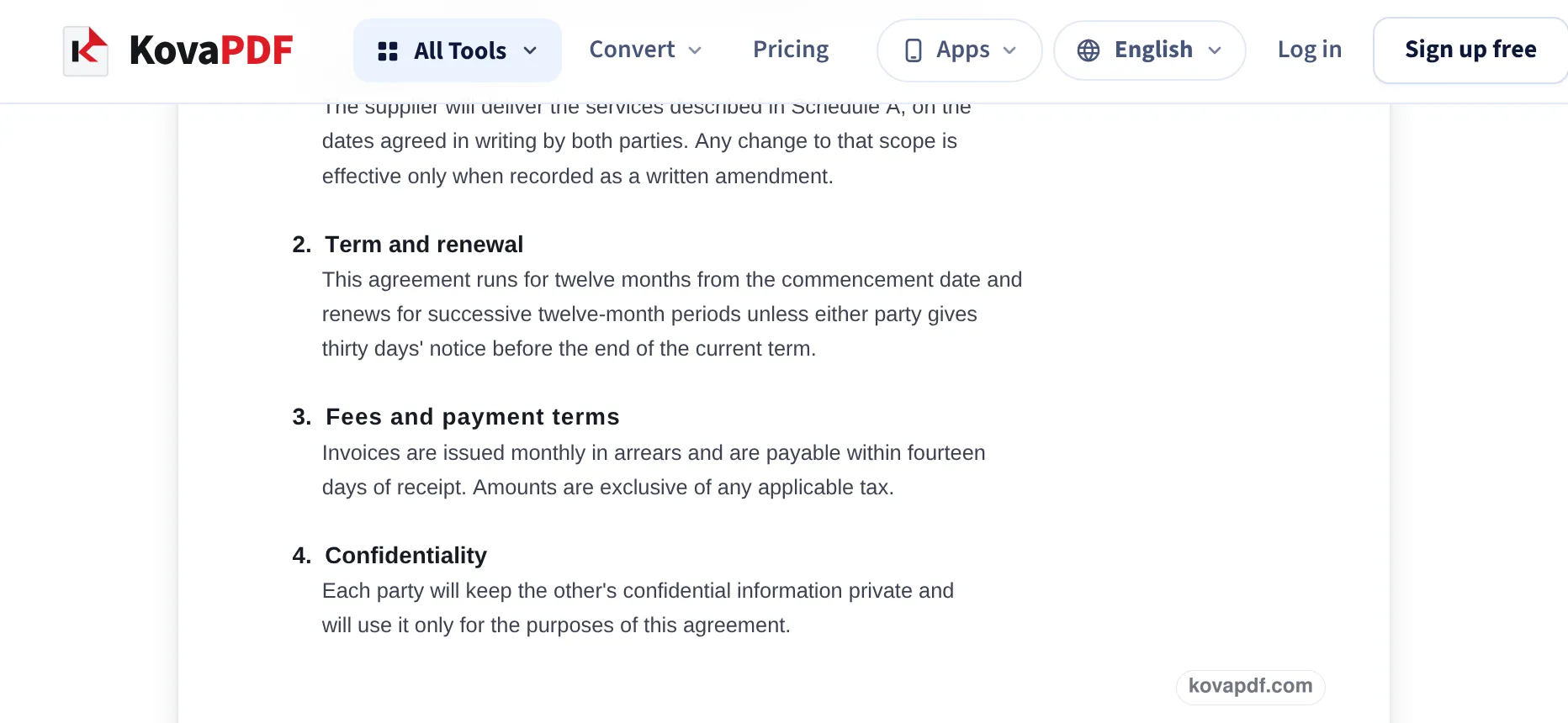
Taken in a phone window turned sideways, the layout Safari gets on an iPhone: the upload box, a clause heading of our sample agreement tapped and retyped, and the edited file ready to save.
Tap the box and pick the PDF
Tap Choose File and pick the document in Files. The editor fills the screen, with Undo, Redo and Close at the top and Save at the bottom right.
Tap a line and retype it
We tapped the heading 3. Fees and typed 3. Fees and payment terms. A small bar with bold, italic, underline and Text style opens above the page while you type; Done closes it.
Tap Save
Save builds the edited PDF and opens it, here at clause 3 with its new heading in place. Download PDF then puts the file in Files, in Downloads.
Edits made at iPhone size
We made these edits in a 390 × 844 window, the screen of a recent iPhone, on our own 3-page letter (6,246 bytes) and a fillable form, tapped Save and opened the downloaded PDFs. The same edits in a 1366 pixel window gave the same results. Measured on October 24, 2026.
| Edit on the phone | What the saved PDF contained | Size |
|---|---|---|
| Tap the date line and change 22 to 24 October 2026 | The old date gone; the new one in Times 12 pt like the letter | 7,309 bytes |
| Tap empty space and type Approved 24 Oct | The words as real, searchable text in Times 12 pt | 5,853 bytes |
| Fill a form: 5 text boxes, 3 check boxes | All 8 answers in the form's fields, still fillable | 8,847 bytes |
| Sign: type a name, pick a style | 520 × 112 px signature, page 1 only | 22,480 bytes |
| Sign: draw with a finger in the signing box | 332 × 99 px signature, page 1 only | 12,174 bytes |
Every edit made at phone size came out the same as on a desktop window, to within a few bytes.
Markup, and when it is not enough
The Markup button in Files and Mail lets you draw, add a text box and a signature, and recent iPhones can fill many forms too. That covers a lot, but Markup cannot change the words already in the PDF, and its text boxes are fiddly to size and place on a small screen.
This editor opens the PDF's own lines for editing, fills a form's real fields so it stays fillable, and keeps signature, name and date together in one panel.
Tips for editing on a phone
Small screens need a little care:
- Keep long edits for the iPad or a computer; the phone is best for quick fixes, forms and signatures.
- Tap exactly where the text should start; you can drag it into place afterwards.
- If the keyboard hides the line you are typing on, scroll the page up a little.
- Turning the phone sideways gives the page more width.
Saving and sending
Save downloads the edited PDF to Files, in Downloads. Attach it in Mail with the attachment button and Attach File. If it is too big to send, Reduce PDF size on iPhone shrinks it.
Read next: Edit a PDF on Mac · Fill a PDF form on iPhone · Sign a PDF on iPhone
Frequently asked questions about Edit PDF on iPhone
How do I edit a PDF on my iPhone for free?
Open this page in Safari, tap the box and pick the PDF, then tap a line to change it or tap empty space to type. Tap Save to download the edited PDF.
Can I change the text in a PDF on iPhone?
Yes. Tap the line and type. Markup, built into the iPhone, can only add text on top.
Do I need an app?
No. The editor runs in Safari, with nothing to install.
Where is the edited PDF saved?
In Files, in the Downloads folder.
Will there be a watermark?
No. The saved PDF has your edits and nothing else.
Does it work on iPad?
Yes. It works the same in Safari on iPad, with more of the page on screen.
Edit PDF on iPhone guides and articles



Related tools
All PDF tools · 15 step-by-step guides · How your files are handled
Also: PDF Editor · Edit a PDF on Mac