Scan to PDF with your phone
Point your camera at a page. KovaPDF finds the edges, straightens the page and cleans it, then puts every page into one sharp PDF. Free, with no limit, and your scans never leave your phone.
- Free, no limit
- No account needed
- Stays on your phone
Scan to open the scanner
Point your phone's camera at the code. The scanner opens on your phone, ready to use.
Straight pages
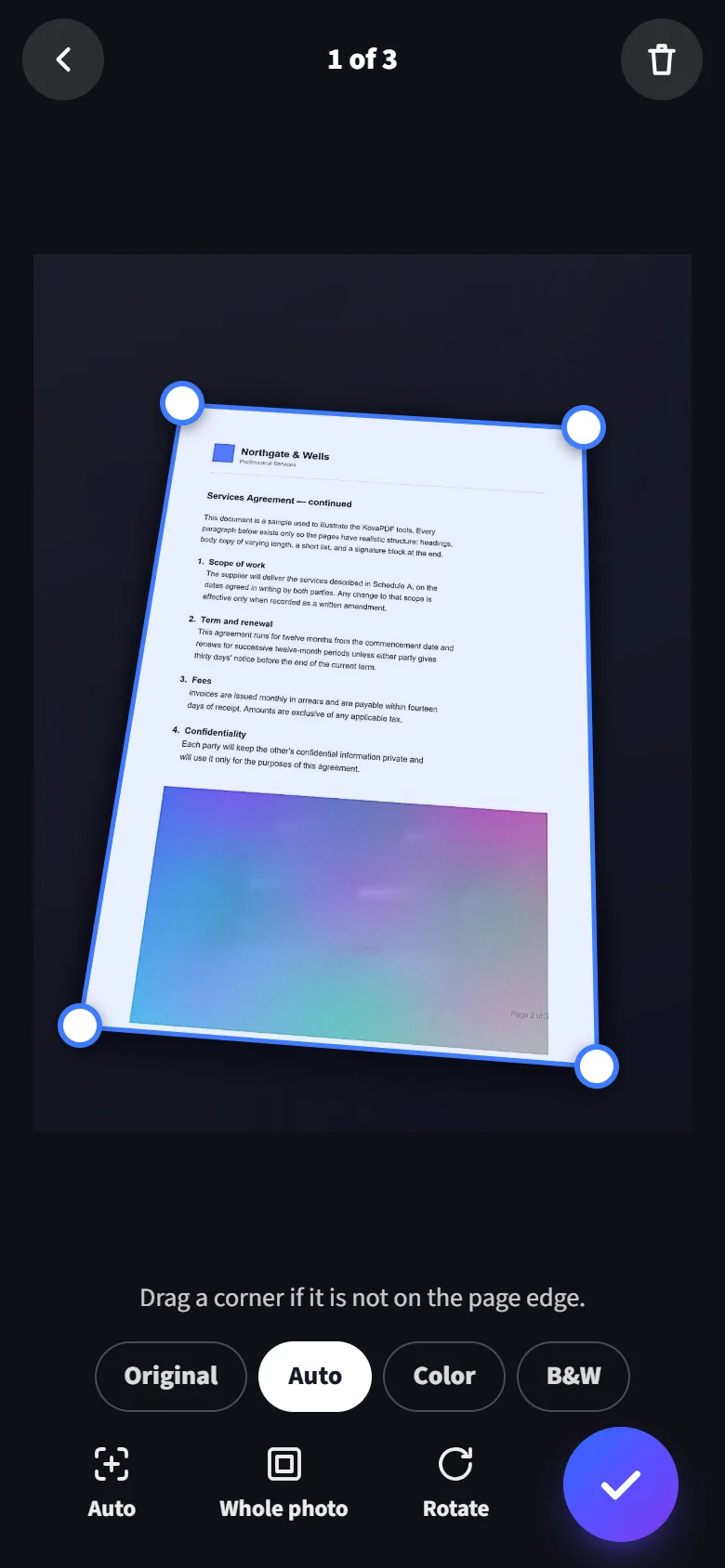
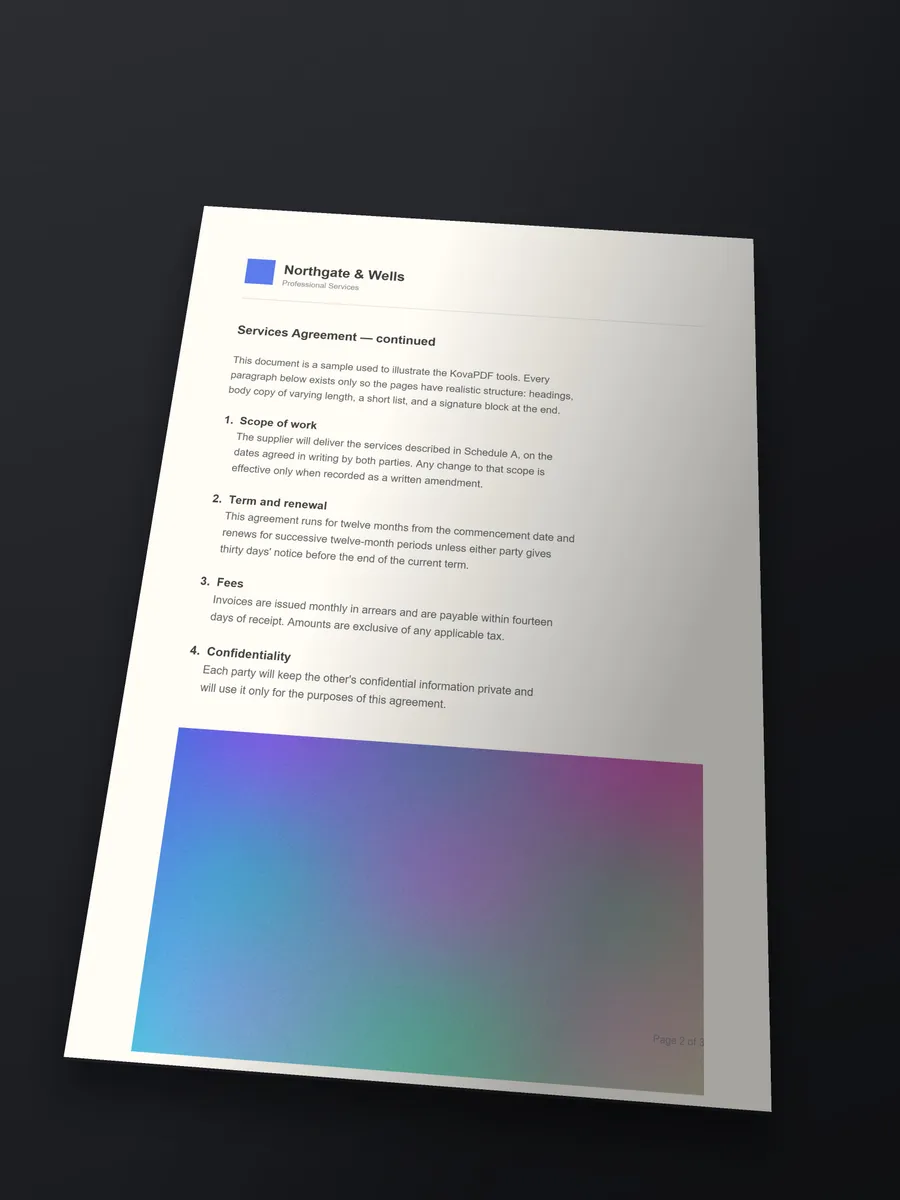
It finds the four corners and squares the page up, even when you shoot at an angle.
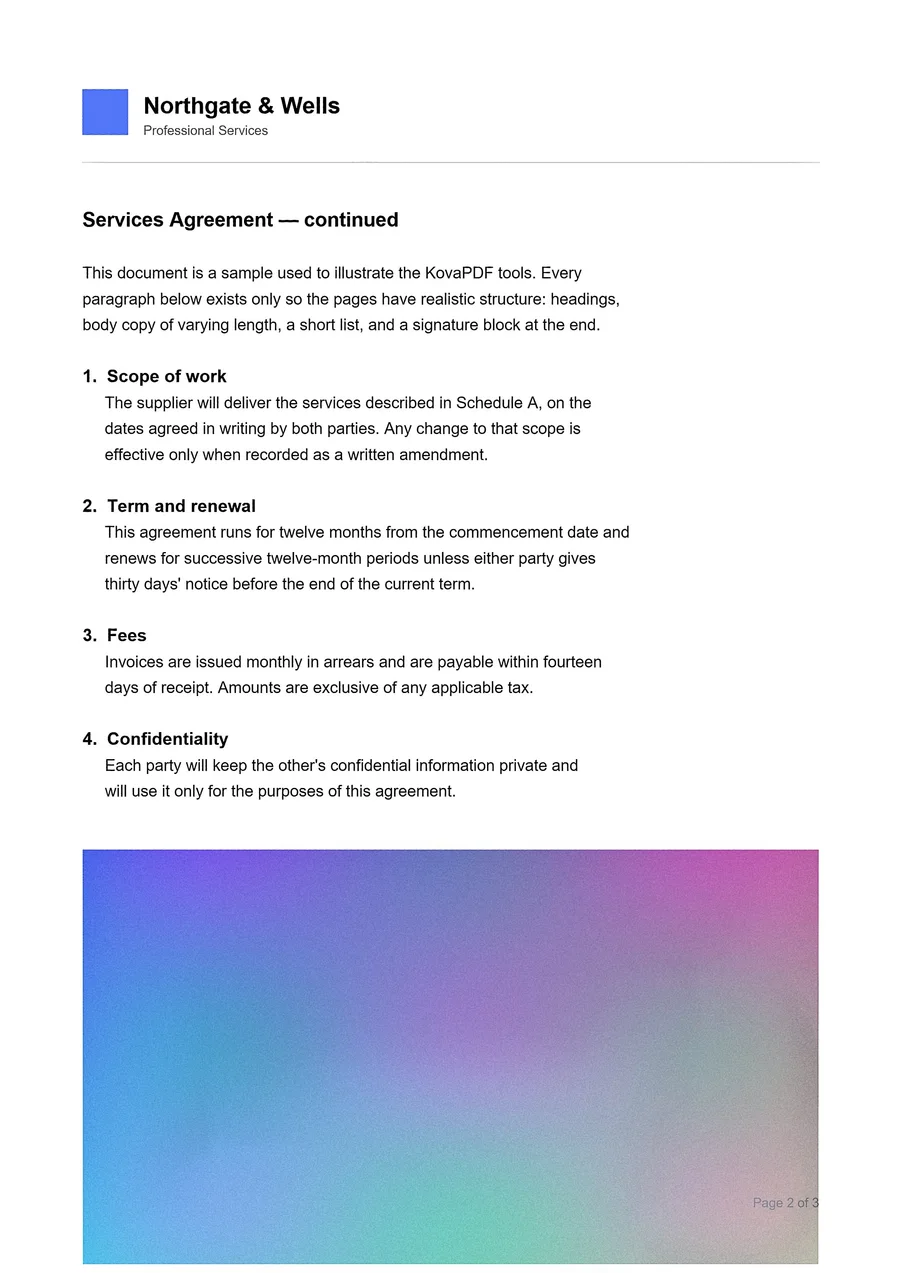
As clean as a photocopy
Shadows and grey paper turn white. Signatures, stamps and colour stay.
Never uploaded
Photos, pages and PDFs stay in your phone's own storage.
No limit
Scan as many pages and documents as you like, with no account and no daily count.
From a photo on the desk to a page you can send
Left, a printed page shot at an angle on a dark desk. Right, the page KovaPDF made from it: straightened, cleaned, and with the colour picture kept.
- Edges found
- Straightened
- Cleaned
Three steps from paper to PDF
No settings to learn. The scanner does the fiddly parts and shows you each page before it saves.
1
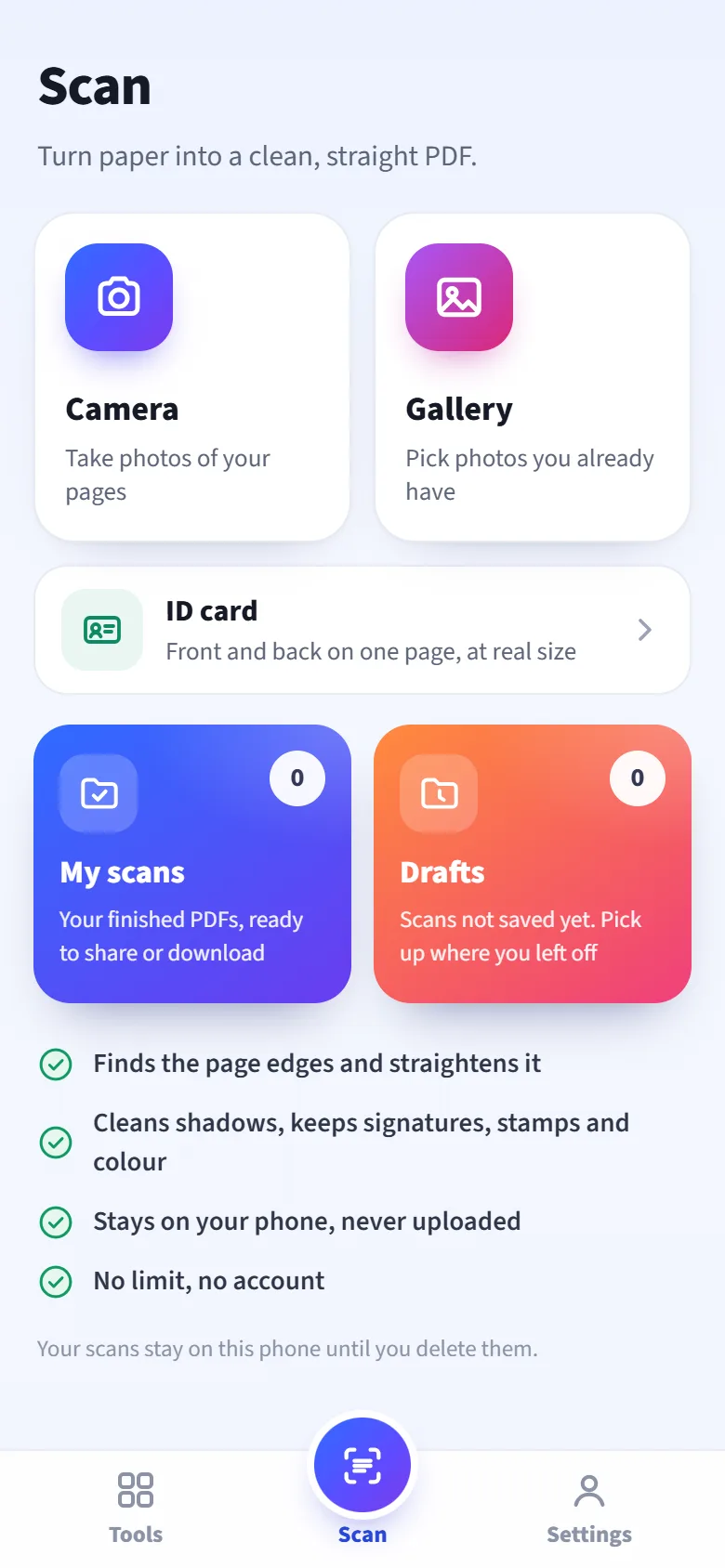
Shoot or pick photos
Take photos of your pages one after another, or pick photos you already have.
2
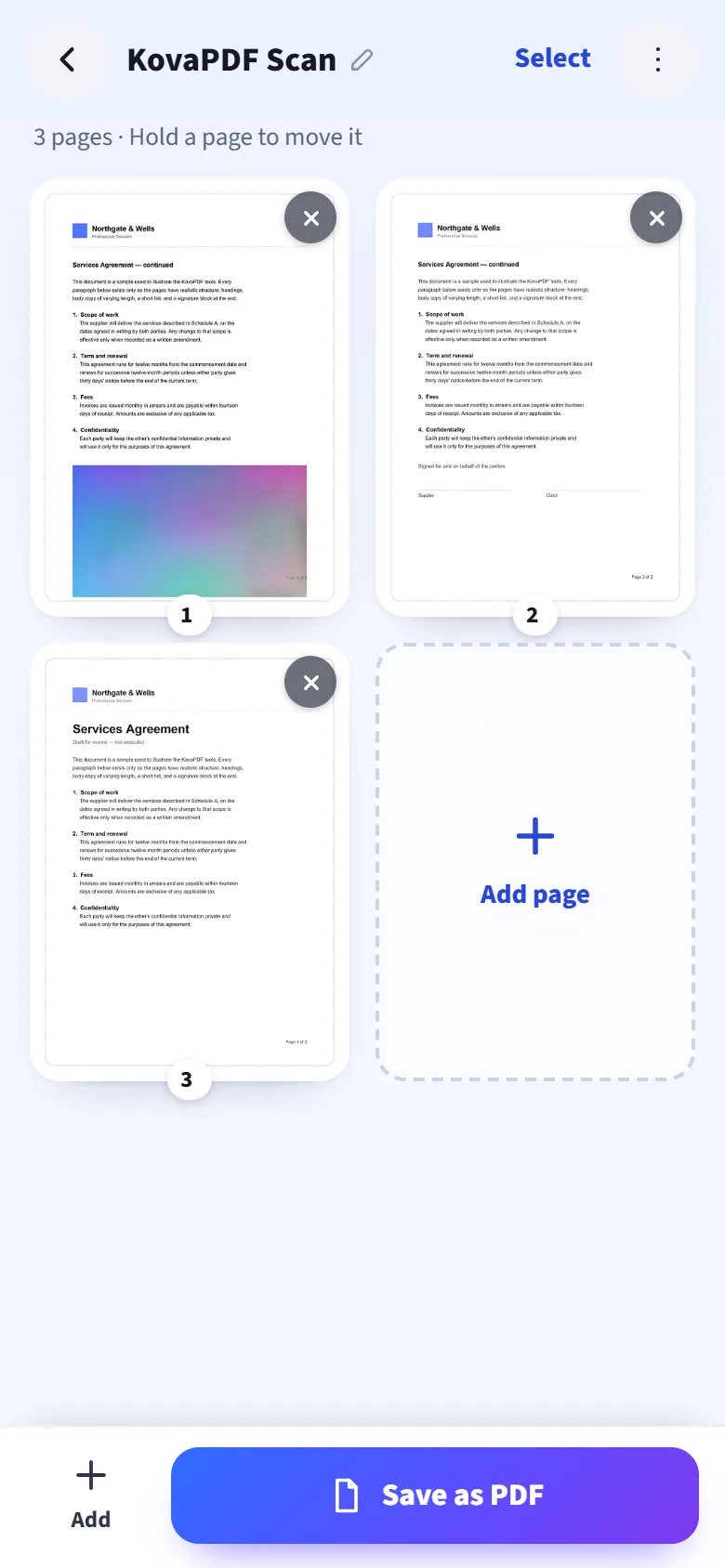
Check your pages
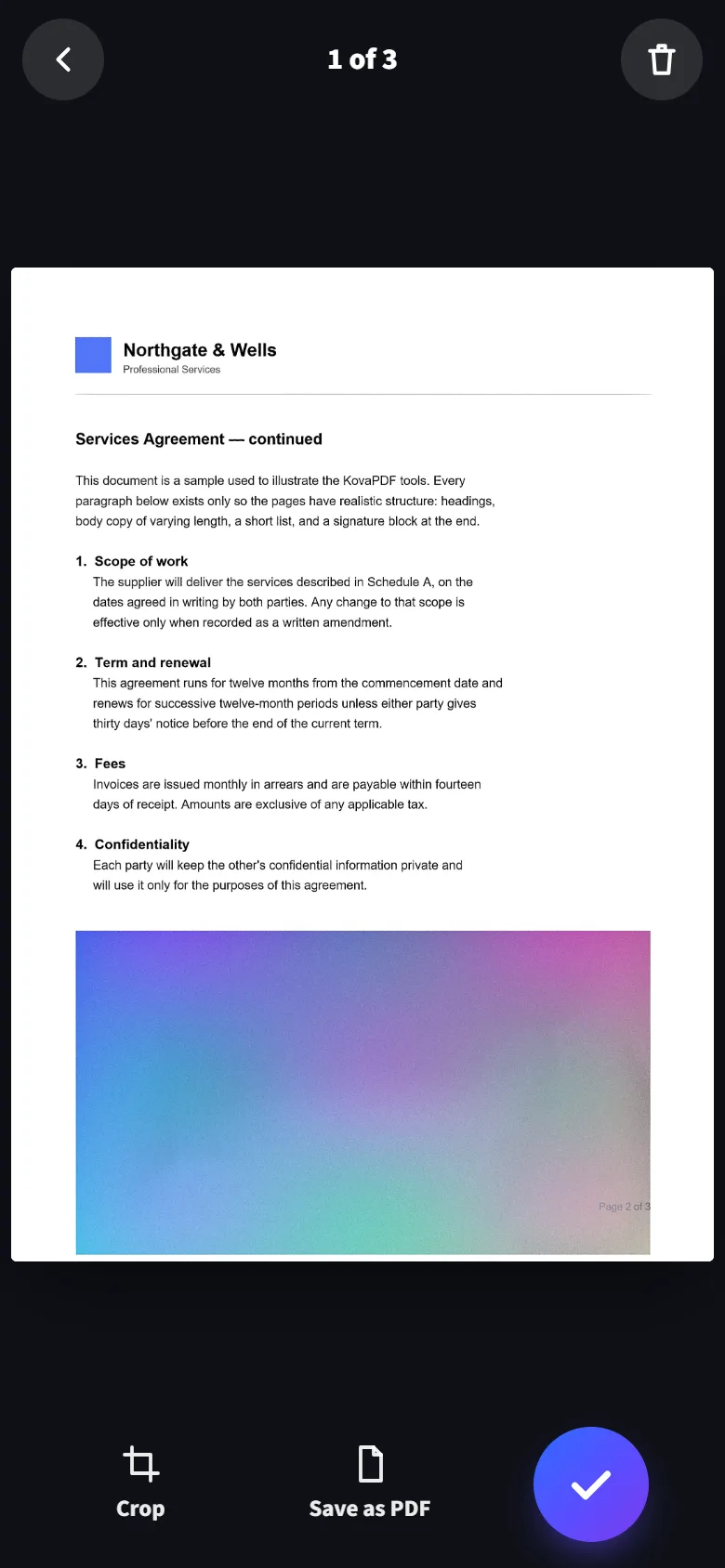
Each page is found, straightened and cleaned for you. Tap one to change its look, crop or rotate it.
3
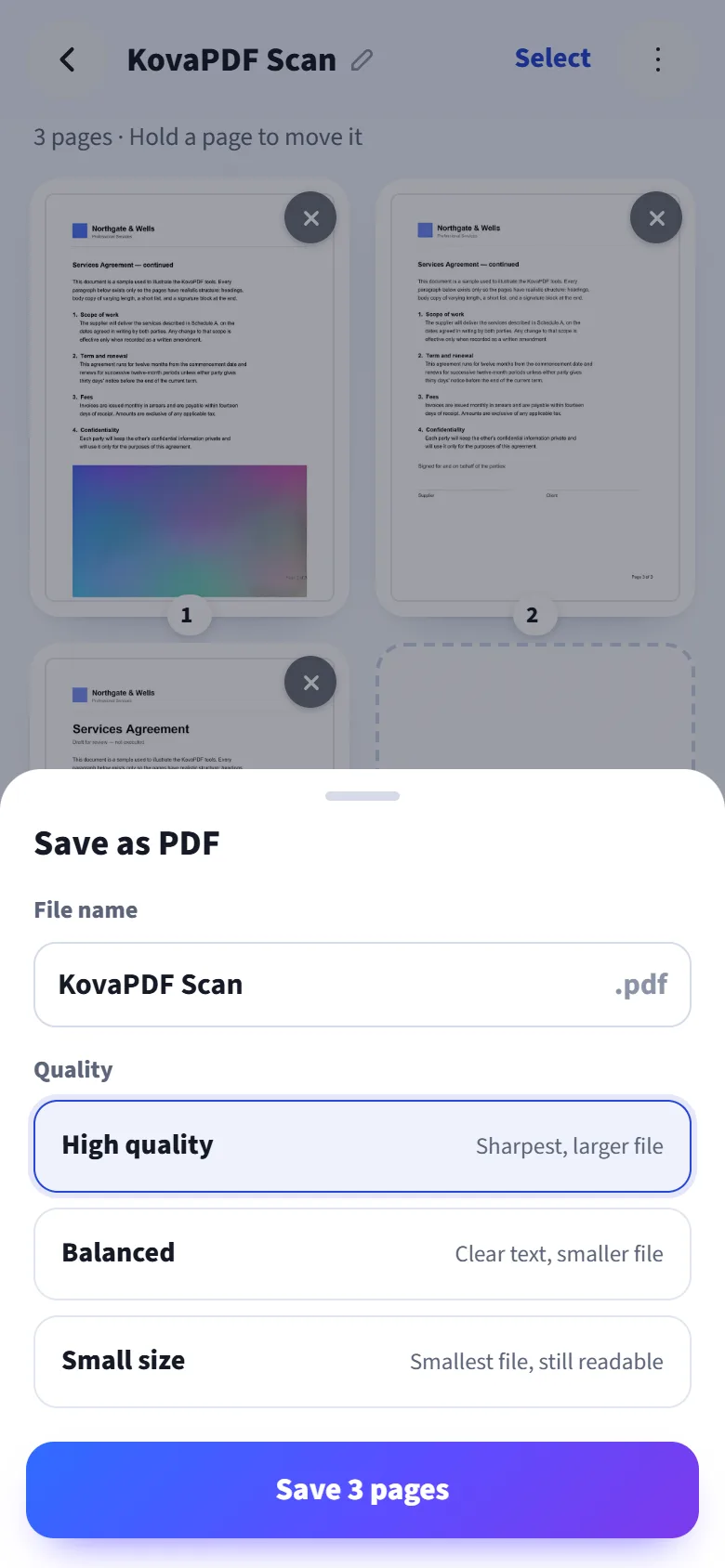
Save one PDF
Pick the quality, then share or download it.
Everything a good scanner should do
Finds the page for you
It picks the page out of the photo and puts a corner on each edge. Drag any corner, with a magnifier for the exact spot.
Straight, true to shape
A page shot at an angle comes out square, in the shape of real A4 or Letter paper.
Four looks
Auto, Color, Black and white, or the photo as it was. Choose one for each page.
ID card mode
Front and back on one A4 page, each at the card's real size, ready to print.
As many pages as you need
Add pages any time. Hold a page to move it, and rotate, crop or delete it.
The right file size
High quality for printing, Balanced for everyday use, Small size for email and online forms.
A picture when you need one
Save one page, or both sides of an ID card, as a single JPG.
Saved scans
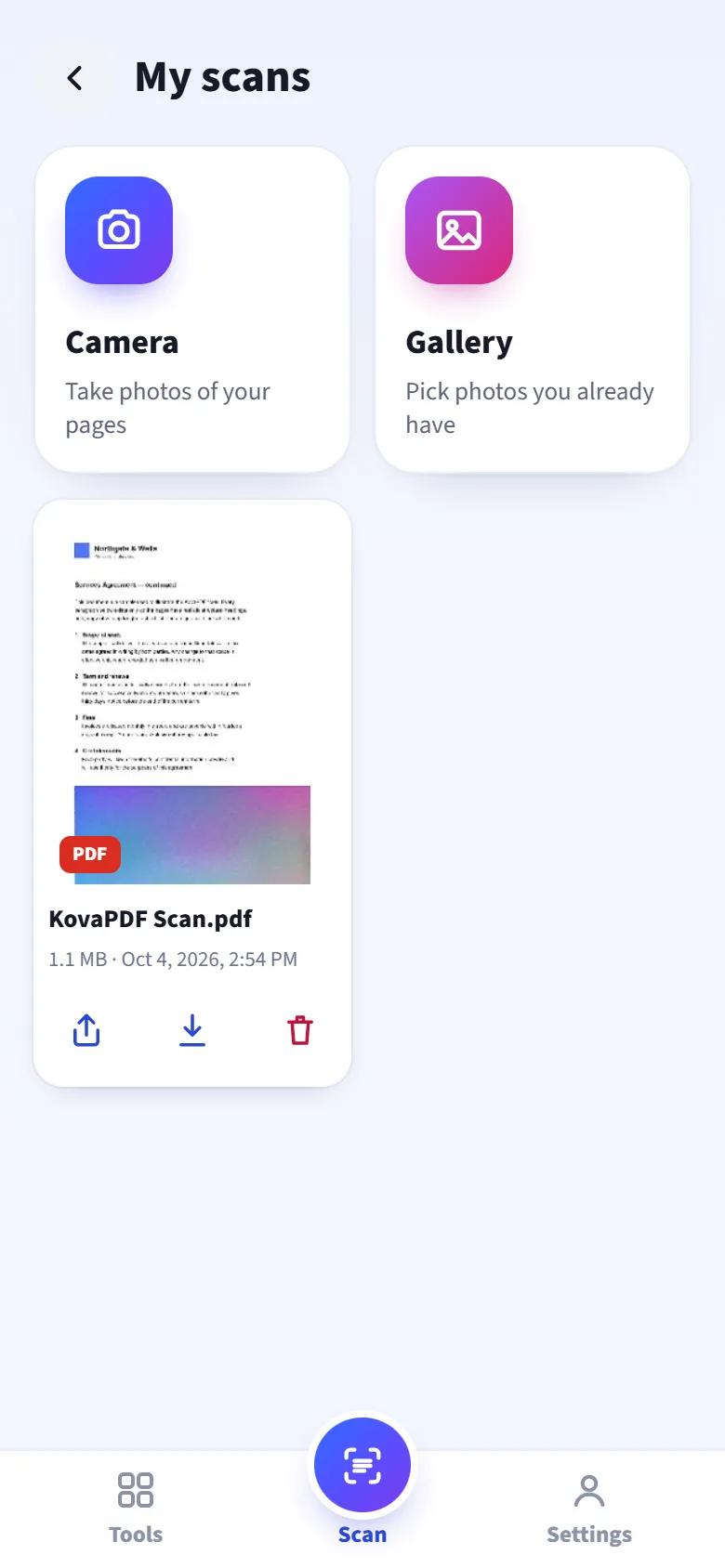
Every PDF you save stays on the phone. Share or download it again whenever you like.
Reads like the paper, only cleaner
Auto turns shadows and yellow light into white paper and keeps the ink sharp. Every page can have its own look.
- Auto for most pages: white paper, dark text, colour kept.
- Color for photos, charts and coloured forms.
- Black and white for text only, crisp and small.
- Original keeps the photo just as it was taken, only straightened.
Your scans never leave your phone
People scan IDs, contracts, receipts and letters from the doctor. So the scanner does all of its work on the phone itself.
- Nothing is uploaded. Photos are cleaned and turned into a PDF right on your phone.
- Kept until you delete them. Saved scans stay in your phone's own storage, with no time limit.
- We never see them. We only count how many scans are made, never what is in them.
Use it in your browser or add it to your home screen
No app store needed. The scanner is part of the free KovaPDF app and also works straight from your phone's browser.
Android
- Open kovapdf.com/app/scan in Chrome.
- Tap Install the app, or Install app in the browser menu.
- Open KovaPDF from your home screen and tap Scan.
iPhone
- Open kovapdf.com/app/scan in Safari.
- Tap Share, then Add to Home Screen, then Add.
- Open KovaPDF from your home screen and tap Scan.
Common questions
Is the scanner free?
Yes. There is no limit on pages or scans, and you don't need an account.
Are my scans uploaded anywhere?
No. The photos are cleaned and the PDF is made on your phone. Saved scans stay in your phone's storage until you delete them.
Will the page come out straight if I shoot at an angle?
Yes. The scanner finds the four corners and squares the page up. If a corner lands in the wrong place, drag it to the page edge before you go on.
Can I scan an ID card?
Yes. Tap ID card, take the front and then the back, and both sides go on one A4 page at the card's real size.
How many pages can one PDF have?
There is no set limit. A long scan just takes a little longer to save.
Does it work on iPhone and Android?
Yes. It works in Safari on an iPhone and in Chrome on Android, and you can add it to your home screen like an app.
Can I open my scans again later?
Yes. Every PDF you save is kept in My scans, where you can share, download or delete it.
Do I have to allow the camera?
Only to take photos: your phone asks the first time you tap Camera. To use photos you already have, tap Gallery instead.
Scan your first page now
Free, with no limit and no account. Your scans stay on your phone.
Scan to open the scanner
Point your phone's camera at the code. The scanner opens on your phone, ready to use.