Edit PDF Metadata
See and change a PDF's title, author, subject and keywords, or remove all hidden document details before you share it. Works in your browser.
- Free to use
- Works on any device
- Stays on your device
- Title, author, subject and keywords
- Created and modified dates
- Every hidden detail removed on request
- Done in your browser
Edit PDF Metadata
.pdf · your file stays on your device
Drag & drop file here
or choose a file from your device
Everything Edit PDF Metadata can do
See and change the details a PDF stores about itself, or remove them before you share it. Free, in your browser.
Details you can change
- Title, author, subject and keywords
- Creator and producer, the apps that made the file
- Created and modified dates in your local time zone, once you turn on Change dates
Removing details
- Remove all metadata clears the document information dictionary
- The XMP metadata packet and PieceInfo editing data go too
- Page text, pictures, comments, forms, bookmarks and links are left alone
Keeping the file consistent
- Both stored copies, the information dictionary and XMP, kept in step
- Other XMP properties stay in place
- A warning before a change would break a digital signature
What you get back
- A Before and After table of every detail
- A new copy to download, with your original unchanged
- Done in your browser, so your file is never uploaded
How it works
Edit PDF Metadata in three steps
Add your PDF
Drag your PDF onto the panel, or click it to pick one from your device. Everything happens in your browser, so the file stays on your device and is never uploaded.
Change the details
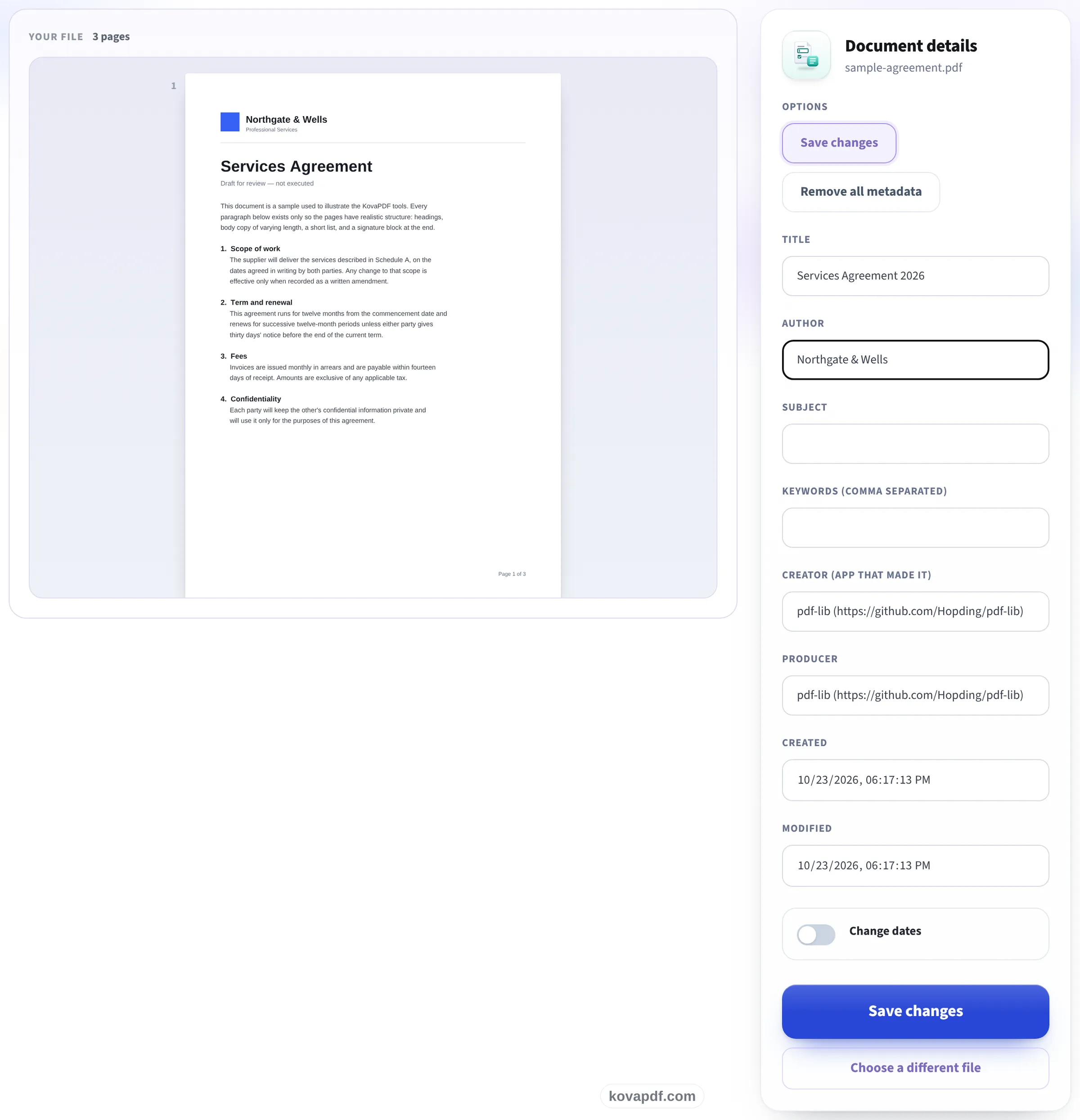
The title, author, subject, keywords, creator and producer appear as they are now. Edit them, turn on Change dates to set the created and modified times, or choose Remove all metadata.
Save and download
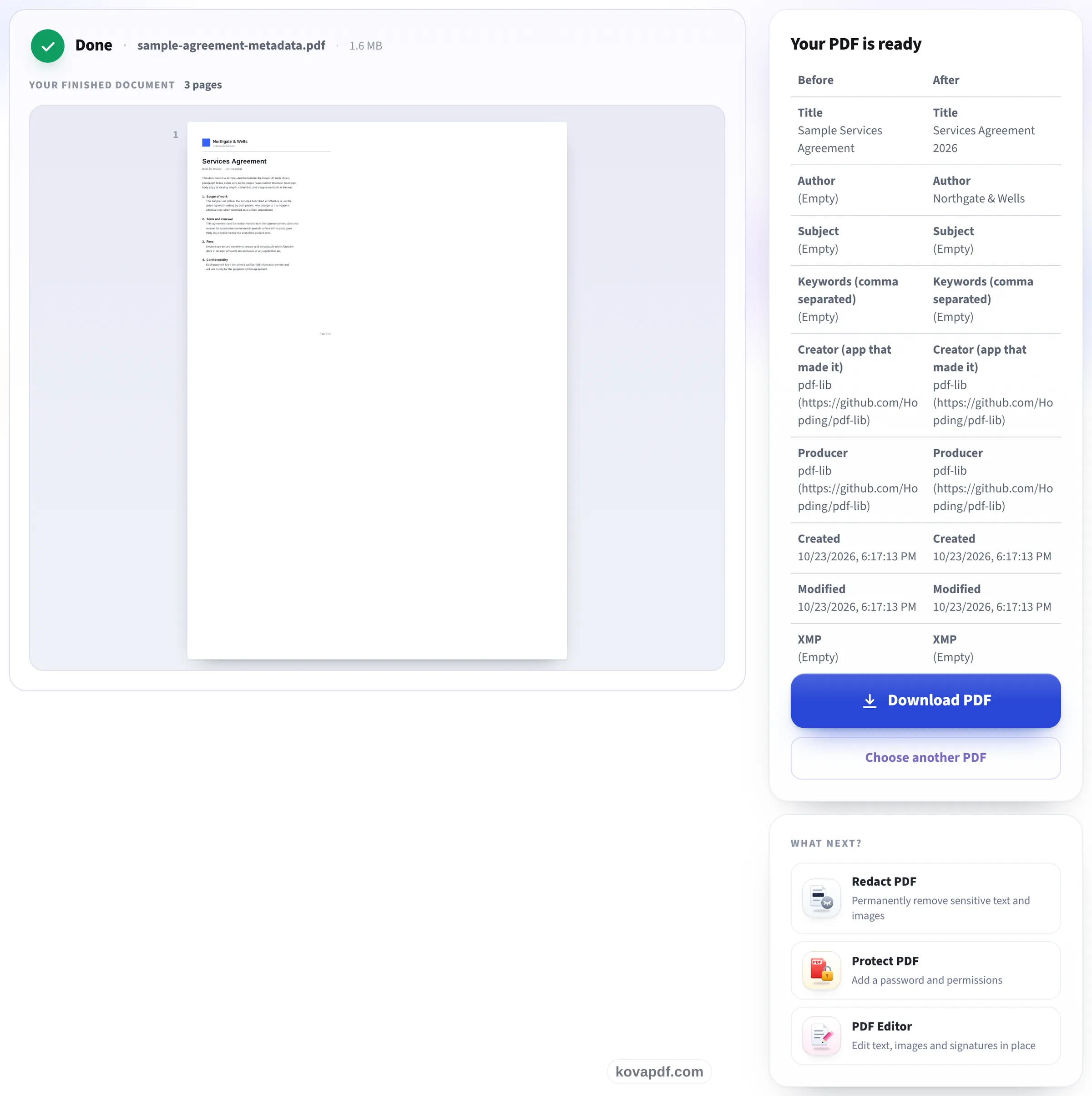
A Before and After table shows every detail that changed. Download the edited copy; your original file is left as it was.
Check document details before sharing
A PDF can carry information that never appears on its pages. A report may still name the person who drafted a template, a customer from an earlier project, or an internal working title. Those details can appear in a reader's document properties, a search result, or a document management system. Before sending a file outside your team, check whether its description matches the document you actually intend to share. Editing these details gives the file a useful identity without changing the words, images or layout that a reader sees on the page.
The title is the document's descriptive name, which can differ from its filename. The author identifies the person or organisation responsible for the work; it does not prove who wrote or approved it. The subject is a short description of the document's purpose. Keywords are terms that help people find and sort the file. Enter them separated by commas. A clear title and a few relevant keywords can be helpful in a shared archive, while an outdated author or subject can cause confusion. Leave a field empty when there is no useful information to put in it.
Creator and Producer describe how the file was made. Creator usually names the application used to prepare the original document, while Producer usually names the software that wrote the PDF. They may reveal an internal workflow, but they are ordinary descriptive fields rather than a reliable audit trail. Created and Modified are document timestamps, not the dates shown in your computer's file manager. The form shows them in your local time zone. They stay read-only until you turn on Change dates. Changing a timestamp does not establish when the underlying work was completed or make a document authentic.
Many PDFs store the same description in two places: a document information dictionary and an XMP metadata packet. Different readers may prefer different copies. This tool reads both and keeps the supported fields in step when you save, so changing the author does not leave the old author in the other copy. If the file has no XMP packet, saving changes writes the information dictionary without adding a new packet. Existing XMP properties outside the supported fields stay in place. After saving, compare the Before and After columns and download the edited copy. Your original file is left untouched.
Remove all metadata clears every entry in the document information dictionary, removes the document's XMP packet and removes application-specific PieceInfo from the document and its pages. Unreferenced objects containing those old details are discarded from the saved copy as well. This action does not erase page text, pictures, comments, form entries, bookmarks or links. A name printed on a page will still be there, and an attachment may contain its own information. Removing document metadata is therefore a useful sharing step, but it is not a substitute for reviewing the visible content or redacting confidential material.
The file is read and changed in your browser; its contents are not uploaded. The usual file and page limits still apply. Unlock a password-protected PDF before opening it here. If the file carries a digital signature, changing even a descriptive field rewrites the signed file and breaks that signature. The tool warns you and requires a second click on Change anyway before making the edited copy. Keep the original signed document when its signature matters. Finally, reopen the download in your usual reader and check its properties and pages before sharing it with someone else.
Edit PDF Metadata: a visual walkthrough
Change the details a PDF carries about itself, or clear them before you share the file.
Add your PDF
Drag your PDF onto the panel, or click it to pick one from your device. Everything happens in your browser, so the file stays on your device and is never uploaded.

Change the details
The title, author, subject, keywords, creator and producer appear as they are now. Edit them, turn on Change dates to set the created and modified times, or choose Remove all metadata.
Save and download
A Before and After table shows every detail that changed. Download the edited copy; your original file is left as it was.
Frequently asked questions about Edit PDF Metadata
Which PDF details can I change?
You can change the title, author, subject, keywords, creator and producer. Turn on Change dates to edit the created and modified timestamps in your local time zone.
What does Remove all metadata remove?
It clears the information dictionary, removes the document's XMP packet and removes PieceInfo from the document and pages. Page content, comments, forms, bookmarks and links stay in place.
What happens to my file?
The PDF is read and edited in your browser. Its contents are never uploaded. You download a new copy, and the original stays unchanged on your device.
Can I change a signed PDF's metadata?
Changing metadata breaks the digital signature. The tool warns you and asks you to click Change anyway before creating the edited copy. Keep the original signed file if you need a valid signature.
Can I open a password-protected PDF here?
Unlock the PDF first, then open the unlocked copy here. This tool does not remove or bypass a password.
Edit PDF Metadata guides and articles

Related tools
All PDF tools · 15 step-by-step guides · How your files are handled
Also: Remove metadata from PDF