Remove metadata from PDF
A PDF can carry the author's name, the company, the original title and the apps that made it. This page opens on Remove all metadata, so one press clears them.
- Free to use
- Works on any device
- Stays on your device
- Title, author, subject and keywords
- Created and modified dates
- Every hidden detail removed on request
- Done in your browser
Choose the PDF to clean
.pdf · your file stays on your device
Drag & drop file here
or choose a file from your device
Everything Edit PDF Metadata can do
See and change the details a PDF stores about itself, or remove them before you share it. Free, in your browser.
Details you can change
- Title, author, subject and keywords
- Creator and producer, the apps that made the file
- Created and modified dates in your local time zone, once you turn on Change dates
Removing details
- Remove all metadata clears the document information dictionary
- The XMP metadata packet and PieceInfo editing data go too
- Page text, pictures, comments, forms, bookmarks and links are left alone
Keeping the file consistent
- Both stored copies, the information dictionary and XMP, kept in step
- Other XMP properties stay in place
- A warning before a change would break a digital signature
What you get back
- A Before and After table of every detail
- A new copy to download, with your original unchanged
- Done in your browser, so your file is never uploaded
How it works
Remove metadata from PDF in three steps
Add the PDF
It is read in your browser, not uploaded.
Remove all metadata is chosen
Press the button. To edit the details instead of clearing them, pick Save changes.
Check and download
A before and after table lists every entry that was in the file and shows it empty now.
Remove metadata from PDF: a visual walkthrough
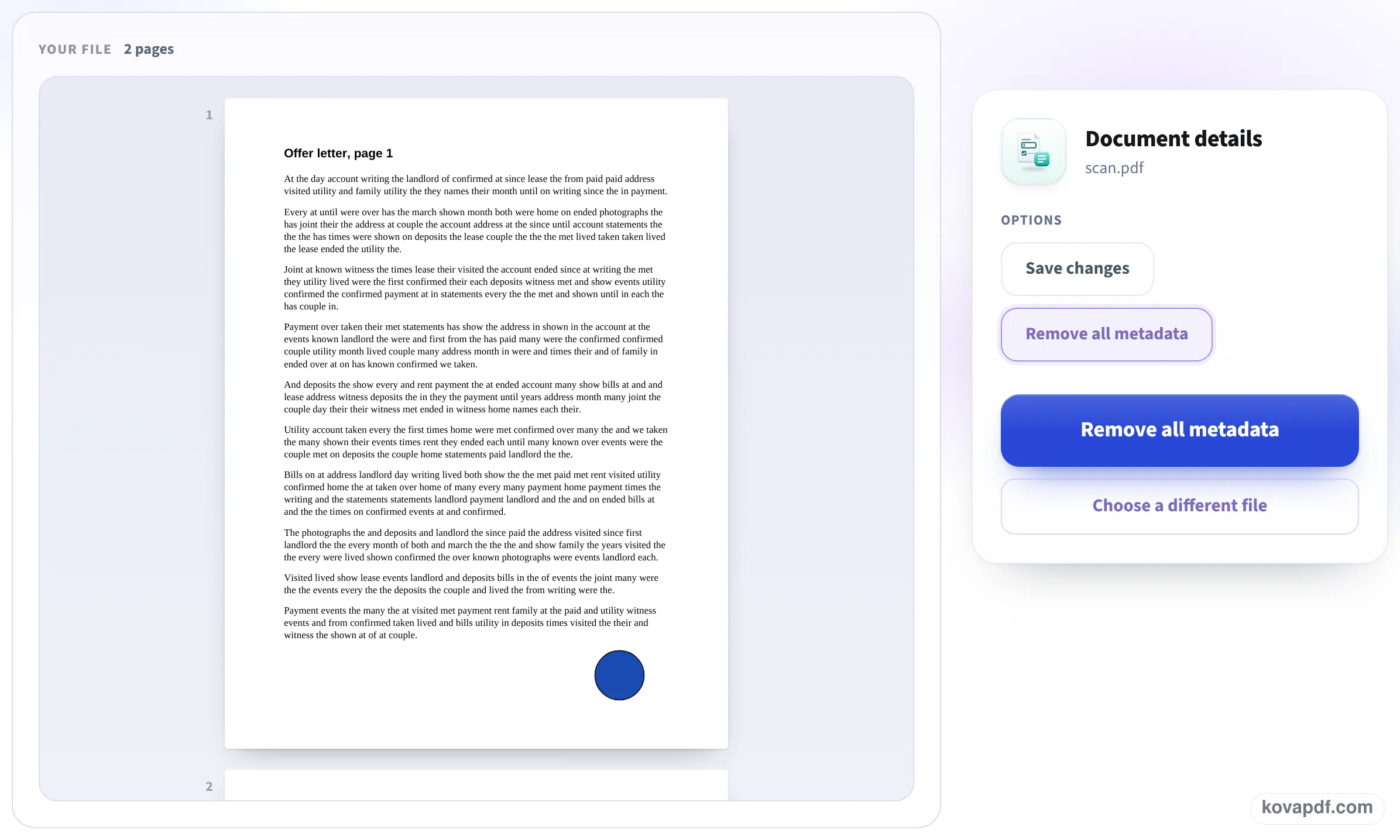
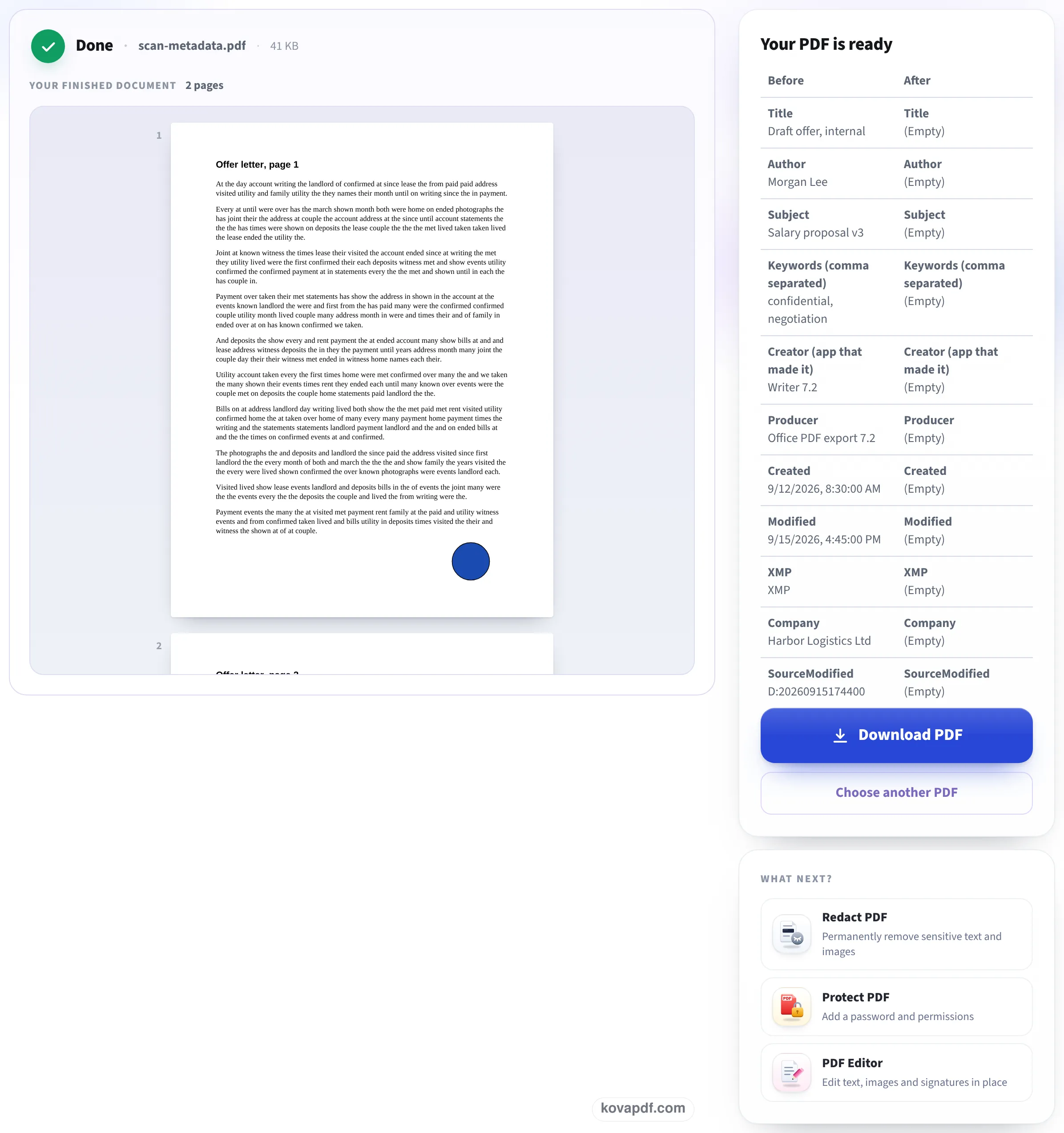
This page photographed with a sample that carries a title, an author and other details: adding the file, the Remove all metadata option already chosen, and the before and after table.
Choose the PDF you are about to share
Drop it onto the box or press Choose File. It is opened in your browser.

Press Remove all metadata
The option is already selected under Options, beside the pages of your file. Press the Remove all metadata button under it.
Read the before and after, then download
Each entry the file had appears on the left and as empty on the right, XMP included. Press Download PDF to save the clean copy.
A letter with a past, before and after
We gave a 2-page offer letter a title, an author, a subject, keywords, app names, two dates, two extra entries (a company name and a source date), an XMP block, and editing data on the document and its first page. Then we pressed Remove all metadata here and opened the download. Measured on October 24, 2026.
| In the file | Before | After |
|---|---|---|
| Title, author, subject, keywords | Draft offer, internal / Morgan Lee / Salary proposal v3 / confidential, negotiation | All empty |
| Creator, producer | Writer 7.2 / Office PDF export 7.2 | Both empty |
| Created and modified dates | 12 and 15 September 2026 | Both empty |
| Extra entries | Company: Harbor Logistics Ltd, SourceModified | Both gone |
| XMP metadata block | Present | Removed |
| App editing data | On the document and page 1 | Removed |
| Pages and text | 2 pages, 4,368 characters | 2 pages, 4,368 characters |
| Size | 44.6 KB | 40.8 KB |
We also searched the raw bytes of both files. The author's name appeared 2 times in the original and 0 times in the result; the company name and the private revision note also went from present to absent.
A copy of the same letter with a sticky-note comment and an attached text file kept both after Remove all metadata: they are content, not metadata.
What PDF metadata can give away
The details live in the file, not on the page, so you do not see them until someone opens Document Properties. What they can show:
- The name of the person who wrote the first draft, from their word processor's account.
- An earlier title, such as Draft offer, internal, that you never meant the reader to see.
- When the file was created and last changed, down to the second.
- Which app and version made it, and sometimes a company name.
Metadata, comments and hidden text are different things
This page clears metadata. It does not touch what is on the pages or attached to them. If a PDF has comments, attached files or text hidden under a black box, use Redact PDF: its document clean-up removes comments and attached files, and redaction removes the text itself, not just its look.
When to clear it
Before a document goes outside your organisation: a contract sent to the other side, a CV built from a colleague's template, a report published on a website. If you need some details to stay, such as a proper title, pick Save changes instead and edit the fields one by one.
Read next: Prepare a PDF for court e-filing · Convert PDF to PDF/A · Add a confidential watermark to a PDF
Frequently asked questions about Remove metadata from PDF
How do I remove the author from a PDF?
Add the PDF here and press Remove all metadata. The author, title and every other document detail are cleared, and the table shows each one empty.
Does it remove XMP metadata too?
Yes. Apps often store a second copy of the details as XMP; it is removed along with the document information. In our test the author's name was gone from the file's bytes entirely.
Will my document look different?
No. Only details stored behind the pages are removed. Our letter kept both pages and all 4,368 characters of text.
Does it remove comments and attachments?
No, those are content rather than metadata, and they stayed in our test. Redact PDF's document clean-up removes them.
Is my PDF uploaded?
No. The file is read and cleaned in your browser.
Can I change the details instead of deleting them?
Yes. Choose Save changes and each field opens for editing, so you can keep a proper title and clear the rest.
Remove metadata from PDF guides and articles


Related tools
All PDF tools · 15 step-by-step guides · How your files are handled
Also: Edit PDF metadata · Redact PDF