Add a confidential watermark to a PDF
CONFIDENTIAL is already typed in. Add the PDF, adjust it if you like, and download: every page gets the mark, faint and diagonal.
- Free to use
- Works on any device
- Deleted after processing
- Text or your own logo
- Drawn over the page
- The content is untouched
- Opacity, angle and position
Drag & drop file here
or choose a file from your device
Choose the PDF to mark confidential
PDF files only
Everything Watermark PDF can do
Lay a text or image mark over a document, exactly where and how you want it, on its own layer.
Content
- Text you type, or a PNG or JPEG you upload
- Sixteen typefaces, with bold and italic
- Any ink colour, and a panel behind it if you want one
- Trim each side of an image mark by percentage
Appearance
- Opacity anywhere between 5% and 100%
- Any angle, with Straight and Diagonal presets
- Sits behind the page content, or over the top of it
- Repeat it across the whole sheet as a tile
Placement
- A nine-point grid of preset positions
- Or drag the mark wherever you like on the page
- Corner handles resize it, a round grip turns it
- One position, size and angle shared by every page
Pages
- Every page, or a list such as 1, 3-5, 9
- A plain sentence states what Apply is about to do
- Update or lift the whole mark in one action
- Your page content is never rewritten underneath it
How it works
Add a confidential watermark in three steps
Add the PDF
The watermark panel opens with CONFIDENTIAL typed in.
Adjust if needed
Change the words (DRAFT, COPY, your company), the size, colour, angle or pages. Press Apply watermark.
Review & download
Every page you chose carries the mark.
Add a confidential watermark: a visual walkthrough
Our sample agreement marked CONFIDENTIAL with the settings this page opens with: the upload, the mark applied and showing on every page thumbnail, and the saved copy.
Add the PDF
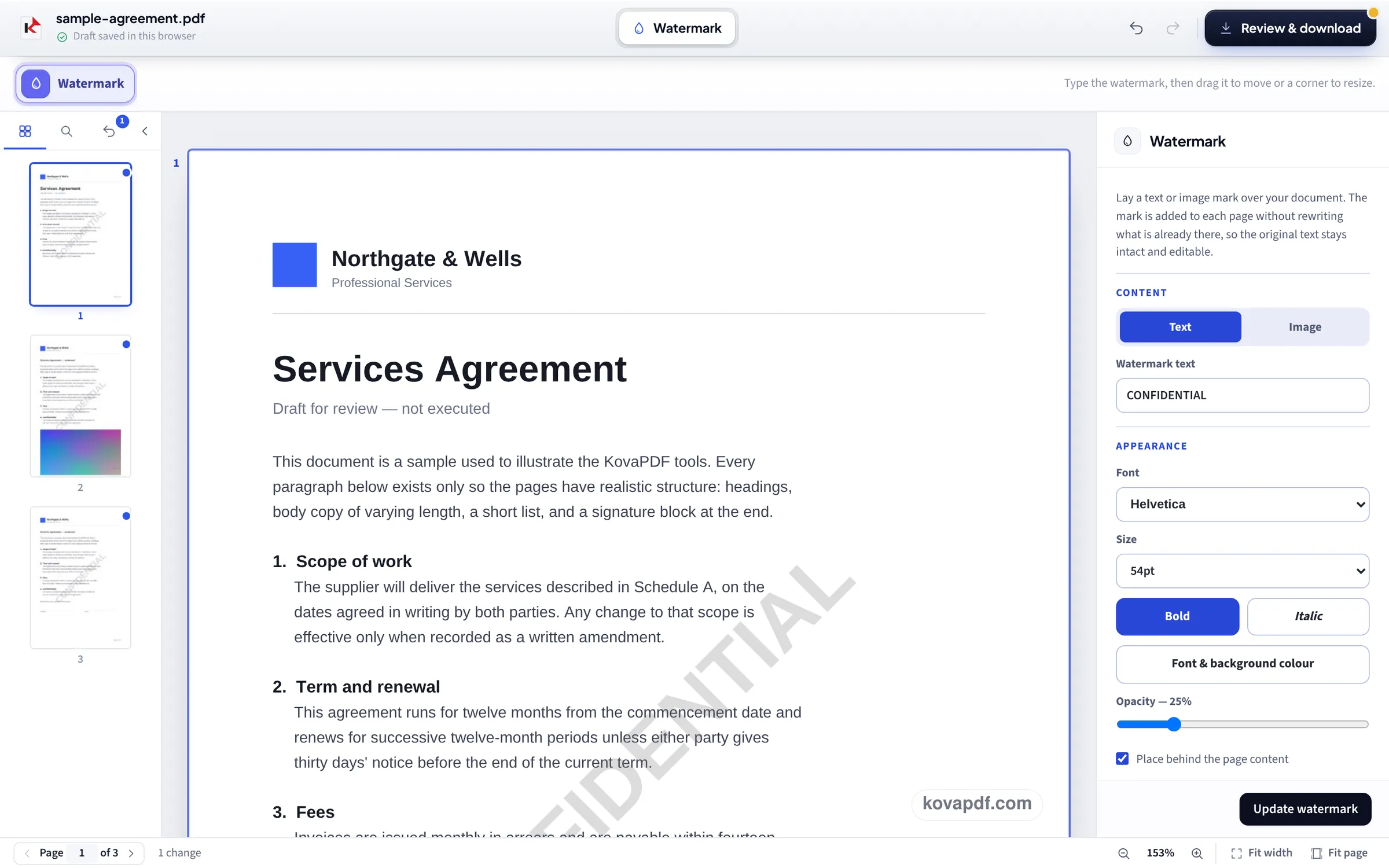
Drop in the document to mark. The Watermark panel opens with CONFIDENTIAL already in the text box: Helvetica, 54 pt, bold, 25% opacity.

Press Apply watermark
We kept the preset and pressed Apply watermark. The word runs diagonally across page 1, and the thumbnails on the left show it on pages 2 and 3 as well. The button now reads Update watermark, for any change you make after.
Review & download
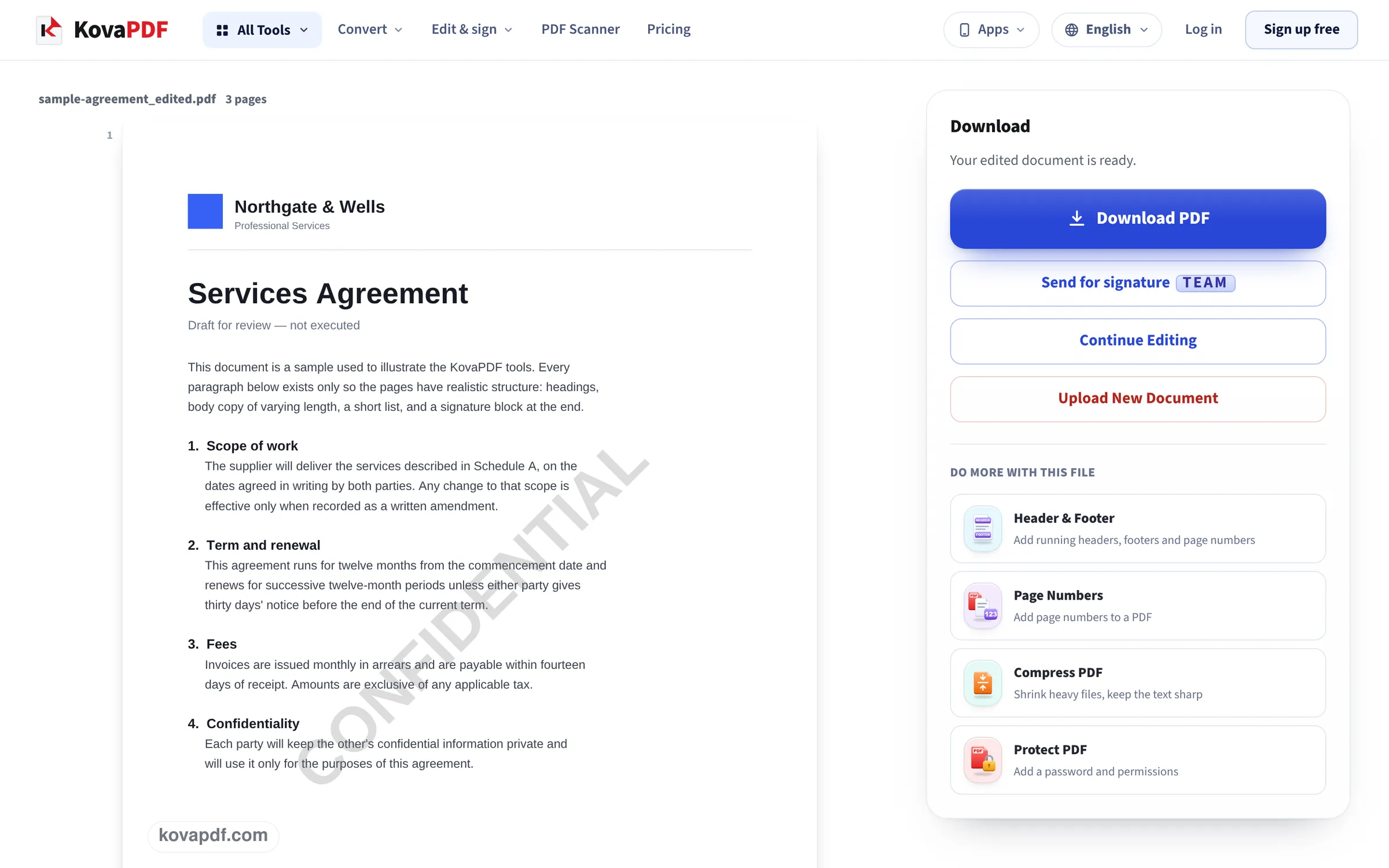
The saved copy shows the grey word across the page, faint enough that every clause under it stays readable.
The preset on our files
We pressed Apply watermark with the settings as this page opens, then Review & download, and read the saved PDFs back. Measured on October 24, 2026.
| File | Pages marked | What the mark is | Size before → after |
|---|---|---|---|
| 3-page typed letter | 3 of 3 | The word CONFIDENTIAL as text, Helvetica bold 54 pt, mid grey, 25% opacity, at 45° | 6,246 → 6,432 bytes |
| 3-page grey scan | 3 of 3 | The same, drawn over the scan picture | 1,676,968 → 1,677,744 bytes |
The mark is saved as text, so searching the PDF for CONFIDENTIAL finds it once per page. The letter's own text was untouched and stayed selectable, and the scan picture kept its 2550 × 3300 pixels.
In the saved files the mark is drawn over the page's own text and pictures, at 25% opacity, which is why the words still read clearly through it. The Place behind the page content option orders it below other edits you make in the editor, not below the original page.
What a watermark does, and does not do
A watermark tells every reader, on every page, how the document should be treated: confidential, a draft, a copy for one person. It survives printing, screenshots and forwarding, which a line in the email does not.
It is a label, not a lock. Someone with a PDF editor can still remove it, and anyone who has the file can read it. For real protection, add a password with Protect PDF as well, and for text that must never be seen, use Redact PDF.
Wording that works
Short and upper case reads best at an angle:
- CONFIDENTIAL: internal reports, HR files, contracts under negotiation.
- DRAFT: anything not yet final, so nobody quotes it as the agreed version.
- COPY or SAMPLE: documents sent for information only.
- A name: PREPARED FOR J. SMITH makes a leaked copy traceable.
Getting it right
To mark only some pages, choose them under Pages, for example 1 or 2-5. If the mark is too strong on a busy page, lower the opacity. A logo works as a watermark as well: switch the content to Image.
Read next: Password protect a PDF without Adobe · Add an image to a PDF
Frequently asked questions about Add a confidential watermark
How do I add a CONFIDENTIAL watermark to a PDF?
Add the PDF here: CONFIDENTIAL is already typed in. Press Apply watermark, then Review & download. Every page gets the mark.
Will the watermark hide the text?
No. It is drawn at 25% opacity, so the words under it stay readable. Raise the opacity if you want it stronger.
Can I use DRAFT or my company name instead?
Yes. Replace the words in the panel with anything you like.
Can I watermark only some pages?
Yes. Choose the pages under Pages, for example 1 or 2-5.
Can someone remove the watermark?
Someone with a PDF editor could. A watermark labels a document; it does not lock it. Add a password with Protect PDF for real protection.
Does it reduce the quality?
No. Our scan kept its picture exactly; the file grew by 776 bytes, the weight of the mark on three pages.
Add a confidential watermark guides and articles


Related tools
All PDF tools · 15 step-by-step guides · How your files are handled
Also: Watermark PDF