Add an image to a PDF
Choose a PNG or JPG, then drag and resize it on the page. One button takes away its white backing so the page shows through.
- Free to use
- Works on any device
- Nothing to install
- Type straight onto the page
- Images, shapes and signatures
- Pages added or removed
- Saves a real PDF
Drag & drop file here
or choose a file from your device
Choose the PDF to put an image into
PDF files only
Deleted after processing. Up to 200 pages and 50 MB per file.
Everything the PDF Editor can do
Change what is on the page: the words already printed there, images, shapes, signatures and the pages themselves.
Text on the page
- Click any line and retype it in place
- Keeps the document's own embedded font while you edit
- Start a new text box anywhere on the page
- Sixteen typefaces and twenty sizes, Bangla included
- Bold, italic, underline, text colour and highlight
- Left, centre or right alignment, plus case changes
Images and signatures
- Place a PNG or JPEG anywhere on a page
- Draw a signature and drop it where you want it
- Knock out a white background in one click
- Halve opacity, duplicate, and change layer order
Drawing and marks
- Rectangle, circle, line, arrow, checkmark and crossmark
- A freehand pen and a highlighter
- Whiteout to cover anything already printed
- An eraser that removes text, shapes and drawings alike
Pages
- Reorder, rotate and duplicate pages from thumbnails
- Delete pages, or insert blank ones anywhere
- Watermark, header and footer on the same toolbar
While you work
- Undo and redo with Ctrl+Z
- Zoom from 50% to 300%
- Read every page in a preview before downloading
How it works
Add image to PDF in three steps
Open the PDF
Drop it in. The Image tool is already selected.
Choose an image
Press Choose an image and pick a PNG or JPG. It appears on the page in view.
Place it and download
Drag it into place and pull a corner to resize, then Review & download.
Add image to PDF: a visual walkthrough
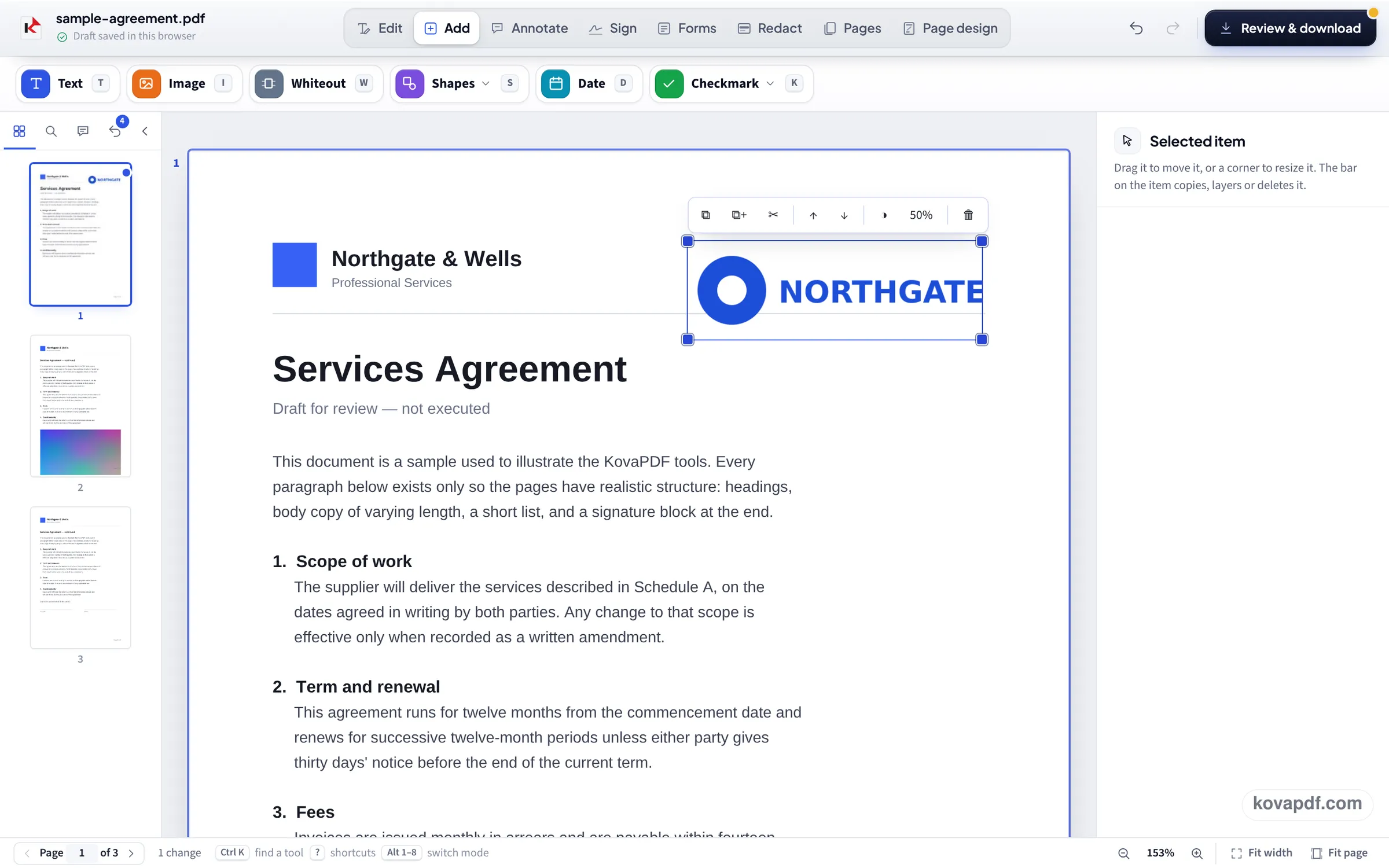
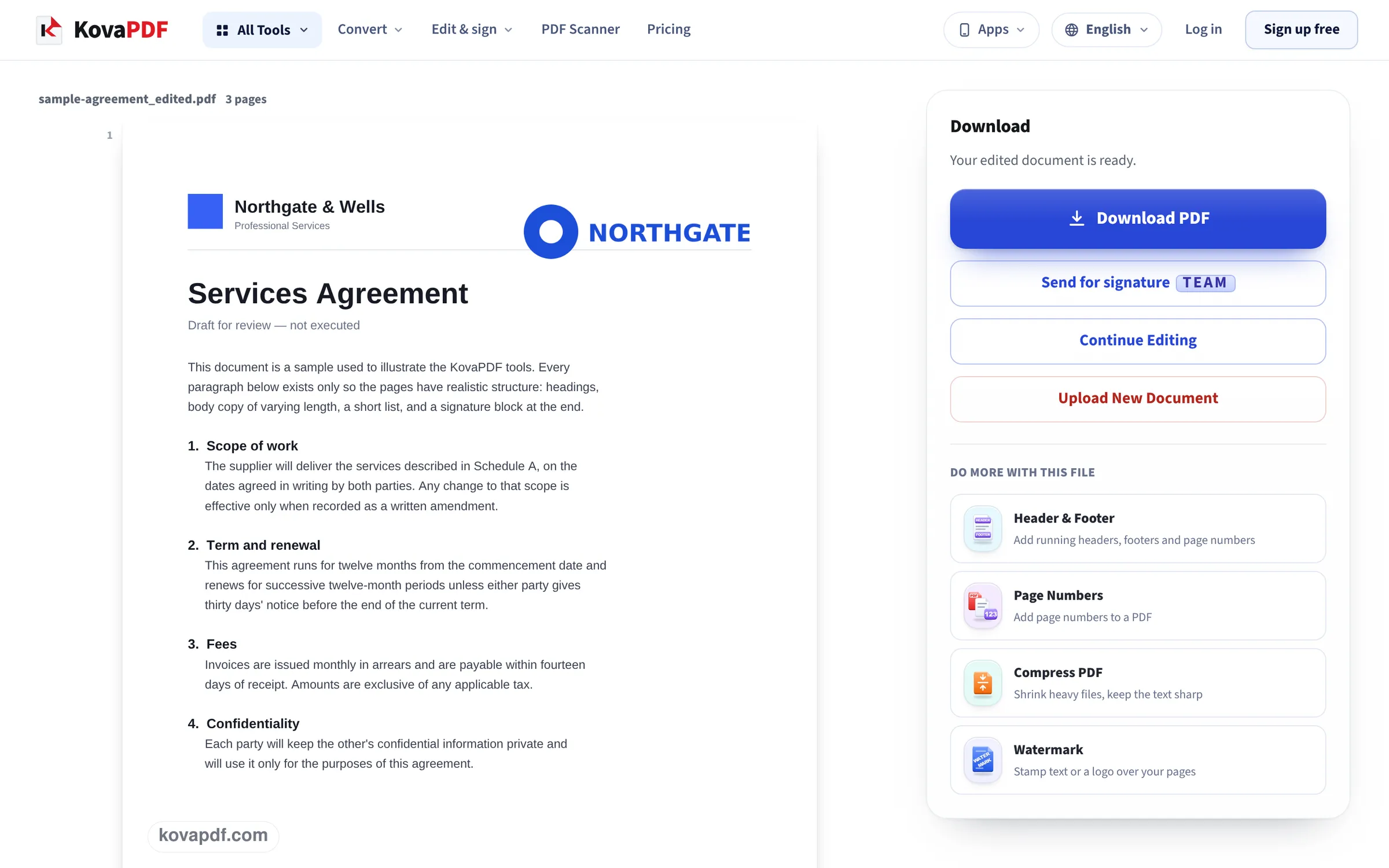
How a logo gets onto a letterhead, shown on our sample agreement: the upload, the logo dragged to the top corner with its white backing taken away, and the saved page.
Open the PDF
Add the file you want the picture on. The editor opens on the Add tools with Image selected and a Choose an image button in the panel.

Choose the picture and place it
We picked a PNG logo and dragged it to the top right of page 1. The bar above it copies, layers or deletes the picture, and its half circle button, Remove white background, takes away the white box a placed picture sits on. We pressed it.
Review & download
The saved page has the logo exactly where it was dropped, at the size it was given, with the header line running behind it.
A transparent logo, placed and read back
We made a 600 × 200 pixel PNG logo with a see-through background, added it to page 1 of our 3-page letter on this page, pressed Review & download and inspected the picture inside the saved PDF. Measured on October 24, 2026.
| Checked | As placed | After Remove white background |
|---|---|---|
| Picture in the saved PDF | 600 × 200 pixels, the full original size | 600 × 200 pixels |
| Its own transparency | Kept as a soft mask (81% of its pixels fully clear) | Kept as a soft mask |
| What is drawn under it | A white box the size of the picture | Nothing: the page shows through |
| Size on the page | 200 × 67 pt (about 2.8 × 0.9 inches) as first placed | The same |
| The letter's own text | All 5,839 characters, still selectable | The same |
| File size (letter 6,246 bytes) | 12,101 bytes | 13,775 bytes |
The white box is on purpose: a picture should hide what it covers, even a PNG that happens to carry a clear background. On a white page you cannot tell the difference. On a coloured page, a form line or a watermark, press Remove white background (the half circle on the picture's bar) and only the shape itself is kept.
PNG or JPG?
Use PNG for logos, stamps, signatures and anything with sharp edges. Use JPG for photos: much smaller files with no visible difference.
A JPG never has a clear background, so a logo saved as JPG brings its own white rectangle with it. Remove white background helps there too: it takes out the plain white around the shape.
What people add pictures for
The most common jobs:
- A logo on a letter, invoice or quote exported without one.
- A photo in a report, an inspection form or a listing.
- A stamp such as PAID or APPROVED saved as a picture.
- A signature you already have as a picture; to draw or type one instead, use Sign PDF.
- The same picture faint in the middle of every page: that is a watermark, done in Watermark PDF.
Good to know
Very large photos make large PDFs: a 12 megapixel phone photo can add several megabytes. Shrink it first with Resize Image, or compress the PDF afterwards. A PDF that needs a password to open has to be unlocked first.
Read next: Add text to a PDF · Add a confidential watermark · Sign a PDF on Mac
Frequently asked questions about Add image to PDF
How do I insert an image into a PDF?
Open the PDF here, press Choose an image, pick a PNG or JPG, then drag it into place and resize it. Review & download saves the PDF with the picture in it.
Will the image lose quality?
No. In our test a 600 × 200 pixel logo was stored at exactly 600 × 200 pixels.
Why is there a white box around my logo?
A placed picture sits on a white box so it hides what is under it. Select the picture and press Remove white background on its bar; in our test the saved file then had no box and the page showed around the logo.
Can I add the same logo to every page?
Add it to each page in turn, or use Watermark PDF with an image, which puts one picture on every page at once.
Which image types work?
PNG and JPG. Save other formats as one of these first.
Do I need Acrobat?
No. This works in any current browser, with nothing to install.
Add image to PDF guides and articles


Related tools
All PDF tools · 15 step-by-step guides · How your files are handled
Also: PDF Editor · Add text to a PDF