PDF to Word
Convert your PDF into a real, editable Word document — the text reflows normally, ready to rewrite rather than just look at.
- Keeps your layout
- Works on any device
- Deleted after processing
- A genuinely editable .docx
- Text reflows normally
- Tables and images carried over
- Opens in Word or LibreOffice
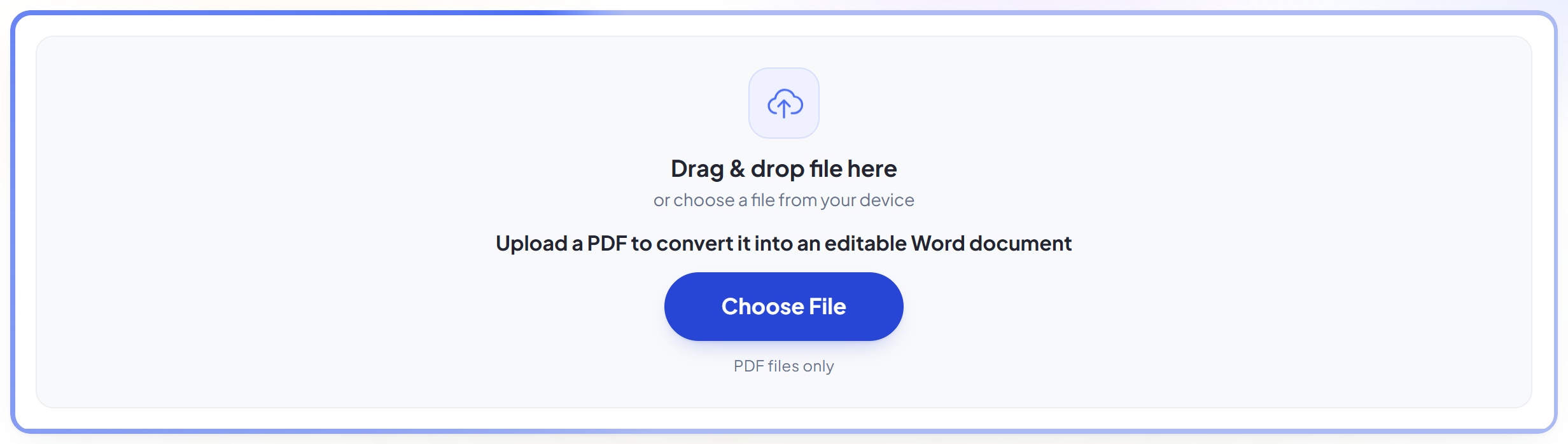
Drag & drop file here
or choose a file from your device
Upload a PDF to convert it into an editable Word document
PDF files only
How it works
PDF to Word in three steps
Upload your PDF
Drag your file onto the upload panel, or click it to pick one from your device. Nothing is sent anywhere until you start the job, and the working copy is deleted the moment it finishes.
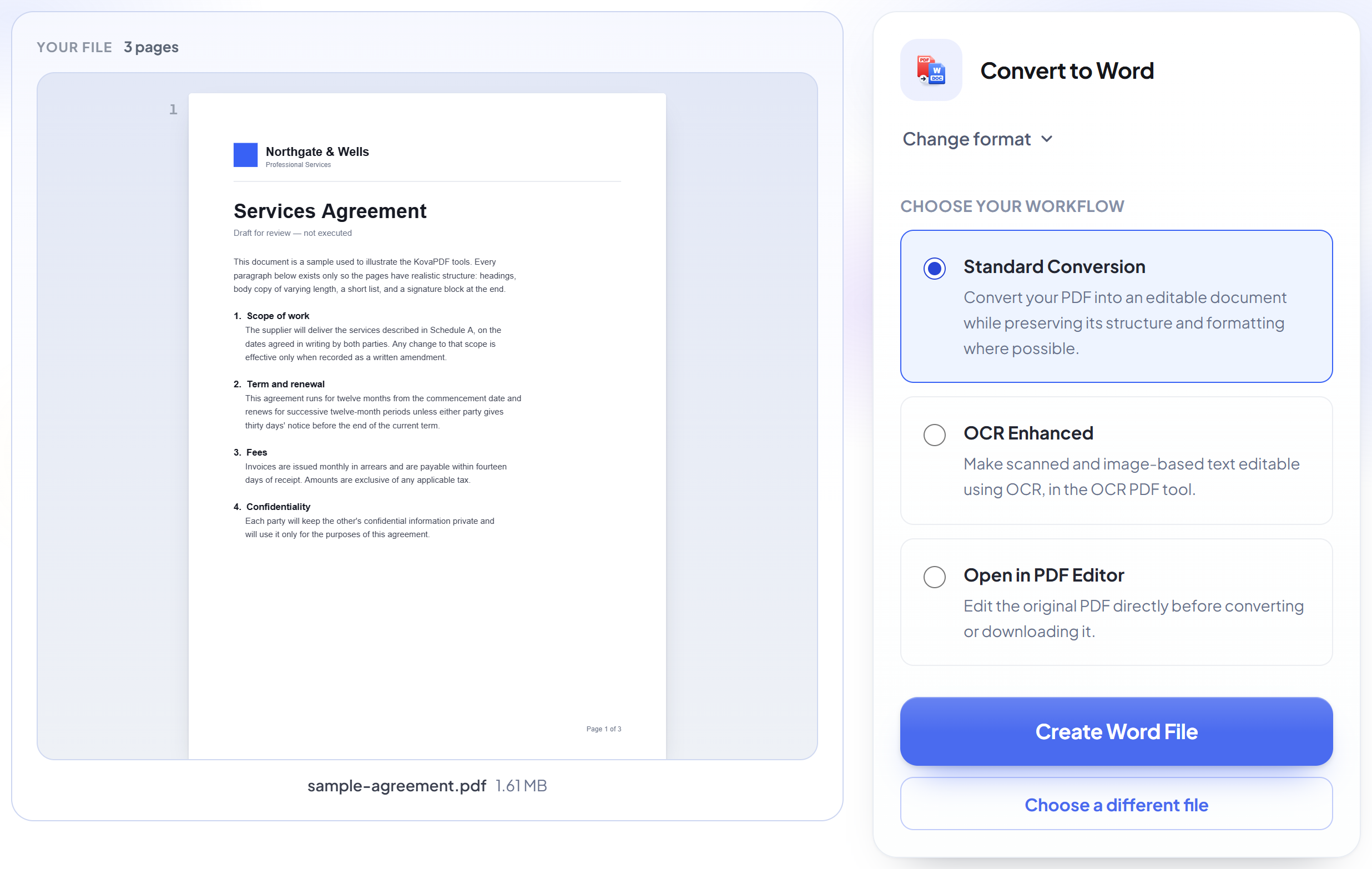
It reads your document's text
Text is pulled out in reading order, with bold and italic kept where the PDF used them.
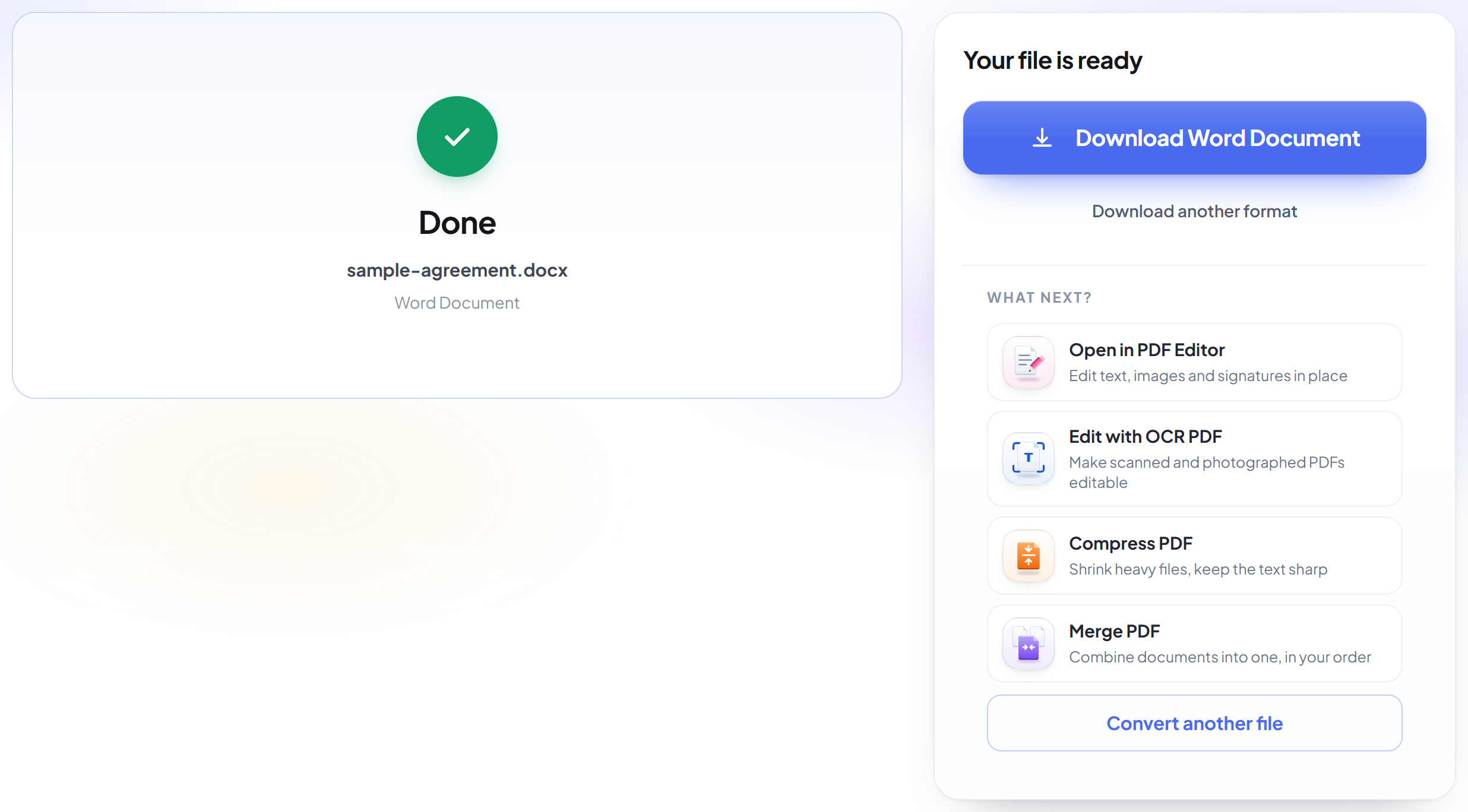
Download your Word document
The result opens in Word (or any compatible app) with the text reflowing normally, ready to rewrite.
How to convert a PDF to Word
Get a real, editable Word document out of your PDF — not a picture of one.
Upload your PDF
Drag your file onto the upload panel, or click it to pick one from your device. Nothing is sent anywhere until you start the job, and the working copy is deleted the moment it finishes.
It reads your document's text
Text is pulled out in reading order, with bold and italic kept where the PDF used them.
Download your Word document
The result opens in Word (or any compatible app) with the text reflowing normally, ready to rewrite.
Frequently asked questions about PDF to Word
Can I actually edit the text afterwards?
Yes — the text reflows normally, like any Word document, rather than sitting as a picture with text on top. Bold and italic are kept where the PDF used them.
What doesn't come across?
Images, logos, exact positioning and multi-column layouts. This tool converts a PDF's text into a genuinely editable document — it does not clone the page's appearance.
Does it work on scanned PDFs?
No — it needs a real text layer to read. A scanned or photographed page has no text to extract, so there is nothing to convert.
Is it free?
Yes. Every tool works without paying and without an account. Files can be up to 200 pages and 80 MB, and a run that fails costs you nothing.
Do I need to create an account?
No. All tools work without signing in. An account raises your hourly allowance and lets you see what you have processed.
What happens to my file?
It travels over an encrypted connection into a directory created for that single request, is processed, is returned to you, and the working copy is deleted as the request finishes. We keep a record that an operation ran — never the filename or the contents.
PDF to Word guides and articles
Related tools
All PDF tools · 5 step-by-step guides · How your files are handled