Scanned PDF to Word
Add the scan and it opens in OCR PDF, where every word is read with text recognition, then saved as a Word file you can edit.
- Keeps your layout
- Works on any device
- Deleted after processing
- A genuinely editable .docx
- Text in positioned, editable boxes
- Tables and images carried over
- Opens in Word or LibreOffice
Drag & drop file here
or choose a file from your device
PDF files only
On your computer? Get the Windows appOn your phone? Get the phone app
Everything PDF to Word can do
Turn a PDF into a real .docx you can rewrite in Word, free and online, with no account.
Text you can edit
- Real, selectable Word text, not a picture of a page
- Typeface, size, weight, italics and colour carried across
- Each line keeps the break and spacing the PDF gave it
- Every page becomes its own Word section
- Page size, orientation and margins taken from each page
Tables and rules
- Rules the page actually drew become real Word tables
- The source's own column widths, row heights and merges
- Border thickness reproduced edge by edge
- Loose rules become paragraph borders at their exact position
- Underlines land on the text they sit beneath
Logos and artwork
- Logos, seals, barcodes and signatures floated at their own coordinates
- Shaded banners and coloured blocks come across with the page
- A scanned page is placed whole, so it prints like the original
Your route through it
- Switch the target to Excel or PowerPoint without uploading again
- Download the same document in another Office format afterwards
- Open the PDF in the PDF Editor first and still finish in Word
- Send a scan to OCR PDF and finish in Word
How it works
Scanned PDF to Word in three steps
Add the scan
Drop the scanned PDF in. OCR Enhanced is already chosen on this page.
Let the pages be read
The scan opens in OCR PDF and every page is read with text recognition. Correct any word you like.
Download as Word
Review & download, then Download Word, gives you a .docx with the recognised words.
Scanned PDF to Word: a visual walkthrough
What happens to a scan on this page, photographed with a three-page scan of our sample agreement: the upload box, the pages read in OCR PDF, and the download screen that hands back a Word file.
Choose the scanned PDF
Drop the scan in the box. This page picks OCR Enhanced for you, so the file goes straight on to text recognition instead of being copied into Word as pictures.

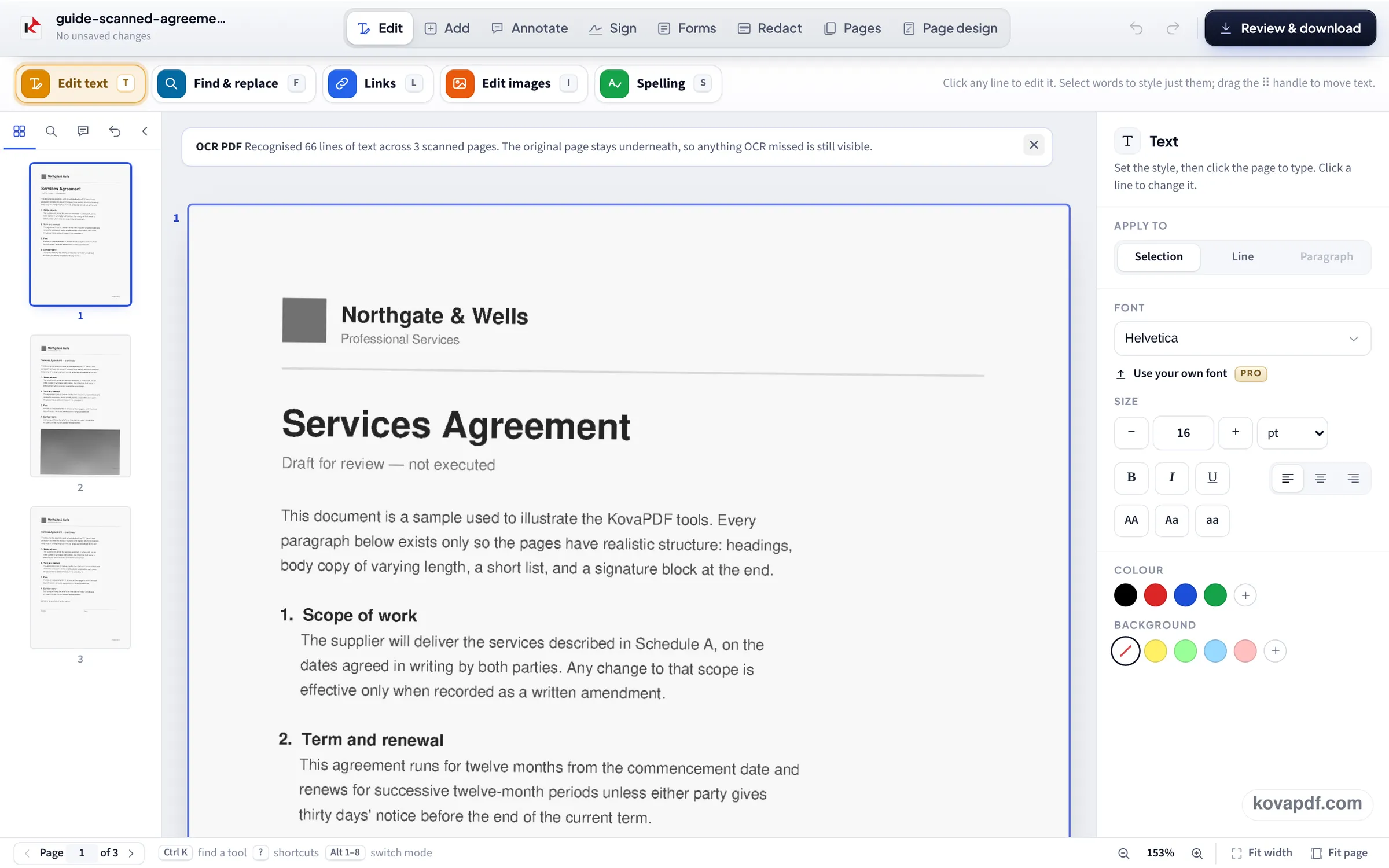
Check the recognised text in OCR PDF
OCR PDF opens with the scan and reads every page. A note at the top says how many lines were recognised; each line can be clicked and corrected, and the scanned page stays underneath.
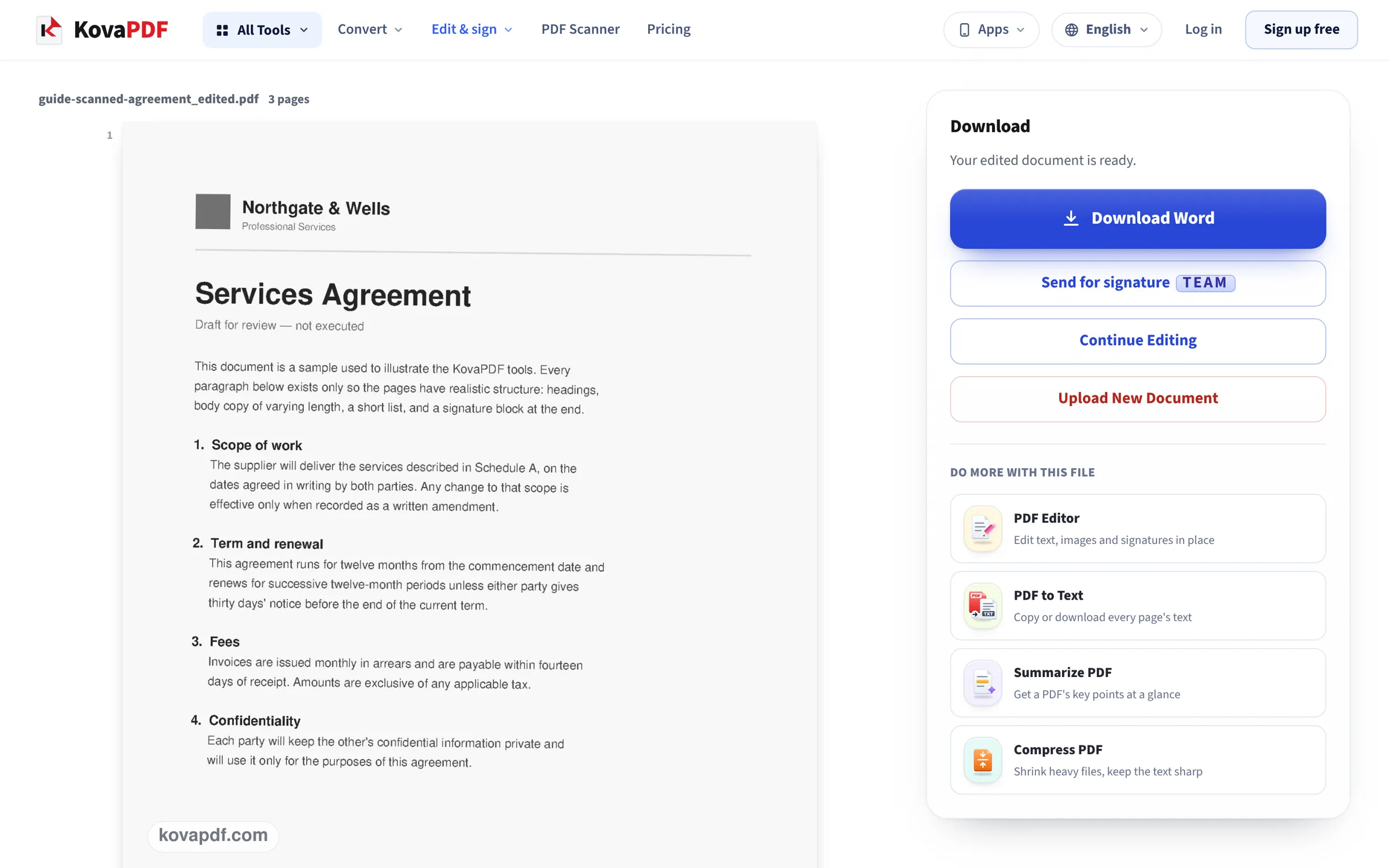
Download the Word file
Review & download builds the edited document and offers Download Word, because you came from the Word converter. The .docx holds the recognised words as text, not a picture of the page.
A scanned letter, two ways
We made a 300 DPI colour scan of page 1 of our letter (tilted slightly and toned like a flatbed scan), converted it on this page once with Standard Conversion and once with OCR Enhanced, and opened both Word files. Measured on October 24, 2026.
| Route | Word file | What was inside |
|---|---|---|
| Standard Conversion | 215 KB | The page as one picture: looks right, nothing to edit |
| OCR Enhanced | 12.6 KB | All 397 words of the page as editable text, no picture, in 111 pieces placed where the words stood |
The OCR Enhanced route took 39 seconds in one run and 20 in another, from choosing the file to the saved download, reading included. We compared the Word file with the original letter word by word: nothing missing, nothing extra.
The recognised words are placed in pieces of a line or a few words, so the page looks like the original. That makes correcting a word or a figure easy; for retyping whole paragraphs, copy the text into a new document instead.
Recognition is best on clean, straight 300 DPI scans of printed text. Handwriting is not read reliably.
What text recognition can and cannot do
OCR looks at the letters in the picture and works out what they are. On a clean scan of printed text, like our test letter, it is close to perfect. It gets worse with small print, faint or skewed scans, coloured backgrounds, stamps over text, and handwriting.
It reads words, not design: pictures, logos and lines on the page are not turned into Word drawings, and the font is a plain one rather than the one on the paper.
Better scans, better Word files
A little preparation helps:
- Scan at 300 DPI; 200 DPI is the lowest that reads reliably.
- Turn sideways or upside-down pages the right way first.
- Crop away dark edges and shadows from phone photos.
- If all you need is the words, Copy text from a scanned PDF is quicker and gives plain text.
Where the work happens
In our run the pages were read in the browser. The Word file is built on our server when you press Download Word, and the upload is deleted as soon as it is ready.
Read next: Convert PDF to editable Word · Copy text from a scanned PDF · Fix an upside-down scanned PDF
Frequently asked questions about Scanned PDF to Word
How do I convert a scanned PDF to an editable Word document?
Add the scan here. It opens in OCR PDF and the pages are read; then press Review & download and Download Word to get a .docx with the words as text.
Why does my scanned PDF come out as a picture in Word?
Because a scan has no text, only a picture of the page. A plain conversion keeps the picture; OCR Enhanced reads the words first.
How accurate is the OCR?
On our clean 300 DPI scan, all 397 words were right. Poor scans, small print and handwriting lower the accuracy; you can correct words on screen before downloading.
Will the layout match the scan?
The words are placed where they were on the page, so it looks like the original. Pictures and lines on the scan are not rebuilt in Word.
Can it read handwriting?
Not reliably. It is made for printed and typed text.
How long does it take?
Our one-page scan took between 20 and 39 seconds from choosing the file to the saved Word file. More pages take longer, because each one is read.
Scanned PDF to Word guides and articles




Related tools
All PDF tools · 15 step-by-step guides · How your files are handled
Also: PDF to Word · OCR PDF