Working with scans
How to improve the quality of a scanned PDF before sending it
In short
Improve a scanned PDF by fixing orientation and visibility while preserving every required mark and page. Enhancement can improve contrast, but it cannot recover clipped content or detail never captured. Review the saved file at its intended reading size before adding OCR or reducing its size.

What does the recipient need to read?
Start with the smallest important information: a date, account digit, pencil correction or seal. A scan can look clean in a thumbnail while those details remain unreadable. Check the page at normal reading size and enlarge the difficult areas before deciding it is ready.
Review completeness too. Missing page edges, a clipped signature or an omitted reverse side are capture problems. Contrast and sharpening cannot reconstruct content that never entered the file. Ask for a fresh capture when the source is incomplete.
What did our PDF enhancement test preserve?
We made a one page scan from a 1240 by 1754 pixel image and placed it on an A4 page measuring 595.28 by 841.89 points. KovaPDF's enhancement path produced one page with the same measured page box. The page did not become physically larger just because the enhancement path rendered it again.
Text extraction returned no text runs from either the input or the enhanced output. That confirms an important limit: improving the visible page did not, by itself, make this image-only fixture searchable. OCR is a separate operation.
Which corrections should come first?
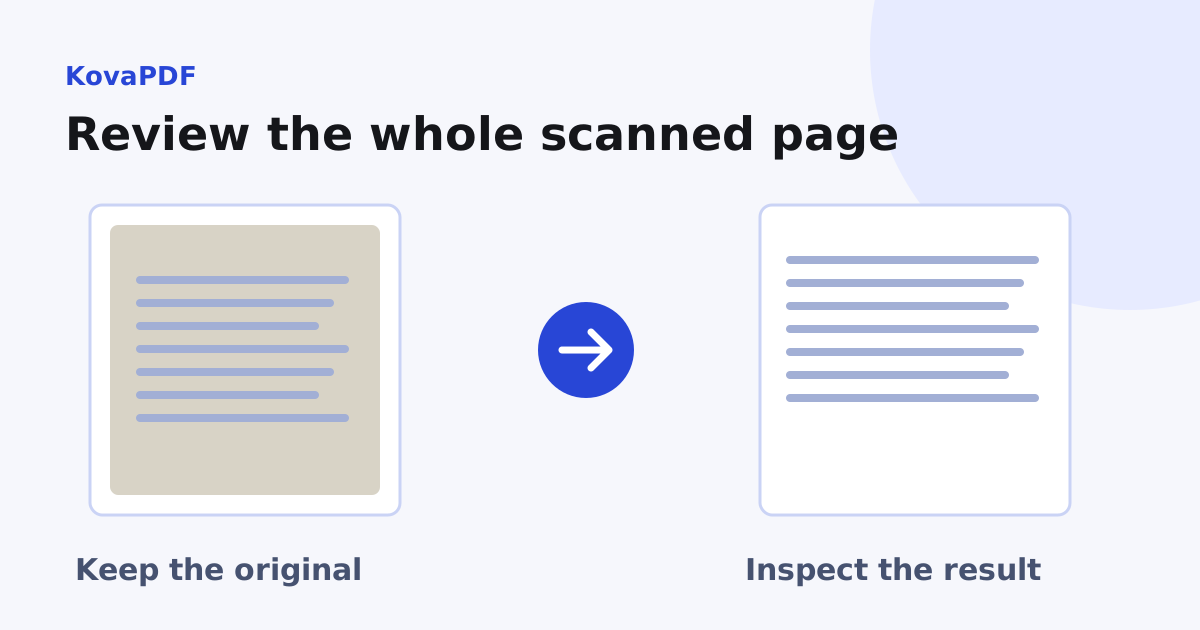
Turn sideways pages upright, check page order and inspect the edges. Then use Enhance PDF on a copy for contrast or sharpening if the writing is present but difficult to see. Compare the original and result rather than assuming stronger settings are better.
For grey paper, speckles or threshold choices, use the scan cleanup control guide. That article focuses on the image adjustments themselves. Here the goal is a complete, readable submission, which may require leaving a slightly grey original intact if cleaning removes evidence.
Can enhancement make the scan searchable?
No automatic conclusion follows from a cleaner image. Run OCR PDF when the recipient needs text selection or search, then proofread the recognised names and numbers. The text selection diagnosis helps distinguish image-only pages from pages with an existing text layer.
A PDF can contain both an image and hidden recognised words. Keep those layers in mind when reviewing an existing searchable scan. A visual improvement does not prove that its text layer still matches the visible page or that every page has one.
When should I capture the page again?
Capture again when motion blur merges characters, an edge is missing, a folded area obscures a line or glare covers a number. Increasing output resolution can make the same damaged information larger without making it correct.
Use even lighting and a flat page for a new photograph. Check all corners and the smallest text before repeating a whole batch. If colour conveys meaning, keep it. A grey stamp and black text may remain distinguishable in the original while merging after a hard black and white conversion.
How do I prepare the final copy?
Save the original separately. Review orientation and completeness, clean only where useful, then add OCR if needed. Reduce file size on a reviewed copy and reopen that final result. Compression can change image detail after your enhancement review.
The scanned file size guide explains the cost of image dimensions and colour. If the scan is a signed original with digital evidence, preserve that original before any visual rewrite. A clear replacement picture is not the same document structure.
Common questions
Can enhancement restore a clipped signature?
No. If the signature was outside the captured image, obtain a fresh complete capture.
Does a cleaner scan automatically become searchable?
No. Our enhanced image-only test still had no extractable text runs. OCR is a separate step.
Will more output pixels make the paper size larger?
They need not. Our A4 enhancement fixture kept its 595.28 by 841.89 point page box.
Should I always convert to black and white?
No. Colour may distinguish stamps, marks or highlighting that a threshold would remove.
When should I compress the result?
After visual review and any required OCR. Reopen the compressed result and inspect small details again.
Should I keep the original scan?
Yes. It lets you compare meaningful marks and return to the source if an adjustment damages information.
KovaPDF on your computer and phone
Use KovaPDF on your computer, where many tools work with no internet, and on your phone. The same account works in both.