Compare PDF
Put the original and the revised version side by side, see which words and which parts of each page changed, and keep a report of the differences.
- Free to use
- Works on any device
- Deleted after processing
- Words and page images both checked
- Original and revised side by side
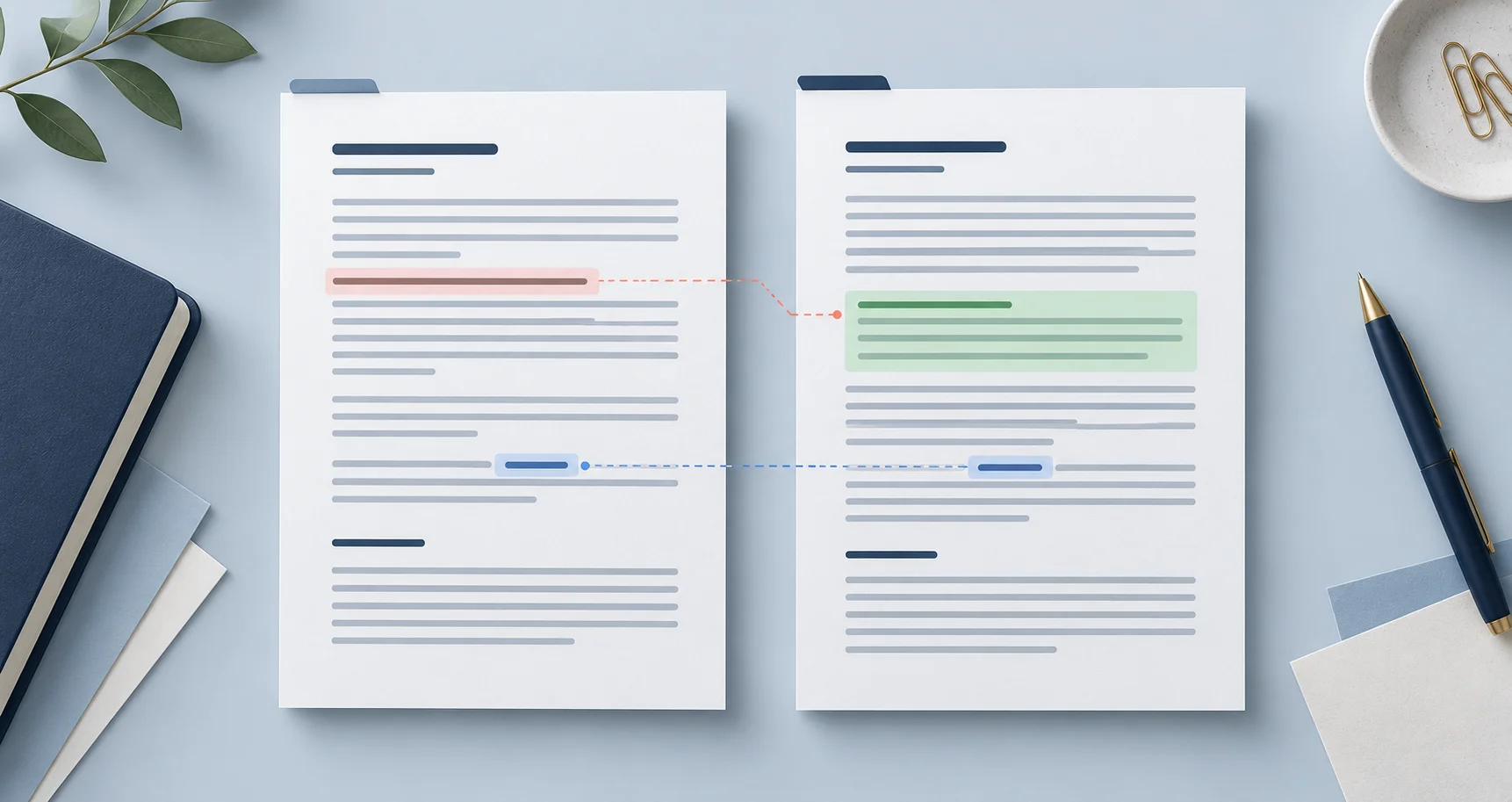
- Changed areas outlined
- A PDF report to keep
PDF · PDF
Choose the original and the revised PDF
Select both files at once, or one after the other. The first file is treated as the original.
Drag & drop files here
or choose a file from your device
Everything Compare PDF can do
Compare an original PDF with its revised version and see what changed in the words and on the page. Free, with no account.
What it compares
- The words in each page's text layer, added and removed
- The drawn page, so pictures, stamps and scans are checked too
- Scanned pages read with English OCR when they have no text
- Three levels of visual sensitivity, from exact pixel colours to ignoring small variations
Reviewing the result
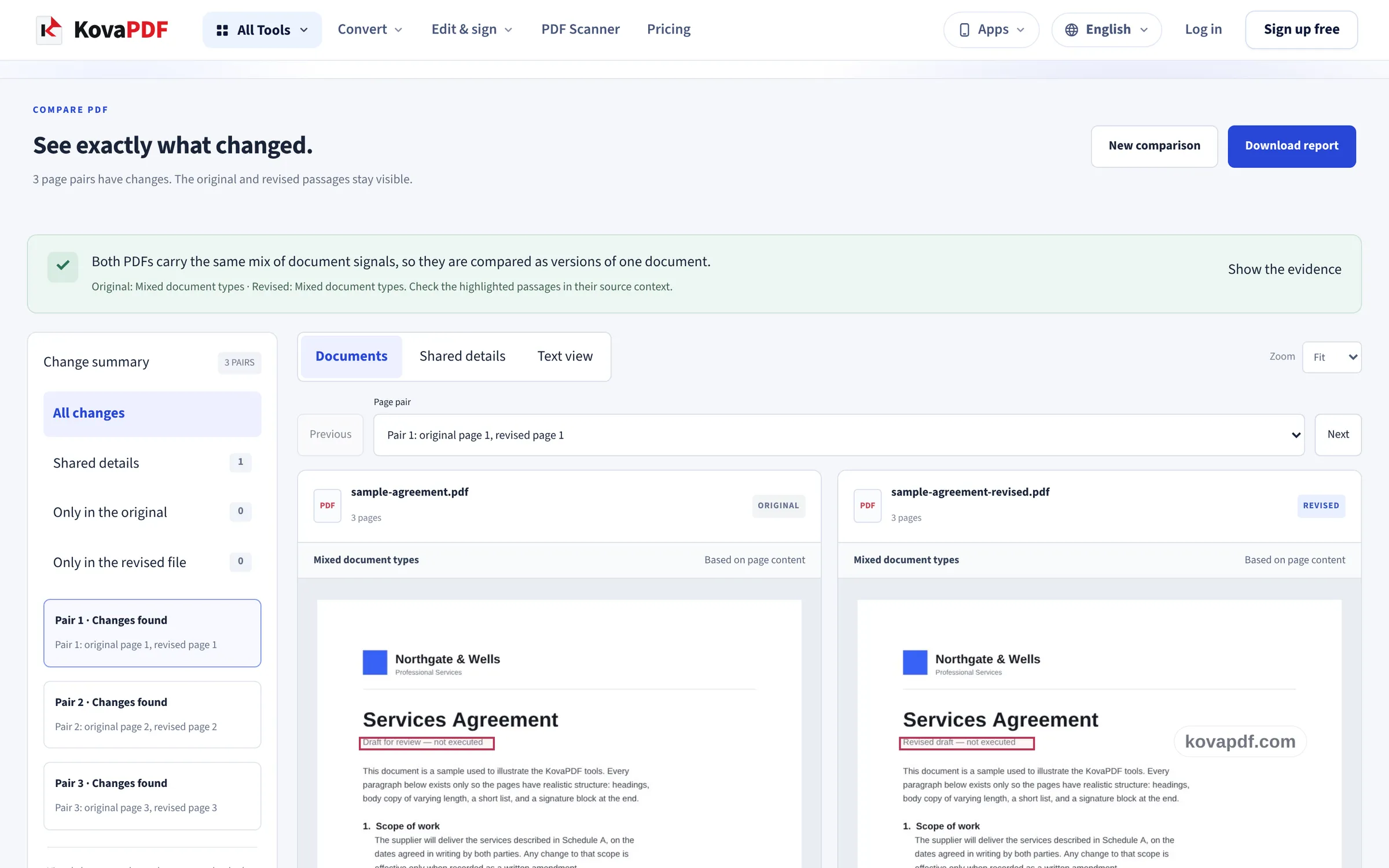
- Original and revised pages side by side, with the changed areas outlined
- A text view with removed words marked in the original and added words in the revised file
- Every page pair listed, with a jump to each one that changed
- Zoom to 150% or 200% on a page
Understanding the documents
- A suggested document type for each file, worked out from its pages
- The evidence behind each suggestion, and a way to correct it
- Matching details such as the client, the amount, the payment period and the delivery date
- Sections that appear in only one of the two files
What you get back
- A PDF report with the page images, the outlines and the text changes
- Up to 50 pages and 25 MB in each file
- Each file passes the upload safety check, then the comparison runs in your browser
How it works
Compare PDF in three steps
Add both PDFs
Drag the original and the revised PDF onto the panel, or pick them from your device. Two files at once fill both places; one file at a time fills the original first.
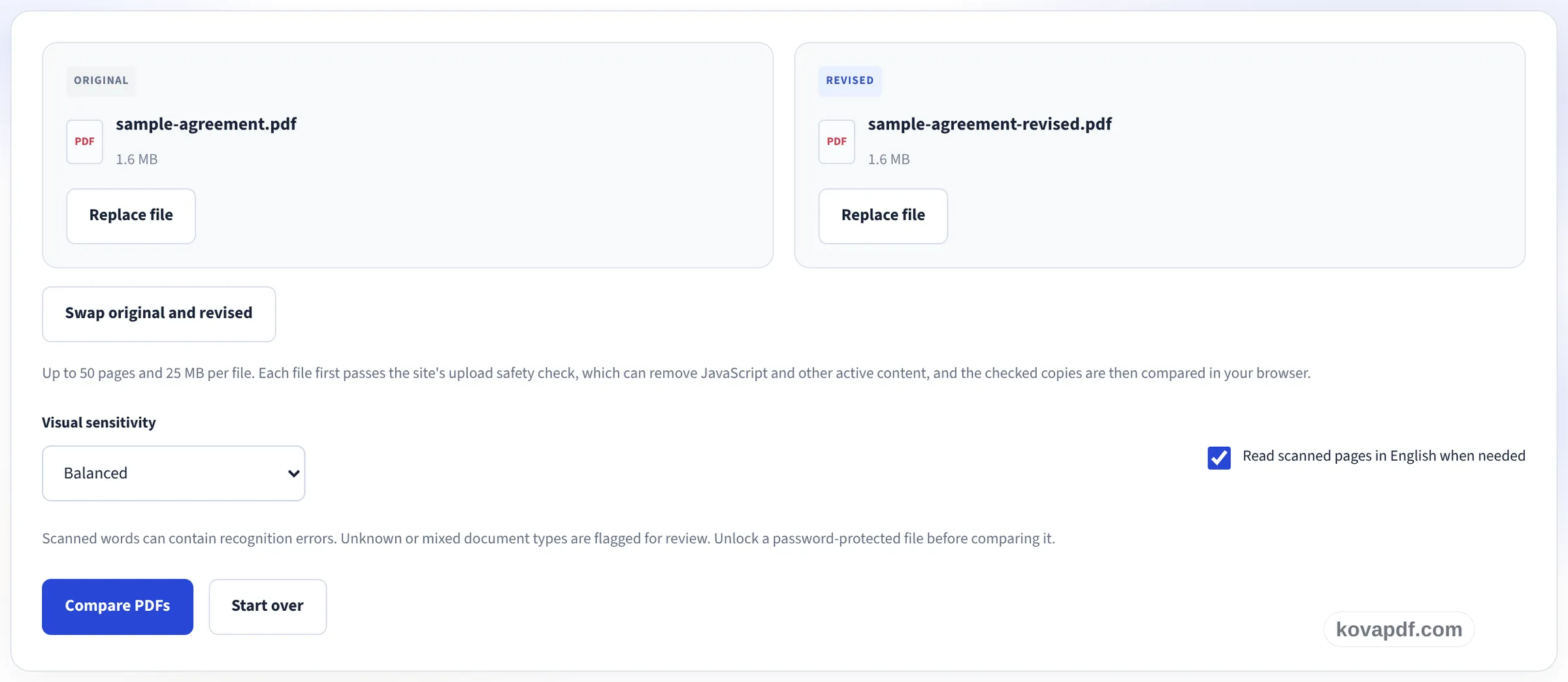
Check the files and compare
Make sure the original and the revised file are the right way round, swap them if not, and choose how sensitive the visual check should be. Each file then passes the site's upload safety check, and the pages are compared in your browser.
Review the changes and download the report
The two versions sit side by side with the changed areas outlined. Switch to the text view for the exact words, check shared details such as amounts and dates, and download a PDF report.
Compare PDF: a visual walkthrough
Check a revised document against the version you already have, page by page.
Add both PDFs
Drag the original and the revised PDF onto the panel, or pick them from your device. Two files at once fill both places; one file at a time fills the original first.

Check the files and compare
Make sure the original and the revised file are the right way round, swap them if not, and choose how sensitive the visual check should be. Each file then passes the site's upload safety check, and the pages are compared in your browser.
Review the changes and download the report
The two versions sit side by side with the changed areas outlined. Switch to the text view for the exact words, check shared details such as amounts and dates, and download a PDF report.
Frequently asked questions about Compare PDF
What happens to my file?
When you start the comparison, each PDF is sent to our server for the safety check every upload gets, which can remove JavaScript and other active content. The checked copy comes back to your browser and the copy on the server is deleted. The page images and the text are compared in your browser.
What does Compare PDF check?
Two things, separately. The text view compares the words in each page's text layer and marks what was added or removed. The visual view draws both pages and outlines the areas that differ, which also catches changes to pictures, stamps and scanned pages.
How are the pages paired?
When both files are the same type of document, pages are paired by their text, so one inserted page does not shift every later pair. Otherwise page one is paired with page one, and so on. Check the pairing whenever pages were added, removed or moved.
Can it compare scanned PDFs?
Yes. Scanned pages are compared as images. With Read scanned pages turned on, their words are also read with English OCR so the text view has something to compare. OCR can misread words and numbers, so check important figures in the original.
How large can the files be?
Up to 50 pages and 25 MB in each file. A password-protected PDF has to be unlocked first.
What is in the comparison report?
A PDF with the file names, the suggested document types and their evidence, the matching details, the list of page pairs and, for each changed pair, both page images with the changed areas outlined and the added and removed text. The report is written in English.
Does a comparison prove that a document is genuine?
No. It shows the differences this check found. It does not show who made a file, whether its content is correct or whether a digital signature is valid. Use Verify PDF Signature to check a signature.
Is it free?
Yes. Every tool works without paying and without an account. Files can be up to 200 pages and 50 MB, and a run that fails costs you nothing. Pro removes the limits.
Do I need to create an account?
No. All tools work without signing in. An account raises your allowance and lets you see what you have processed.
Compare PDF guides and articles
Related tools
All PDF tools · 15 step-by-step guides · How your files are handled