Getting the most out of PDFs
How to compare two PDF files and see what changed
In short
Put the earlier PDF in Original and the revised PDF in Revised in Compare PDF. Read the text changes and the outlined visual changes together, account for added or moved pages, and check important amounts and conditions in the original files before relying on the report.
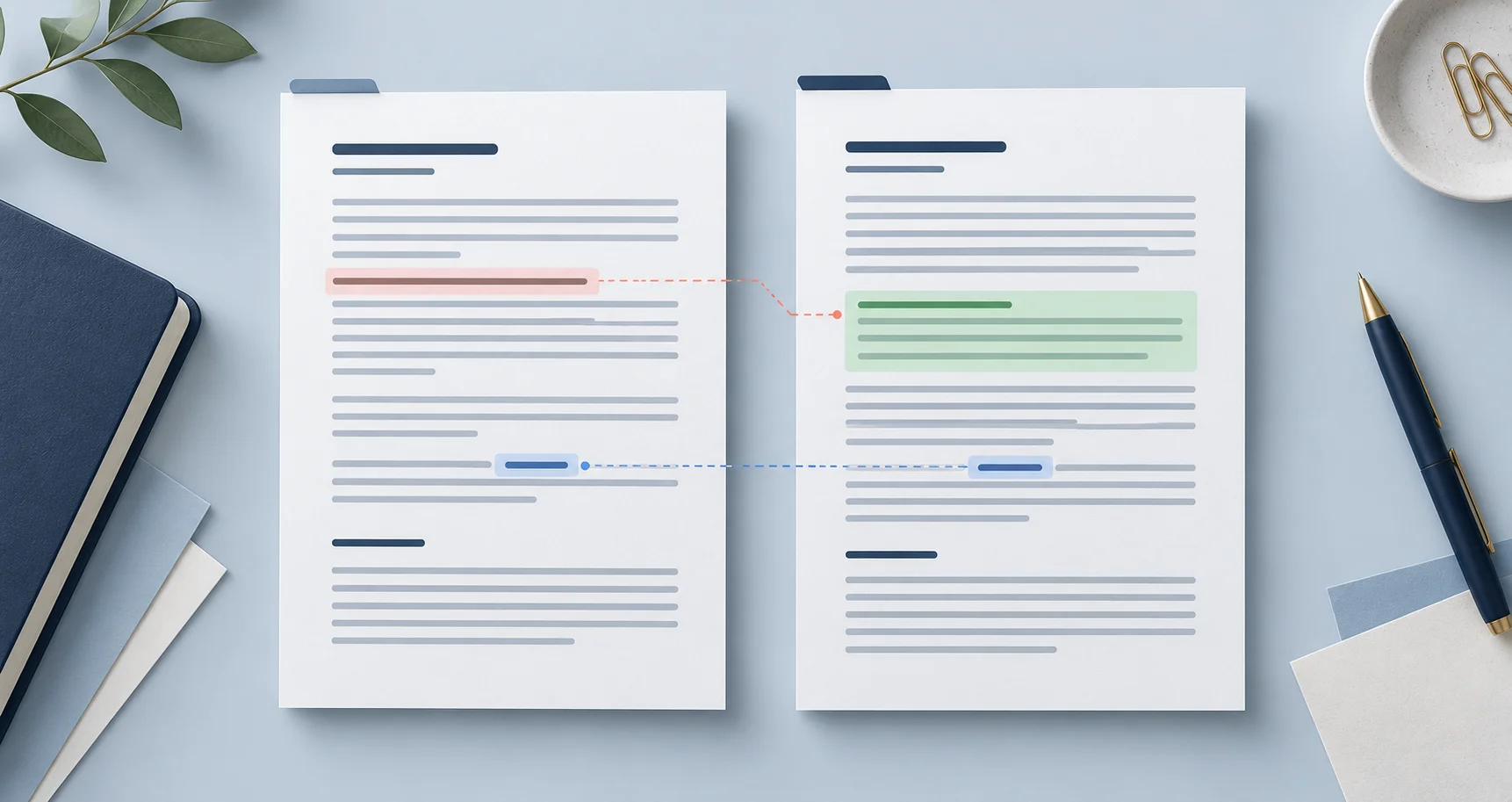
Someone has sent you a revised contract, quote or report and you want to know what changed. Flicking between two tabs works for a one page letter. On anything longer it is how a changed price or one extra sentence in a long clause gets missed.
Open Compare PDF, choose the original and the revised copy, and you get both versions side by side with the changes marked. That gets you to the right places quickly. It does not tell you which changes matter. A new delivery date and a logo that renders a shade darker can both show up as differences, and only one of them needs a reply.
Below is the order I would check things in, using a small fictional example you can repeat with your own files.
What happens to your files
Each PDF can have up to 50 pages and be up to 25 MB. Password protected files have to be unlocked first.
The files go through the site's upload security service before anything is compared. That step prepares a clean copy of each PDF and can strip JavaScript and other active content. The comparison itself then runs in your browser on those prepared copies.
Two consequences follow. Keep your original files, because the copies you see in the workspace are not byte for byte the files you received. And if one of the PDFs carries a digital signature, check that signature on the original with Verify Signature. A comparison shows what the pages say. It is not a signature check.
Put the right two copies in the right order
The earlier version goes in the Original slot and the newer one in Revised. Rename the files first if they are called something like contract(3).pdf and contract(4).pdf. You will refer to them later, and so will anyone you send the result to.
Make sure you are comparing the copies that matter. A PDF exported from someone's working draft can differ from the one that was actually sent to the client. Comparing the wrong pair gives you a tidy list of changes nobody needs to review.
Check the page counts before you start reading. If the revised copy has two more pages, find out where they went in. An added appendix is a change in its own right, even if every other page is identical.
If a file will not open at all, try Repair PDF on a copy and note that you did. Repair can rewrite the structure of the file, so say so if you later report what you compared.
Text changes and visual changes are different checks
The text comparison reads the words stored in each PDF. Added words are shown in green, removed words in red. It is the view that catches a changed amount, a new condition or a name that was swapped. Extra spaces are ignored, and a passage that moved can show up as a removal in one place and an addition in another.
The visual comparison draws each page as an image and outlines areas that look different. It finds things the text view cannot see: a replaced photo, a missing stamp, a signature box that moved, a table border that disappeared. It also picks up noise, such as slightly different spacing after a document was exported again.
You need both. A new logo leaves the text untouched. A fee changing from 120 to 170 changes very few pixels but completely changes the quote. On anything with consequences, read the text result and look at the page images together.
The visual sensitivity setting decides how fussy the image check is. Exact pixel colours reports every difference. Ignore small colour variations skips faint shading changes, which helps when the same document has been exported twice by different software. Pages are drawn at up to 1200 pixels on the longer edge, so very small print still deserves a look in the original file.
A worked example
Take a two page proposal for a small website. The original lists discovery at $300 and page design at $900. In the revision, page design is $1,050, there is a new sentence about who supplies the photographs, and the example image on page 2 has been replaced.
Start with the money. Find the changed line in the text view and read the description around it in both copies. Then check the total. A new line price with the old total still printed underneath is more likely an editing slip than an agreed change.
Next, read the new sentence in context. Does it move the job of supplying photos from the client to you, or does it repeat something already agreed elsewhere? The comparison shows which characters changed. Deciding what the change means is your job.
Last, page 2. The text view has little to say about a swapped image, so switch to the visual result and look at the image, its caption and anything near it at a size you can actually read.
Write a short note for each change that needs a decision: Page 1, design fee $900 to $1,050, confirm with client. Page 2, example image replaced, no action. Once the client agrees the revised figures, writing the freelance invoice against the agreed version is a separate job, and these notes make it easier.
When the two PDFs are different kinds of document
Sometimes you are not comparing two drafts of the same thing. You might have a service agreement and the purchase order raised against it, or a quote and the invoice that followed.
Compare PDF suggests a document type for each file from what is on the pages, not from the file name, and shows the evidence it used: the headings and fields it recognised. If the suggestion is wrong, or the file mixes several types, correct the type yourself. The evidence stays visible either way.
Different document types need a different reading approach. A purchase order will not contain every section of a service agreement, and a missing section is not a deleted term. The shared details view lines up values that may correspond, such as parties, amounts and dates, and the rest of each file is shown as content unique to that document. Treat those matches as suggestions. A project fee on one document and an order total on the other can share a number and still mean different things.
Scanned pages
A scan is a picture of a page. If neither file has a text layer, an empty text result does not mean the documents match. It means there were no words to compare.
Turn on Read scanned pages in English when needed and the tool runs text recognition on pages without usable text. The result says when evidence came from recognition, and recognition can misread a 1 as a 7 or an O as a 0. Before you act on a changed figure in a scan, read the figure on the page image itself.
Scans also bring noise. One copy may be slightly tilted or darker at the edges, which produces large outlined areas where the words are the same. Look for real words, amounts and marks inside each outlined area rather than counting outlines.
If you need a searchable copy of a scan for other work, OCR PDF adds a text layer. For a long, messy scan, comparing a few pages at a time is often easier. Split PDF can cut out the section you need, and noting the original page numbers keeps your notes tied to the full document.
Inserted, removed and moved pages
An extra page near the start used to mean every later page was paired with the wrong partner, and the result looked as if the whole document had been rewritten. Where pages have enough readable text, Compare PDF suggests an ordered set of matches instead, so an inserted page shows as a page with no counterpart and the pages after it still pair up.
Check those pairs. Look at the headings at the top of each pair and confirm they belong together. A page marked No corresponding page has not been compared with anything. It has been added or removed, and your notes should say which.
When sections have been moved around, find each section in both files and compare the section itself. If you build aligned working copies with Organize PDF, label them as working copies and keep the untouched originals next to them.
Changes that are usually false alarms
Some differences are real in the file but mean nothing to the reader. Knowing the common ones saves time.
A document exported again from the same source can come out with slightly different spacing, line breaks or image compression. If the text view is quiet and the outlines are faint and spread across the page, that is the likely cause. The Ignore small colour variations setting cuts most of this out.
A changed font is a bigger version of the same thing. If the revised copy was made on a computer without the original font, every line can rewrap and the visual result lights up from top to bottom while the words stay the same. Why fonts change when Word becomes a PDF explains how that happens. Trust the text view in that case and read any reflowed tables carefully.
A page that changed from A4 to US Letter, or the other way round, is flagged as a page size change. The content may be identical, but margins and line breaks can move. Check whether the change was intended before you treat it as harmless, because a different paper size can also mean a different template was used.
After the comparison
Export the report if you need a record. It lists both file names, the changes found, and whether any text came from recognition. Add a short note saying which changes need a decision and whether you compared the originals or prepared copies. A list of every outlined area, with no note, leaves the reader to redo your work.
Reports can quote text and show page images from both documents. If the report or a copy of the document is going to someone who should not see everything, use Redact PDF on the copy you are sending and check the result.
If you need to change the PDF after review, edit a copy in the PDF Editor and save it under a new name, so the revision you received and your own edits stay separate.
A quick checklist
- The earlier file is in Original and the newer one in Revised.
- Every added, removed or unmatched page is accounted for.
- Amounts, names, dates and conditions are read in both originals, not only in the highlights.
- Image changes are checked even when the text result is quiet.
- Anything read from a scan is checked against the page image.
- Changes that need a decision are written down with page numbers.
- The original PDFs are kept, and any working copies are labelled.
The useful output is that short list of changes that need an answer, with page numbers and the original files kept, not a page full of coloured boxes.
Common questions
Does no text difference mean two scanned PDFs are identical?
No. A scan may have no text layer at all. Turn on reading scanned pages, or review the visual comparison and the page images, rather than treating an empty text result as a match.
Can I use a comparison instead of checking a digital signature?
No. A comparison shows changes in content and appearance. Checking a digital signature is a separate test of the signed file, and it should be done on the original you received.
Why do many pages change after one page is inserted?
Pairing pages by number shifts every page after the insertion. Compare PDF suggests ordered matches when pages have enough readable text, but check the headings on each pair and the page counts yourself.
Are my files uploaded?
They pass through the site's upload security service, which prepares a clean copy of each PDF. The comparison then runs in your browser on those copies. Keep your originals.