Image Converter
Turn WebP, HEIC, PNG, GIF and other pictures into JPG, PNG or WebP. Several at once, downloaded together.
- Free to use
- Works on any device
- Nothing to install
- JPG, PNG or WebP out
- WebP, HEIC, GIF, BMP and AVIF in
- Transparency kept or filled
- Many pictures, one ZIP
JPG · PNG · WebP · HEIC
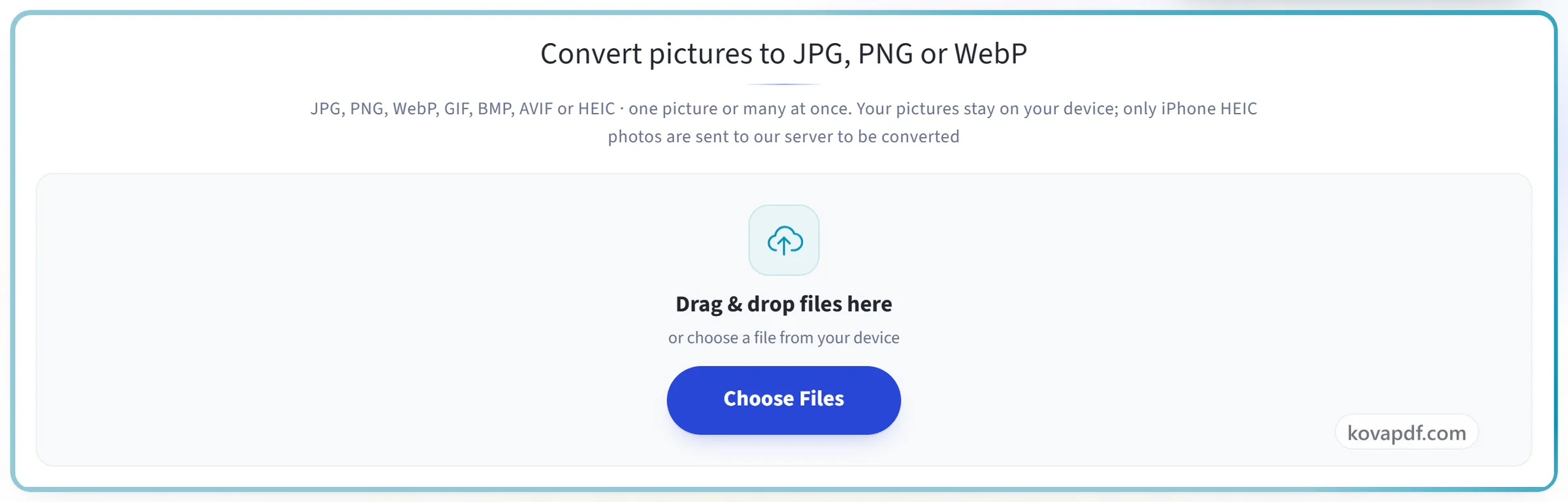
Convert pictures to JPG, PNG or WebP
JPG, PNG, WebP, GIF, BMP, AVIF or HEIC · one picture or many at once. Your pictures stay on your device; only iPhone HEIC photos are sent to our server to be converted
Drag & drop files here
or choose a file from your device
Everything Convert Image can do
Turn pictures from one format into another, one or many at once. Free, and most pictures never leave your device.
Formats
- Into JPG, PNG or WebP
- From JPG, PNG, WebP, GIF, BMP, AVIF and iPhone HEIC
- An animated GIF or WebP becomes a still of its first frame
Settings
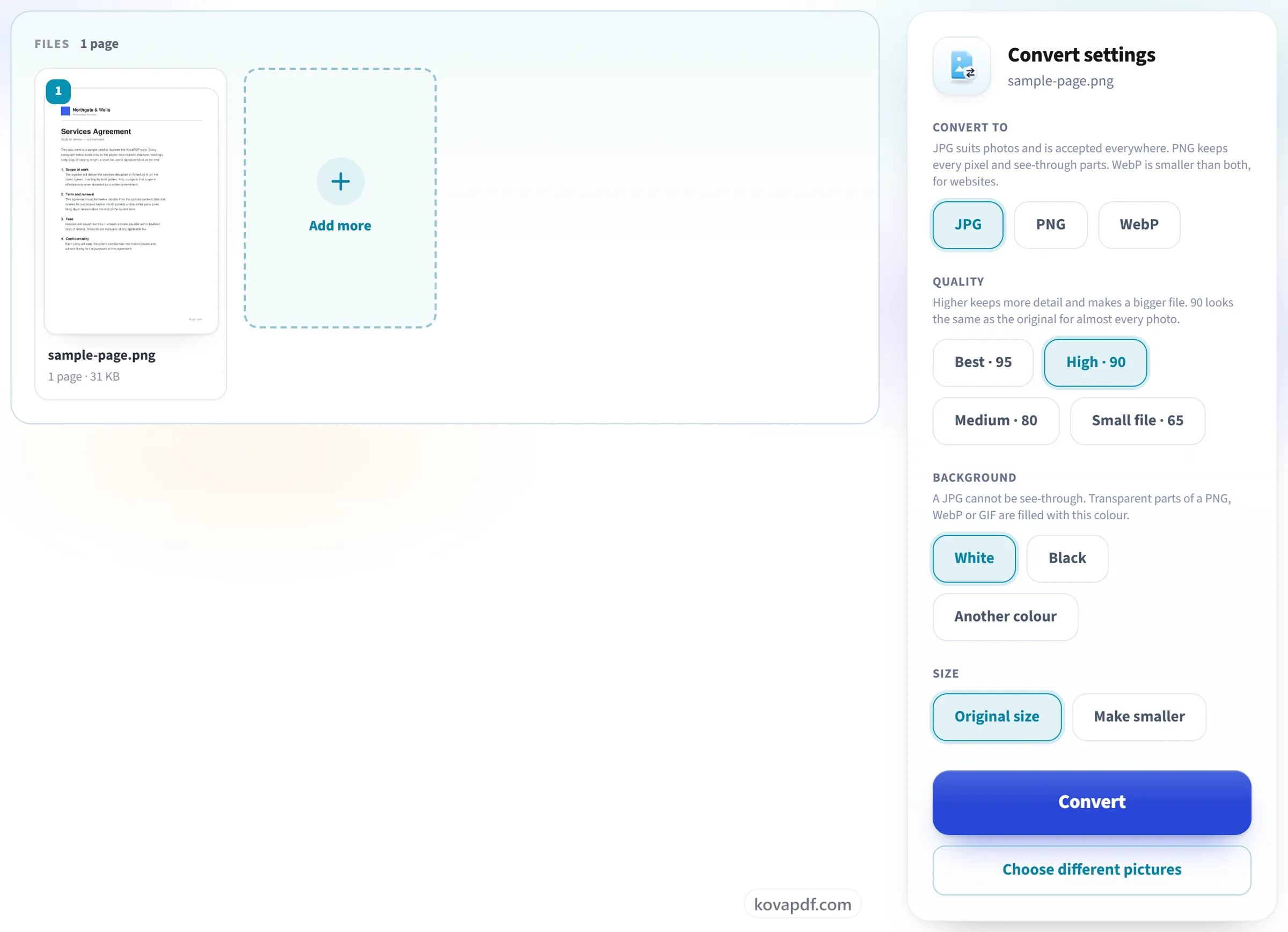
- JPG and WebP quality: Best 95, High 90, Medium 80 or Small file 65
- See-through parts kept in PNG and WebP, or filled with white, black or any colour in a JPG
- Original size, or made smaller by width, height or both, the shape kept
Your pictures
- Phone photos come out the right way up
- No location, camera details or other hidden information carried over
- Up to 10 pictures at a time, 50 when signed in, downloaded together in a ZIP
- Converted in your browser; only iPhone HEIC photos are sent to our server, and deleted once converted
How it works
Convert Image in three steps
Add your pictures
Drag your pictures onto the panel, or click it to pick them from your device. They are converted in your browser and stay on your device. Only iPhone HEIC photos are sent to our server, and deleted as soon as they are converted.
Choose the format
Pick JPG, PNG or WebP. For JPG and WebP, keep the quality at 90 or choose another. For JPG, choose the colour for any see-through parts. Choose Make smaller to set a width or height.
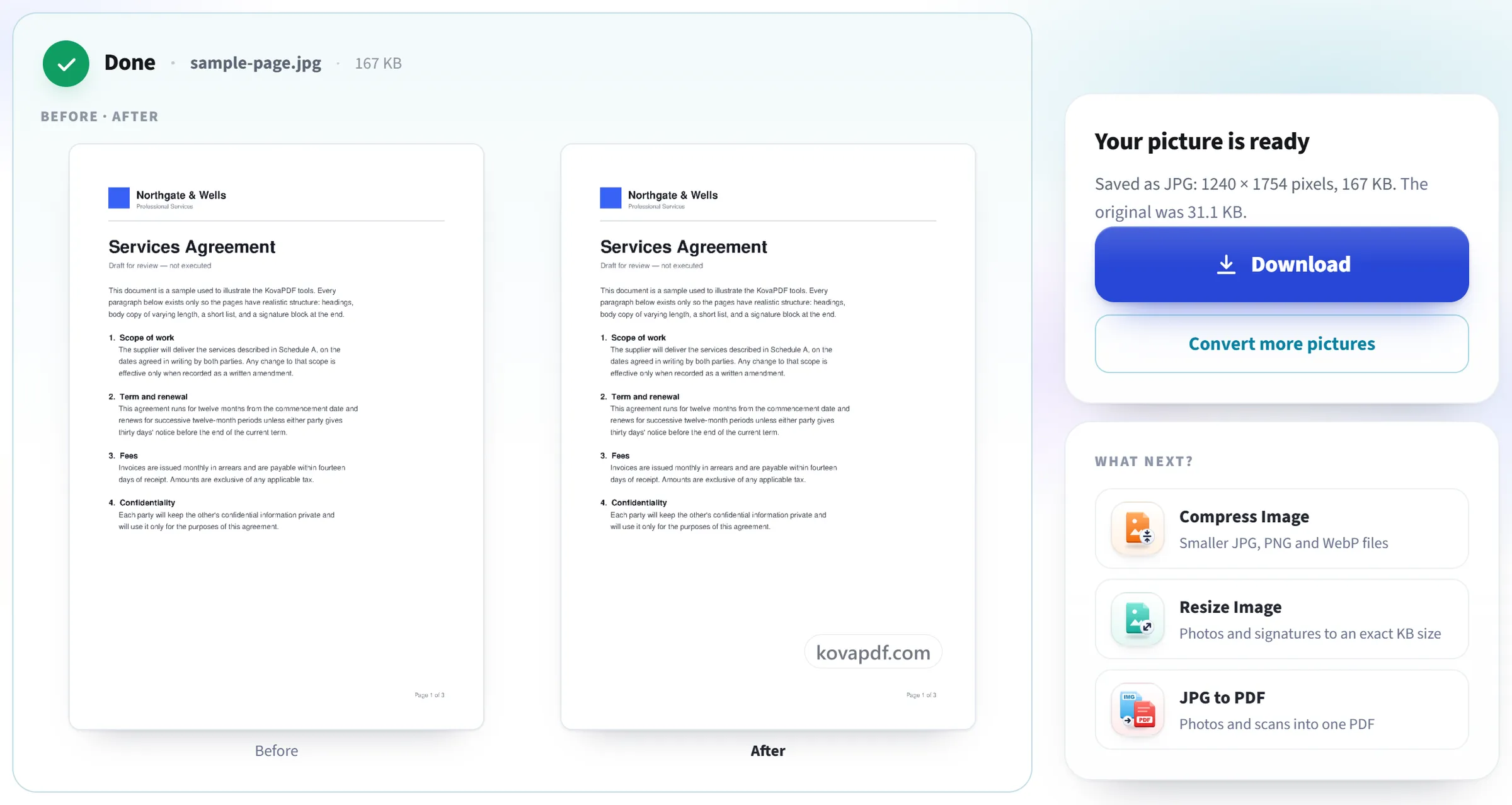
Convert and download
Press Convert. One picture downloads on its own; several come together in a ZIP, named after the originals.
Convert Image: a visual walkthrough
Turn WebP, HEIC, PNG and other pictures into the format you need.
Add your pictures
Drag your pictures onto the panel, or click it to pick them from your device. They are converted in your browser and stay on your device. Only iPhone HEIC photos are sent to our server, and deleted as soon as they are converted.
Choose the format
Pick JPG, PNG or WebP. For JPG and WebP, keep the quality at 90 or choose another. For JPG, choose the colour for any see-through parts. Choose Make smaller to set a width or height.
Convert and download
Press Convert. One picture downloads on its own; several come together in a ZIP, named after the originals.
Frequently asked questions about Convert Image
Which formats can I convert?
You can add JPG, PNG, WebP, GIF, BMP, AVIF and iPhone HEIC pictures, and turn them into JPG, PNG or WebP.
Which format should I choose?
JPG for photos and for anything you send or upload, since every app and form takes it. PNG when every pixel has to stay exact, for screenshots, logos and see-through backgrounds. WebP for websites, where it is the smallest of the three, though some older apps cannot open it.
What happens to my file?
JPG, PNG, WebP, GIF, BMP and AVIF pictures are converted in your browser and never sent to us. Only the fact that a task ran is counted. Most browsers cannot open iPhone HEIC photos, so a set that includes one is sent to our server over an encrypted connection, converted there and deleted as soon as it is done.
Can I convert many pictures at once?
Yes. Up to 10 at a time without an account, and 50 when you are signed in. They all get the same settings and download together in one ZIP. If one picture cannot be read, the others still finish and the page lists the one that did not.
Can I change the size while converting?
Yes. Under Size, choose Make smaller and type a width, a height or both, in pixels. The shape is always kept, and a picture is never made larger than it is.
Is anything else changed?
Phone photos are turned the right way up, and the location, camera details and other hidden information are not carried over. An animated GIF or WebP becomes a still picture of its first frame. Nothing else about the picture changes.
Why can't I save as WebP?
Some browsers, Safari among them, cannot save WebP pictures. If yours cannot, the page says so before anything is downloaded. Choose JPG or PNG, which every browser can save, or use Chrome, Edge or Firefox for WebP.
Is it free?
Yes. Every tool works without paying and without an account. Files can be up to 200 pages and 50 MB, and a run that fails costs you nothing. Pro removes the limits.
Do I need to create an account?
No. All tools work without signing in. An account raises your allowance and lets you see what you have processed.
Related tools
All PDF tools · 15 step-by-step guides · How your files are handled
By format: WebP to JPG · WebP to PNG · HEIC to JPG · PNG to JPG · JPG to PNG