Sign a PDF on Mac
Type, draw or upload your signature, drop it where it goes and download the signed PDF. It works in Safari, Chrome or Firefox on your Mac.
- Free to use
- Works on any device
- Nothing to install
- Draw, type or upload it
- Place it anywhere, any page
- Resize and move it freely
- No certificate needed
PDF · Word · JPG · PNG · WebP
Drag & drop file here
or choose a file from your device
Choose the PDF on your Mac to sign
PDF, Word or image files
Everything Sign PDF can do
Put your signature, your initials and the rest of what a form asks for onto a document, and drag each one into place. Free, in your browser, no account or certificate needed.
Making your signature
- Draw it with a mouse, a finger or a pen
- Type it in three handwriting styles
- Upload a photo of a sheet you signed
- Photographed paper is cleared away to transparent
- Blue or black ink
Initials and fields
- Initials, drawn, typed or uploaded the same way
- Your name, typed once and placed as often as needed
- A date from a calendar, in four formats
- Any other line of text a form asks for
- Check and cross marks
Placing what you add
- Drag to move it, drag a corner to resize it
- Copy the selected item onto every page
- Place a signature you made earlier again
What you get back
- Name, date and text saved as real, selectable text
- Signatures stay sharp transparent images on the page
- Start from a PDF, a Word file, an ODT or a photo
- Open the full editor once the signing is done
How it works
Sign PDF on Mac in three steps
Open the PDF
Drag it in from Finder or Mail.
Make your signature
Type your name and pick a style, draw it with the trackpad or mouse, or upload a picture of it.
Place it and download
Drag the signature onto the line, resize it, add the date if needed, then Review & download.
Sign PDF on Mac: a visual walkthrough
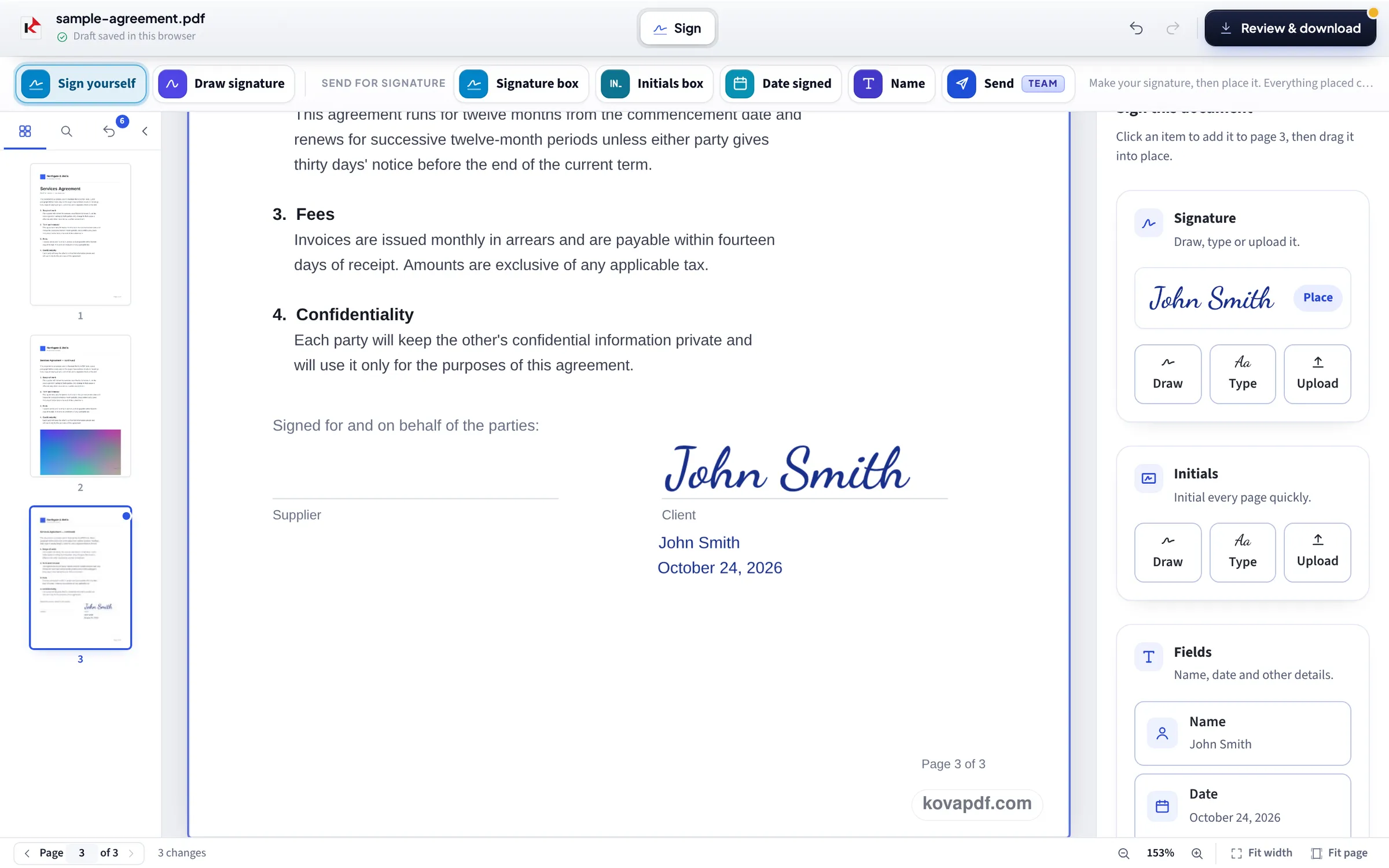
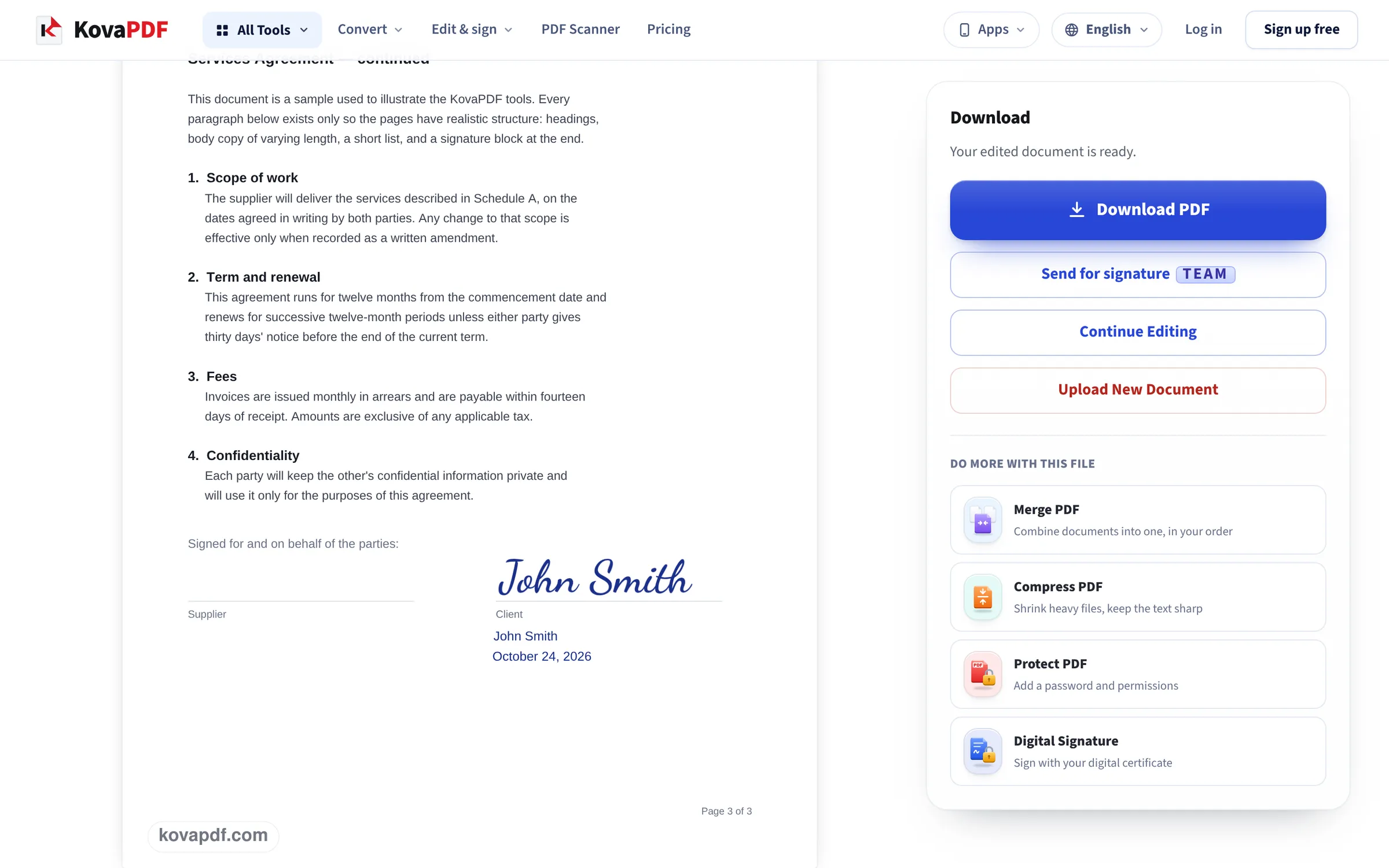
Signing on a desktop screen, shown on the signature block of our sample agreement: the file dragged in, a typed signature with the name and date set on the Client line, and the signed page ready to save.
Drag the PDF in
Drop the file from Finder onto the box, or press Choose File. The editor opens in Sign mode with the Sign this document panel on the right.

Type, place and line up
We chose Type, entered John Smith, placed the signature and added the Name and Date items from the same panel. Each one was then dragged onto the Client line at the foot of page 3.
Review & download
Review & download writes the signature, name and date into the page and opens the finished document, scrolled to the signed page, with Download PDF beside it.
Two signatures on a desktop screen, read back from the saved files
We signed our 3-page letter on this page in a 1366 pixel window, once typed and once drawn with the mouse, dragged the signature beside the closing lines and opened the downloads. Measured on October 24, 2026.
| Signature | Saved as | On the page | File size (6,246 bytes before) |
|---|---|---|---|
| Typed: Daniel Okafor, first handwriting style | 520 × 112 px picture with a see-through background | Page 1 only, 176 × 38 pt (about 2.4 inches wide) | 22,478 bytes |
| Drawn with the mouse | 332 × 99 px picture with a see-through background | Page 1 only, 127 × 38 pt | 12,182 bytes |
Both signatures went only where they were placed; pages 2 and 3 were untouched. The typed one weighs more because the handwriting style is drawn in finer detail.
Compared with Preview
Preview can sign too: Markup, then Sign, then make a signature with the trackpad, the camera or your iPhone. It is good once set up, but it only works in Preview, the signature lives in that Mac's settings, and typing a signature is not one of the options.
This page works in any browser, takes a typed signature as well as a drawn one, and adds name, date, initials and ticks from the same panel, which is quicker for forms that ask for several of them.
Getting a good signature on a Mac
Some tips for each method:
- Drawing: on a trackpad, use one finger and go slowly; Undo removes the last stroke.
- Typing: three handwriting styles are offered; pick the one closest to your hand.
- Uploading: sign on white paper, photograph it in daylight and upload the photo; a PNG with a clear background looks best.
- Initials on every page: make them once under Initials and place them page by page.
Is this a legal signature?
For most everyday documents, such as forms, letters, leases and agreements between businesses, an electronic signature placed like this is accepted in the US, UK, Canada and Australia. Some documents need more: wills and deeds, for example, often still need ink or witnesses. To prove who signed and that nothing changed afterwards, use Digital Signature, which adds a certificate-based signature.
Read next: Sign a PDF on iPhone · Fill out a PDF form online · Merge PDF on Mac
Frequently asked questions about Sign PDF on Mac
How do I sign a PDF on a Mac for free?
Open the PDF on this page, type or draw your signature, drag it onto the signature line and press Review & download.
Can I sign with my trackpad?
Yes. Choose Draw and sign with one finger on the trackpad. Undo takes back the last stroke.
Can I type my signature instead of drawing it?
Yes. Choose Type, enter your name and pick one of the handwriting styles.
Will the signature show in other PDF readers?
Yes. It is saved into the page as a picture with a see-through background, so every reader shows it the same way.
Can other people sign the same PDF?
To collect signatures from others by email, use Request Signatures, which needs a free account. Signing yourself does not.
Is the signed PDF locked?
No, it is an ordinary PDF. To prove it has not been changed since signing, add a Digital Signature as well.
Sign PDF on Mac guides and articles



Related tools
All PDF tools · 15 step-by-step guides · How your files are handled
Also: Sign PDF · Sign a PDF on iPhone