Merge PDF on Mac
Drop your PDFs in, put them in order, download one file. It runs in your Mac's browser, so there is nothing to install and nothing is uploaded.
- Free to use
- Works on any device
- Stays on your device
- Up to 30 files at once
- Your order, not ours
- Page sizes kept as they are
- One document back
Choose the PDFs on your Mac to combine
Pick two or more PDFs · they are merged in the order you set, on your device, and never uploaded
Drag & drop files here
or choose a file from your device
Everything Merge PDF can do
Join several PDFs into one document, in the order you decide.
Your order, not ours
- Combine two or more PDFs into a single document
- Move any file earlier or later before you merge
- Add more files to the set without starting the list again
- Take a file back out of the list
- Every file numbered in the position it will be joined at
See it before you merge
- Each file drawn as its own page, big enough to recognise
- Page count shown under every document
- A running total of the pages going in
- Start a fresh set straight from the result screen
What the joined file keeps
- Pages copied across exactly as they are
- Text arrives as real, selectable text
- Each file keeps its own page size and orientation
- Page rotation travels with the page it belongs to
- Bookmarks and fillable form fields come along with their pages
- One merged PDF back, ready to download
- Done in your browser, so your files are never uploaded
How it works
Merge PDF on Mac in three steps
Drag the PDFs in from Finder
Select several files in Finder and drop them on the box, or click it and Command-click each file.
Set the order
Drag the cards, or use the arrow buttons on each one, into the order the pages should run. The first card becomes page 1.
Download one PDF
Press Merge PDFs, then Download merged PDF. The file lands in your Downloads folder as merged.pdf.
Merge PDF on Mac: a visual walkthrough
Three screens, photographed on this page in a desktop browser with two copies of our sample agreement. On your Mac it looks the same in Safari, Chrome or Firefox.
The box takes a whole Finder selection
Command-click the PDFs in Finder and drag them onto the box in one go, or press Choose Files and pick them in the Mac file dialog. Two or more files are needed for a merge.

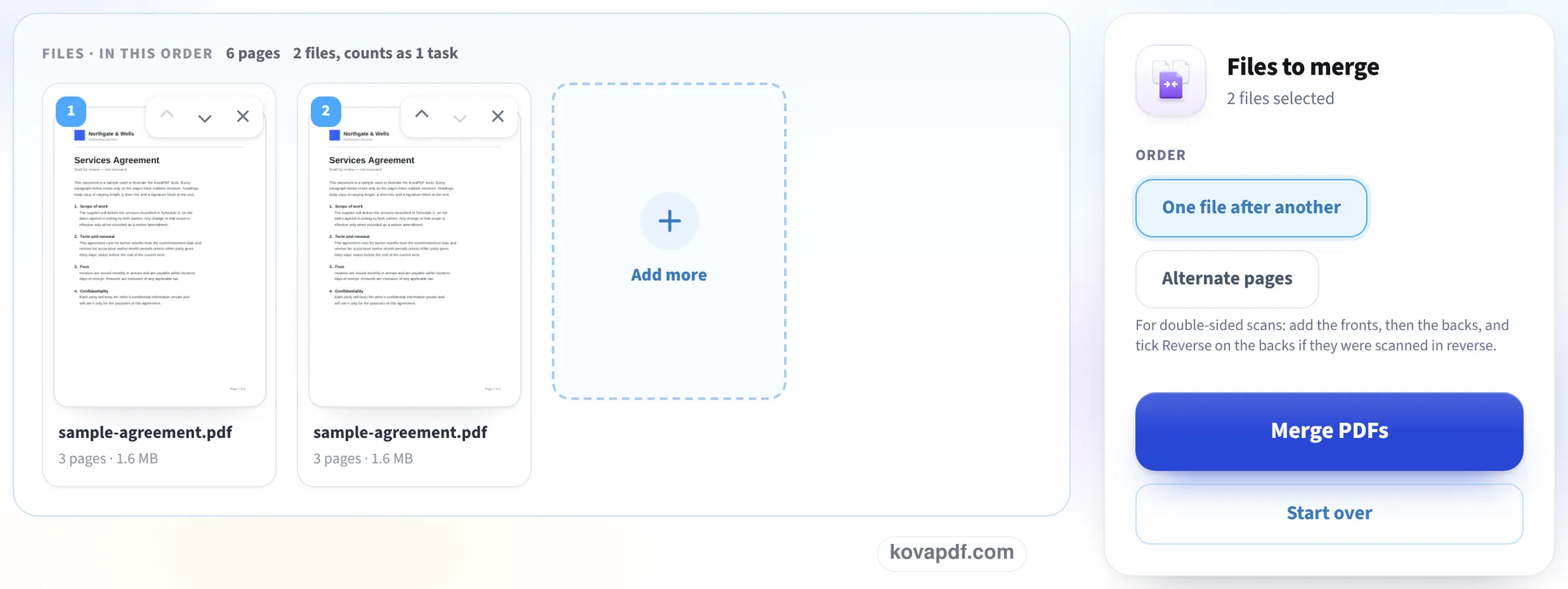
One numbered card per file
Each PDF shows as a card with its first page, its page count and a number in the corner. The up and down arrows move a card, the cross takes it out, and Add more brings in another file. One file after another is already chosen; then press Merge PDFs.
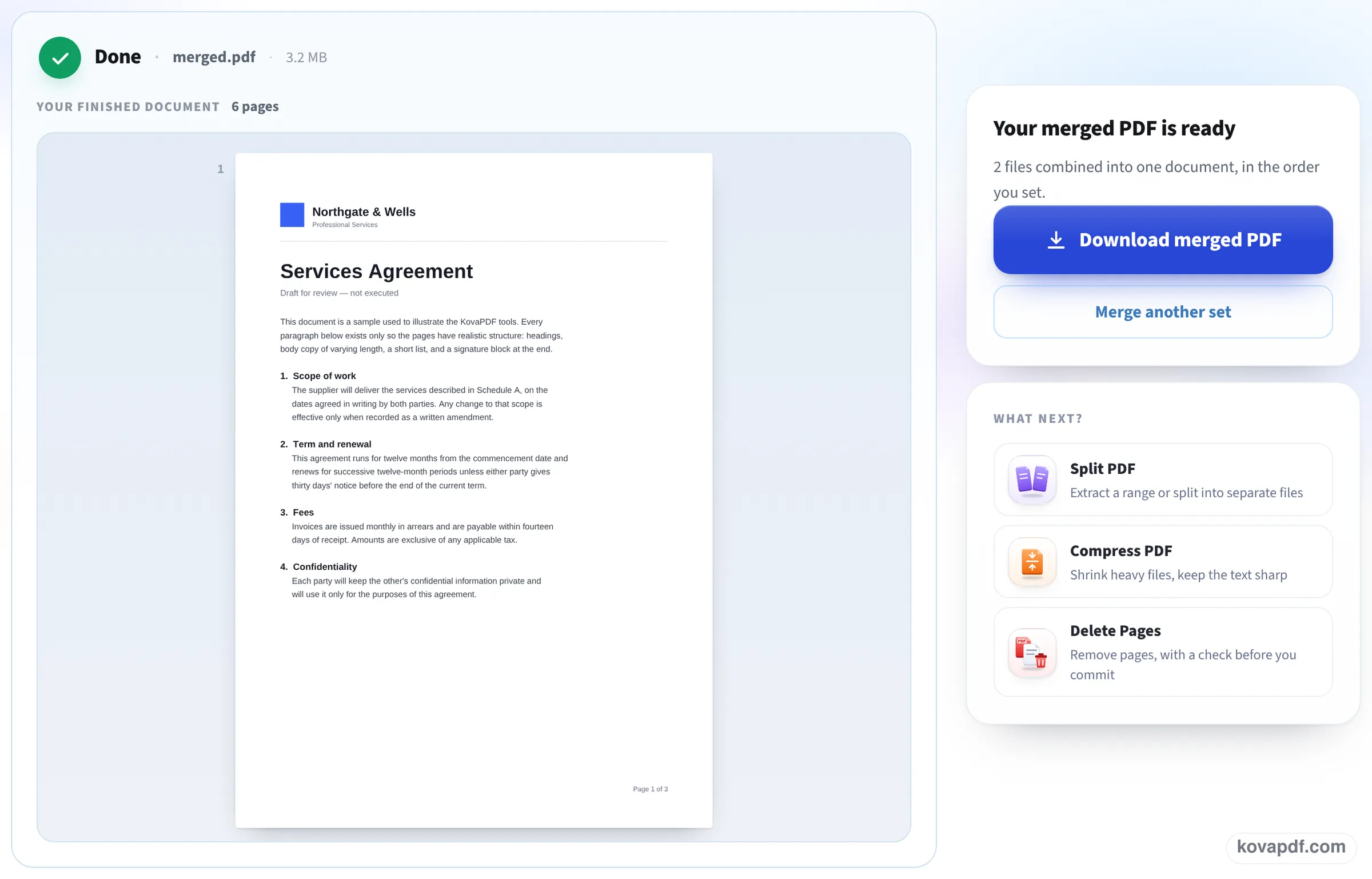
Check the result, then save it
The finished document opens on screen with its page count, so you can scroll through it before saving. Download merged PDF puts merged.pdf in your Downloads folder; Merge another set clears the list.
What came out when we merged our own files
We dropped each set on this page in a 1366 px browser window, pressed Merge PDFs and Download merged PDF, then opened the downloaded file and counted its pages, compared its text with the originals and read the resolution of its pictures. Measured on October 24, 2026.
| Files merged | Size in | Merged file | What we checked |
|---|---|---|---|
| Letter (3 p) + invoice (1 p) + report (10 p), all typed | 118.0 KB | 14 pages, 106.6 KB, ready in 1.0 s | All 3,554 words present and selectable, word for word, in the order set |
| Gray scan of the letter (3 p) + color scan of the report (10 p) | 13.10 MB | 13 pages, 13.10 MB, ready in 3.8 s | Pictures still 300 DPI: nothing was recompressed |
Scans come out the same size as they went in, because the tool copies pages and does not shrink them. To make a merged scan smaller, run it through Compress PDF afterwards.
The typed set came out slightly smaller than the three files added together, with every word still there. Times are from pressing Merge PDFs to the finished screen.
Why not just use Preview?
Preview can combine PDFs too: open the first file, show the sidebar thumbnails, and drag the second file onto them. It works, but it is easy to get wrong. Dropping a file onto a thumbnail instead of between two thumbnails can insert it in the middle, Preview saves the change into the first file you opened unless you use Export as PDF, and putting ten files in order means a lot of careful dragging in a narrow sidebar.
This page keeps one card per file, in a list you can rearrange before anything is joined, and it always gives you a new file. Your originals are left exactly as they were.
Tips for Mac users
A few things make the job quicker on macOS:
- In Finder, sort the folder by name first, then select the files in that order and drop them all at once. The cards come in in the order Finder hands them over.
- If your browser asks where to save, choose a folder; otherwise the file goes to Downloads. Rename it there with Return.
- Need only some pages from one of the files? Pull them out first with Extract pages, then merge the extract.
- Got photos or screenshots to add as well? Turn them into a PDF first with JPG to PDF, then merge that PDF in.
What it will not do
A PDF that needs a password to open has to be unlocked first; the tool tells you which file it is. Pages are not resized to match each other: a Letter page next to an A4 page stays each its own size, and Resize PDF can make them the same. Bookmarks from the separate files are not combined into one outline.
Read next: Merge PDF on iPhone · Compress PDF on Mac · Rearrange PDF pages
Frequently asked questions about Merge PDF on Mac
How do I combine PDF files on a Mac for free?
Open this page in Safari or any other browser, drop the PDFs on the box, drag them into order and press Merge PDFs. You get one new PDF in Downloads, and there is no app to install.
Are my files uploaded anywhere?
No. The merge runs in the browser on your Mac. The PDFs are read and joined on your computer and the result is saved straight to your Downloads folder.
Will the merged PDF lose quality?
No. Pages are copied as they are. In our test, 13 pages of 300 DPI scans came out at 300 DPI, and the typed files kept every word selectable and searchable.
Can I change the order of pages, not just files?
The merge puts whole files in order. To move single pages around afterwards, open the merged file in Rearrange PDF pages and drag the pages where you want them.
Does it work on an older Mac?
It needs a reasonably current browser. If Safari is out of date on an older Mac, a current Chrome or Firefox will run it.
Is it free?
Yes, merging is part of the free plan, which has a limited allowance of files and pages per merge. Pro removes the limits.
Merge PDF on Mac guides and articles

Related tools
All PDF tools · 15 step-by-step guides · How your files are handled
Also: Merge PDF · Merge PDF on iPhone