Rearrange PDF pages
Every page appears as a thumbnail. Drag them into the order you want, then save a new PDF.
- Free to use
- Works on any device
- Stays on your device
- Every page on one board
- Drag, or move to a page number
- Undo anything before you save
- Pages from another PDF, too
Drag & drop file here
or choose a file from your device
Choose the PDF whose pages you want to reorder
PDF files only
You arrange the pages and the new PDF is made in your browser, so your file stays on your device and is never uploaded.
Everything Organize PDF can do
Put the pages of a PDF in the order you want, on one board where you can see them all.
Move pages
- Drag a page, or several selected pages, to a new place
- On a phone, press and hold a page, then drag it
- Move to the beginning, the end, or before or after a page number
- Move the selected pages one place with Alt and the arrow keys
- Reverse the whole document, or only the pages you selected
Change pages
- Rotate left or right. The turn adds to how the page is already turned
- Delete one page or many, with Undo straight away
- Duplicate pages. Each copy goes right after its original
- Add blank pages anywhere, matching the pages around them, or A4 or Letter
- Add the pages of another PDF, then drag them into place
Select
- Click or tap pages to select them; Shift-click for a run
- Select all, odd pages or even pages in one step
- Every page shows its new number and where it came from
- Small, medium or large thumbnails
Before and after you save
- Undo and redo every step, up to 100 steps back
- Done in your browser, so your file is never uploaded
- We check the page count, order and rotation of the new file
- Text stays selectable and images keep their quality
- Links to other pages still go to the right page
How it works
Rearrange PDF pages in three steps
Add the PDF
Every page is shown as a thumbnail with its number.
Drag pages into order
Drag a thumbnail to its new place. Reverse order flips the whole file; Odd pages and Even pages select a set.
Save changes
Download the reordered PDF. Your original is not changed.
Rearrange PDF pages: a visual walkthrough
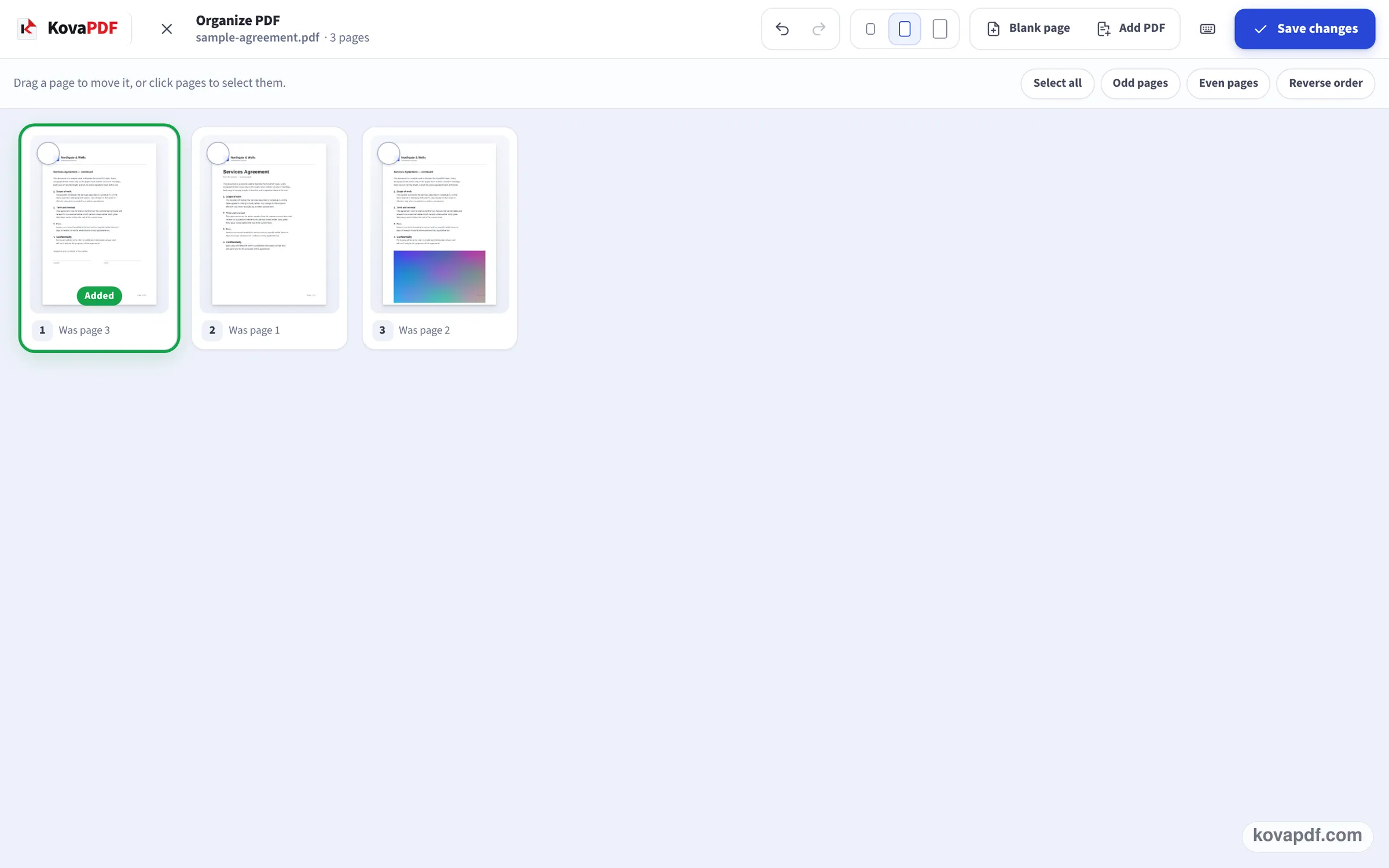
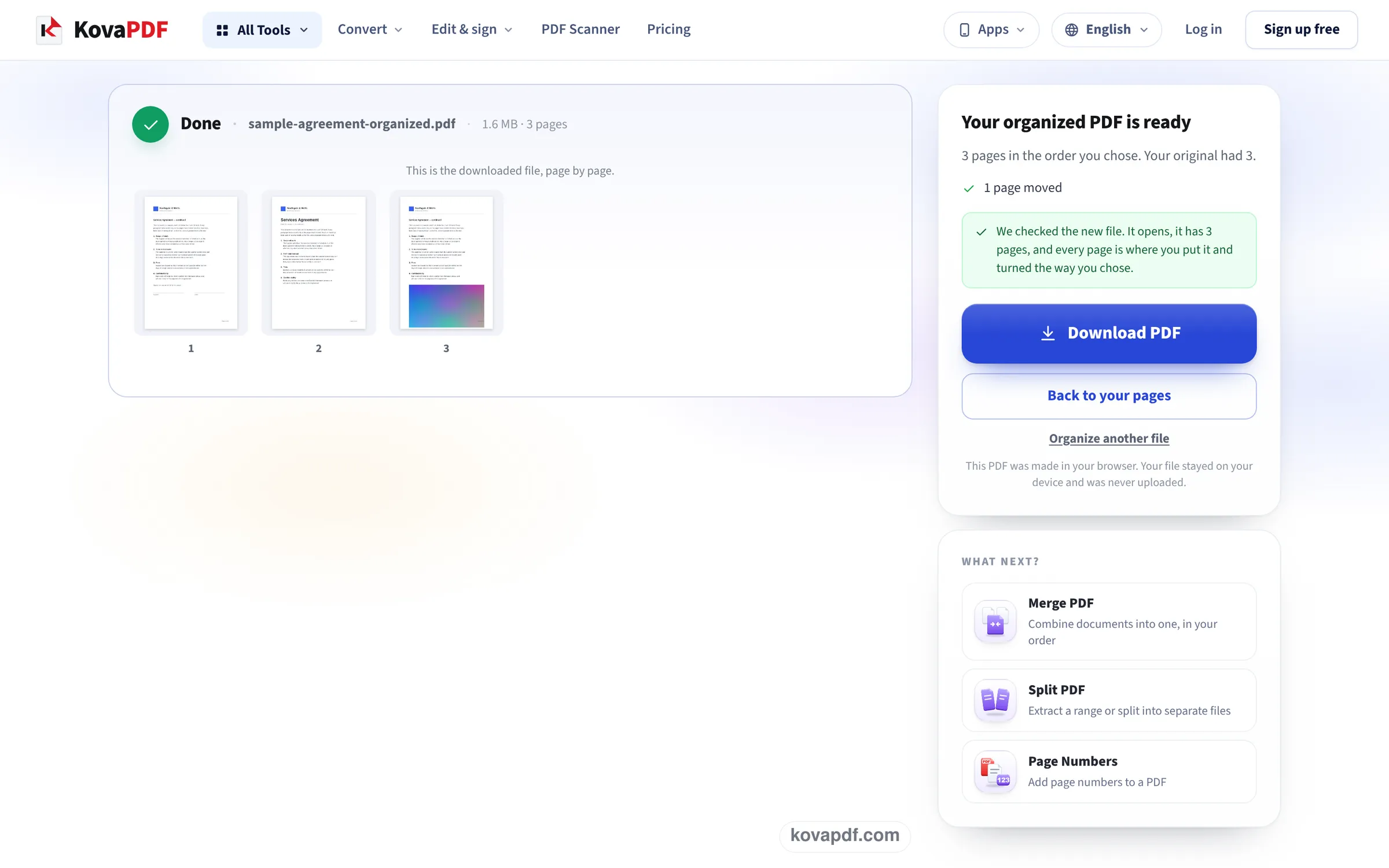
Reordering our sample agreement on this page, in three pictures: the upload box, the page grid after a page was dragged to the front, and the new PDF ready to download.
Open the PDF
Drop the file in the box. The workspace fills the window and lays every page out as a thumbnail, numbered in its current order.

Drag a page to its new place
Here the last page was dragged in front of the first. The numbers update straight away and a small Was page note under each thumbnail shows where it came from, so you can check the new order before saving.
Save changes and download
Save changes writes a new PDF and checks it. The result shows the new file page by page, how many pages moved, and Download PDF; it also says the file was made in your browser and never uploaded.
Reordering our 10-page report
We reordered our 10-page report (44.7 KB) on this page and read the first line of every page of the saved PDF to check the order. Measured on October 24, 2026.
| What we did | Order in the saved PDF | Size |
|---|---|---|
| Dragged page 10 to the front | 10, 1, 2, 3, 4, 5, 6, 7, 8, 9 | 30.2 KB |
| Pressed Reverse order | 10, 9, 8, 7, 6, 5, 4, 3, 2, 1 | 30.2 KB |
All 10 pages kept every character of their text, with the same two fonts, in both files. The saved file was smaller than the original because it is written out cleanly. While it builds, the screen says the file stays on your device.
Common reasons to reorder
The jobs this is usually for:
- A double-sided original scanned as all fronts, then all backs: reorder so each back follows its front.
- A sheet fed in the wrong way round, landing in the middle of the file.
- Moving an appendix, a cover letter or a signed page to where it belongs.
- Putting the newest statement first, or the oldest, with Reverse order.
Other things you can do on the same screen
Rotate a page that came out sideways, delete a blank one, duplicate a page you need twice, or add a blank page between sections, all before saving. Add PDF brings in the pages of another file to drop in between.
Good to know
Large documents show many thumbnails: the smallest thumbnail size shows more at once. A password-protected PDF needs unlocking first. To pull a few pages out as a separate file instead, use Extract pages from PDF.
Read next: Extract pages from PDF · Rotate PDF and save · Merge PDF on Mac
Frequently asked questions about Rearrange PDF pages
How do I change the order of pages in a PDF?
Add it here, drag the page thumbnails into the order you want and press Save changes. The new PDF downloads with the pages in that order.
Can I reverse the page order?
Yes. Reverse order flips the whole document at once; our 10-page report came back running 10 to 1.
Will rearranging change the quality?
No. Pages are moved as they are; text stays selectable and pictures unchanged.
Can I rearrange pages from two PDFs together?
Yes. Use Add PDF to bring in another file's pages, then drag them where they belong. Or merge the files first.
Can I do it on a phone?
Yes. Drag the thumbnails with your finger.
Do I need Acrobat?
No. It works in your browser with nothing to install.
Rearrange PDF pages guides and articles


Related tools
All PDF tools · 15 step-by-step guides · How your files are handled
Also: Organize PDF