Rotate PDF and save it
Turn the pages once and download a PDF that stays turned: the rotation is written into the file, not just the view.
- Free to use
- Works on any device
- Stays on your device
- Written into the file
- Not just into your viewer
- One page or all of them
- Quarter turns either way
Choose the PDF to rotate and save
The rotation is written into the file itself, so it stays fixed in every viewer · one PDF or many at once · your files stay on your device and are never uploaded
Drag & drop files here
or choose a file from your device
Everything Rotate PDF can do
Turn sideways or upside-down pages the right way up, saved into the PDF itself rather than just into your viewer. Free, in the browser.
Which way to turn
- 90° right, 180°, or 90° left
- The turn is applied on top of however the page sits now
- A diagram of the turn, which follows the angle you pick
Which pages turn
- Every page at once, or only the pages you name
- Single pages and ranges together: 1-3, 7, 12-14
- Pages you leave out keep the way they are now
What you get back
- The rotation written into the PDF, so every viewer opens it upright
- Text stays selectable, and images stay where they sit on the page
- The result screen says how many pages turned, and which way
- One rotated PDF, named after your document
- Several PDFs rotated at once, all the same way, in one ZIP
Seeing the document
- The whole file shown on screen before you commit to a turn
- Nothing but the page angle is changed
- Rotate the next file straight from the result screen
- Done in your browser, so your file is never uploaded
How it works
Rotate PDF and save in three steps
Add your PDF
Drop it in or pick it. It is opened on your device, never uploaded.
Choose the turn
90° right, 180° or 90° left. Leave Pages empty for every page, or type 2 or 3-5 for some.
Download the saved file
The new PDF carries the rotation. Open it anywhere and the pages are the right way up.
Rotate PDF and save: a visual walkthrough
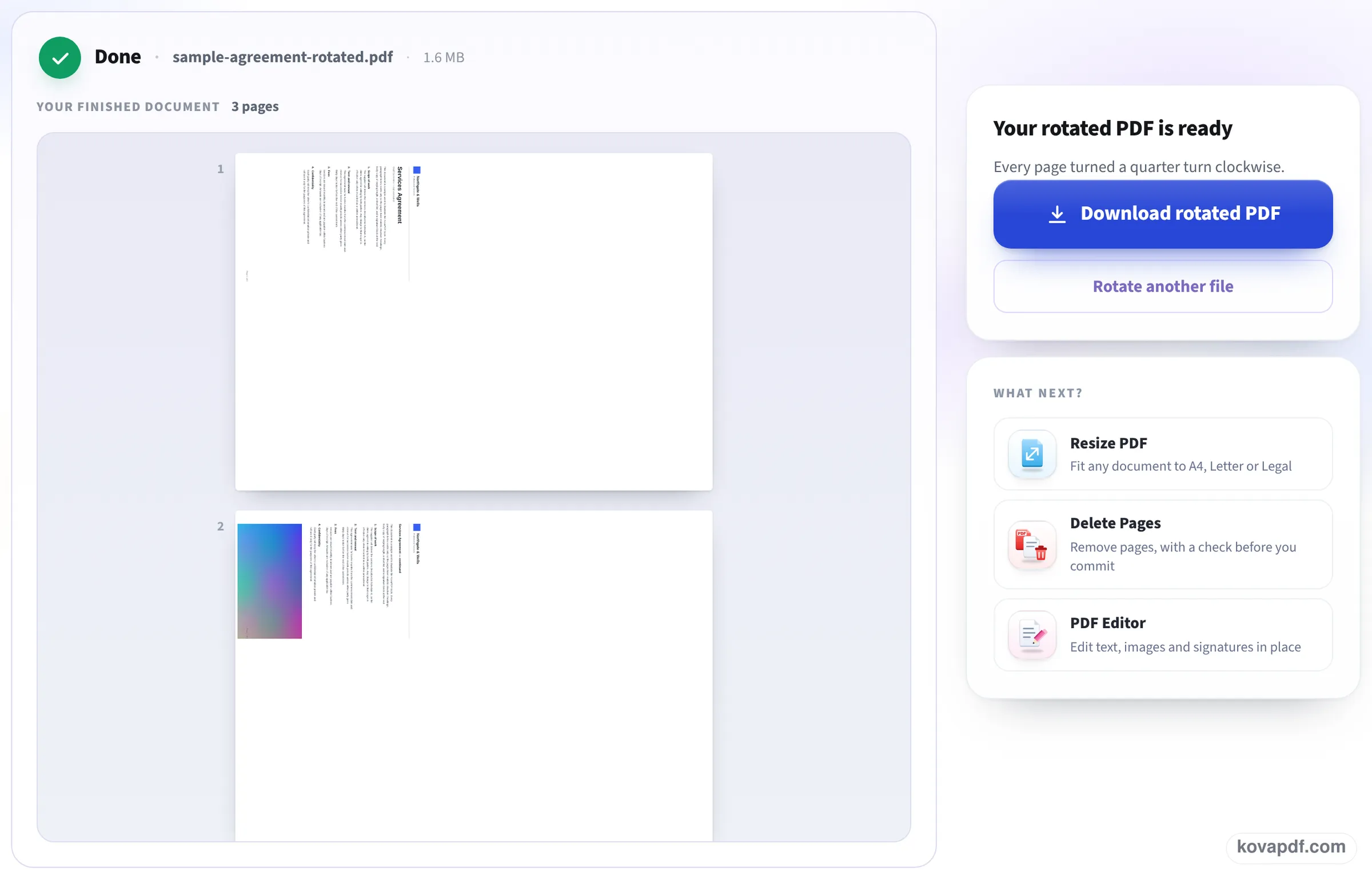
The pictures show our upright 3-page sample agreement given a quarter turn on this page, which opens on 90° right, and the saved result.
Pick the file whose pages need turning
Drag the PDF onto the box or press Choose Files. Nothing is sent anywhere: the browser opens the file and shows its pages.

Choose the turn and the pages
The little Result drawing shows the page now and after the turn, with a folded corner marking the top. Pick 90° right, 180° or 90° left under Rotation; leave Pages on All pages, or type the page numbers that need it. Then press Rotate PDF.
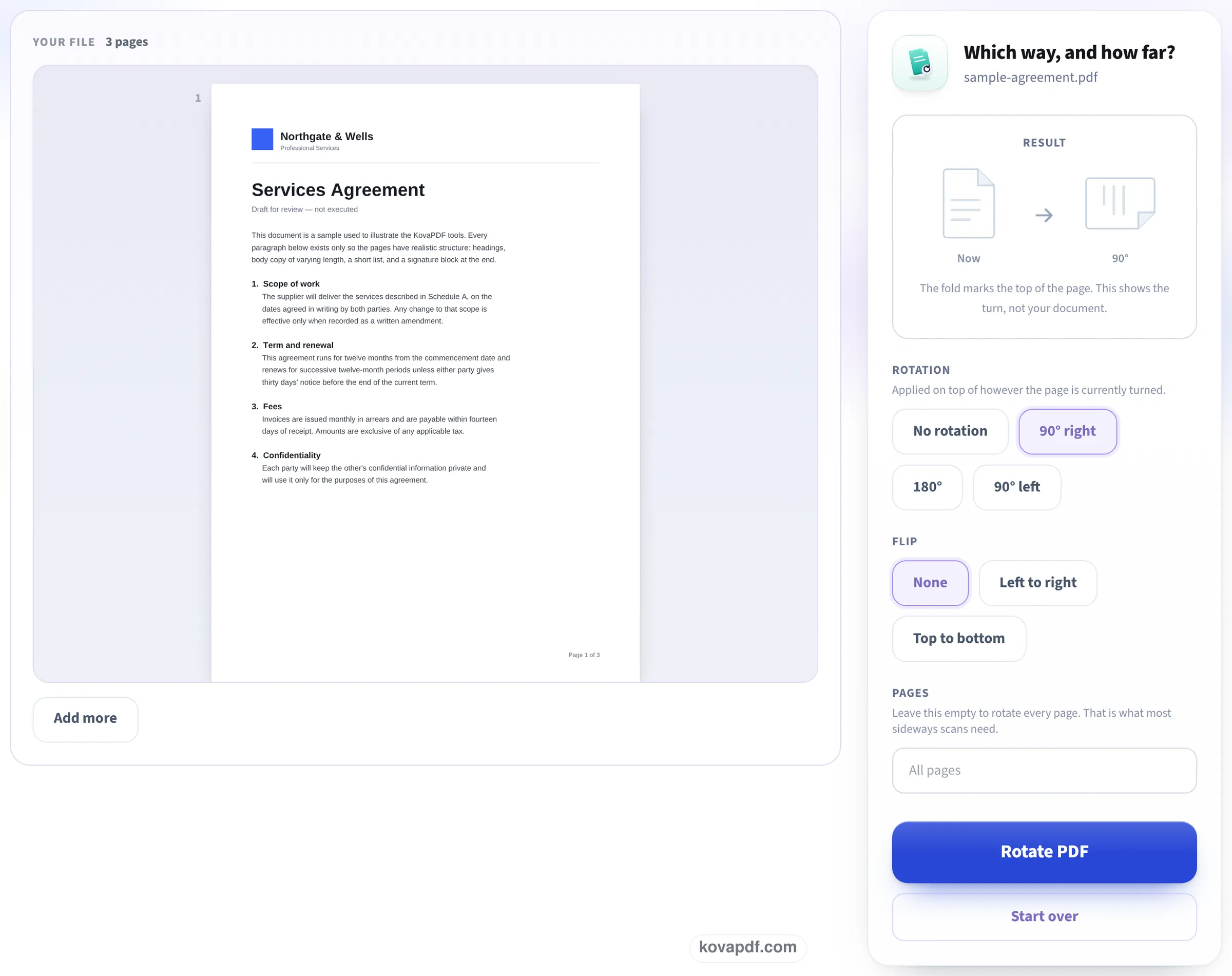
The turn is now part of the file
The finished document shows every page lying sideways, as chosen, and the panel says each page was turned a quarter turn clockwise. Download rotated PDF saves that copy; any viewer you open it in shows the same turn.
What we checked in the saved files
On 24 October we rotated our own files on this page, downloaded them, and then read the rotation stored in each page and compared the pages with an upright copy. Measured on October 24, 2026.
| File | Setting | Stored in the saved PDF | Result |
|---|---|---|---|
| 3-page typed letter, 26.2 KB | 180°, page 2 only | Page 1: 0°, page 2: 180°, page 3: 0° | Only page 2 turned; all 1,071 words still selectable; 24.4 KB |
| 3-page scan lying on its side (3.15 MB) | 90° right (the setting the page opens on), all pages | 90° on every page | Matches the upright scan (score 0.96 on each page); 3.15 MB, pictures untouched |
Because only the page's rotation setting is changed, the file size barely moves and nothing in the page gets softer: the scan came back 276 bytes smaller. Each run took one to two seconds from the button to the finished screen.
Why a rotation sometimes does not stick
Most PDF readers have a Rotate View button. It turns the page on your screen only; close the file, or send it to someone, and it is back the way it was. Some readers can save a rotation, but only in their paid edition, and a few save it as a viewer preference that other programs ignore.
This tool writes the turn into each page of a new PDF, the same way a PDF editor does. Every reader, phone and upload portal reads it from there, which is why the saved file looks right everywhere.
Which way to turn
The page is turned on top of however it already sits:
- Top of the page is on the left: choose 90° right.
- Top of the page is on the right: choose 90° left.
- Page is upside down: choose 180°.
- Only some pages are wrong? Type them in Pages, for example 2, 5-6, and the others stay as they are.
- Pages that need different turns: rotate in two passes, or use Rearrange PDF pages, where each page has its own rotate button.
What it does not change
Page size, text, links, form fields and bookmarks all stay. A page lying on its side becomes a landscape page when turned 90°, which is what you want for a wide table or a chart. A PDF that needs a password to open has to be unlocked first.
Read next: Fix an upside-down scanned PDF · Rearrange PDF pages
Frequently asked questions about Rotate PDF and save
How do I rotate a PDF and save it permanently?
Add the PDF here, choose 90° right, 180° or 90° left, and download. The rotation is written into the new file, so it opens turned in every reader.
Why does my PDF go back to the old orientation?
The button you used probably rotated the view, not the file. A view rotation is lost when the file is closed or sent. Saving through this tool changes the pages themselves.
Can I rotate just one page?
Yes. Type the page number in Pages, for example 2. In our test only page 2 of a 3-page letter turned and the others stayed as they were.
Does rotating reduce the quality?
No. Nothing is redrawn. Our 300 DPI scan came back the same size, with the same pictures, just turned.
Can I do this without Adobe Acrobat?
Yes. It works in any current browser on Windows, Mac, iPhone or Android, with nothing to install.
Is my file uploaded?
No. The PDF is opened and saved in your browser.
Rotate PDF and save guides and articles


Related tools
All PDF tools · 15 step-by-step guides · How your files are handled
Also: Rotate PDF · Fix an upside-down scan