Extract pages from PDF
Type the pages you want, such as 2-4, 7, and download them as a new PDF. The original file is left untouched.
- Free to use
- Works on any device
- Stays on your device
- Pull out a page range
- Or break it into separate files
- Pages stay as they were
- The original is untouched
Choose the PDF to take pages from
Cut a document into one file per page, or pull out just the pages you need · one PDF or many at once · your files stay on your device and are never uploaded
Drag & drop files here
or choose a file from your device
Everything Split PDF can do
Pull a page range out of a PDF, or turn every page into a file of its own. Free, online, nothing to install.
Two ways to split
- Every page separately, as one single-page PDF per page
- Just these pages, gathered into one new PDF
- Both modes work from the same file
Naming the pages
- Single pages, ranges, or both together: 1-3, 7, 12-14
- Commas or semicolons, spaced however you type them
- Pages come out in document order, each one only once
- The page box is checked as you type it
What comes out
- Separate pages arrive together in a ZIP
- Each file in the ZIP named by its page number
- A range comes back as a single new PDF
- The result screen says how many pages or files you got
- Several PDFs split at once, each in its own folder of one ZIP
What each page keeps
- Text stays selectable, not flattened to a picture
- Fonts, images and vector art copied across untouched
- Every page keeps its own size and rotation
- Your original document is left as it was
- Done in your browser, so your file is never uploaded
How it works
Extract pages from PDF in three steps
Add your PDF
Drop it in or pick it from your device. It is opened on your device, not uploaded.
Type the pages
Just these pages is already chosen. Type single pages and ranges, for example 1, 3-5, 9.
Download the extract
You get one new PDF with only those pages, in the order you typed them.
Extract pages from PDF: a visual walkthrough
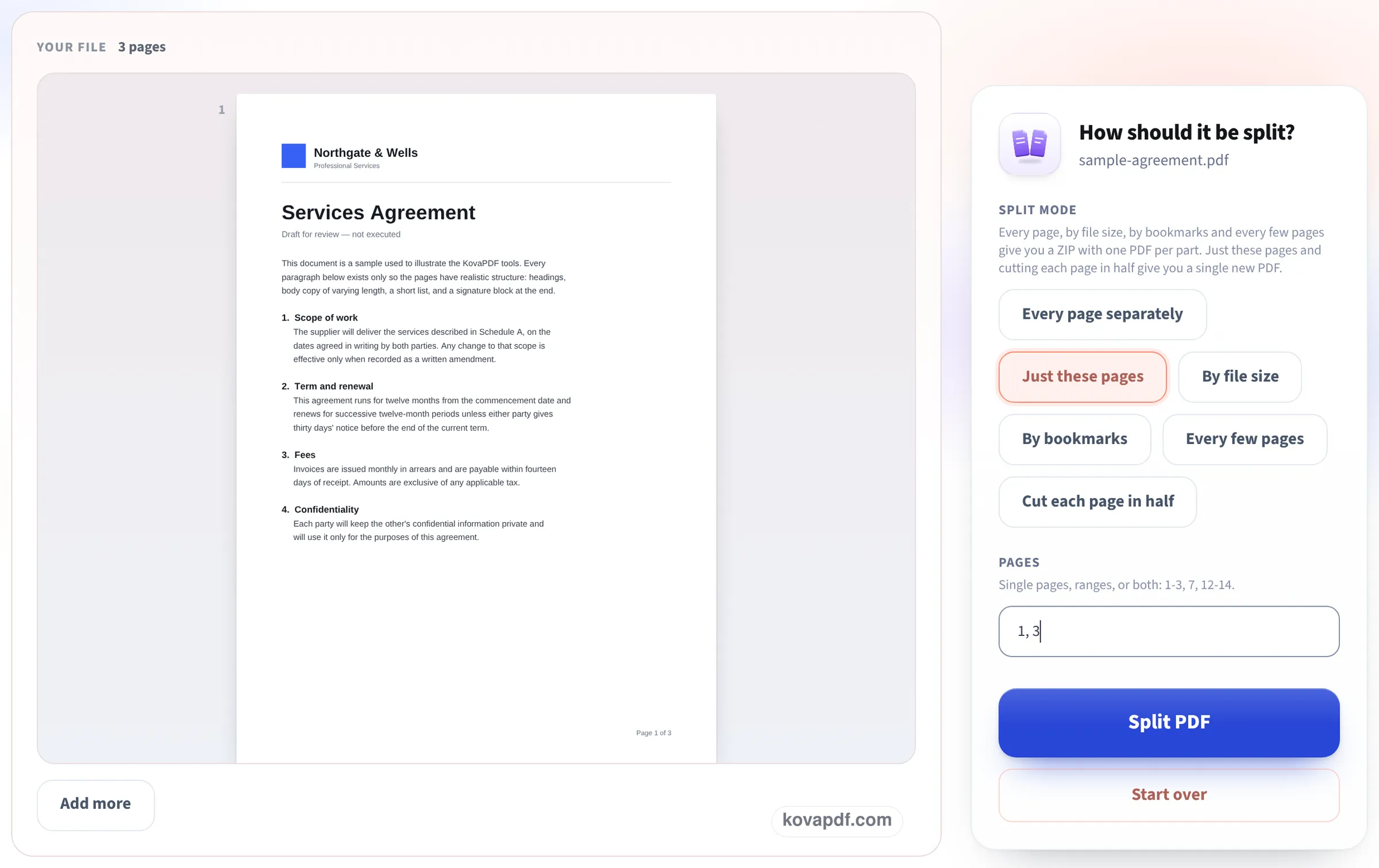
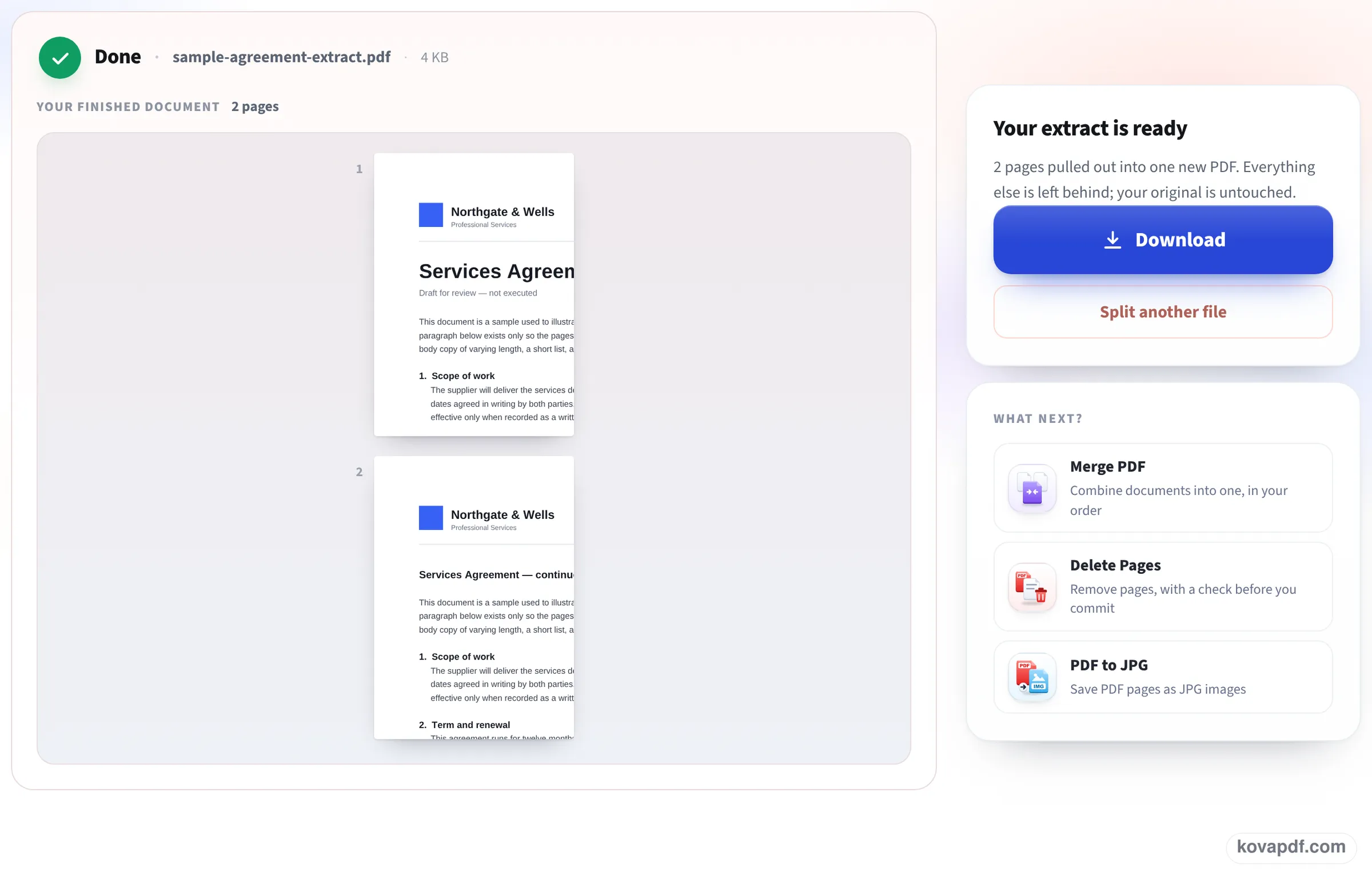
The pictures follow our 3-page sample agreement through this page: the file goes in, pages 1 and 3 are typed, and a 2-page extract comes out.
Drop in the long document
Drag the PDF onto the box or press Choose Files. One file is enough; if you add several, each one gets the same page list and the extracts come back together in a ZIP.

Type the page list
The document opens on the left so you can find the page numbers. On the right, Just these pages is already highlighted; type the pages into the Pages box (here 1, 3) and press Split PDF. The button stays greyed out until there is something in the box.
Your extract, ready to save
The result screen lists the new file, sample-agreement-extract.pdf, with only the chosen pages shown underneath. Press Download to save it; the original PDF is not touched.
Pages we pulled out of our own files
Each file went through this page in a 1366 px window with the pages typed as shown; we opened the download and checked pages, words and pictures. Measured on October 24, 2026.
| File | Pages typed | Result | What we checked |
|---|---|---|---|
| 10-page typed report, 52.2 KB | 2-4, 7 | 4 pages, 42.0 KB, ready in 0.9 s | Starts on Part 2; all 972 words of those pages there and selectable |
| 10-page color scan, 9.95 MB | 1, 5 | 2 pages, 1.99 MB, ready in 4.4 s | Pictures still 300 DPI, unchanged |
An extract of typed pages weighs more than its share of the original. Our 4 pages out of 10 kept 80 percent of the size, because the new file has to carry the fonts its pages use. Scanned pages are almost all picture, so their size follows the page count closely: 2 pages out of 10 came to a fifth.
How to write the page list
The box takes the same kind of list a print dialog does:
- A single page: 4
- A range: 3-8
- A mix, separated by commas: 1, 3-5, 9, 12-14
- Pages are numbered as the PDF counts them, starting at 1 for the first page, whatever the page labels printed on the paper say.
Extract, delete, or split?
Extracting is right when you want a small part of a long file: a signed page, one chapter, the statement for one month. If you want almost everything except a few pages, Delete pages from PDF is quicker: you name the pages to drop instead. If you want every page as its own file, use Split PDF into single pages.
Several PDFs can go in at once; each gets the same page list, and the extracts come back in a ZIP.
What stays and what does not
Text, fonts, pictures, links on those pages and page sizes stay exactly as they were. Form fields on the extracted pages come across as fields. Bookmarks that point at pages you did not keep are dropped, and a password-protected PDF has to be unlocked before its pages can be taken out.
Read next: Split PDF into single pages · Rearrange PDF pages · Delete pages from PDF
Frequently asked questions about Extract pages from PDF
How do I save only certain pages of a PDF?
Add the PDF here, type the pages you want in the box (for example 2-4, 7) and press Split PDF. The download is a new PDF with only those pages.
Will the extracted pages lose quality?
No. Pages are copied as they are. Text stays selectable and scanned pages keep their resolution, as our test with a 300 DPI scan showed.
Can I put the pages in a different order?
The extract keeps the pages in the order you type them. For anything more, open the extract in Rearrange PDF pages and drag them around.
Can I get each extracted page as a separate file?
Yes: choose Every page separately instead, and each page comes back as its own PDF in a ZIP.
Is the original PDF changed?
No. You download a new file, and the original stays exactly as it was on your device.
Can I do it on a phone?
Yes. The page works in a phone browser, and the box and page list fit on the first screen.
Extract pages from PDF guides and articles


Related tools
All PDF tools · 15 step-by-step guides · How your files are handled
Also: Split PDF · Split PDF into single pages