Image to PDF
Turn photos and scans into a single polished PDF document, arranged in the order you choose.
- Keeps your layout
- Works on any device
- Deleted after processing
- Many photos, one document
- Properly paginated
- JPG, PNG, WebP and HEIC
- The order is yours to set
JPG · PNG · WebP
Turn photos and scans into one PDF
JPG, PNG or WebP · one image per page, in the order you set — your uploads are deleted as soon as the PDF is built
Drag & drop files here
or choose a file from your device
How it works
Image to PDF in three steps
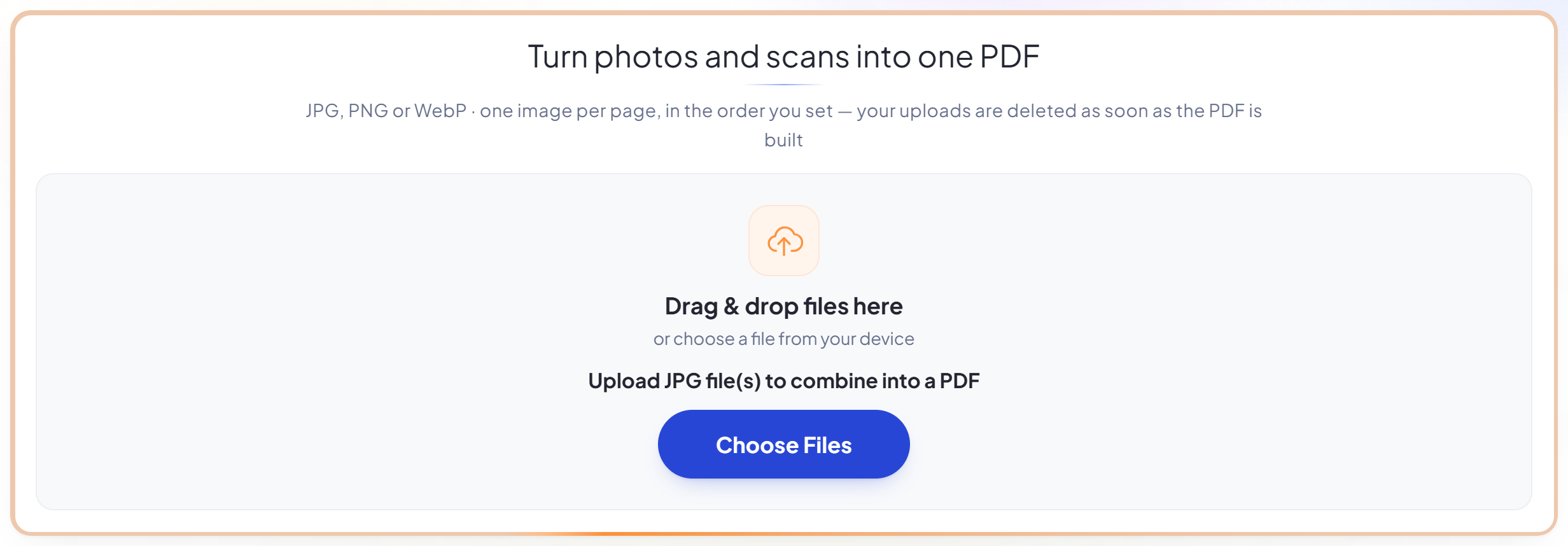
Upload your images
Drag your file onto the upload panel, or click it to pick one from your device. Nothing is sent anywhere until you start the job, and the working copy is deleted the moment it finishes.
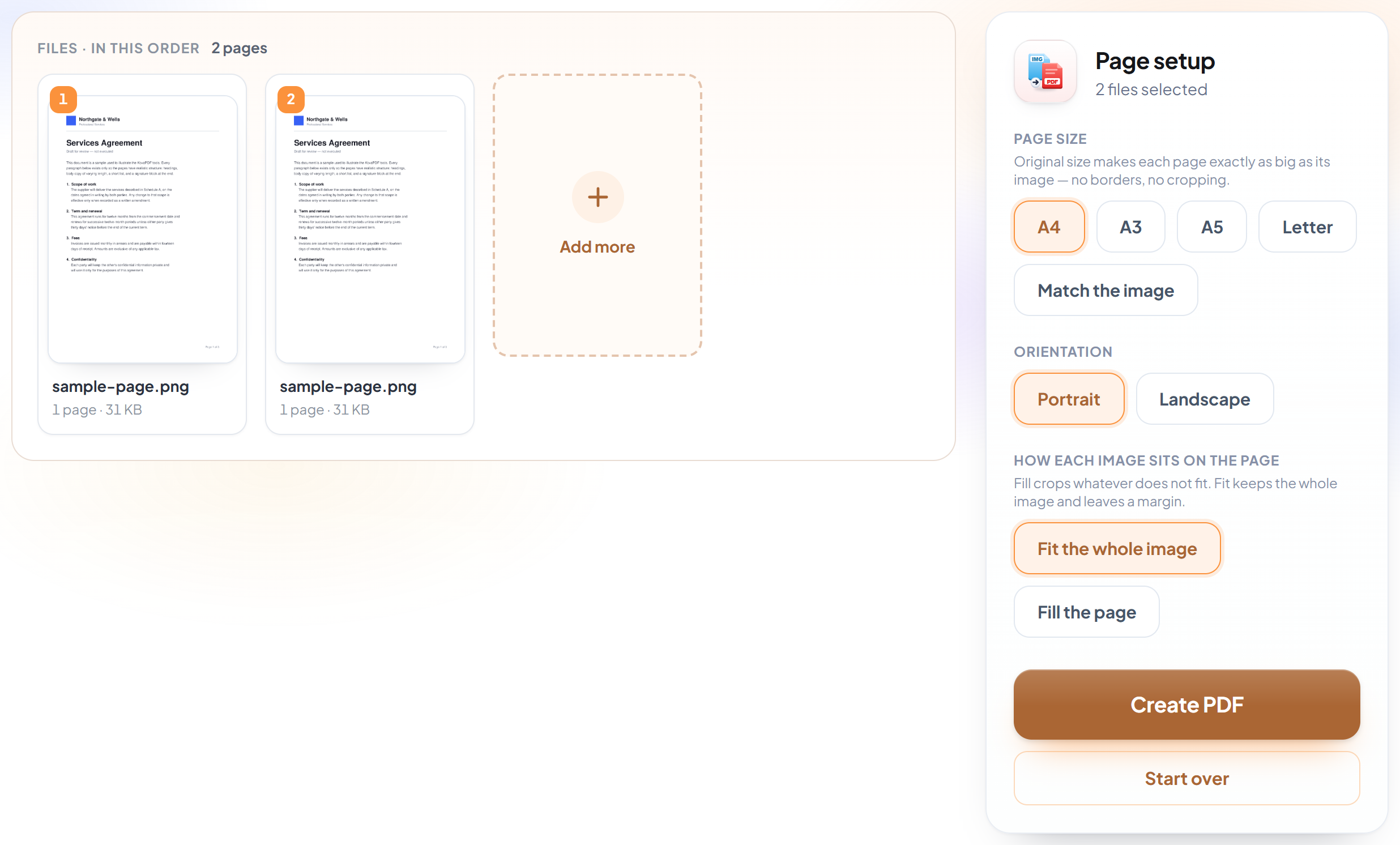
Arrange them
Add as many JPG, PNG or WebP files as you need and put them in order. Each becomes its own page, sized to fit without distortion.
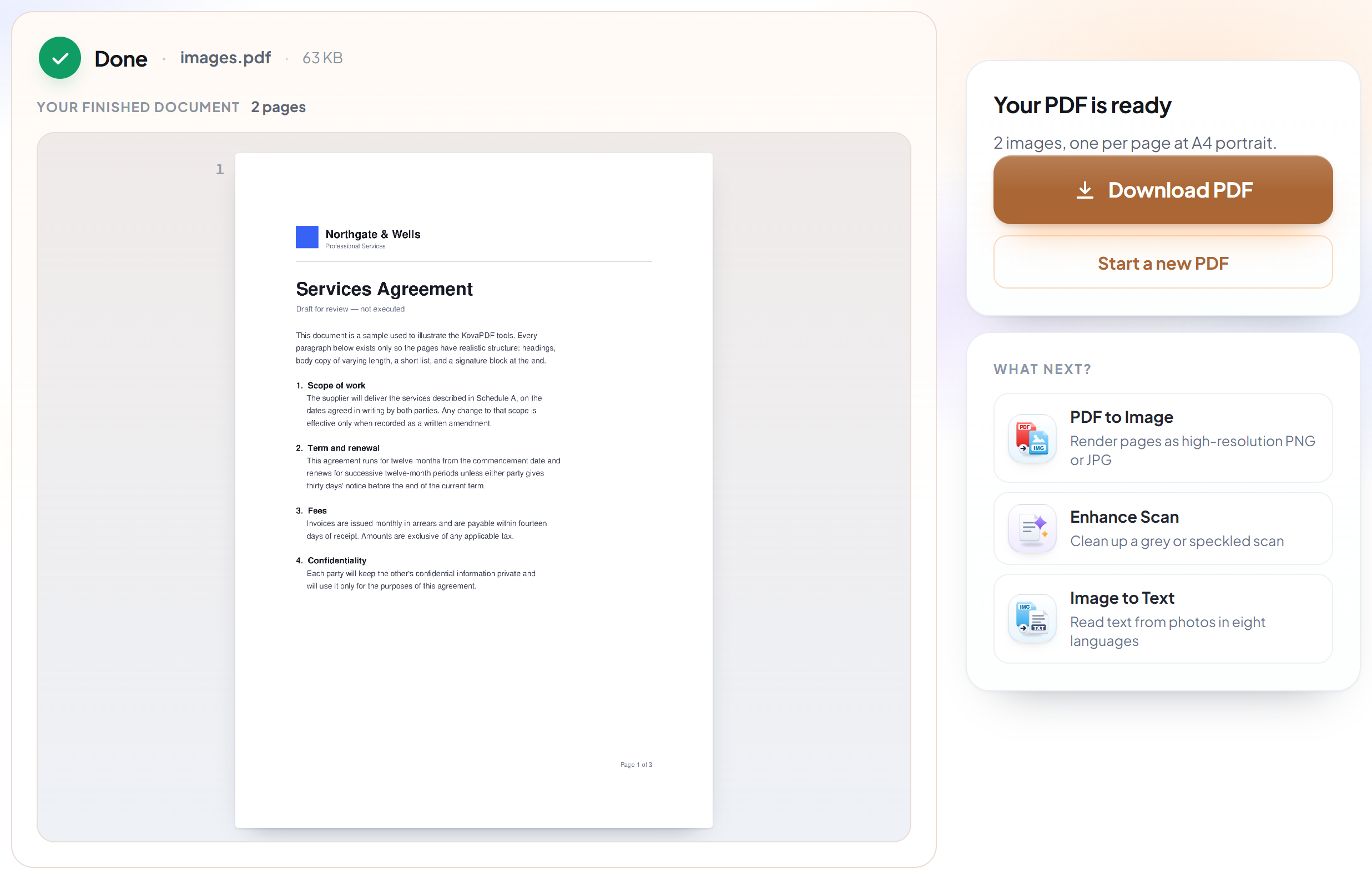
Convert and download
You get a single PDF that opens, prints and emails like any other — rather than a folder of loose pictures.
How to convert images to PDF
Turn photos and scans into one properly paginated document.
Upload your images
Drag your file onto the upload panel, or click it to pick one from your device. Nothing is sent anywhere until you start the job, and the working copy is deleted the moment it finishes.
Arrange them
Add as many JPG, PNG or WebP files as you need and put them in order. Each becomes its own page, sized to fit without distortion.
Convert and download
You get a single PDF that opens, prints and emails like any other — rather than a folder of loose pictures.
Frequently asked questions about Image to PDF
Which image formats are supported?
JPG, PNG and WebP.
Will my photos lose quality?
No. Images are embedded at their original resolution and are not re-compressed.
Can I get selectable text from the result?
Not from this tool — the PDF contains pictures of words. Use Image to Text or the OCR PDF tool to recognise the text.
Is it free?
Yes. Every tool works without paying and without an account. Files can be up to 200 pages and 80 MB, and a run that fails costs you nothing.
Do I need to create an account?
No. All tools work without signing in. An account raises your hourly allowance and lets you see what you have processed.
What happens to my file?
It travels over an encrypted connection into a directory created for that single request, is processed, is returned to you, and the working copy is deleted as the request finishes. We keep a record that an operation ran — never the filename or the contents.
Image to PDF guides and articles
Step-by-step
Related tools
All PDF tools · 5 step-by-step guides · How your files are handled