Merge PDF on iPhone
Pick your PDFs from the Files app, put them in order and save one PDF. It all happens in Safari on your phone; nothing is uploaded and there is no app to install.
- Free to use
- Works on any device
- Stays on your device
- Up to 30 files at once
- Your order, not ours
- Page sizes kept as they are
- One document back
Choose the PDFs on your iPhone to combine
Pick two or more PDFs · they are merged in the order you set, on your device, and never uploaded
Drag & drop files here
or choose a file from your device
Everything Merge PDF can do
Join several PDFs into one document, in the order you decide.
Your order, not ours
- Combine two or more PDFs into a single document
- Move any file earlier or later before you merge
- Add more files to the set without starting the list again
- Take a file back out of the list
- Every file numbered in the position it will be joined at
See it before you merge
- Each file drawn as its own page, big enough to recognise
- Page count shown under every document
- A running total of the pages going in
- Start a fresh set straight from the result screen
What the joined file keeps
- Pages copied across exactly as they are
- Text arrives as real, selectable text
- Each file keeps its own page size and orientation
- Page rotation travels with the page it belongs to
- Bookmarks and fillable form fields come along with their pages
- One merged PDF back, ready to download
- Done in your browser, so your files are never uploaded
How it works
Merge PDF on iPhone in three steps
Tap the box
Files opens. Tap Select to pick several PDFs at once, then Open.
Set the order
Drag a card with your finger, or tap its arrow buttons to move it earlier or later. The first card becomes page 1.
Save to Files
Tap Merge PDFs, then Download merged PDF. Safari saves merged.pdf in Files, in the Downloads folder.
Merge PDF on iPhone: a visual walkthrough
These pictures were taken on this page in a wide desktop window, so the whole screen fits in each one. On an iPhone the same parts appear in a narrow column, as the notes under each picture say.
Tap the box to open Files
On the phone, tapping Choose Files opens the Files picker. Tap Select at the top, tick each PDF, then Open, and they all arrive together. Files in iCloud Drive download first if they are not on the phone yet.

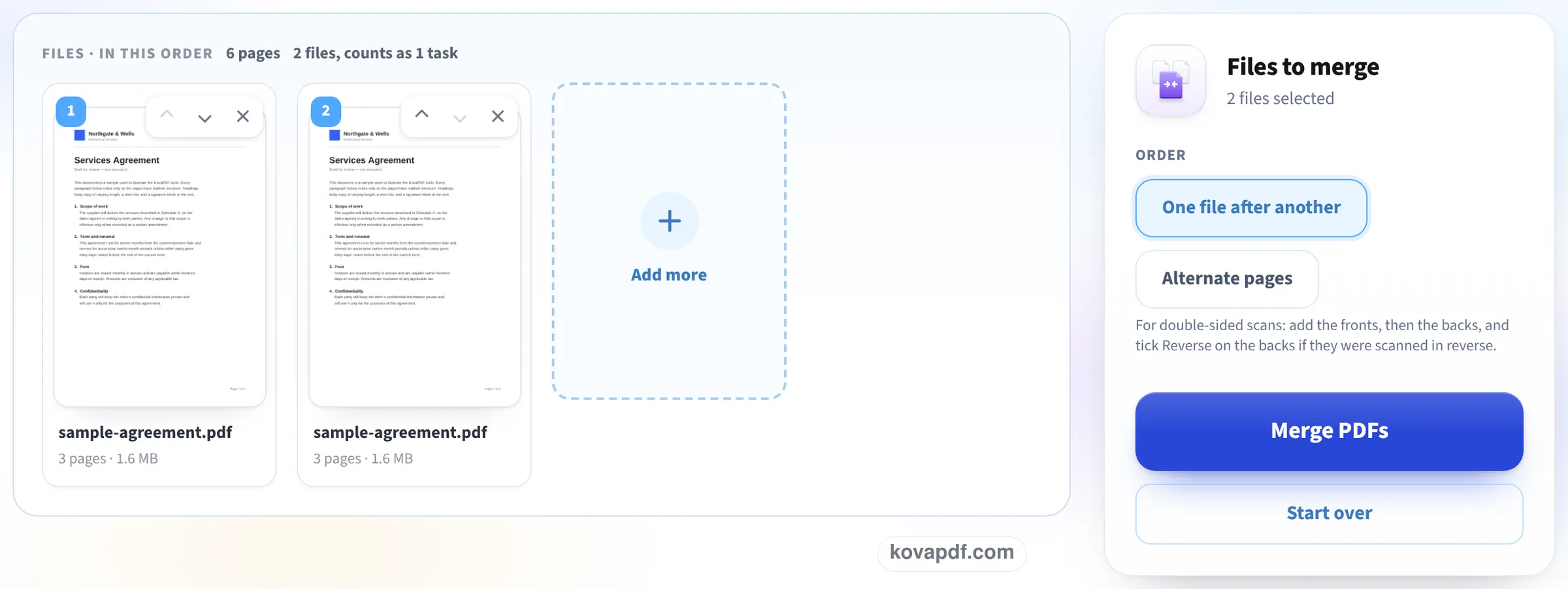
Put the cards in order
Each PDF becomes a numbered card showing its first page and page count. Tap the up or down arrow on a card to move it, or the cross to drop it. In a phone-sized window the cards sit two to a row and the Merge PDFs button stays pinned to the bottom of the screen.
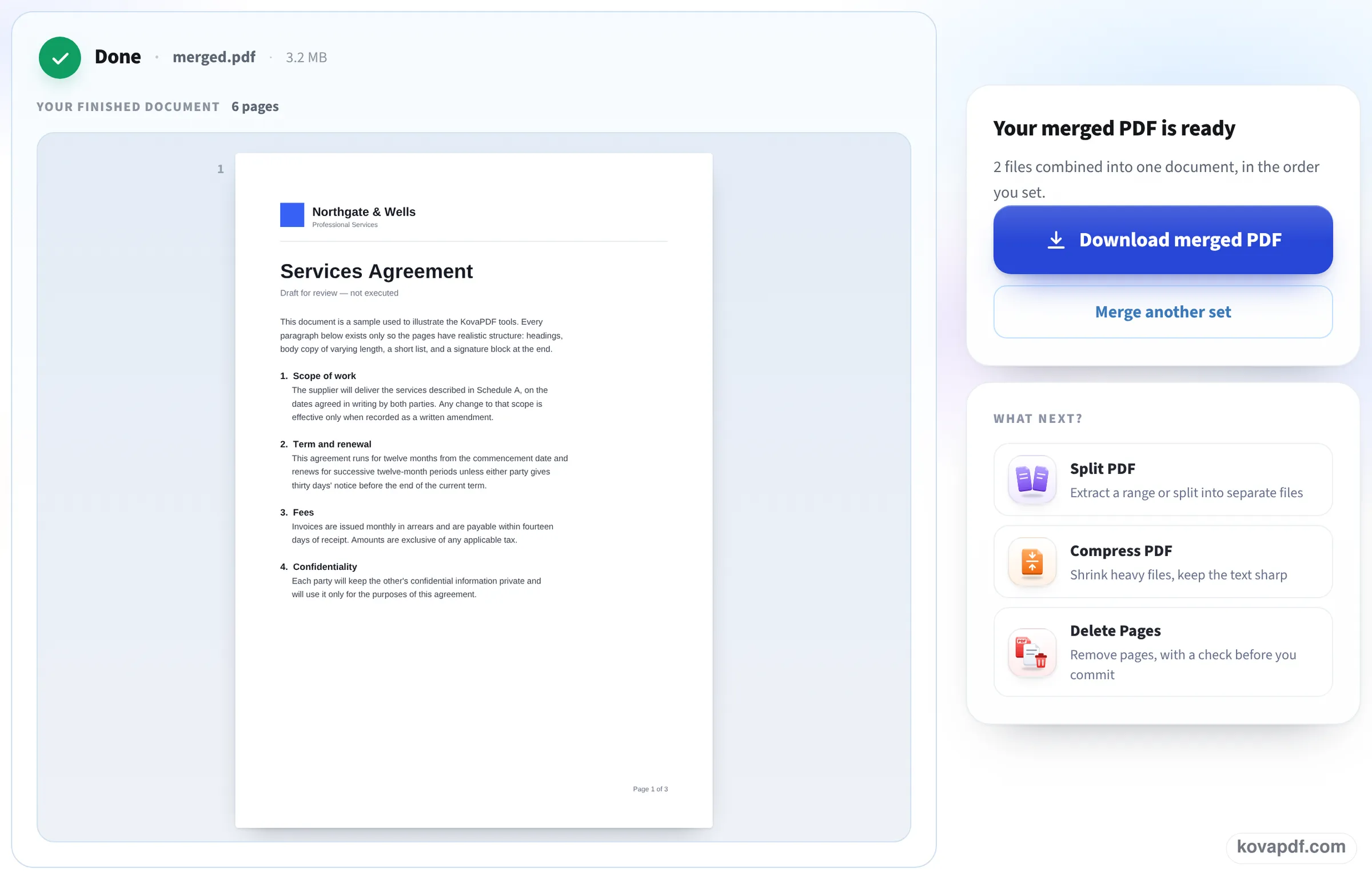
Preview, then save to Files
The merged document appears with its page count so you can scroll it before saving. Tap Download merged PDF and Safari puts merged.pdf in the Downloads folder of the Files app, ready to share or attach.
Our test on a phone-sized screen
On 24 October we opened this page in a 390 × 844 window with a phone browser's settings, added the files, merged them and opened the PDF that came back. We repeated the same files in a 1366 px window to compare. Measured on October 24, 2026.
| Window | Files merged | Merged file | What we checked |
|---|---|---|---|
| 390 × 844 (phone) | Letter (3 p) + invoice (1 p), 65.8 KB | 4 pages, 60.3 KB, ready in 0.9 s | All 1,124 words selectable, letter first, invoice last |
| 1366 px (desktop) | The same two files | 4 pages, 60.3 KB, ready in 1.2 s | Byte for byte the same size as the phone result |
In the phone window the Merge PDFs button stays at the bottom of the screen while you arrange the cards, so there is no scrolling to find it.
A merged file of scans is as big as the scans together. If it is too big to email or upload, compress it next on Compress PDF on iPhone.
Can't I do this in the Files app?
Recent versions of iOS can make one PDF out of several files: select them in Files, touch and hold, and choose Create PDF. It is quick when it works, but the files are joined in the order Files lists them, there is no way to see or change that order first, and it is easy to miss inside the long-press menu.
This page shows each file as a card you can move up or down before anything is joined, and it never changes your original files.
Getting the file where you need it
Once merged.pdf is saved:
- Open Files, go to Downloads, and touch and hold the file to rename, move or share it.
- To attach it to an email, tap the share button in Safari's download list, or attach it from Files in the Mail app.
- If your PDFs are in iCloud Drive, they may need to download to the phone first; Files shows a cloud icon until they have.
- Photos are not PDFs. Turn them into a PDF first with Combine photos into one PDF, then merge that file with the rest.
Limits worth knowing
A PDF locked with an open password has to be unlocked first. Very large scans take memory: a phone can join many pages, but a few hundred megabytes of scans is better merged on a computer. Pages keep their own sizes, and bookmarks are not combined.
Read next: Merge PDF on Mac · Compress PDF on iPhone · Free PDF scanner for your phone
Frequently asked questions about Merge PDF on iPhone
How do I combine PDF files on my iPhone?
Open this page in Safari, tap the upload box, choose the PDFs from Files, put the cards in order and tap Merge PDFs. The new PDF is saved in Files, in Downloads.
Do I need to download an app?
No. It works in Safari, and in any other browser on the phone. There is nothing to install.
Are my PDFs uploaded to a server?
No. The files are read and merged on the phone. Nothing is sent anywhere.
Where does the merged PDF go?
Safari saves it to the Downloads folder in the Files app, named merged.pdf. You can rename or move it from there.
Does it work on iPad too?
Yes. The page works the same in Safari on iPad, where the bigger screen shows more cards at once.
Can I add photos to the PDF?
Merge PDF joins PDF files. Turn the photos into a PDF first with JPG to PDF, then merge it with the other PDFs.
Merge PDF on iPhone guides and articles

Related tools
All PDF tools · 15 step-by-step guides · How your files are handled
Also: Merge PDF · Merge PDF on Mac