Sign a PDF on iPhone
Open the PDF in Safari, sign with your finger or type your name, place it and save. No app to install.
- Free to use
- Works on any device
- Nothing to install
- Draw, type or upload it
- Place it anywhere, any page
- Resize and move it freely
- No certificate needed
PDF · Word · JPG · PNG · WebP
Drag & drop file here
or choose a file from your device
Choose the PDF on your iPhone to sign
PDF, Word or image files
Everything Sign PDF can do
Put your signature, your initials and the rest of what a form asks for onto a document, and drag each one into place. Free, in your browser, no account or certificate needed.
Making your signature
- Draw it with a mouse, a finger or a pen
- Type it in three handwriting styles
- Upload a photo of a sheet you signed
- Photographed paper is cleared away to transparent
- Blue or black ink
Initials and fields
- Initials, drawn, typed or uploaded the same way
- Your name, typed once and placed as often as needed
- A date from a calendar, in four formats
- Any other line of text a form asks for
- Check and cross marks
Placing what you add
- Drag to move it, drag a corner to resize it
- Copy the selected item onto every page
- Place a signature you made earlier again
What you get back
- Name, date and text saved as real, selectable text
- Signatures stay sharp transparent images on the page
- Start from a PDF, a Word file, an ODT or a photo
- Open the full editor once the signing is done
How it works
Sign PDF on iPhone in three steps
Tap the box
Choose the PDF in Files, or one you saved from Mail.
Draw or type
Tap Draw and sign with your finger, or Type and pick a style. Tap Use signature or Place signature.
Place it and Save
Drag it onto the line, then tap Save and download the signed PDF to Files.
Sign PDF on iPhone: a visual walkthrough
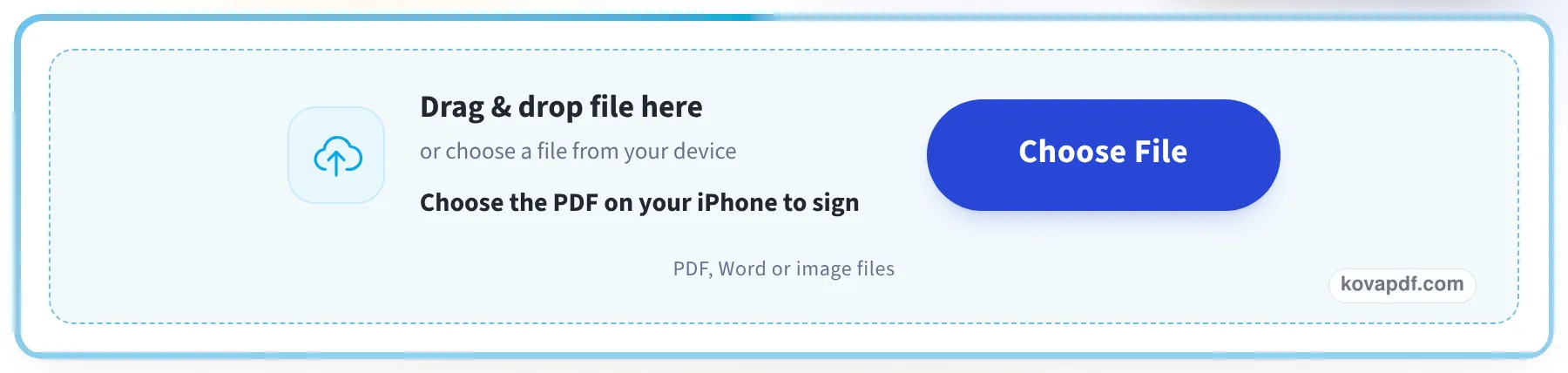
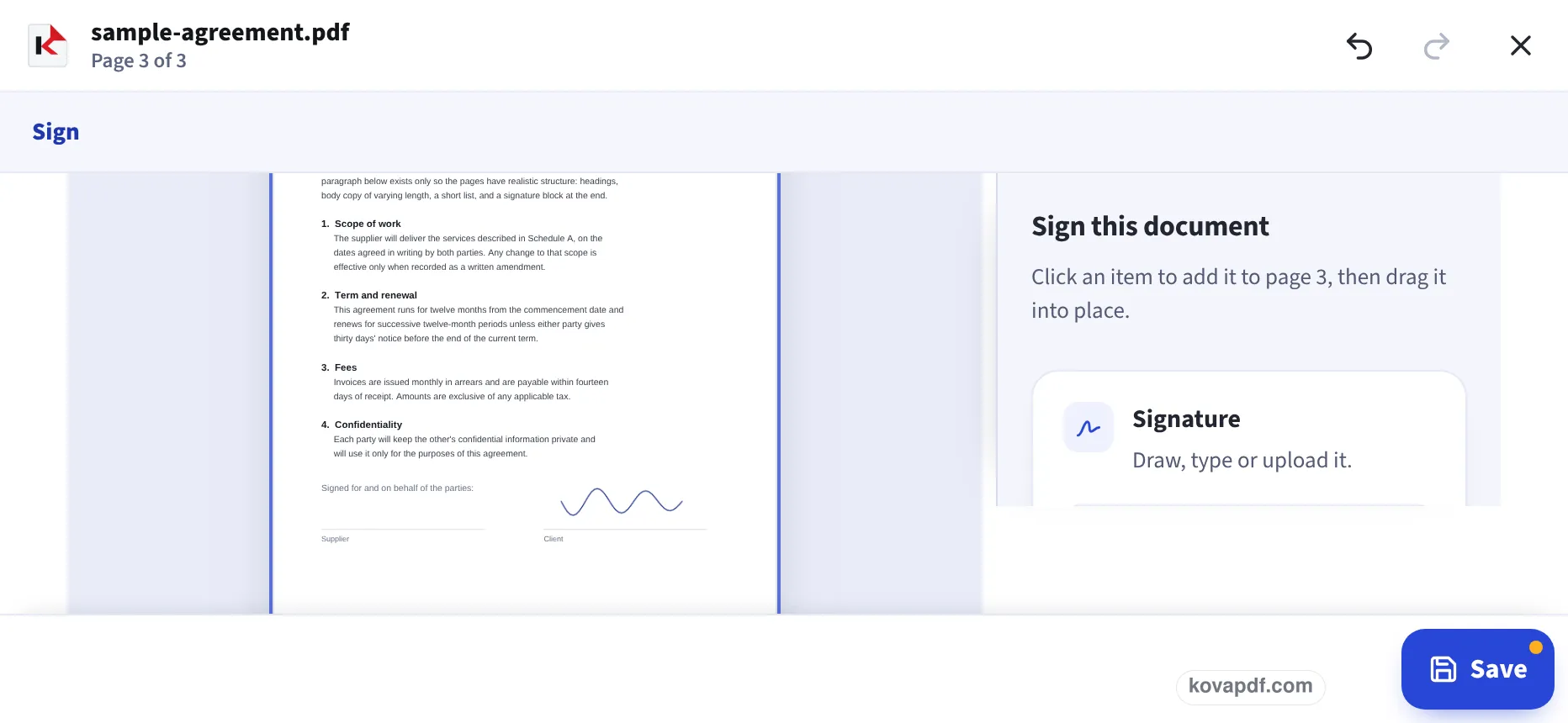
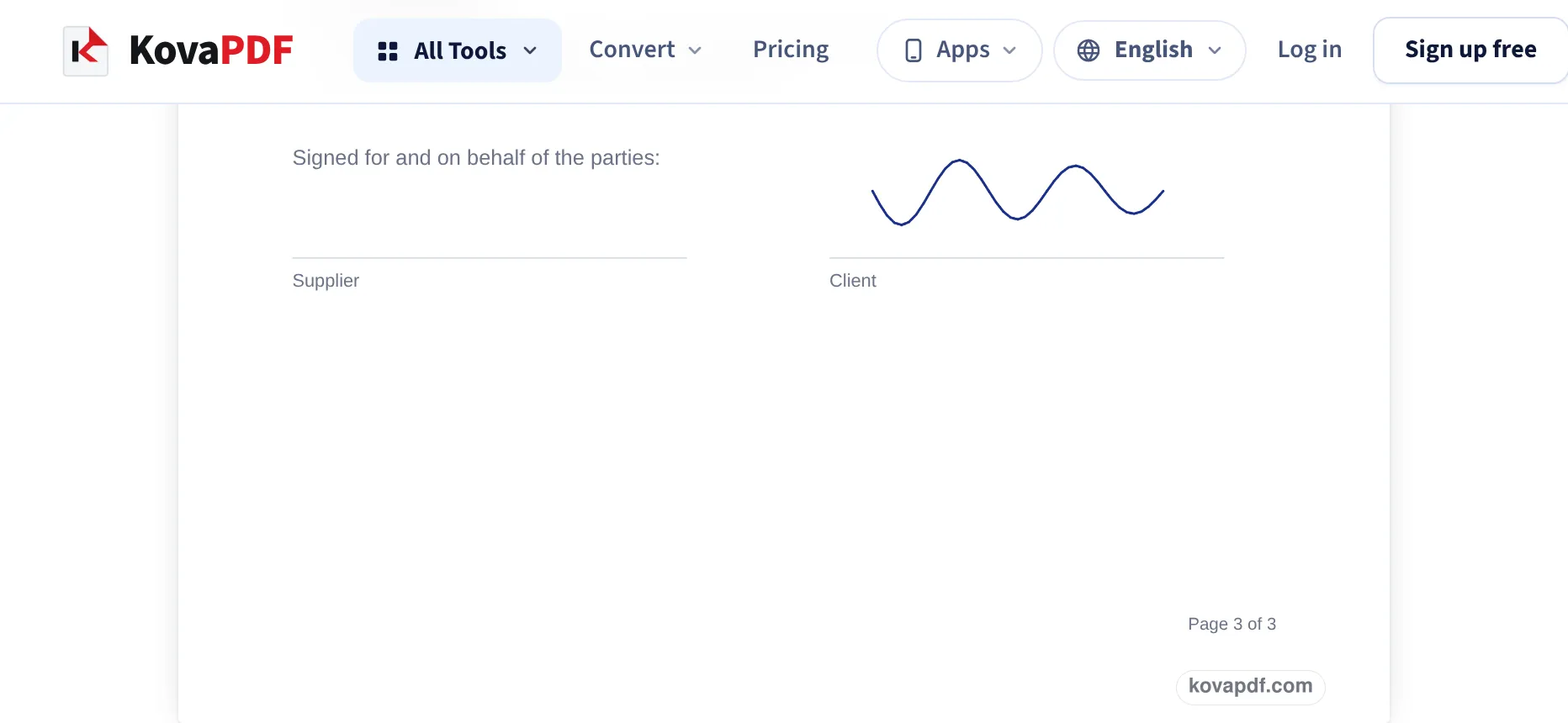
These pictures were taken in a phone window turned sideways, the layout Safari gets on an iPhone: the upload box, a finger-drawn signature placed on the Client line of our sample agreement, and the signed file ready to save.
Tap the box and pick the PDF
Tap Choose File and pick the document in Files, iCloud Drive or a Mail attachment you saved. The page opens full screen with the signing tools in a sheet at the bottom and Save in the corner.
Sign with your finger and drag it to the line
We tapped Draw, signed in the box that opened over the page, tapped Use signature and moved the signature onto the Client line on page 3 with a finger.
Tap Save
Save builds the signed PDF and opens it; here it is scrolled down to the signature, now part of the page above the Client line. Download PDF then puts the file in Files, in Downloads, ready to attach to a reply.
Signing in an iPhone sized window
We signed our 3-page letter on this page in a 390 × 844 window, the screen of a recent iPhone, tapped Save and opened the downloaded PDFs. The same page in a 1366 pixel window gave the same signature. Measured on October 24, 2026.
| Signature | Result | File size (6,246 bytes before) |
|---|---|---|
| Typed: Daniel Okafor | 520 × 112 px signature with a see-through background, on page 1 only | 22,480 bytes |
| Drawn in the signing box | 332 × 99 px signature with a see-through background, on page 1 only | 12,174 bytes |
In the phone layout the signing tools sit in a sheet called Signing tools at the foot of the screen, and the button that finishes is Save. The drawing box opens over the page, wide enough to sign with a thumb.
The built-in way, and why people look elsewhere
iPhones have Markup: open the PDF in Files or Mail, tap the Markup button, then the plus button and Add Signature. It works, but the plus button is easy to miss, typing a signature is not an option, and adding the date or your printed name means typing them as separate text boxes.
This page keeps signature, initials, name and date together in one panel, and lets you type a signature if drawing on glass gives you a scrawl.
Tips for signing on a phone
A few things make a phone signature look better:
- Sign slowly with the pad of your finger; a stylus works too.
- Turn the phone sideways for a wider signing box.
- If it comes out shaky, tap Clear and try again, or use Type.
Sending it back
The signed PDF goes to Files, in Downloads. In Mail, tap the attachment button, choose Attach File and pick it. To prove the document has not been changed after signing, use the Digital Signature option.
Read next: Sign a PDF on Mac · Fill a PDF form on iPhone · Edit a PDF on iPhone
Frequently asked questions about Sign PDF on iPhone
How do I sign a PDF on my iPhone?
Open this page in Safari, tap the box and pick the PDF, tap Draw or Type to make your signature, drag it onto the line and tap Save.
Do I need an app?
No. It works in Safari, with nothing to install.
Can I sign with my finger?
Yes. Tap Draw and sign in the box that opens over the page, then tap Use signature.
Where is the signed PDF saved?
In Files, in the Downloads folder. From there you can attach it to an email or upload it.
Can I add the date next to my signature?
Yes. The Date item in the same panel is filled with today's date; tap it and drag it into place.
Is a finger signature legally valid?
For most everyday documents in the US, UK, Canada and Australia, yes: an electronic signature is accepted. Some documents, such as wills, have stricter rules.
Sign PDF on iPhone guides and articles



Related tools
All PDF tools · 15 step-by-step guides · How your files are handled
Also: Sign PDF · Sign a PDF on Mac