Edit a PDF on Mac
Everything Preview can't do, in your Mac's browser: change the words already in the PDF, add text and pictures, fill, highlight and sign.
- Free to use
- Works on any device
- Nothing to install
- Type straight onto the page
- Images, shapes and signatures
- Pages added or removed
- Saves a real PDF
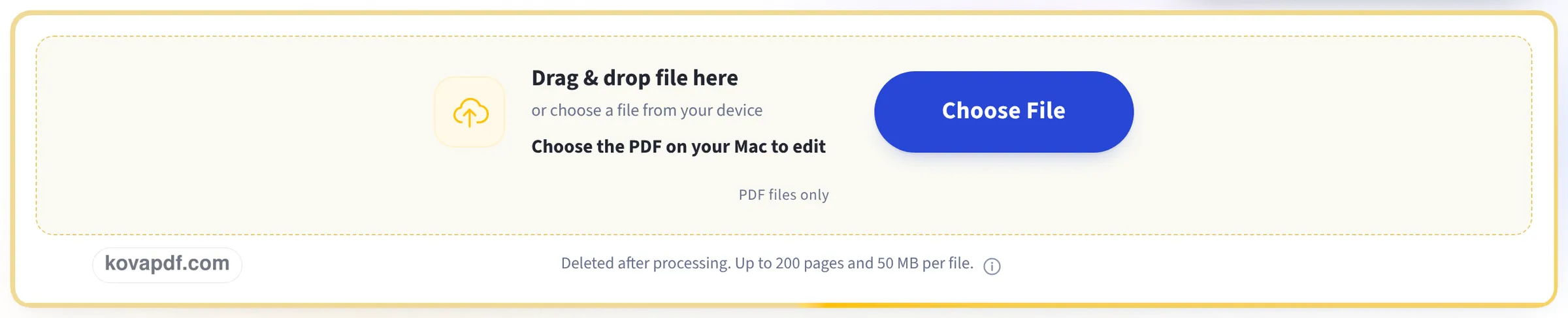
Drag & drop file here
or choose a file from your device
Choose the PDF on your Mac to edit
PDF files only
Deleted after processing. Up to 200 pages and 50 MB per file.
Everything the PDF Editor can do
Change what is on the page: the words already printed there, images, shapes, signatures and the pages themselves.
Text on the page
- Click any line and retype it in place
- Keeps the document's own embedded font while you edit
- Start a new text box anywhere on the page
- Sixteen typefaces and twenty sizes, Bangla included
- Bold, italic, underline, text colour and highlight
- Left, centre or right alignment, plus case changes
Images and signatures
- Place a PNG or JPEG anywhere on a page
- Draw a signature and drop it where you want it
- Knock out a white background in one click
- Halve opacity, duplicate, and change layer order
Drawing and marks
- Rectangle, circle, line, arrow, checkmark and crossmark
- A freehand pen and a highlighter
- Whiteout to cover anything already printed
- An eraser that removes text, shapes and drawings alike
Pages
- Reorder, rotate and duplicate pages from thumbnails
- Delete pages, or insert blank ones anywhere
- Watermark, header and footer on the same toolbar
While you work
- Undo and redo with Ctrl+Z
- Zoom from 50% to 300%
- Read every page in a preview before downloading
How it works
Edit PDF on Mac in three steps
Drag the PDF in from Finder
It opens in the editor with every page shown on the left.
Edit
Click a line to change it, click empty space to type, or use Add, Annotate, Sign and Forms along the top.
Review & download
Check the pages, then download the edited PDF to your Downloads folder.
Edit PDF on Mac: a visual walkthrough
The one thing Preview cannot do, shown on our sample agreement in a desktop window: a line that is already in the PDF retyped and recoloured, then saved.
Drag the PDF in from Finder
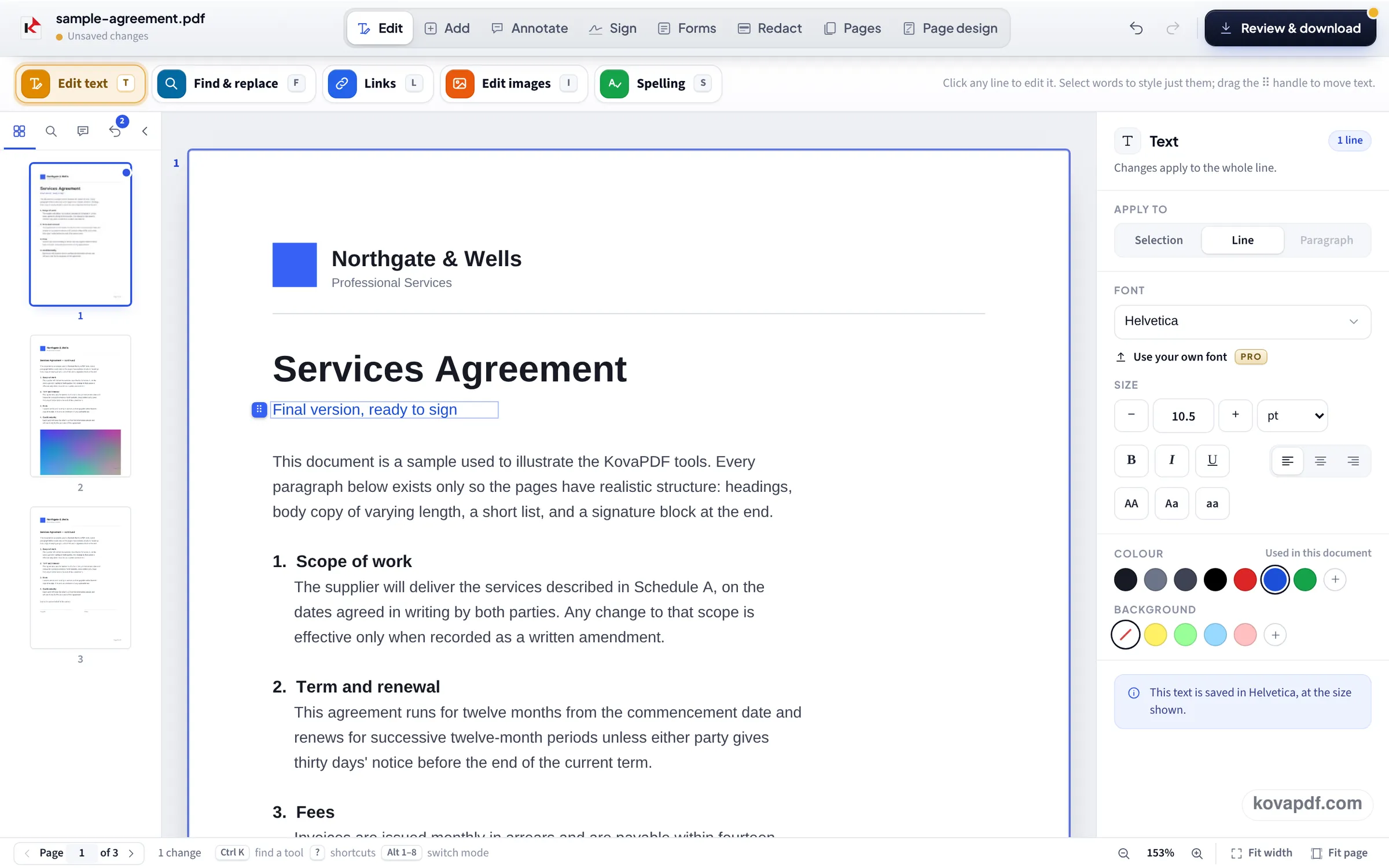
Drop the file on the box or press Choose File. The full editor opens: modes along the top (Edit, Add, Annotate, Sign, Forms, Redact, Pages, Page design), page thumbnails on the left, settings on the right.
Click a line and retype it
We clicked the grey line under the title, typed Final version, ready to sign over the old words, set Apply to on Line and picked blue. The words change in place, in the line's own font.
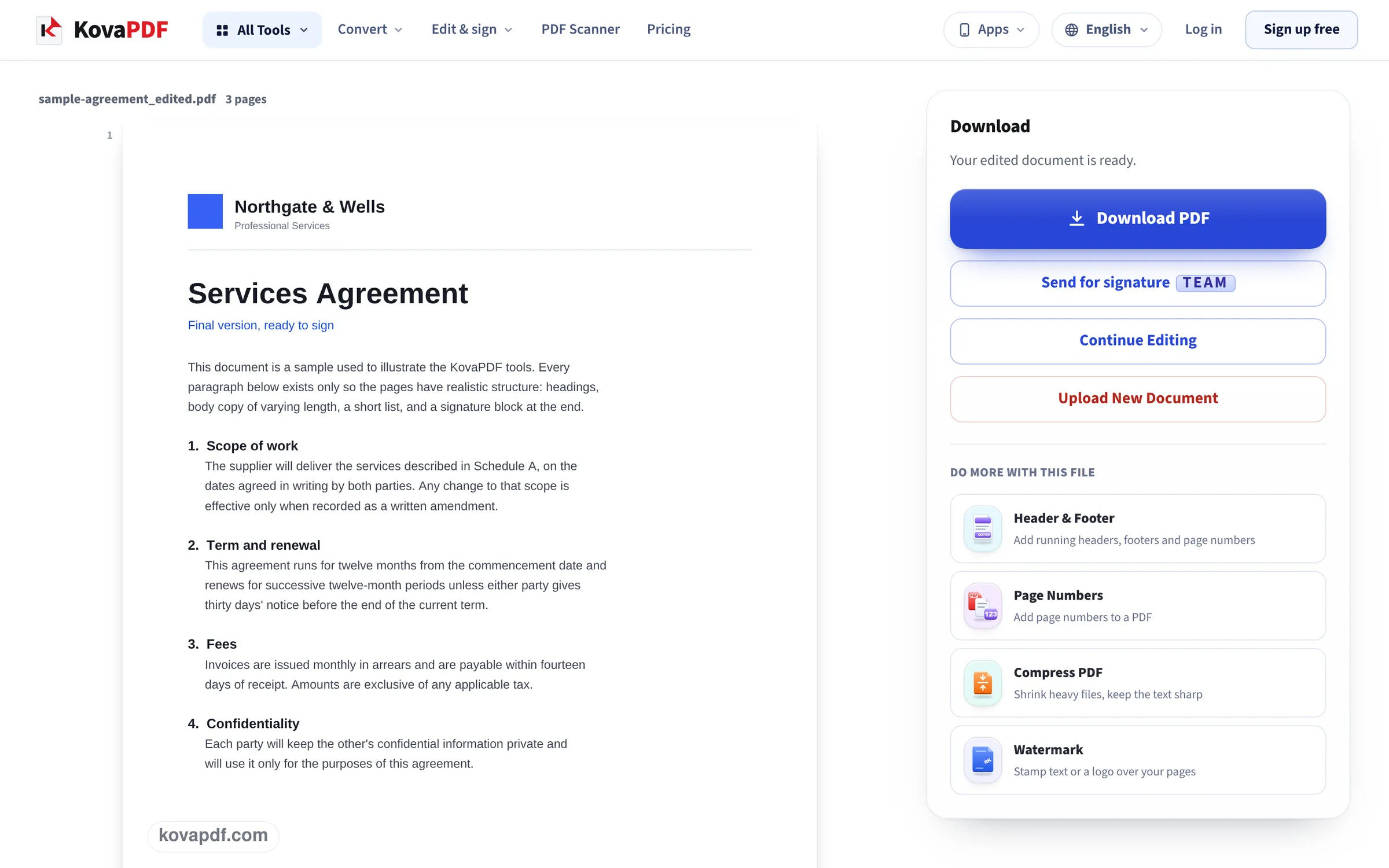
Review & download
The saved copy carries the new line where the old one was. The old words are gone from the file, not hidden under a white box.
Seven edits in a desktop window, checked in the saved files
We made each edit in this editor in a 1366 pixel window, the size of a 13 inch MacBook screen, on our own 3-page letter (6,246 bytes) and a fillable form, pressed Review & download and opened the PDF to check the change. Measured on October 24, 2026.
| Edit | What the saved PDF contained | Size after |
|---|---|---|
| Change the date line 22 October 2026 to 24 October 2026 | The old figures gone from the file; the new date in Times 12 pt like the letter | 7,310 bytes |
| Type a new line on empty space | The line as real, searchable text in the letter's Times | 5,877 bytes |
| Type on a colour scan | The words as the only searchable text on the page | +579 bytes |
| Add a PNG logo | 600 × 200 px picture at full size, on page 1 only | 12,101 bytes |
| Highlight a line | Yellow band at 35% opacity; the text under it still searchable | 5,847 bytes |
| Fill a form, 8 fields | All 8 answers in the form's fields, still fillable | 8,847 bytes |
| Sign, typed then drawn | Signature picture on page 1 only, see-through background | 22,478 / 12,182 bytes |
Several files came back smaller than the original, because the editor writes a clean copy. Nothing was added that we did not put there: no watermark, no banner.
What Preview can and cannot do
Preview, built into macOS, is good at marking up: it can add text boxes, shapes, highlights and a signature, rotate and delete pages, and fill most forms. What it cannot do is change the text that is already in the PDF: a typo in a contract or a wrong date on an invoice stays where it is, and the usual workaround of drawing a white box over it leaves the old words in the file.
This editor opens each line of the PDF for editing in its own font, and when a line is changed or whited out, the old letters are taken out of the page rather than covered. In our test the old date could no longer be found anywhere in the saved file.
Working quickly on a Mac
A few things save time:
- Press ? in the editor to see the keyboard shortcuts, and Ctrl K to find any tool by name.
- Open Pages at the top to see every page in a grid, then reorder, rotate, delete or add pages.
- Need the edited file smaller to email? Compress PDF on Mac takes it down afterwards.
- Undo and Redo sit at the top right; every change is listed under History.
Limits worth knowing
A PDF locked with an open password must be unlocked first. Text in a scan is a picture until it is read with OCR; open the scan in OCR PDF to edit its words. Fonts that are not available can be uploaded with Pro.
Read next: Edit PDF text in the same font · Edit a PDF on iPhone · Sign a PDF on Mac
Frequently asked questions about Edit PDF on Mac
How can I edit a PDF on a Mac for free?
Open this page in Safari or any browser, drop the PDF in, make your changes and press Review & download. There is no app to install and no watermark.
Can I change the existing text in a PDF on a Mac?
Yes. Click on the line and type. Preview cannot do this; this editor can, in the PDF's own font where the font allows it.
Is there a free alternative to Adobe Acrobat on Mac?
For changing text, adding pictures, filling forms, highlighting and signing, this editor does the job in your browser without Acrobat.
Will it add a watermark?
No. The saved PDF contains your edits and nothing else, as our test files showed.
Is my PDF uploaded?
You edit in the browser; when you download, the edited PDF is built on our server and deleted straight after.
Does it matter which Mac I have?
No. It runs in the browser, so a current Safari, Chrome or Firefox is all it needs.
Edit PDF on Mac guides and articles


Related tools
All PDF tools · 15 step-by-step guides · How your files are handled
Also: PDF Editor · Edit a PDF on iPhone