Highlight text in a PDF
The highlighter is already in your hand: drag over the words, then download. The highlight is saved into the page and shows in every reader.
- Free to use
- Works on any device
- Nothing to install
- Type straight onto the page
- Images, shapes and signatures
- Pages added or removed
- Saves a real PDF
Drag & drop file here
or choose a file from your device
Choose the PDF to highlight
PDF files only
Deleted after processing. Up to 200 pages and 50 MB per file.
On your computer? Get the Windows appOn your phone? Get the phone app
Everything the PDF Editor can do
Change what is on the page: the words already printed there, images, shapes, signatures and the pages themselves.
Text on the page
- Click any line and retype it in place
- Keeps the document's own embedded font while you edit
- Start a new text box anywhere on the page
- Sixteen typefaces and twenty sizes, Bangla included
- Bold, italic, underline, text colour and highlight
- Left, centre or right alignment, plus case changes
Images and signatures
- Place a PNG or JPEG anywhere on a page
- Draw a signature and drop it where you want it
- Knock out a white background in one click
- Halve opacity, duplicate, and change layer order
Drawing and marks
- Rectangle, circle, line, arrow, checkmark and crossmark
- A freehand pen and a highlighter
- Whiteout to cover anything already printed
- An eraser that removes text, shapes and drawings alike
Pages
- Reorder, rotate and duplicate pages from thumbnails
- Delete pages, or insert blank ones anywhere
- Watermark, header and footer on the same toolbar
While you work
- Undo and redo with Ctrl+Z
- Zoom from 50% to 300%
- Read every page in a preview before downloading
How it works
Highlight text in PDF in three steps
Open the PDF
Drop it in. Highlight is already chosen under Annotate.
Drag over the words
Press at the top left of the words and drag to the bottom right; the box you draw turns yellow. Pick another colour on the right; Undo takes a mark back.
Review & download
The saved PDF carries your highlights.
Highlight text in PDF: a visual walkthrough
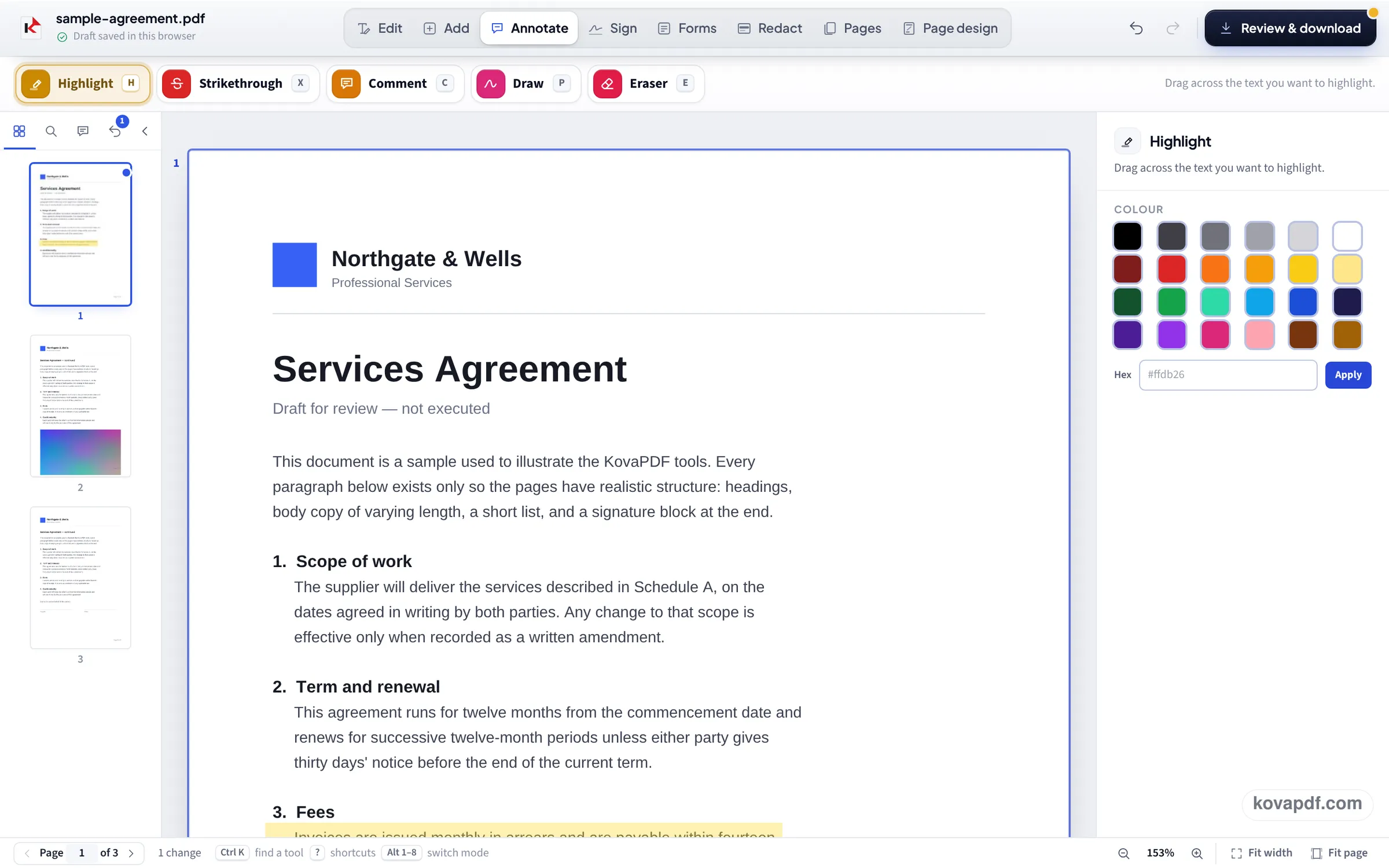
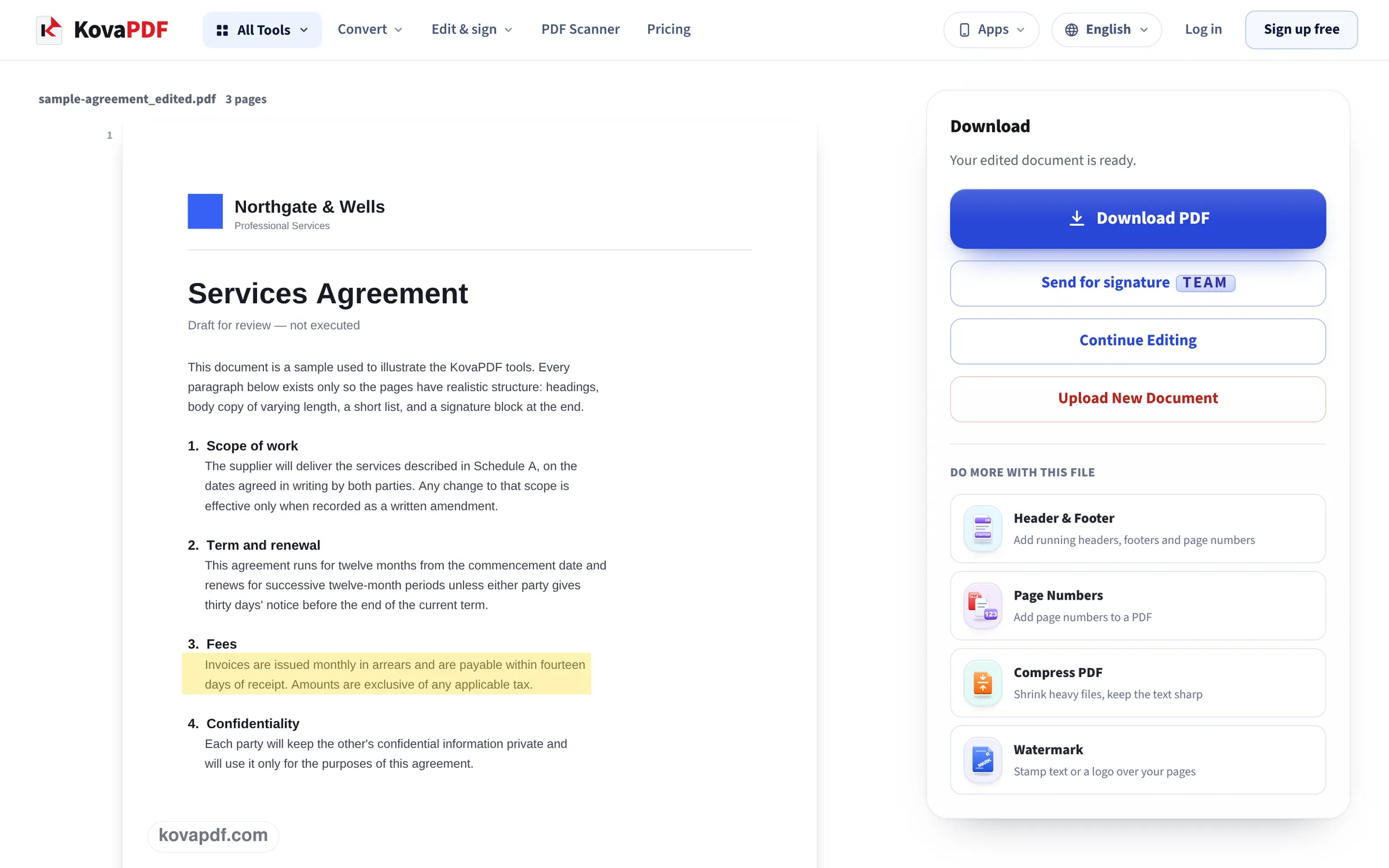
The highlighter on our sample agreement, in three pictures: the file going in, clause 3 marked in yellow, and the saved page with the mark still there.
Open the PDF
Add the file. The editor opens in Annotate with Highlight selected and yellow as the colour, so the next drag on the page makes a mark.

Drag over the lines
We dragged from the top left of clause 3 to the bottom right of its second line. The area turns yellow at once, and the thumbnail of page 1 in the rail shows it too. The colours on the right change the next mark.
Review & download
In the saved copy both lines of the Fees clause sit under a see-through yellow band, and the words under it read as clearly as before.
One highlight, read back from the saved file
We dragged the highlighter over one line of our 3-page letter on this page, pressed Review & download and opened the PDF to see what was saved. Measured on October 24, 2026.
| Checked | Result |
|---|---|
| What was added | One yellow band, 459 × 17 pt, drawn at 35% opacity |
| Stored as | Part of the page drawing, not a separate comment |
| The text under it | Still there: all 5,839 characters of the letter searchable and selectable |
| File size | 6,246 → 5,847 bytes (the editor writes a clean copy) |
Because the highlight is drawn into the page, readers that hide comments, phone previews and printers all show it. The other side of that: it cannot be switched off later as a comment. Keep your original if you might want an unmarked copy.
The mark is the box you drag, so drag from above the words to below them. A perfectly flat drag along the line has no height and leaves nothing visible.
Highlighting a scan
A scan is a picture of the page, so there are no words to snap to, but the highlighter does not need any: drag over the part of the picture you want to mark. If you need to search the scan as well, run it through OCR PDF first, then highlight the result.
The rest of the Annotate tools
Highlight sits with the other marking tools:
- Strikethrough: a line through words, for corrections and drafts.
- Comment: a sticky note with your remark, for a reviewer.
- Draw: freehand marks, circles and arrows.
- Eraser: removes a mark you drew by mistake before you download.
Why highlights sometimes vanish elsewhere
Some PDF apps save highlights as comments, which other readers may hide, print without, or drop when the file is converted. A highlight saved into the page, as here, travels with the page wherever it goes.
Read next: Add text to a PDF · Copy text from a scanned PDF
Frequently asked questions about Highlight text in PDF
How do I highlight text in a PDF for free?
Open the PDF here, drag the highlighter over the words from their top left to their bottom right, and press Review & download. The saved PDF has your highlights.
Will the highlights show in other PDF readers?
Yes. They are saved as part of the page, so every reader, browser and printer shows them.
Can I still search the highlighted text?
Yes. The highlight is see-through and drawn over the words; in our test every character of the letter was still searchable afterwards.
Can I change the highlight colour?
Yes, pick another colour on the right before you drag.
Can I remove a highlight later?
Before downloading, use Undo or the Eraser. After downloading, the highlight is part of the page, so keep your original file if you might want a clean copy.
Does it work on a phone?
Yes. Drag with your finger over the words.
Highlight text in PDF guides and articles



Related tools
 PDF EditorEdit text, images and signatures in place
 PDF to TextOCRCopy or download every page's text
 OCR PDFOCRMake scanned and photographed PDFs editable
 Sign PDFDraw, type or upload your signature
All PDF tools · 15 step-by-step guides · How your files are handled
Also: PDF Editor