Edit a scanned PDF
Drop in a scan. The pages are read word by word, and you can click any line and retype it, as you would in a typed document.
- Free to use
- Works on any device
- Nothing to install
- A scan becomes real text
- Edit it like any PDF
- Nine languages
- The page underneath is kept
Drag & drop file here
or choose a file from your device
Upload a scanned PDF to start editing
PDF files only
Deleted after processing. Up to 200 pages and 50 MB per file.
We'll work out the language from the document itself.
How it works
Edit a scanned PDF in three steps
Open the scan
Drop the PDF in. Pages that are pictures are read with OCR as they open; a banner says how many lines were found.
Click a line and retype it
Choose Edit text, click the line, and type. The scanned word is replaced by the new one, in a font chosen to match.
Review and download
The saved PDF shows your change on the page and has a text layer, so the whole scan can be searched and copied.
What our test scan looked like after download
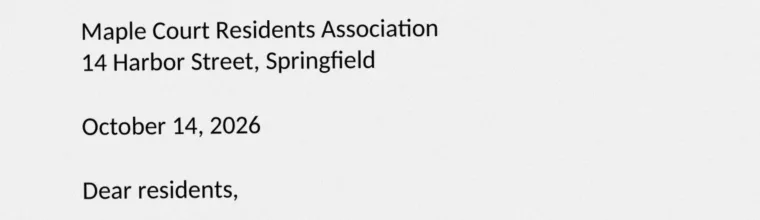
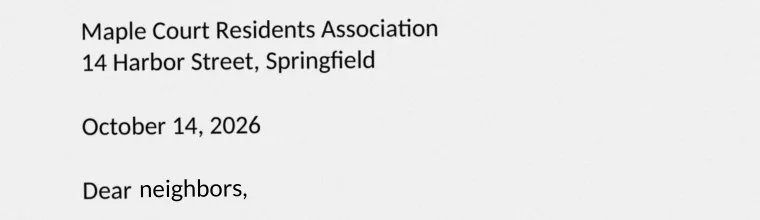
We made a one-page scan the way a flatbed scanner saves one: the letter above printed to a 300 DPI grayscale picture, tilted 0.6 degrees, on off-white paper, with no text in the file. Then we edited it on this page and opened the downloaded file again. Measured on October 21, 2026.
| Check | Before | After download |
|---|---|---|
| Text you can search or copy | None: the page was only a picture | Yes: 42 lines were read, and they are all searchable |
| The line we edited | “Dear residents,” in the scanned picture | “Dear neighbors,” on the page and in the text |
| The old word in the picture | Visible | Covered by the new word, with the paper tone around it kept |
| Page size and the rest of the page | A4, 1 page | Unchanged: the untouched lines are still the scan's own pixels |
The new word is sharper than the scanned letters around it, because it is real type and they are a picture. On a clean scan it reads as part of the page; on a dark or blurry one it stands out more.
OCR reads the first 30 scanned pages of a file each run. A longer scan can be split first with Split PDF.
Editing a scan is different from editing a typed PDF
A scan is a photograph of paper. There is no text to click, which is why most editors either refuse scans or let you put a white box over a word and type on top. That leaves the original word in the picture and nothing searchable in the file.
Here the scan is read first. Every line becomes an ordinary editable line laid over the original page. Change one and only that line is redrawn; the rest stays exactly as scanned, so the page still looks like your document.
Getting a good result
OCR is only as good as the picture it reads. Before you edit:
- Scan at 300 DPI if you can. Phone photos work if the page is flat and straight; Enhance PDF can darken faint text and sharpen a soft photo first.
- Check the line you are about to change: if a word was misread, retype the whole line rather than one letter.
- Keep edits short. A sentence that runs longer than the original line wraps onto the next one.
Edit a scanned PDF: common questions
Can I edit a scanned PDF for free?
Yes, within the free allowance, and a free account raises it. Open the scan here, let the pages be read, then click a line and type. The downloaded PDF has your change and a searchable text layer.
How do I convert a scanned PDF to an editable PDF?
Open it on this page. Each scanned page is read with OCR and turned into lines you can edit in place. If you would rather edit in Word, run the PDF through PDF to Word after it has been read.
Does it just put a white box over the old word?
No. The old word is covered by the new one, drawn in a font matched to the scan, with the paper tone around it. The text layer gets the new word too, so a search finds what the page now says.
Which languages can the scan be in?
The language is detected from the page, or you can choose it: English, Spanish, Portuguese, Dutch, Russian, Arabic, Hindi, Bangla or Chinese (Simplified). Each one is read together with English, so names and numbers come through.
How many pages can it read?
The first 30 scanned pages in each run. Split a longer scan into parts first.
My scan is a phone photo. Will it work?
Usually, if the page is flat, straight and in focus. If the text is faint, run it through Enhance PDF first; OCR reads a sharp, even page much better.
Tools that go with it
How to edit text in a scanned PDFEdit PDF text in the same font