Convert iPhone Photos to PDF
Pick photos from your iPhone's library, put them in order and save one PDF to Files, right in Safari. No app to install.
- Keeps your layout
- Works on any device
- Stays on your device
Choose photos from your iPhone
JPG, PNG, WebP or HEIC · one image per page, in the order you set. Your pictures stay on your device; only HEIC photos are sent to our server to be converted
Drag & drop files here
or choose a file from your device
Everything JPG to PDF can do
Turn JPG photos and scans into one PDF, a picture per page, in the order you set. Free, online.
Your photos
- Up to 30 JPGs in one PDF, dragged into the order you want
- Each JPG placed in the PDF as it is, not compressed a second time
- Phone photos turned upright to match how they were taken
The PDF
- About the size of the photos together: three photos of 619 KB made a 620 KB PDF
- A4, Letter, A3, A5, or each page the shape of its photo
- One PDF, or a PDF for each photo in a ZIP
How it works
Convert iPhone photos to PDF in three steps
Tap the box, then Photo Library
Select one photo or several, then tap Add. You can also pick photos saved in Files.
Check the order
Drag a photo with your finger, or tap its arrows, to move it earlier or later.
Create and save
Tap Create PDF, then Download. The PDF is saved in Files, in Downloads, ready to attach to an email or message.
Convert iPhone photos to PDF: a visual walkthrough
What you see on this page with two HEIC photos from a phone, one landscape and one portrait. The screens are the same in Safari on an iPhone, only narrower.
Open the photo picker
Tap the box. Your iPhone offers Photo Library, Take Photo or Choose File; Photo Library lets you tick as many photos as you like before tapping Add.

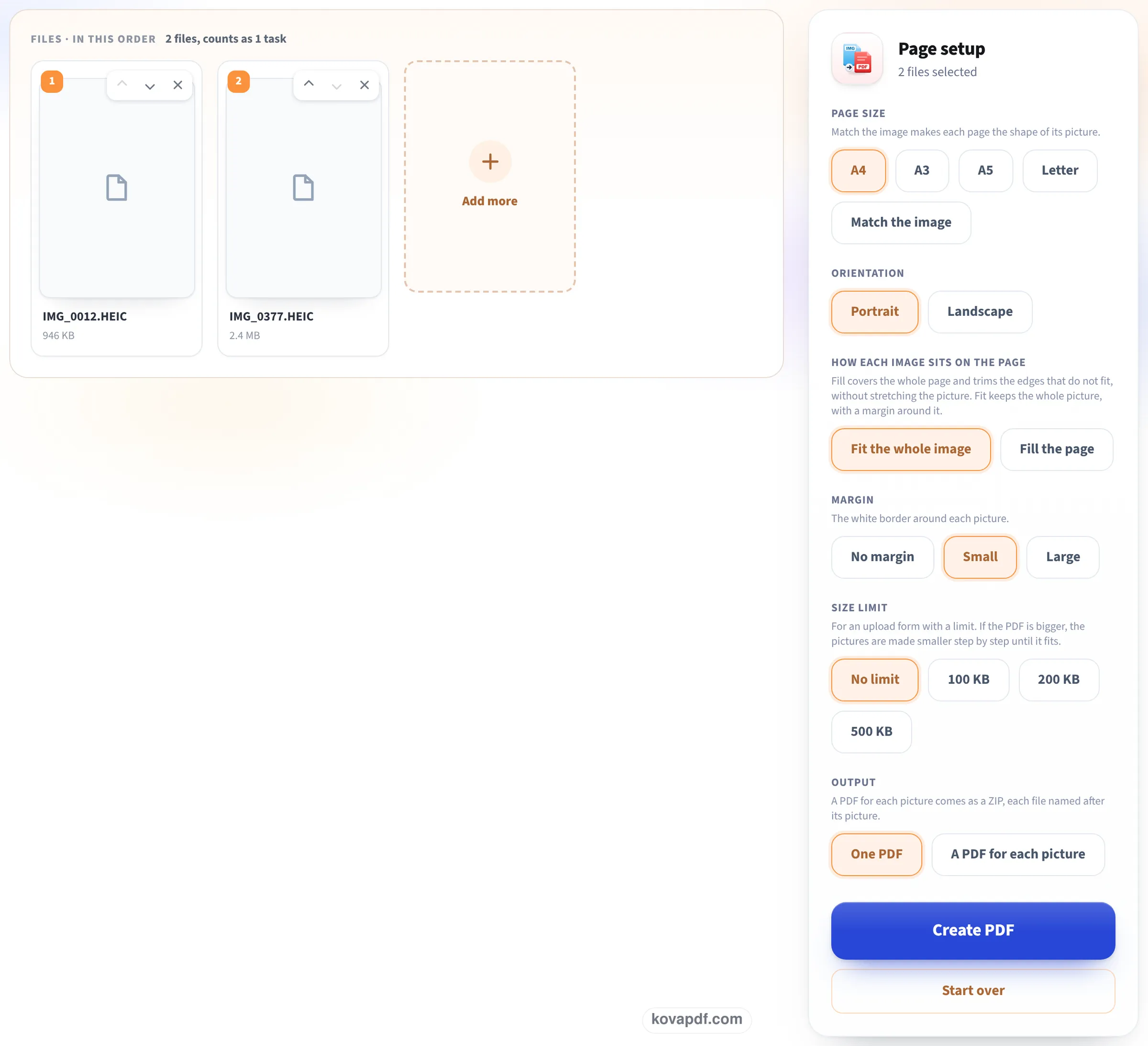
Check the photos and their order
Each HEIC photo gets a numbered card with its name and size. A desktop browser cannot draw HEIC, so our picture shows a file icon on each card; the number is the page it becomes. Page setup is beside them: A4 portrait, the whole photo fitted with a small margin, no size limit.
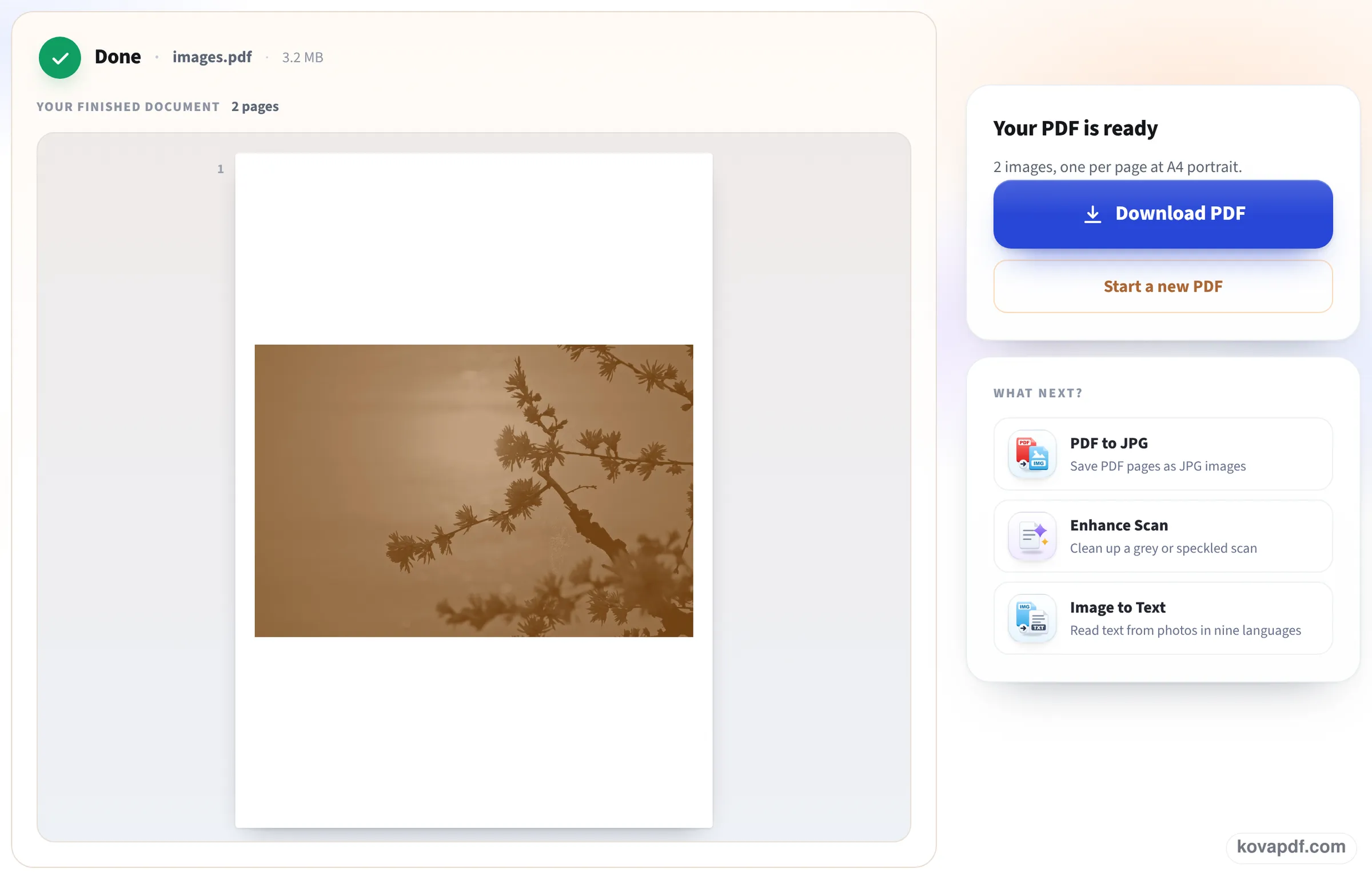
Save the PDF
After Create PDF the finished screen says how many photos went in and at what page size. Tap Download PDF and Safari puts the file in Downloads in the Files app.
Our test at iPhone screen size
We ran the page in a 390 × 844 window, the screen of a recent iPhone, with photos at the size a phone saves them, then opened the PDF that came back. Measured on October 22, 2026.
| Photos | What was inside | Ready in | |
|---|---|---|---|
| 4 HEIC photos, 3840 px, 6.5 MB | 4 pages, A4, 6.09 MB | Full-size 3840 px JPGs, landscape and portrait both upright | 4.4 s |
| 1 HEIC + 2 JPG photos, mixed | 3 pages, 1.10 MB | HEIC at 3840 px, JPGs unchanged at 1280 px | 1.4 s |
The upload box and the Create PDF button fit on the first screen, so there is no scrolling to find them.
Phone photos are large. Four of them made a 6 MB PDF, which is fine for email but too big for many upload forms. Choose the 500, 200 or 100 KB size limit for JPG photos, or make the finished PDF smaller on Reduce PDF size on iPhone.
Checked again on 24 October
A fresh set of four HEIC photos at phone size (three landscape, one portrait, 6.38 MB together), dropped on this page in a 1366 pixel window as it opens, then Create PDF. We opened the saved PDF and read every picture inside. Measured on October 24, 2026.
| Photos | Pictures inside | Ready in | |
|---|---|---|---|
| 4 HEIC photos, 6.38 MB | 4 pages of A4, 6.50 MB | JPGs at 3840 × 2559, 3840 × 2562 (twice) and 2562 × 3840, the portrait one upright | 12.4 s |
The PDF came out a little larger than the HEIC files: a HEIC photo is packed tighter than the JPG it becomes. Most of the time went on sending the 6 MB of photos to our server and back.
The built-in iPhone way, and why people look for another
An iPhone can make a PDF without any website: open the photo, tap Share, then Print, and spread two fingers on the preview to open it as a PDF, which you can share or save to Files. It works for one photo at a time, but the PDF is laid out for your printer's paper, often with large margins, the trick is hard to find, and several photos mean several separate PDFs.
This page takes many photos at once, keeps them as one PDF in the order you set, and gives you the page size and margin you choose.
Tips for photos of documents
If the photos are of paper rather than people, a little care goes a long way:
- Lay the paper flat on a dark surface, in daylight, and hold the phone straight above it.
- For a cleaner, straightened page, the KovaPDF scanner finds the page edges for you: see the free PDF scanner.
- Need the words searchable? Run the PDF through OCR PDF afterwards.
Where to find the PDF
Safari puts downloads in the Downloads folder in the Files app. Touch and hold the PDF there to rename, move or share it. To attach it to an email, tap the paper clip in Mail and choose Attach File, then Downloads.
Read next: Combine photos into one PDF · Free PDF scanner for your phone · Reduce PDF size on iPhone
Frequently asked questions about Convert iPhone photos to PDF
How do I turn a picture into a PDF on my iPhone?
Open this page in Safari, tap the box, choose Photo Library, select the photo and tap Create PDF, then Download. The PDF is saved in Files.
Can I put several photos in one PDF on iPhone?
Yes. Select them all in the photo picker; each becomes one page, in the order you set before creating the PDF.
Do I need to change HEIC photos to JPG first?
No. Add them as they are. In our tests, four HEIC photos became a PDF with full-size JPG pictures that opens on any device.
Are my photos uploaded?
JPG and PNG photos are not: the PDF is made on the phone. HEIC photos are sent to our server over an encrypted connection, converted, and deleted as soon as the PDF is built.
Why is the PDF so big?
Phone photos have a lot of pixels: four of ours made a PDF of 6 to 6.5 MB. Pick a size limit before creating the PDF, or compress it afterwards.
Is there an app?
You do not need one; the page works in Safari. You can add it to your Home Screen from the Share menu to open it like an app.
Convert iPhone photos to PDF guides and articles


Related tools
All PDF tools · 15 step-by-step guides · How your files are handled