Combine Photos into One PDF
Add your photos, set the order, download one PDF with a photo on each page.
- Keeps your layout
- Works on any device
- Stays on your device
Choose the photos to put into one PDF
JPG, PNG, WebP or HEIC · one image per page, in the order you set. Your pictures stay on your device; only HEIC photos are sent to our server to be converted
Drag & drop files here
or choose a file from your device
Everything JPG to PDF can do
Turn JPG photos and scans into one PDF, a picture per page, in the order you set. Free, online.
Your photos
- Up to 30 JPGs in one PDF, dragged into the order you want
- Each JPG placed in the PDF as it is, not compressed a second time
- Phone photos turned upright to match how they were taken
The PDF
- About the size of the photos together: three photos of 619 KB made a 620 KB PDF
- A4, Letter, A3, A5, or each page the shape of its photo
- One PDF, or a PDF for each photo in a ZIP
How it works
Combine photos into one PDF in three steps
Add all the photos
Select them together, or add more later with Add more. JPG, PNG, WebP and HEIC all work.
Set the order and page
Drag the photos into order. A4 with a small margin is set; choose Letter or Match the image if you prefer.
Download one PDF
Every photo is on its own page, in the order you set.
Combine photos into one PDF: a visual walkthrough
Three screens from this page with three of our test photos: the box you drop them on, the list where you put them in order, and the finished PDF.
Drop the photos on the box
Pick every photo you want in the PDF in one go: hold Ctrl (Cmd on a Mac) to select several, or drag a whole selection from your folder. You can add more on the next screen.

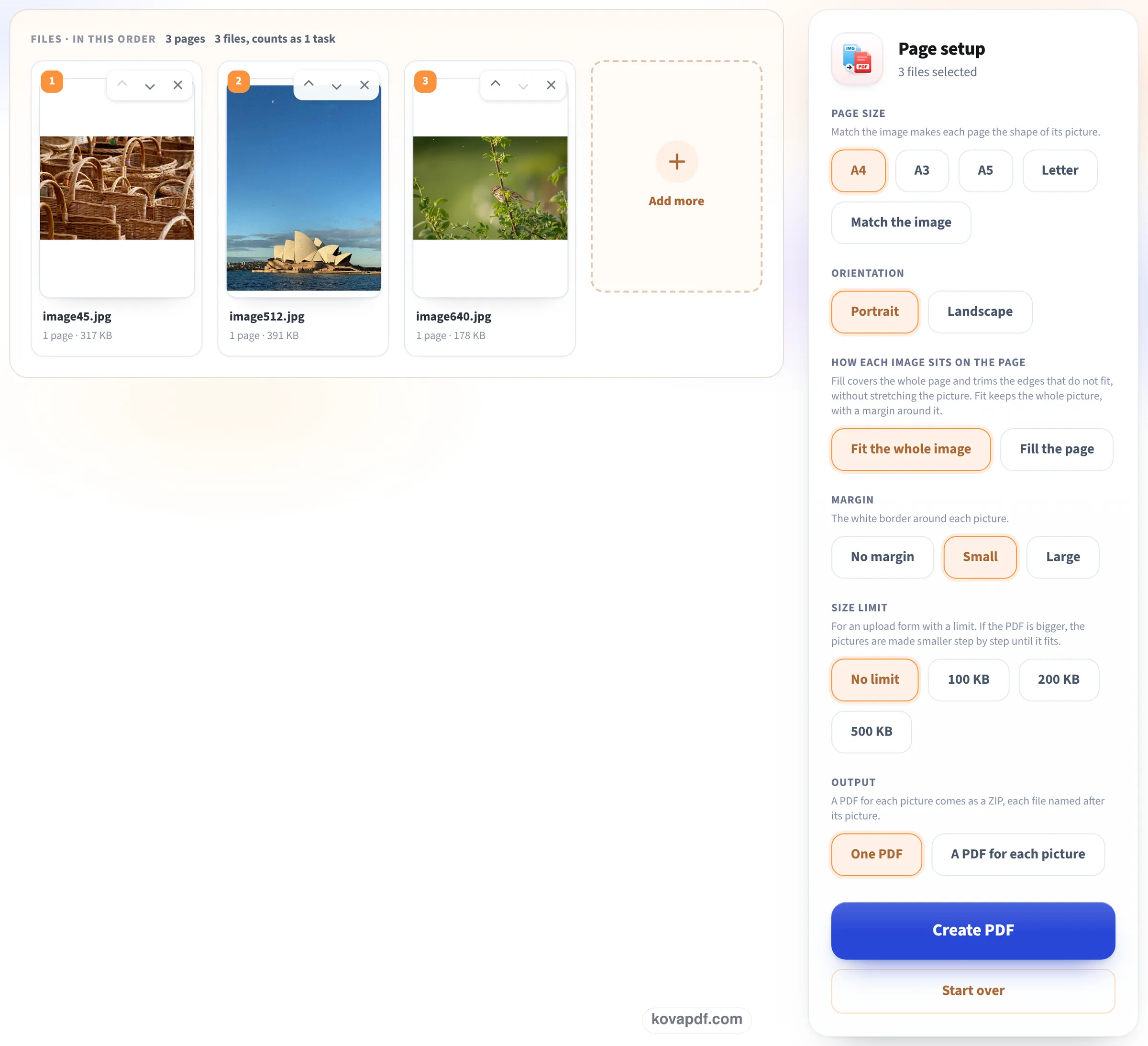
Put them in order
Each photo shows as a thumbnail. Drag one, or use its arrows, until the order is right: the first thumbnail is page 1. Page size, margin and size limit sit beside the list, set to A4 with a small margin.
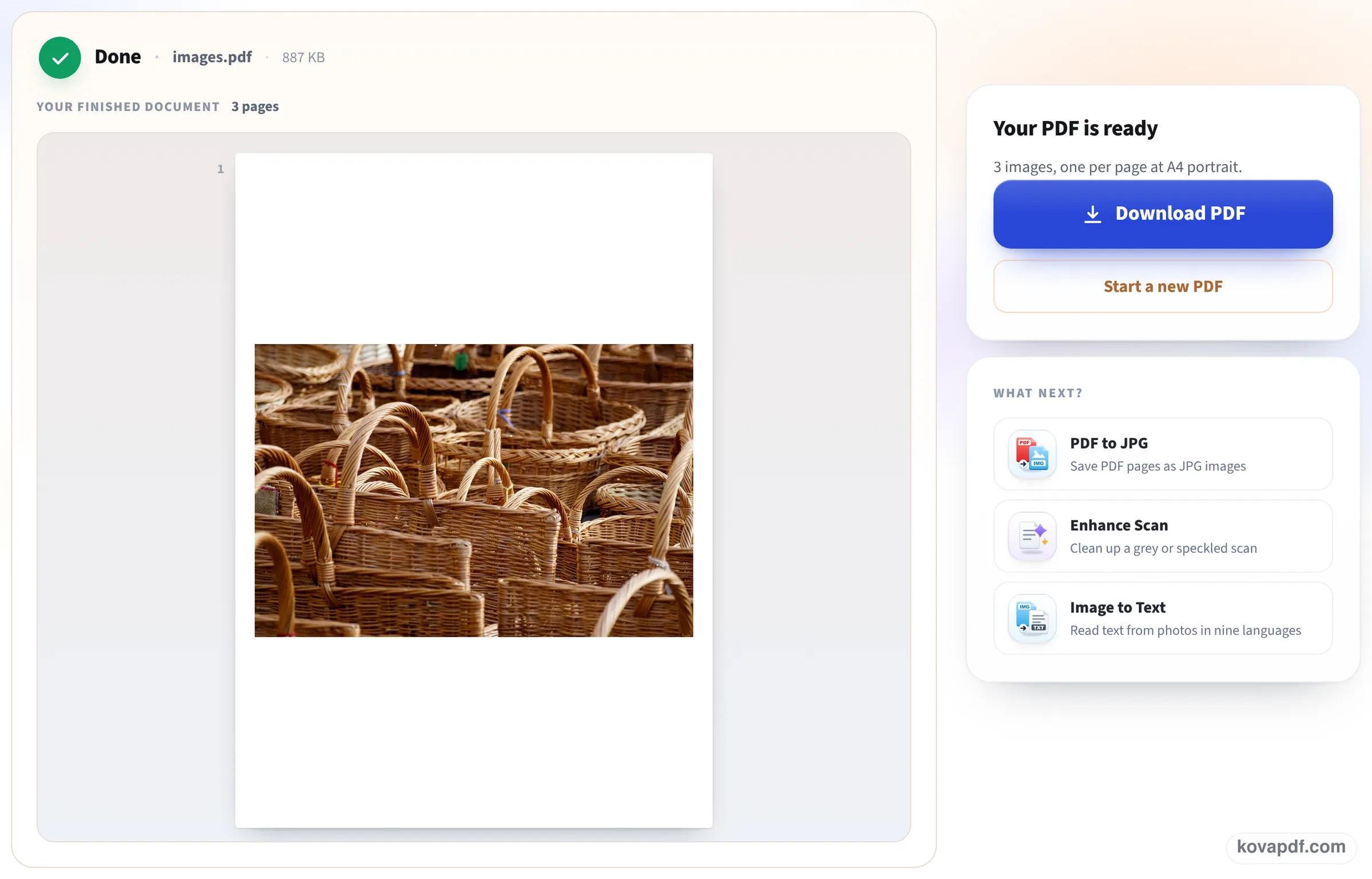
Create the PDF and download it
Press Create PDF. The finished screen counts the photos and the page size used, and shows the new PDF before you save it.
Six and eight photos, four settings
We combined our test photos on this page with different settings and opened each PDF to read its page sizes and the pixels and bytes of every picture inside. Measured on October 22, 2026.
| Photos | Setting | What was inside | |
|---|---|---|---|
| 6 JPG photos, 1.81 MB together | A4, small margin (as the page opens) | 6 pages, 1.81 MB | Each photo byte for byte the original, 1280 px wide |
| Same 6 | Match the image | 6 pages, 1.81 MB | Each page the shape of its photo; no white bands |
| Same 6 | Size limit 500 KB | 6 pages, 425 KB | Photos saved again at 1000 px on the long side |
| 8 JPG photos, 2.15 MB together | Letter | 8 pages, 2.16 MB | Photos unchanged, portrait photos upright |
| 8 JPG photos | A PDF for each picture | ZIP of 8 PDFs | photo-1.pdf to photo-8.pdf, each named after its photo |
| 4 HEIC photos at phone size, 6.5 MB | A4, small margin | 4 pages, 6.09 MB | Turned into full-size 3840 px JPGs |
Match the image makes each page exactly as many points wide as the photo has pixels, so a 1280-pixel photo gives a page about 18 inches wide. That is right for viewing on screen and wrong for printing: for print, keep A4 or Letter.
Checked again on 24 October
The same six photos, dropped on this page as it opens and turned into a PDF with the Create PDF button. We saved the download and compared every picture inside with its original file. Measured on October 24, 2026.
| Photos | Pictures inside | Button to finished screen | |
|---|---|---|---|
| 6 JPG photos, 1.81 MB together | 6 pages of A4, 1,814,152 bytes | All 6 identical to the originals (same checksum) | 6.0 s |
The two landscape photos and the portrait ones all sit upright on portrait A4 pages, each fitted inside the small margin.
Picking the right setting
For a document someone will print or file, such as receipts for an expense claim or pages of a form you photographed, keep A4 (or Letter in the US and Canada) with the small margin: every page prints the same size. For a photo album, a portfolio or something read on screen, Match the image removes the white bands. For an upload form with a size cap, choose the size limit before you press Create PDF.
Our longer guide, How to combine photos into one PDF, goes through getting the order right, fit versus fill, and taking photos of documents that read well; this page is the tool and what it did with real photos.
What the size limit does to your photos
Without a limit, JPG and PNG photos go into the PDF as they are, which is why our six photos made a PDF the same size as the photos. With a limit, the tool saves the photos again at a smaller size, in steps, until the whole PDF fits. Our six photos needed 1000 pixels on the long side to fit 500 KB, which still fills a laptop screen. If the result says the limit could not be met, use fewer photos per PDF or a higher limit.
Things it will not do
It does not crop, straighten or brighten the photos; Enhance Scan or Photo does that for pictures of documents. The PDF has no text you can search, because photos are pictures. Run it through OCR PDF afterwards if you need to search or copy the words.
Read next: How to combine photos into one PDF (guide) · Convert iPhone photos to PDF · JPG to PDF under 100 KB
Frequently asked questions about Combine photos into one PDF
How do I combine multiple photos into one PDF?
Add all the photos here at once, drag them into order and press Create PDF. You get one PDF with each photo on its own page.
Will the photos lose quality?
Not unless you choose a size limit. In our test, six JPG photos went into the PDF byte for byte, so the PDF was the size of the photos together.
Can I put two photos on one page?
No, each photo gets its own page. To print several small photos on one sheet, use your printer's layout options when printing the PDF.
How do I make the PDF smaller?
Choose a size limit of 100, 200 or 500 KB before creating it, or run the finished PDF through Compress PDF. Six photos fitted in 425 KB with the 500 KB limit.
Can I mix iPhone HEIC photos with JPGs?
Yes. They go into the same PDF in the order you set. The HEIC photos are converted on our server and deleted straight after; the JPGs are handled in your browser.
Can I get a separate PDF for each photo?
Yes. Choose A PDF for each picture: you get a ZIP with one PDF per photo, each named after the photo.
Combine photos into one PDF guides and articles


Related tools
All PDF tools · 15 step-by-step guides · How your files are handled
Also: JPG to PDF · HEIC to PDF