Compress Scanned PDF
Scans are big because every page is a picture. Recommended draws those pictures at 150 DPI: 78 to 93% smaller in our tests, still sharp on screen and on paper.
- Free to use
- Works on any device
- Deleted after processing
- Text stays vector-sharp
- Sized for email
- Every page kept
- The original is untouched
Choose the scanned PDF to shrink
Text stays sharp at every level · your upload is deleted as soon as the smaller file is built
Drag & drop file here
or choose a file from your device
Everything Compress PDF can do
Make a PDF file lighter for email, upload or storage by re-encoding the images inside it, while every page stays. Free, in your browser.
How hard it squeezes
- Light: barely touches image quality, so the document stays print-ready
- Recommended: clearly smaller, still good on screen and on paper
- Strong: the smallest result, made for photo-heavy documents
- To a size: 100 KB, 200 KB, 500 KB, 1 MB or a size you type
- Only the images inside are resampled
What stays sharp
- Text stays vector text, not a picture of text
- Fonts stay embedded, so it opens the same everywhere
- Line art and diagrams keep their clean edges
- Every page kept, and the page count stays the same
- Page size, orientation and order all unchanged
The size you end up with
- The before and after size, both shown on the result screen
- The percentage saved, measured from the two real files
- When a size limit cannot be reached, the smallest size it could make, said plainly
- Your original file stays exactly as it is on your computer
- One compressed PDF to download, named after your document
How it works
Compress a scanned PDF in three steps
Add the scan
Drop the PDF in. Long scans are fine; our 10-page color scans took 12 to 22 seconds.
Recommended is chosen
Strong for the smallest file, Light to keep print resolution, or To a size for an exact limit.
Download
The result shows the new size. Your upload is deleted as soon as it is built.
Compress a scanned PDF: a visual walkthrough
A scan going through this page, photographed with our one-page 300 DPI color scan of a letter.
Drop the scan on the box
Any PDF from a scanner, a copier or a scanning app. Long scans are fine; one file at a time.

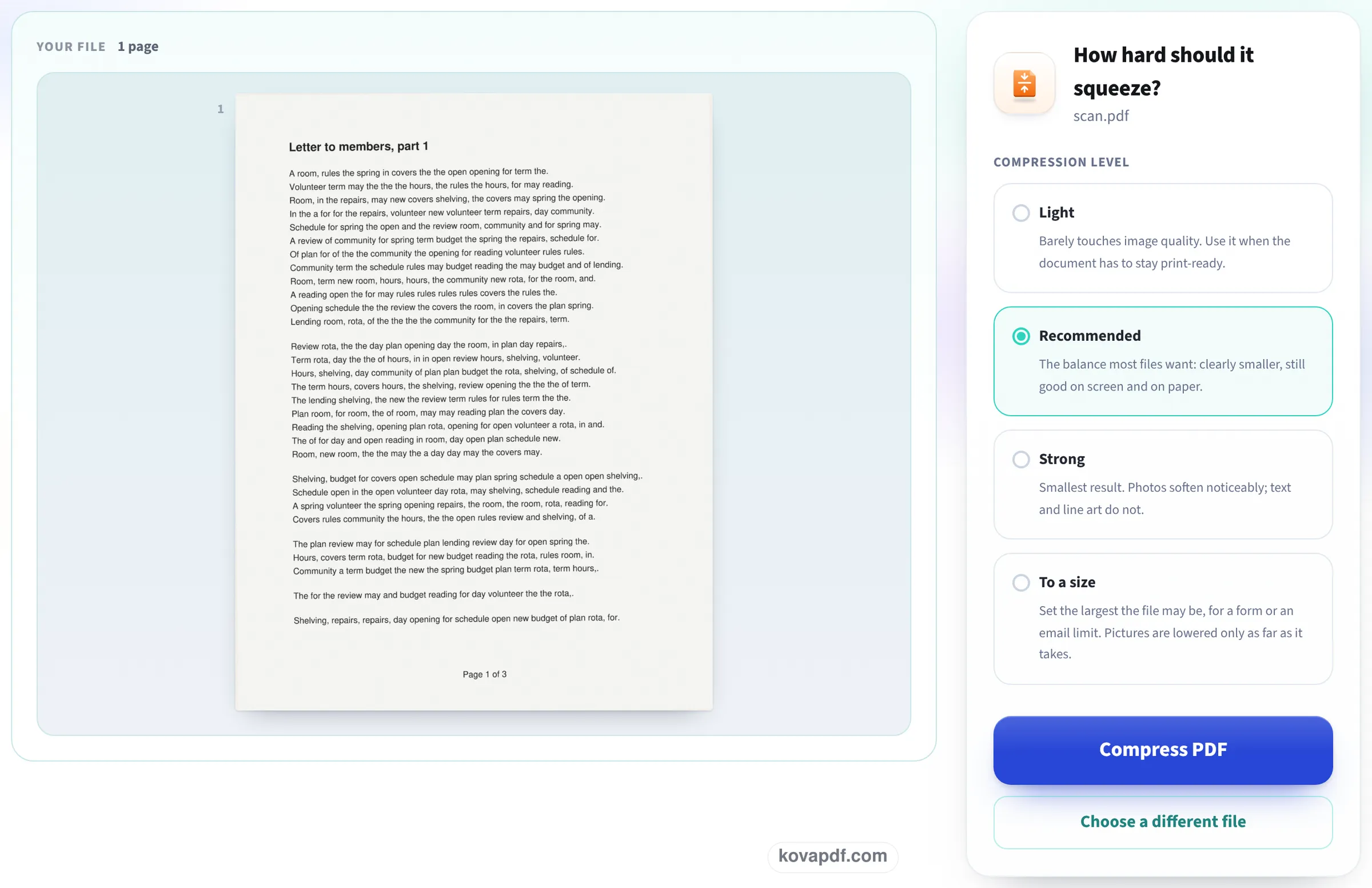
Recommended suits most scans
Your scan's first page shows beside the levels. Recommended redraws the page pictures at 150 DPI; Light leaves a 300 DPI scan as it is, Strong drops to 72 DPI.
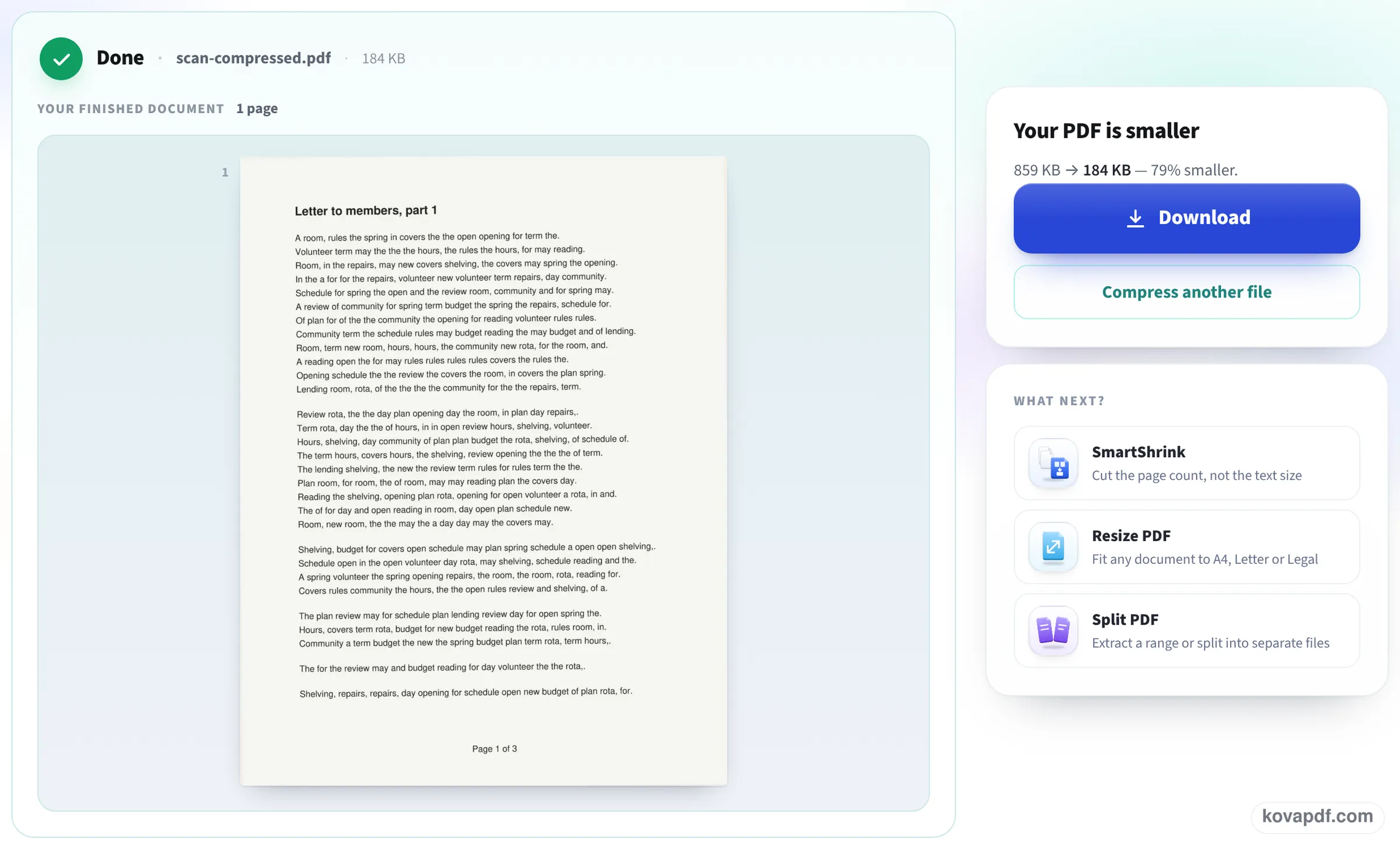
See what it saved
The result compares the scan's size before and after and gives the share saved. Download the smaller copy; your upload is already deleted.
Four scans, three levels
We compressed four of our 300 DPI test scans at each level and opened every result: size, the resolution of the page pictures, and how many pixels visibly changed on page 1 at 100 DPI. Measured on October 22, 2026.
| Scan | Original | Light | Recommended | Strong |
|---|---|---|---|---|
| 1-page color scan | 1.29 MB | 1.29 MB (300 DPI kept) | 134 KB (150 DPI) | 50 KB (72 DPI) |
| 3-page gray scan | 4.53 MB | 4.53 MB (300 DPI kept) | 429 KB (150 DPI) | 158 KB (72 DPI) |
| 1-page scan of a table | 1.36 MB | 1.36 MB (300 DPI kept) | 96 KB (150 DPI) | 33 KB (72 DPI) |
| 10-page color scan | 12.75 MB | 12.75 MB (300 DPI kept) | 1.31 MB (150 DPI) | 470 KB (72 DPI) |
Visible change on page 1: Light and Recommended 0% on every scan; Strong 2.9% on the table scan and 5.3% on the letters. At 5% you can see softer letter edges when zoomed in, but everything can still be read.
Light leaves 300 DPI scans as they are: it is for files that will be printed. The 10-page scan took 11.6 seconds on Recommended and 11.0 on Strong; one-page scans about 2 seconds.
Checked again on 24 October
Two new scans with grainier paper, dropped on this page in a 1366 pixel window and compressed with the button: the 10-page scan as the page opens (Recommended), the 3-page scan on Strong. Each download was opened again and page 1 compared with the original at 100 DPI. Measured on October 24, 2026.
| Scan | Original | Level | Result | Visible change | Ready in |
|---|---|---|---|---|---|
| 10-page color scan, grainy | 9.10 MB | Recommended | 1.97 MB (78% smaller), 150 DPI | 0% of pixels | 21.9 s |
| 3-page gray scan, grainy | 2.57 MB | Strong | 225 KB (91% smaller), 72 DPI | 9.7% of pixels | 6.6 s |
Grain in the paper is detail the compressor has to keep, so these scans saved less than the clean ones above, and Strong changed more pixels: letter edges are visibly softer when you zoom in, though every word still reads.
Why 150 DPI is the sweet spot for scans
Scanners default to 300 DPI because it suits printing and text recognition. On a screen, a full page at 150 DPI already has more pixels than a laptop can show at once, so the extra detail is invisible until you zoom far in. Halving the resolution in each direction leaves a quarter of the pixels, which is where most of the saving comes from.
If you scan often, set the scanner to 150 or 200 DPI, gray rather than color, for letters and forms. Our post Why is my scanned PDF so large? measured what each scanner setting costs.
Before you compress a scan
A few things are best done first:
- Turn pages the right way up first: Fix an upside-down scanned PDF.
- If you want to search or copy the words, run text recognition (OCR) before Strong: recognition works best on the sharper scan.
- Remove blank or duplicate pages: each one costs as much as a page of text in a scan.
- Need an exact limit for a portal? Use To a size; it stops at the least loss that fits.
What compression cannot do
It does not clean up a scan: grey backgrounds, shadows and specks are kept, and they cost space. Enhance Scan or Photo whitens the paper and darkens the ink, which also makes the file compress better. A scan has no text layer before or after compressing; OCR adds one.
Read next: Why is my scanned PDF so large? · Compress PDF without losing quality · Fix an upside-down scanned PDF
Frequently asked questions about Compress a scanned PDF
How do I reduce the size of a scanned PDF?
Add it here and press Compress PDF: Recommended is chosen. It redraws the page pictures at 150 DPI, which made our scans 78 to 93% smaller without a visible change on screen.
Will the scan still be readable?
On Recommended, yes, with no visible difference. On Strong the pictures drop to 72 DPI: the letters soften but stay readable, as our letter scans did.
Why is my scanned PDF so large in the first place?
Every page is a photo of the paper, usually at 300 DPI and often in color. One color page can be over a megabyte, so long scans run into tens of megabytes.
Should I scan at a lower resolution instead?
For letters and forms you only need on screen, 150 to 200 DPI in gray is plenty and saves compressing later. Keep 300 DPI for anything that will be printed or read by OCR.
Can I make the scan searchable too?
Yes. Run it through OCR PDF before compressing hard; text recognition is more accurate on the sharper original.
Does it work with very long scans?
Yes. Our 10-page color scans took 12 and 22 seconds. The free plan has a limited allowance of pages and size; Pro removes the limits.
Compress a scanned PDF guides and articles


Related tools
All PDF tools · 15 step-by-step guides · How your files are handled