Preview every page
Read the document as you fill in the form.
Fill in your details, edit the employment verification letter text and check each page before downloading.
These pictures show the same document generator with fictional example details.
Replace the example names and contact details in the form. Keep only information that belongs in this document.
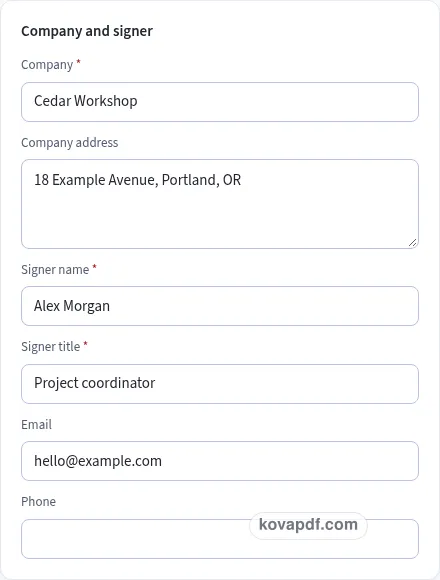
Check the page preview after changing the text. Read the amounts, dates and page breaks before exporting.
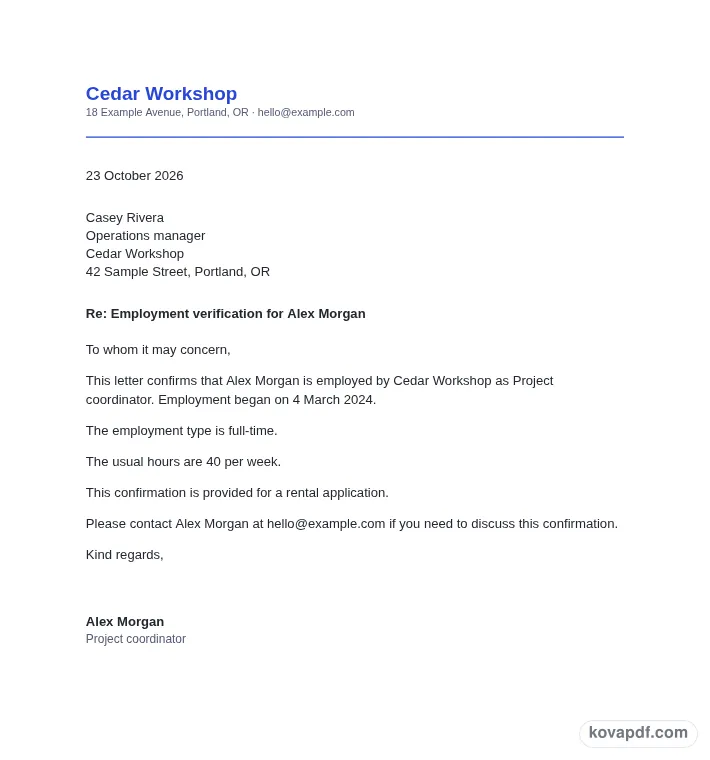
Use the download controls above the preview. Open the saved file and give it one final read before sharing.

Read the document as you fill in the form.
Compare Classic, Modern and Minimal layouts.
Save a copy when the names and figures are right.
The generator works on this device.
Use A4 or Letter and check the page breaks.
Return to the form to correct a detail before sharing.
These are fictional details. Choose an example, then replace them with your own.
Begin with company details, employee name, job title, start date and the signer’s name and title. Keep your source notes beside you while entering them. The employment verification letter preview follows those fields, so check names and dates before working on the wording. Leave a detail blank while you look it up rather than entering an answer that you have not confirmed.
Open the Text card and read each paragraph for a precise confirmation of the employment details requested. You can change individual wording, turn optional passages off and move optional passages with Up or Down. An Edited label means that paragraph now keeps your own words. Reset to default text makes it follow the fields again. Read the complete result after every substantial change.
Use the checklist and page preview to review this employment verification letter. Look at the final page as well as the first one. Download PDF for a fixed page layout or Download Word (.docx) for further editing. If you change the downloaded Word file, check its page breaks again before sharing it with the intended reader.
An employment verification letter works well when it answers the requested questions directly. Begin with the company, employee name, job title and start date. Select current or former employment. A former employee needs an end date as well. Compare those details with the records you use for this confirmation rather than relying on an old letter or a remembered job title.
Company letterhead keeps the source of the statement clear. Add the company address and logo if appropriate, then the HR contact who will sign. The signer’s name and title identify who is giving the confirmation. The draft is a way to present information you provide; it does not check employment records or contact the employer for you.
Pay is off by default. Only include pay if the employee has asked you to. If you turn it on, check the amount, currency and time unit together. A figure per hour and a figure per year convey very different information. Use the same care with hours and employment type. Each has its own toggle so the letter can contain only the details intended for this request.
Do not add unrelated personal history to make the letter look more complete. A recipient may only need a title and start date. Read the request and decide which optional information belongs in this particular confirmation. After changing a toggle, check the actual text in the preview, including any paragraph you previously edited by hand.
You can name a recipient or keep To whom it may concern. A rental application, a loan or mortgage, a visa request and another purpose are available as drafting choices. Selecting a purpose adds context but does not determine what that recipient will accept. Check the request separately and edit the sentence if a more precise description is needed.
The HR contact paragraph lets the recipient know who to ask about the confirmation. Check the phone and email before downloading. A signature can be typed, uploaded or drawn in the form. For a company process that uses a separate signature step, the handoff buttons prepare the PDF and take it to the chosen tool. Review all employee information before that transfer.
Read the employment verification letter as a recipient would. Confirm company details, employee name, job title, start date and the signer’s name and title, then compare the wording with a precise confirmation of the employment details requested. A field can be filled in and still contain an error, so the checklist is a prompt for your review rather than proof that the document is right. Review the pay toggle with particular care before sharing employee information. Remove notes meant only for you and make sure optional text does not contradict a sentence you have edited elsewhere.
The browser keeps this employment verification letter draft on the device you are using when storage is available. Avoid leaving personal information on a shared computer. Use Clear saved details to remove this draft when you have finished, and keep a downloaded copy somewhere you control if you need it later. A PDF preserves the displayed wording and page arrangement. A Word file lets you revise the document in another editor; compare that version with your intended meaning before you send it. Preview the longest paragraphs, confirm the typed names at the end and give the file a name that helps you find the right version.
No. Include pay starts off. Only turn it on if the employee has asked you to. Then confirm the amount, currency and whether it is per year, month, week or hour.
Choose Former employee and enter the end date. Check the start and end dates together. The generated employment paragraph changes to describe past employment rather than an employee who still works there.
Yes. Include hours and Include type are separate controls. Turn either off when it is outside the scope of this confirmation, and read the preview to check the result.
The purpose field only describes why the letter is being prepared. It does not verify the information requested by a landlord, lender or another reader. Compare their request with the final draft yourself.
Use the person making the confirmation for the company, with their title and contact details. Their typed name should be consistent with any signature they add and the contact paragraph in the letter.
Browser saving keeps the draft on this device when storage is available. Before adapting it for another employee, replace all personal details and reread edited paragraphs that no longer follow the fields.