Preview every page
Read the document as you fill in the form.
Write an order from your company's side. Include vendor details, item codes, delivery instructions and a place for approval.
6 things missing
These pictures show the same document generator with fictional example details.
Replace the example names and contact details in the form. Keep only information that belongs in this document.
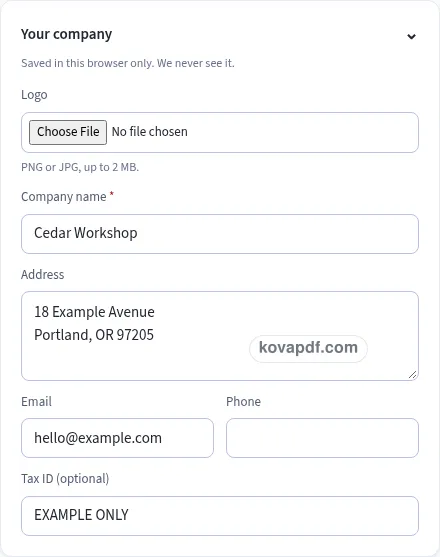
Check the page preview after changing the text. Read the amounts, dates and page breaks before exporting.
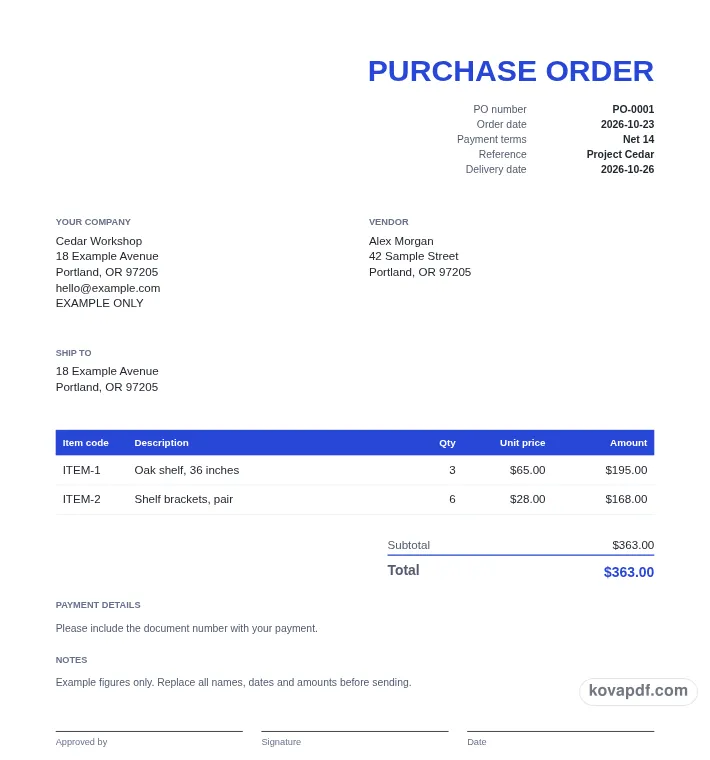
Use the download controls above the preview. Open the saved file and give it one final read before sharing.

Read the document as you fill in the form.
Compare Classic, Modern and Minimal layouts.
Save a copy when the names and figures are right.
The generator works on this device.
Use A4 or Letter and check the page breaks.
Return to the form to correct a detail before sharing.
These are fictional details. Choose an example, then replace them with your own.
Enter the company placing the order and the vendor receiving it. Check both names and addresses. Choose whether the goods should go to your company address or to a separate shipping address, and fill in that destination before reviewing the order.
Give the PO a number and an order date. Add item codes, descriptions, quantities and unit prices. Enter a delivery date and shipping method if you want them printed, then select payment terms that reflect the order you are preparing.
Add the approver's name and choose whether to leave a signature line. Compare the total and shipping details with the order you intend to place. Save the PDF after that review, keeping its PO number with the purchasing record.
A purchase order sets out an order from the buyer's side. It names the company ordering, the vendor receiving the order, the items and quantities, and the delivery information you want to include. Preparing those details together gives both sides a readable document to refer to when discussing what was ordered. It also gives your own team a number to use when looking for the purchase later.
Start with Your company, since this form is written from the purchaser's point of view. The vendor is the business you are ordering from. This is the reverse of the seller and customer arrangement you may be used to when making an invoice. Read the labels carefully if you have just used another generator, and check that a restored business address is being used in the role you intend.
Ship to has a separate card. Same as my company address starts selected. Clear it when the destination is different and enter the shipping address directly. A correct vendor name does not tell someone where the order should be delivered. Review the shipping block as its own piece of information so a copied office address is not accidentally left on an order intended for another location.
The items table includes Item code before Description. A code can help you identify the exact item in a list where several names look alike. Keep a readable description as well, so the person reviewing the order can understand it without having to recognise every code from memory. Enter quantity and unit price in their own cells and compare the calculated amount with the order you expected.
The default number is PO-0001. You can replace it with the number used by your purchasing process. A consistent prefix and digit pattern makes orders easier to distinguish from invoices and receipts. After a download, the next number is stored for this kind of document. Make another starts a fresh item list and advances the number while keeping the company details and design.
Order date records the day on the document. Delivery date and Shipping method are separate fields, so a requested arrival date does not have to be hidden in a note. If you include either, read it in the PDF beside the other order details. Use the payment terms selector to state the timing you want shown, and put any further written explanation in the closing Terms field.
The Approval card has an Approved by name and a signature-line option. Add the name of the person whose approval you want shown, then decide whether the PDF should leave a line for a signature. The generator provides that space on the page. It does not contact an approver or perform your company's approval process, so complete the review you normally use before treating the order as ready to send.
A PO and an invoice describe different parts of a purchase. The PO comes from the buyer's ordering side; the invoice comes from the seller's request for payment. A matching reference can help connect the documents in your own records, but read the actual item descriptions and amounts as well. A number match alone cannot tell you whether an order contains the quantity or destination you intended.
Inspect the PDF preview after adding approval details. Long orders can span several pages, with repeated table headers for the continuing items. The total remains together, and the approval lines follow the rest of the document. Download a copy for the purchasing record before sharing it with the vendor. The browser can save a local draft, company details and design for later use, but that saved draft stays in this browser. Clear it on a shared device when the purchasing work is finished.
A purchase order records the buyer's order to a vendor. An invoice is the seller's request for payment. Use this page when preparing the order from your company's side, and use the invoice generator for a document asking a customer to pay.
Open Ship to. Leave Same as my company address selected to use that address, or clear it and type a separate destination. Read the resulting shipping block in the preview rather than assuming the company and delivery locations are the same.
Each order row has an Item code field as well as Description. Enter the code you use to identify the item and give it a clear description. The code prints in its own column before the quantity, price and amount.
In Approval, enter Approved by and leave Add a signature line enabled. The printed block provides the name, signature and date spaces. Switch the signature option off if the document only needs the named approval and date areas.
The tool creates the purchase order PDF from your entries. It does not send the order, contact the vendor or collect approval. Review the saved document and use your usual purchasing process to approve and share it.
Choose Make another to retain the company and design while starting a fresh set of items. The document number advances. Check the vendor, delivery address and dates for the next order before downloading that new file.