Preview every page
Read the document as you fill in the form.
Describe a proposed sale with a pro forma invoice. Set out items, prices and payment details before making the final sale document.
5 things missing
These pictures show the same document generator with fictional example details.
Replace the example names and contact details in the form. Keep only information that belongs in this document.
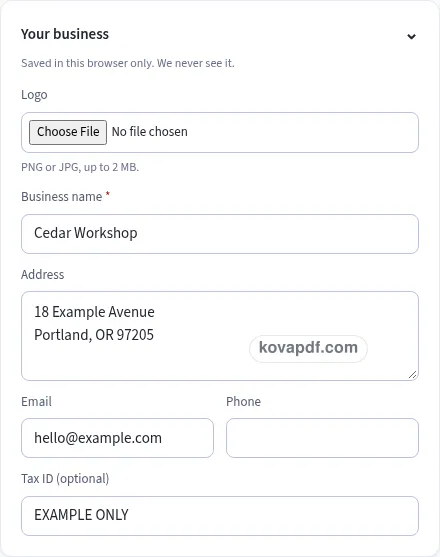
Check the page preview after changing the text. Read the amounts, dates and page breaks before exporting.
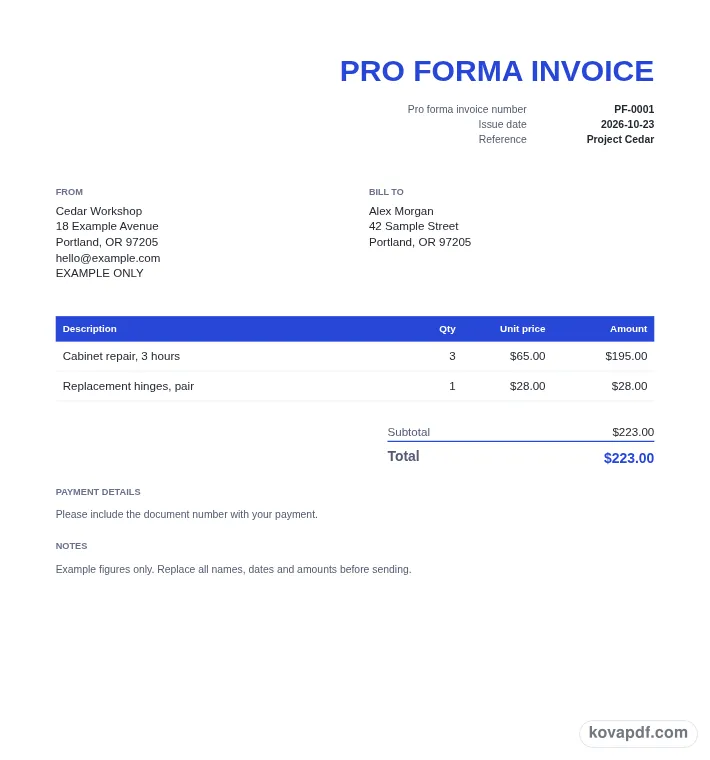
Use the download controls above the preview. Open the saved file and give it one final read before sharing.

Read the document as you fill in the form.
Compare Classic, Modern and Minimal layouts.
Save a copy when the names and figures are right.
The generator works on this device.
Use A4 or Letter and check the page breaks.
Return to the form to correct a detail before sharing.
These are fictional details. Choose an example, then replace them with your own.
Name your business and the intended customer. Choose a country, check the currency and give the document its own pro forma number. Review those choices before adding the proposed items so the document is addressed to the right person.
Describe the items, quantities and prices you want to show. Add payment information and an optional valid-until date. Use the note toggle if you want the document to carry the stated invoice note under its title block.
Look at the title, notes and totals in the preview. Make sure the proposed quantities and prices are the ones you intend to present. Download the pro forma PDF and keep it with the discussion about that proposed sale.
A pro forma invoice sets out the details of a proposed sale before that sale is final. It lets you put the business, customer, items and prices into one readable document. The heading matters: the recipient should be able to see that this is a pro forma when they open the file. Use the description fields to explain what you are proposing rather than relying on a familiar-looking invoice layout to explain the purpose.
Start with the intended customer and the business offering the goods or work. Check names and addresses against the conversation you have had so far. If more than one person is discussing the purchase, make sure the document is addressed to the person or company you intend. The same preview gives you a place to catch a name left from an earlier draft before that mistake reaches someone else.
The number begins at PF-0001. Keeping a recognisable pro forma prefix can help you tell this proposal apart from later invoices in your own files. You can enter a different number if your records use another pattern. After a download, the next number is saved separately from the invoice counter, so preparing a proposal does not advance your ordinary invoice number.
Put each proposed item on its own line, with a description that a recipient can connect to the offer. Quantity and unit price drive the row amount. Separate rows are useful when the proposal includes several types of work, different quantities or parts that need their own explanation. A note below the totals can provide context without making the item column difficult to scan.
Valid until is optional on this form. Add it when you want the document to show a date for reviewing the proposed figures. Leave it empty if you do not want a validity date printed. Before exporting, compare it with the issue date and read the closing terms. A date copied from an old proposal can make the current discussion harder to follow, even when the prices are right.
Payment details have a separate box so the recipient can find them after the totals. Enter the instructions you want included in this proposal, and read them carefully before sending. There is no Amount paid field here. The document is about the proposed sale; if you need a record of money already received, choose a receipt with the payment date and method instead.
HMRC treats a pro forma invoice as a commercial document, not a VAT invoice. It cannot be used as evidence to reclaim VAT. HMRC recommends marking it This is not a VAT invoice.
With UK selected, the note This is not a VAT invoice starts enabled. Its switch lets you see exactly which wording will be printed beneath the title block. For other countries, the available note is This is not a tax invoice and starts disabled. That option is a plain document note. Review the wording in the preview rather than assuming the title alone explains every detail you want the recipient to notice.
The country selection also chooses currency, paper and available tax presets. Confirm each item choice yourself, then inspect the total and any rate breakdown. The checklist focuses on the pro forma's number, date, your business, customer, an item and prices. It helps you find blank entries without making an assertion about a particular proposed transaction.
Choose Classic, Modern or Minimal after completing the content. The preview and PDF use the same layout, including wrapped item descriptions and page breaks. Business details and the current draft can stay in this browser for later editing. Download the version you want to keep, and clear saved details when using a shared device. When the proposal changes, reread the customer, quantities, validity and note before creating another file.
It presents a proposed sale before the sale is final. You can list items, prices and payment information in a document headed Pro forma invoice. Read the title and accompanying note before sharing so the recipient can see the document's purpose.
Yes. Use the optional Valid until field in Pro forma details. It is separate from the issue date and is printed when you fill it in. Leaving it blank keeps that extra date out of the document.
The UK option starts with This is not a VAT invoice selected. You can read that wording below the title block in the preview. Review the proposed-sale information and the note together before downloading a version for your customer.
This generator starts its own PF-0001 sequence and saves the next pro forma number after a download. Ordinary invoices use their own number counter. You can edit either number to fit the way you organise your documents.
Choose the country and then check Currency in the form. You can change the currency before entering or reviewing prices. The displayed amounts use that selection, so compare the symbol and the figures before exporting the PDF.
The PDF does not add a powered-by line. Your optional logo and business details identify the proposed seller. Choose a style, review every page and download the finished proposal without creating an account.