Preview every page
Read the document as you fill in the form.
Prepare a tax invoice with your business details and item list. Check the preview and save a PDF on your device.
4 things missing
A tax invoice isn't required for a sale of $82.50 or less including GST, but you can still issue one.
Based on official guidance from the Australian Taxation Office, checked 22 October 2026. This tool helps you lay out an invoice; it is not tax advice.
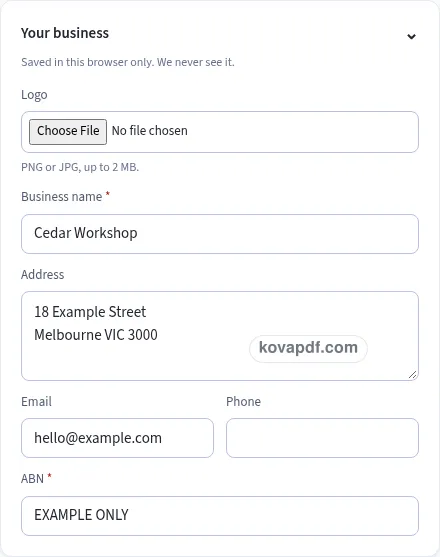
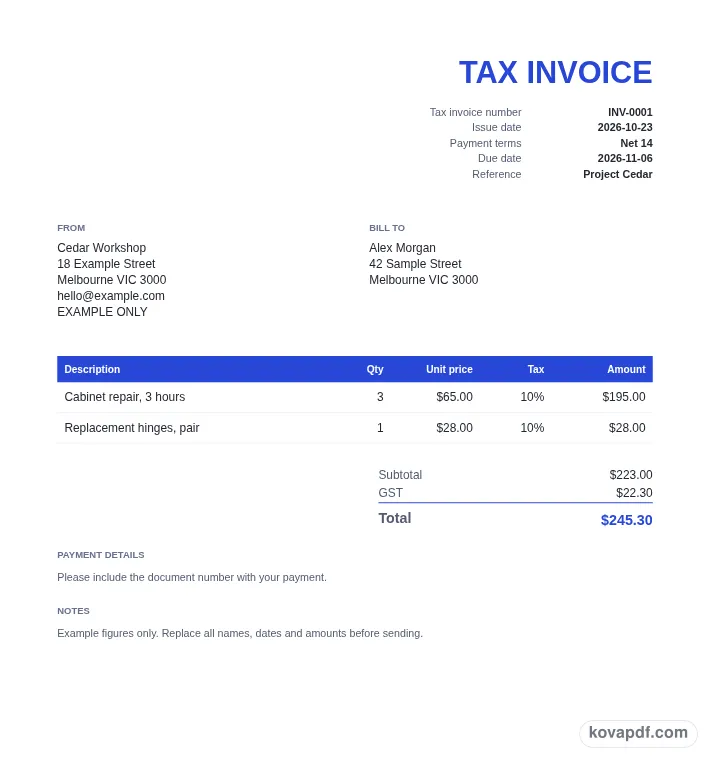
These pictures show the same document generator with fictional example details.
Replace the example names and contact details in the form. Keep only information that belongs in this document.
Check the page preview after changing the text. Read the amounts, dates and page breaks before exporting.
Use the download controls above the preview. Open the saved file and give it one final read before sharing.

Read the document as you fill in the form.
Compare Classic, Modern and Minimal layouts.
Save a copy when the names and figures are right.
The generator works on this device.
Use A4 or Letter and check the page breaks.
Return to the form to correct a detail before sharing.
These are fictional details. Choose an example, then replace them with your own.
Begin with the business issuing the document. Enter its name and ABN, then choose whether it is registered for GST. The registered setting changes the document heading to Tax invoice and keeps the GST information visible as you work.
Set the issue date and write a brief description for each item. Add quantity and price, then choose GST 10% or GST-free. If your entered prices already contain GST, switch on Prices include GST before checking the calculated figures.
Review the amount including GST. For a total of $1,000 or more, add the customer's name or ABN. Read the checklist, inspect the invoice heading and totals in the preview, then save the document using Download PDF.
When you are registered for GST, the document says Tax invoice. Your business name and ABN identify the seller, and the date of issue records when the invoice was made. Those details sit alongside a brief description of every item, with its quantity and price. The GST amount, or the statement Total price includes GST, is another part of the checklist on this page.
The buyer identity check depends on the total including GST. At $1,000 or more, the checklist asks for the customer's name or ABN. Below that amount, this particular check is absent. You can still enter a customer name while preparing a smaller invoice; the form keeps a named customer block available so the document can be addressed clearly. Check the total again if you change an item price or add a discount.
An ABN has its own field under Your business. Put payment instructions in the separate payment details box, rather than adding them to the ABN field. Keeping these pieces apart makes the preview easier to scan. The checklist is a reading aid: it points out missing information, while the required fields identify the details that must be filled before this tool will let you download.
Prices include GST starts switched off. With that setting, a taxable group's GST is calculated at 10% of its net amount. If the prices you are entering already include GST, turn the setting on. GST is then one eleventh of the group's gross amount, rounded to the minor unit, and the net is the gross less that GST. For example, a gross amount of $110.00 contains $10.00 GST.
The choice affects how the input prices are read, so choose it before doing your final review. Switching the option does not rewrite your typed unit prices. It changes the calculation from those prices. Look at both the subtotal and the total to check that you have used the entry method you intended. The inclusive setting also prints Total price includes GST under the total.
Use GST-free for a line that carries no GST. Its status stays visible beside that item in the document table. Give mixed items separate rows so their descriptions, quantities and tax choices can be reviewed individually. Discounts are shared proportionally across the items for the calculation. The preview updates after your edits, showing the resulting GST figure without asking you to upload a file.
A tax invoice isn't required for a sale of $82.50 or less including GST, but you can still issue one. This tool provides an invoice layout and a checklist based on the stated guidance; it does not determine the tax treatment of your sale. Read the item choices and the resulting amounts yourself before sharing the downloaded file with a customer.
Turning registration off removes GST from the layout and changes the heading back to Invoice. The business, customer and item entries remain editable. That makes the registration toggle a meaningful document setting, so check it along with the paper size and currency. An Australian invoice begins with AUD and A4 paper, and you can choose a different paper in Design.
The preview uses the same page layout as the PDF. Open each page if the item list is long, and check the last page for payment details or terms that follow the totals. A logo is optional; the business name is still a separate field. After downloading, Make another keeps your seller information and design while replacing the item list and increasing the number. On a shared device, use Clear saved details when you are finished so another person using this browser does not find your saved business draft.
Check the Tax invoice heading, your business name, ABN, date of issue, and a brief description of each item with quantity and price. Include the GST amount or the inclusive-price statement. At a total of $1,000 or more including GST, the customer's name or ABN is also checked.
Enable Prices include GST in Tax & totals. The generator reads your typed prices as gross amounts and extracts the GST. It also adds Total price includes GST beneath the total, so the entry method is clear in the PDF.
The buyer identity check appears when the invoice total including GST reaches $1,000. A customer name can satisfy that identity check instead of an ABN. The check updates when the calculated total changes.
Yes. Choose GST-free in that row's tax selector. Other rows keep their own choices. This lets you read the item's status next to its description and compare the combined GST amount with the sale you meant to enter.
The document does not carry a generator branding line. You can add your own logo and choose a design accent. Those design choices affect the invoice appearance while the information you entered remains in its labelled blocks.
The phone layout has Edit and Preview tabs. Enter the details in Edit, then switch to Preview to read the pages and download. A missing checklist row can take you back to the related field when you need to correct something.