Leere Seite einfügen
Fügen Sie leere Seiten dort ein, wo Sie sie brauchen — im Format des übrigen Dokuments.
- Kostenlos nutzbar
- Läuft auf jedem Gerät
- Nach der Verarbeitung gelöscht
- Überall in der Datei einfügen
- Sofort daraufschreiben
- Im Format der übrigen Seiten
- So viele wie nötig
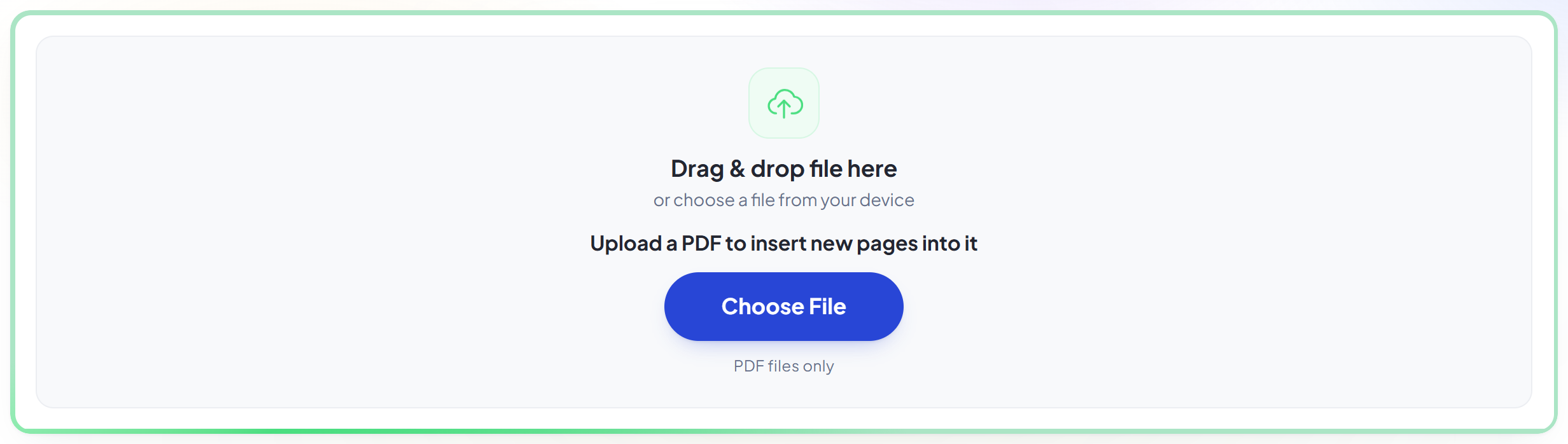
Datei hierher ziehen
oder eine Datei von Ihrem Gerät auswählen
Upload a PDF to insert new pages into it
Nur PDF-Dateien
So funktioniert es
Leere Seite einfügen in drei Schritten
Upload your PDF
Drag your file onto the upload panel, or click it to pick one from your device. Nothing is sent anywhere until you start the job, and the working copy is deleted the moment it finishes.
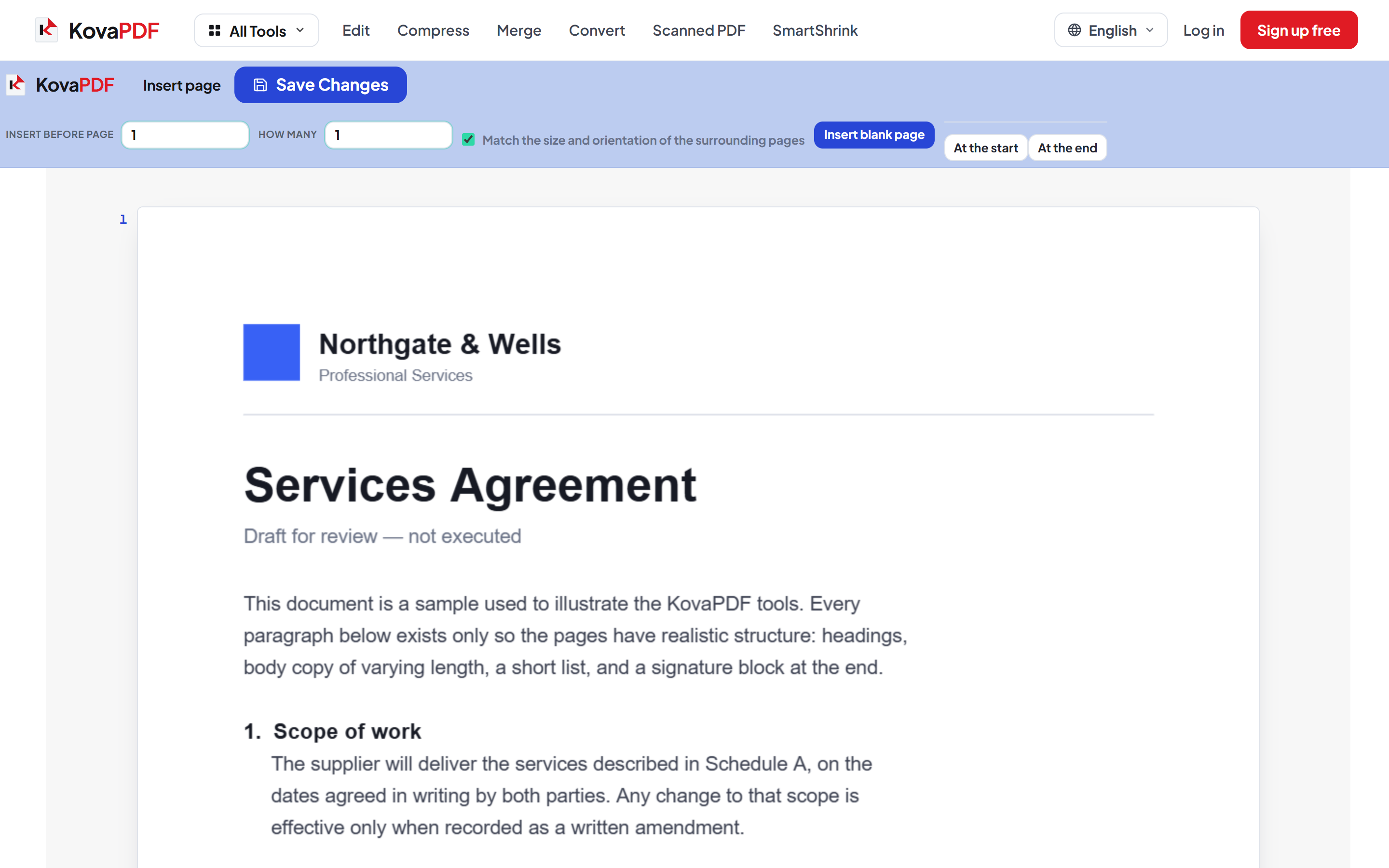
Insert pages where you need them
Choose the position and how many pages to add. New pages match the size of the document, so nothing shifts or rescales.
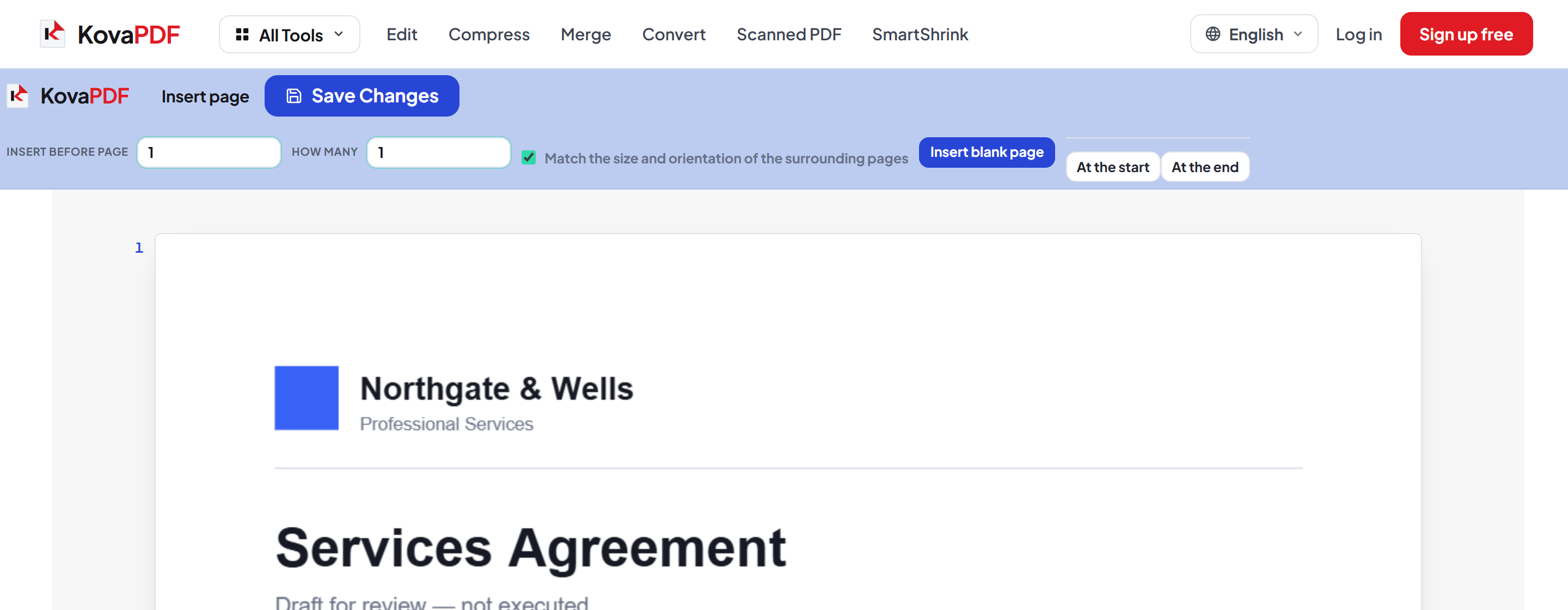
Type on them, then download
A blank page is a normal editable page — click on it and type. Save Changes writes everything into the finished PDF.
How to add a blank page to a PDF
Insert empty pages anywhere in the document and start typing on them immediately.
Upload your PDF
Drag your file onto the upload panel, or click it to pick one from your device. Nothing is sent anywhere until you start the job, and the working copy is deleted the moment it finishes.
Insert pages where you need them
Choose the position and how many pages to add. New pages match the size of the document, so nothing shifts or rescales.
Type on them, then download
A blank page is a normal editable page — click on it and type. Save Changes writes everything into the finished PDF.
Frequently asked questions about Leere Seite einfügen
What size are the inserted pages?
They match the document, so nothing shifts or rescales around them.
Can I write on a blank page?
Yes. A blank page is a normal editable page — click on it and type.
Where does the new page go?
Wherever you put it. Choose the page it should follow, and it is inserted there rather than only at the end — which is what you want when a signature sheet belongs after clause four, not after the appendix.
Why would I add a blank page at all?
Usually for printing and for signing. Double-sided documents need a chapter to start on a right-hand page, forms need somewhere to write, and a scanned bundle often needs a divider between two documents that were stapled together.
Is it free?
Yes. Every tool works without paying and without an account. Files can be up to 200 pages and 80 MB, and a run that fails costs you nothing.
Do I need to create an account?
No. All tools work without signing in. An account raises your hourly allowance and lets you see what you have processed.
What happens to my file?
It travels over an encrypted connection into a directory created for that single request, is processed, is returned to you, and the working copy is deleted as the request finishes. We keep a record that an operation ran — never the filename or the contents.