Gescanntes PDF bearbeiten
Bearbeiten Sie jedes PDF, auch Scans und Fotos: Der Text wird erkannt und editierbar.
- Kostenlos nutzbar
- Läuft auf jedem Gerät
- Nichts zu installieren
- Ein Scan wird echter Text
- Bearbeiten wie jedes PDF
- Acht Sprachen
- Die Seite darunter bleibt erhalten
PDF · JPG · PNG
Datei hierher ziehen
oder eine Datei von Ihrem Gerät auswählen
Upload any PDF—scanned, photographed or normal
Nur PDF-Dateien
Processed privately and deleted the moment the job finishes. Up to 200 pages and 80 MB per file.
We'll work out the language from the document itself.
So funktioniert es
Gescanntes PDF bearbeiten in drei Schritten
Upload any PDF
Drag your file onto the upload panel, or click it to pick one from your device. Nothing is sent anywhere until you start the job, and the working copy is deleted the moment it finishes.
Scanned pages are rebuilt as editable text
Pages with no text layer are recognised and turned into real, clickable lines while the original page stays underneath as the visual. Click a line and retype it exactly as you would in a normal PDF.
Save and download
Your edits are written into the file itself. Recognition is an estimate, not a transcription — read the recovered text before you rely on it.
How to edit a scanned PDF
Scans and photographed documents have no text to click on. OCR PDF rebuilds it, so they behave like an ordinary PDF.
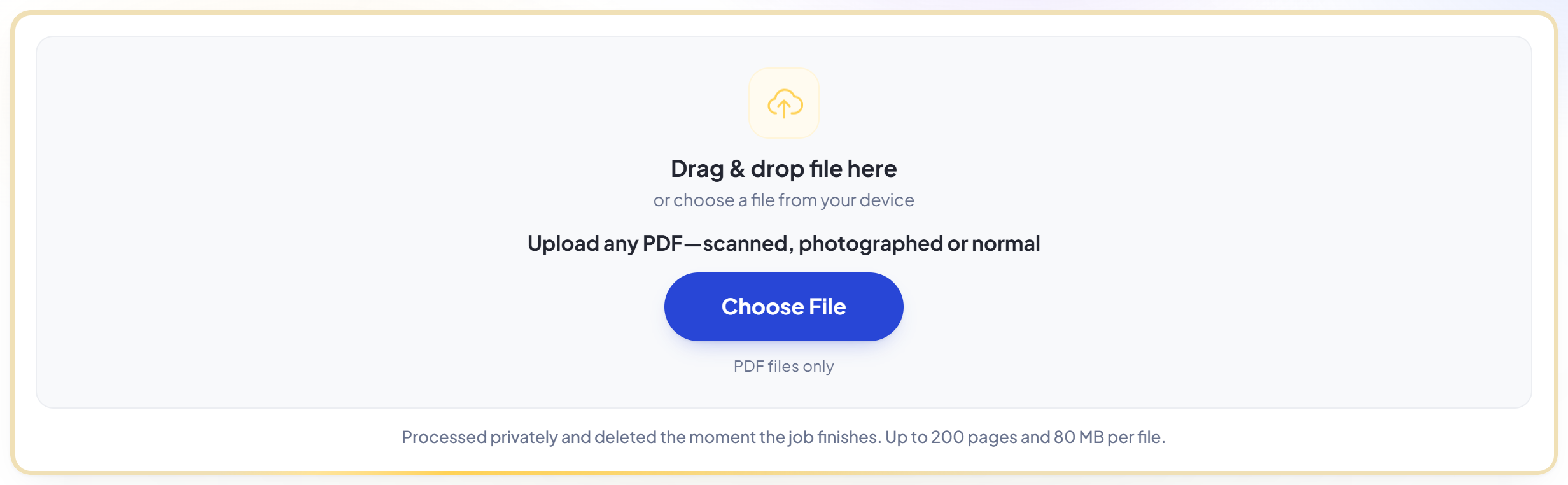
Upload any PDF
Drag your file onto the upload panel, or click it to pick one from your device. Nothing is sent anywhere until you start the job, and the working copy is deleted the moment it finishes.
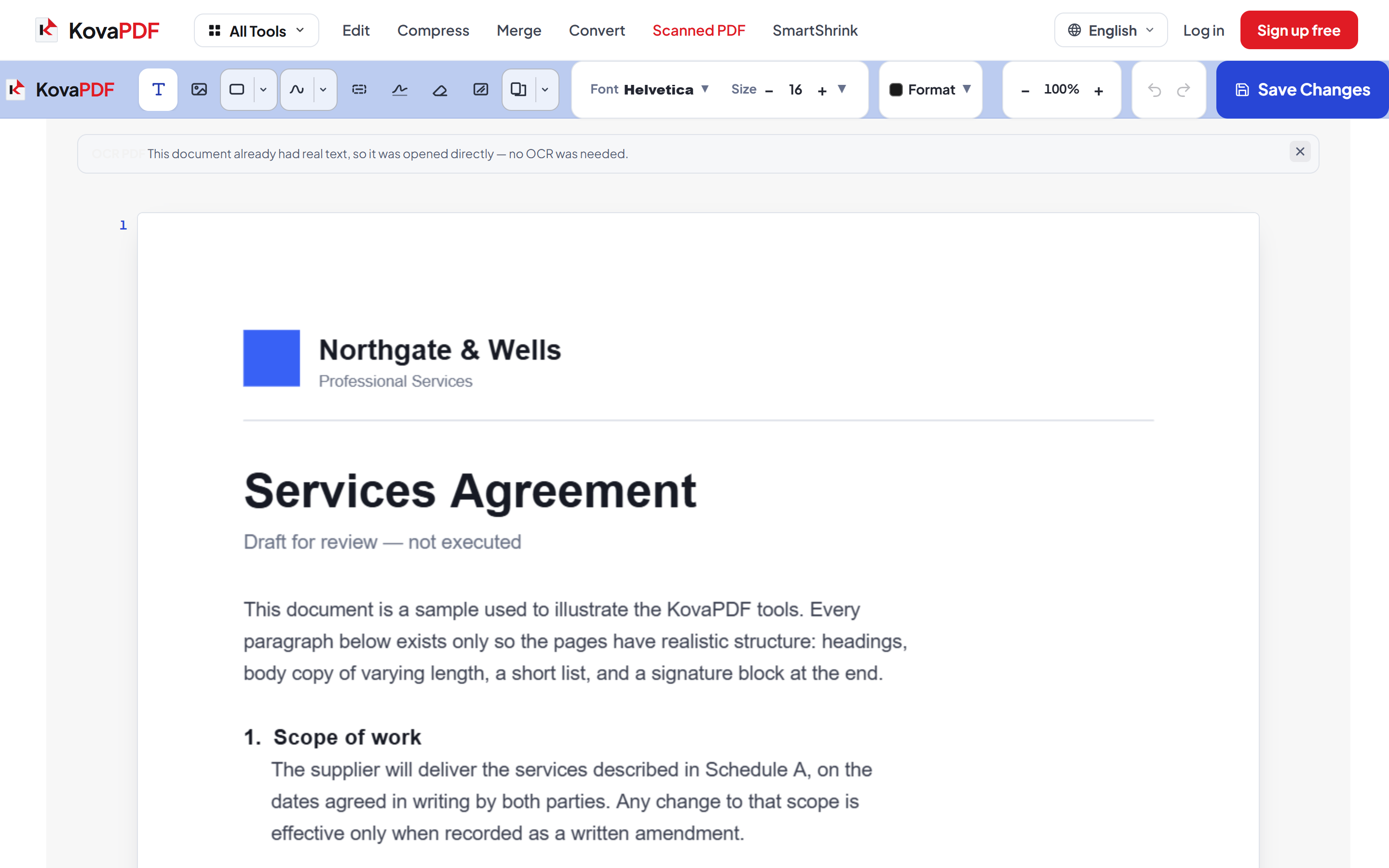
Scanned pages are rebuilt as editable text
Pages with no text layer are recognised and turned into real, clickable lines while the original page stays underneath as the visual. Click a line and retype it exactly as you would in a normal PDF.
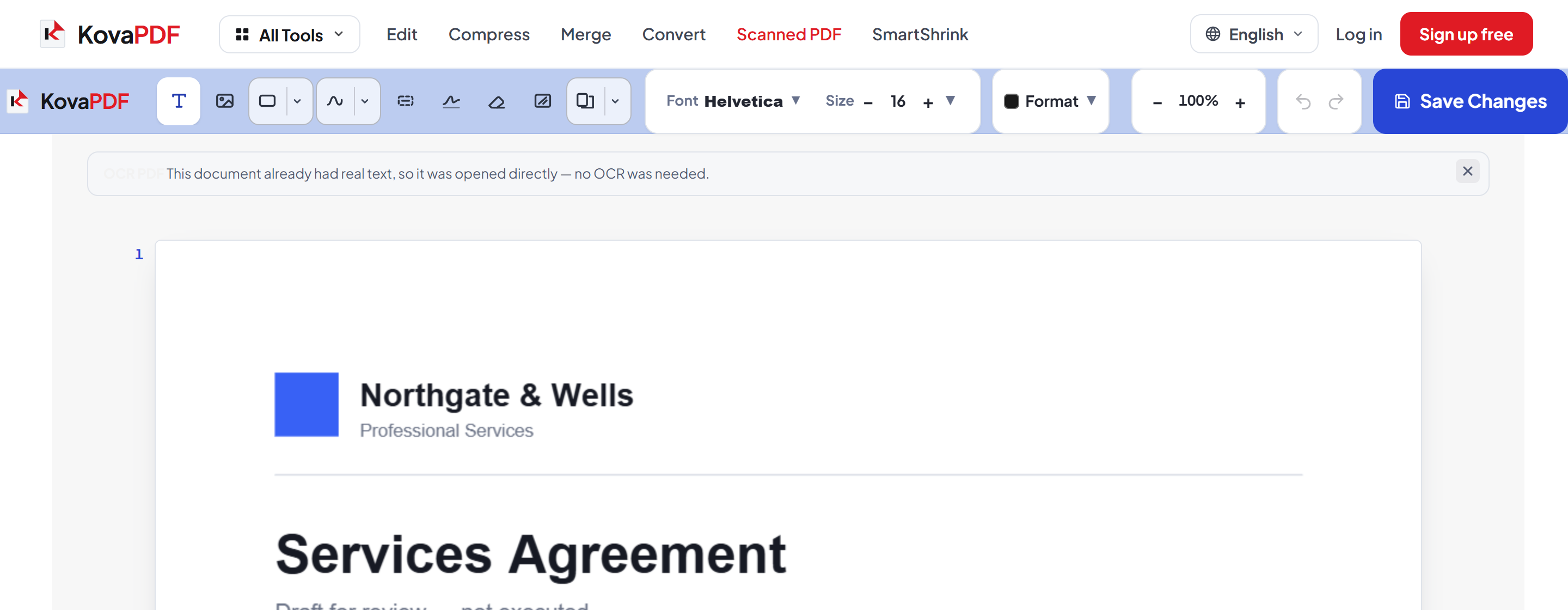
Save and download
Your edits are written into the file itself. Recognition is an estimate, not a transcription — read the recovered text before you rely on it.
Frequently asked questions about Gescanntes PDF bearbeiten
How is this different from the normal PDF Editor?
A scanned or photographed page contains a picture of words, not text, so there is nothing to click. OCR PDF recognises those words and rebuilds them as real editable lines while the original page stays underneath as the visual.
How accurate is the recognition?
It is an estimate rather than a transcription. Accuracy is usually high on clean scans and falls on low-resolution images, photographs, unusual typefaces and handwriting. Errors can look entirely plausible, so check anything that matters — especially numbers.
Will the edit be invisible?
Not perfectly. The original typeface is unknown and a scan carries its own texture, so a close look can reveal an edited line. It is a faithful reconstruction, not a restoration of the original file.
Which languages does it recognise?
Eight: Bangla, English, Hindi, Spanish, Dutch, Arabic, Chinese and Russian. The language is detected automatically, or you can name it yourself before uploading.
Is it free?
Yes. Every tool works without paying and without an account. Files can be up to 200 pages and 80 MB, and a run that fails costs you nothing.
Do I need to create an account?
No. All tools work without signing in. An account raises your hourly allowance and lets you see what you have processed.
What happens to my file?
It travels over an encrypted connection into a directory created for that single request, is processed, is returned to you, and the working copy is deleted as the request finishes. We keep a record that an operation ran — never the filename or the contents.