Create an electronic signature
Type your name in a script style, draw it with a mouse or finger, or turn a photo of your pen signature into clean ink. Then put it on your PDF.
- Free to use
- Works on any device
- Nothing to install
- Draw, type or upload it
- Place it anywhere, any page
- Resize and move it freely
- No certificate needed
PDF · Word · JPG · PNG · WebP
Drag & drop file here
or choose a file from your device
Choose the PDF you want to sign
PDF, Word or image files
No internet? Get the Windows appOn your phone? Get the phone app
Everything Sign PDF can do
Put your signature, your initials and the rest of what a form asks for onto a document, and drag each one into place. Free, in your browser, no account or certificate needed.
Making your signature
- Draw it with a mouse, a finger or a pen
- Type it in three handwriting styles
- Upload a photo of a sheet you signed
- Photographed paper is cleared away to transparent
- Blue or black ink
Initials and fields
- Initials, drawn, typed or uploaded the same way
- Your name, typed once and placed as often as needed
- A date from a calendar, in four formats
- Any other line of text a form asks for
- Check and cross marks
Placing what you add
- Drag to move it, drag a corner to resize it
- Copy the selected item onto every page
- Place a signature you made earlier again
What you get back
- Name, date and text saved as real, selectable text
- Signatures stay sharp transparent images on the page
- Start from a PDF, a Word file, an ODT or a photo
- Open the full editor once the signing is done
How it works
Create an electronic signature in three steps
Open a PDF
Your signature is made inside the signing panel, so start with the document that needs it.
Make the signature
Under Signature, pick Type, Draw or Upload. Choose a style and blue or black ink.
Place and save
Drag it onto the signature line, size it with a corner, then Review & download.
Create an electronic signature: a visual walkthrough
The signing panel makes the signature first and places it second. These pictures follow one signature from a typed name to a signed page.
Open the document
Drop the PDF in the box. The pages open with the signing panel beside them: Signature, Initials, Fields and Ink colour.

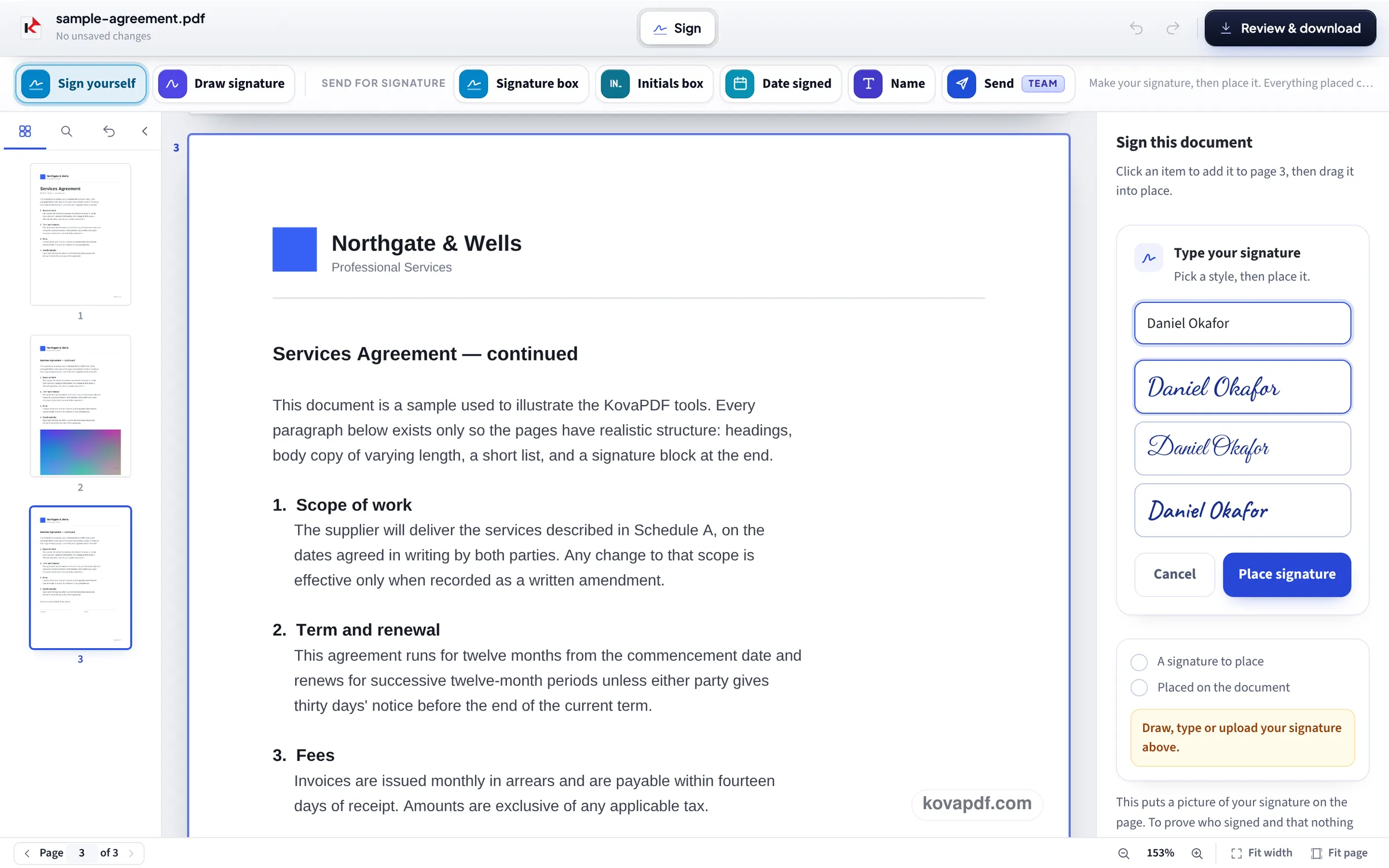
Type your name and pick a style
Choose Type under Signature and write your name. The three styles (Flowing, Formal and Handwritten) show it as you type; click the one that looks most like you.
Put it on the line and save
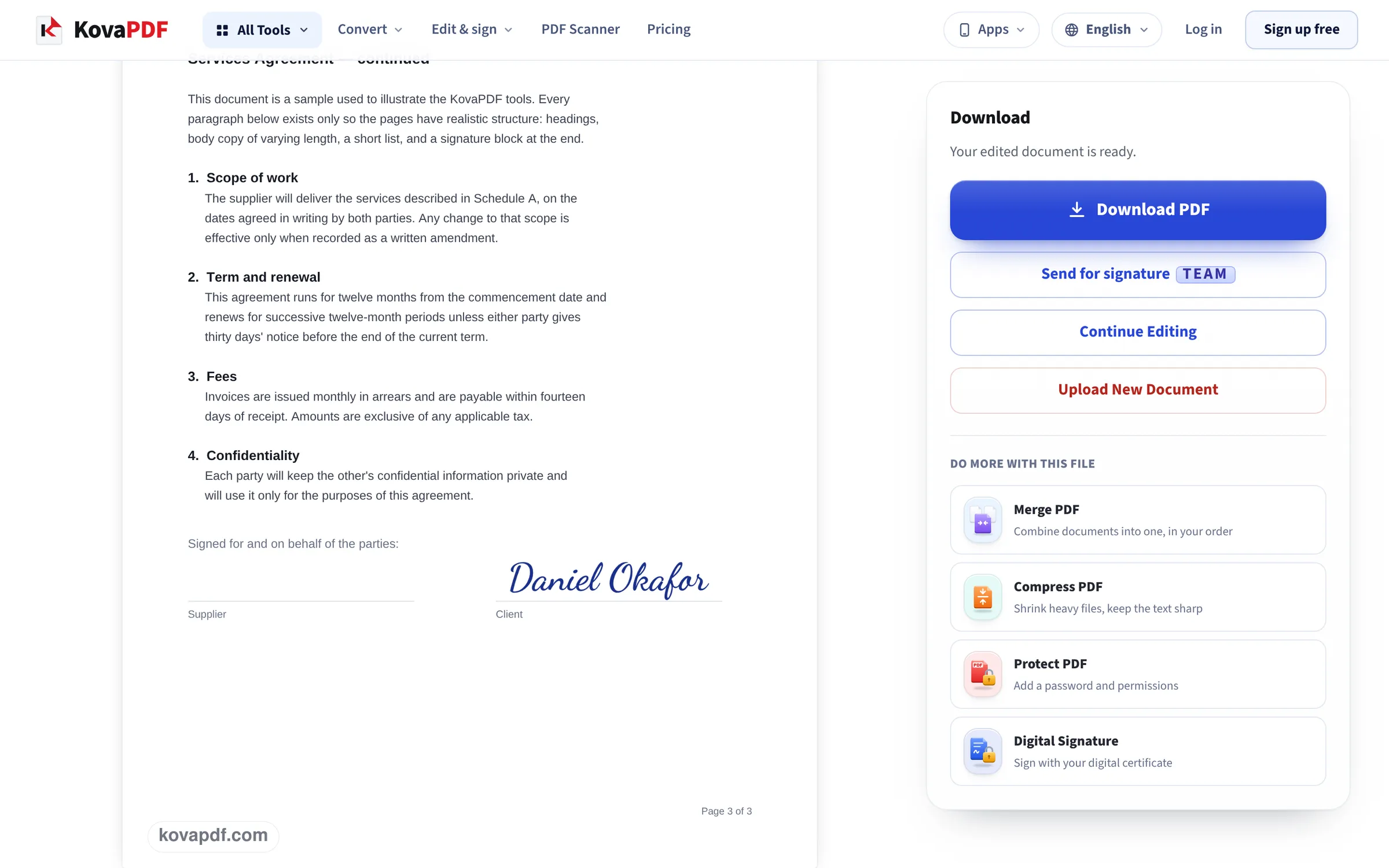
Place signature drops it on the page; drag it onto the line. Review & download then builds the signed PDF, shown here with its Download button.
Five signatures, read back from the saved PDF
We made five signatures for the name Daniel Okafor in the signing panel on this page, placed each one on page 1 of our 3-page agreement (1,681,953 bytes), pressed Review & download and opened the downloaded PDF to read every picture in it. Measured on October 24, 2026.
| How it was made | Saved as | Fully see-through pixels | Ink colour in the file | Size on the page |
|---|---|---|---|---|
| Typed, Flowing style, blue ink | 520 × 112 px picture with transparency | 81.3 % | #1A2F8A (blue) | 176 × 38 pt |
| Typed, Formal style, black ink | 482 × 126 px picture with transparency | 84.8 % | #111827 (near black) | 145 × 38 pt |
| Typed, Handwritten style, blue ink | 476 × 94 px picture with transparency | 77.9 % | #1A2F8A (blue) | 192 × 38 pt |
| Drawn with the mouse in the signing box | 358 × 97 px picture with transparency | 92.8 % | #1A2F8A (blue) | 140 × 38 pt |
| Uploaded: 1600 × 700 px phone style photo of ink on cream paper (71,678 bytes) | 1086 × 541 px picture with transparency | 52.1 % fully clear, 89.1 % under a tenth opaque | Dark blue grey, as photographed | 100 × 50 pt |
The PDF with all five signatures came back at 2,000,019 bytes. The cleaned photo accounts for most of the growth (169,972 bytes); each typed or drawn signature added 3,645 to 9,071 bytes.
Our photo had a shadow across one corner, darker than the rest of the paper. 8.1 % of the cleaned picture stayed partly see-through, 95 % of that in the shadowed quarter, and it shows as a faint grey patch on white paper. Photograph your signature in even daylight, or draw or type it instead.
Every signature was placed only where it was dropped. Pages 2 and 3 were not touched.
Which kind of signature to make
Typing is the quickest and always looks neat. It suits forms, leases, consent slips and anything you sign often. Drawing gives you your own hand, though a mouse makes it shakier than a pen; a trackpad or a phone screen does better. Uploading keeps your real ink signature: sign a blank sheet with a dark pen, photograph it flat in daylight and upload the photo.
- Flowing: joined, slanted letters, the closest to a quick pen signature.
- Formal: wide loops and capitals, for letters and contracts.
- Handwritten: upright, rounder letters, like a careful print.
- Initials: made the same way in the Initials card, for pages that ask for initials on every sheet.
What an electronic signature is, and what it is not
What you make here is an electronic signature: a mark on the document showing that you agree to it. For everyday paperwork such as tenancy forms, quotes, school forms and contracts between businesses, that is what most people need, and US, UK, Canadian and Australian law generally treat it as a valid way to sign.
It does not prove on its own who placed it, or that nobody changed the file afterwards. When that matters, add a Digital Signature as well: it seals the file with a certificate, and any later change shows. Some documents, wills and deeds among them, often still need ink and witnesses.
Using the same signature again
Each signature you make is kept in the panel under Signature while the document is open, so you can place it on page 2, page 7 and the last page without making it again. To sign every page in the same spot, select the placed signature and press Copy to all pages, which shows the page count of your file.
Read next: Sign a PDF on Mac · Sign a PDF on iPhone · E-sign a PDF
Frequently asked questions about Create an electronic signature
How do I create an electronic signature for free?
Open your PDF on this page, choose Type, Draw or Upload under Signature, and make it. Then place it on the line and press Review & download. There is nothing to install.
Can I type my name instead of drawing a signature?
Yes. Choose Type, write your name and pick Flowing, Formal or Handwritten. The name is drawn in that script style and placed like a pen signature.
How do I turn a photo of my handwritten signature into an electronic one?
Sign plain white paper with a dark pen, take a photo in even light and choose Upload under Signature. The paper is removed in your browser and the ink is kept. A shadow on the paper can leave a faint grey patch, as our test showed.
Will the signature have a white box around it?
No. Typed and drawn signatures are saved with a see-through background, cropped to the ink, so the line and text under them stay visible. In our test 78 to 93 % of each typed or drawn signature picture was fully clear.
Can I change the ink colour?
Yes, blue or black, under Ink colour. It applies to what you type, draw or place next, including your name and the date.
Is an electronic signature the same as a digital signature?
No. An electronic signature is your mark on the page. A digital signature adds a certificate that proves who signed and shows any later change. You can add one with Digital Signature after placing your mark.
Can I download just the signature as an image?
No. The signature is made to go on a PDF, and what you download is the signed document. For a signature photo at an exact size in KB, for an application form, use Signature resize.
Create an electronic signature guides and articles




Related tools
 Sign PDFDraw, type or upload your signature
 Digital SignaturePAdESSign with your digital certificate
 Request SignaturesSend a PDF to others to sign
 Verify SignatureCheck a PDF's digital signatures
All PDF tools · 15 step-by-step guides · How your files are handled
Also: Sign PDF · Signature resize