Preview every page
Read the document as you fill in the form.
Bill for recorded time at agreed hourly rates. Compare the filled example, check each detail and save your own copy.
All set
Invoice rules in the US depend on your state. This tool helps you lay out an invoice; it is not tax advice.
These pictures show the same document generator with fictional example details.
Replace the example names and contact details in the form. Keep only information that belongs in this document.
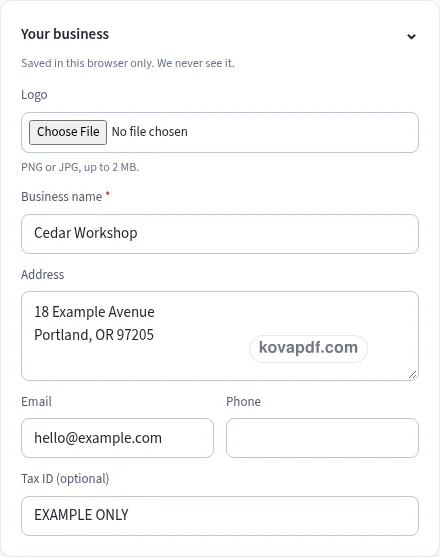
Check the page preview after changing the text. Read the amounts, dates and page breaks before exporting.
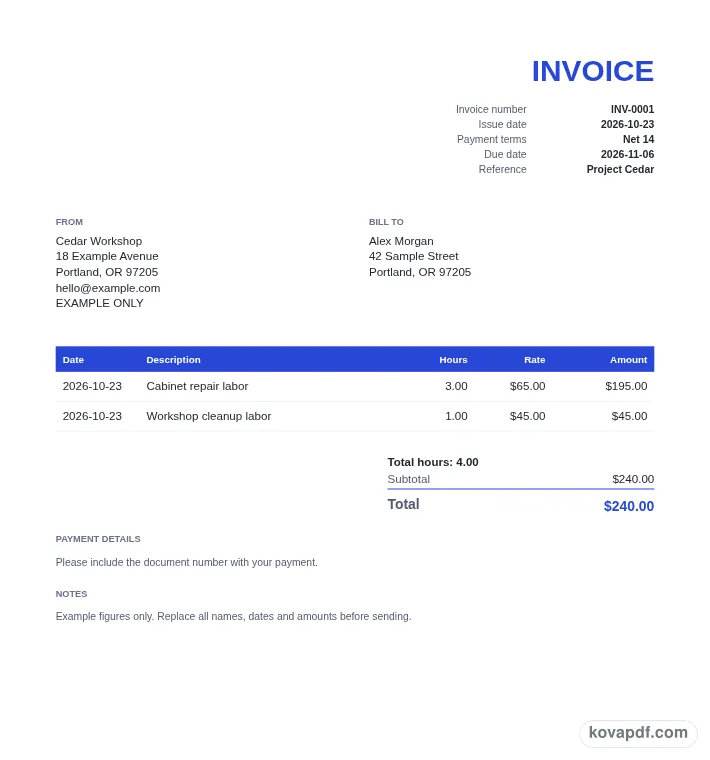
Use the download controls above the preview. Open the saved file and give it one final read before sharing.

Read the document as you fill in the form.
Compare Classic, Modern and Minimal layouts.
Save a copy when the names and figures are right.
The generator works on this device.
Use A4 or Letter and check the page breaks.
Return to the form to correct a detail before sharing.
These are fictional details. Choose an example, then replace them with your own.
Start with work date and task description. Replace the fictional sample with information from your own records.
Check hourly rate beside time total. Read each page from the perspective of a client checking time against the work completed.
Choose PDF or Word above the preview. Check supporting note in the saved copy before sharing it.
A professional hourly invoice gives a client checking time against the work completed a familiar structure to read. This Classic version is filled with a workshop service visit recorded in hours and minutes. Use it to bill for recorded time at agreed hourly rates, then replace the fictional details before sharing it. The style is a presentation choice. It does not verify the facts or change the meaning of the wording you enter.
For the hourly invoice, start this part with work date. The example uses october 23. Give each time entry a date when the work spans several days. A dated row helps a client connect the charge with a visit or meeting. Read this entry beside task description before you keep it. That comparison helps a client checking time against the work completed understand the hourly invoice without a separate explanation. The Classic layout gives the wording a clear place on the page, but the information still needs your attention.
For the hourly invoice, start this part with task description. The example uses repairing cabinet doors. Name the actual task. Keep unrelated activities in different rows when they have different rates or need separate approval. Read this entry beside hours worked before you keep it. That comparison helps a client checking time against the work completed understand the hourly invoice without a separate explanation. The Classic layout gives the wording a clear place on the page, but the information still needs your attention.
For the hourly invoice, start this part with hours worked. The example uses 1:30 or 1.5. Use the time format deliberately. One hour and thirty minutes is one and a half hours, not one point three hours. Read this entry beside hourly rate before you keep it. That comparison helps a client checking time against the work completed understand the hourly invoice without a separate explanation. The Classic layout gives the wording a clear place on the page, but the information still needs your attention.
For the hourly invoice, start this part with hourly rate. The example uses the rate agreed for that task. Check the rate beside every time entry. Do not reuse an old client rate simply because it was restored in a saved draft. Read this entry beside client reference before you keep it. That comparison helps a client checking time against the work completed understand the hourly invoice without a separate explanation. The Classic layout gives the wording a clear place on the page, but the information still needs your attention.
For the hourly invoice, start this part with client reference. The example uses project Cedar. Use a project or purchase reference if the client needs it. A time invoice is easier to approve when the client can identify the work immediately. Read this entry beside time total before you keep it. That comparison helps a client checking time against the work completed understand the hourly invoice without a separate explanation. The Classic layout gives the wording a clear place on the page, but the information still needs your attention.
For the hourly invoice, start this part with time total. The example uses the sum of the recorded entries. Compare the total hours with your time record. Look for duplicated meetings and visits entered twice before focusing on the money. Read this entry beside payments received before you keep it. That comparison helps a client checking time against the work completed understand the hourly invoice without a separate explanation. The Classic layout gives the wording a clear place on the page, but the information still needs your attention.
For the hourly invoice, start this part with payments received. The example uses a retainer already applied to this work. Enter only the amount you intend to credit against this invoice. Explain the application of a retainer in the notes when the client needs that context. Read this entry beside supporting note before you keep it. That comparison helps a client checking time against the work completed understand the hourly invoice without a separate explanation. The Classic layout gives the wording a clear place on the page, but the information still needs your attention.
For the hourly invoice, start this part with supporting note. The example uses time record available with the project files. Describe the billing period or approval reference without copying private meeting notes into the invoice. Keep the financial record readable. Read this entry beside work date before you keep it. That comparison helps a client checking time against the work completed understand the hourly invoice without a separate explanation. The Classic layout gives the wording a clear place on the page, but the information still needs your attention.
Before choosing a final file, compare the Classic heading with the first block of hourly invoice details. Keep work date readable without enlarging the whole page. Then follow the document through client reference to the ending. On a printed copy, the reader has no form controls to reveal what an unclear entry was meant to say. Use A4 or Letter to match the paper you intend to use and read every page after switching. A longer hourly invoice can flow onto another page. Keep the complete text when it is needed to explain a workshop service visit recorded in hours and minutes; a conventional appearance is not a reason to cut information the reader needs. Save the version you checked so later changes do not become confused with it.
Classic gives the hourly invoice a conventional heading and clear divisions. Use it when a client checking time against the work completed needs a familiar document to file or compare. Still read hours worked and client reference before saving.
No. The appearance does not verify work date or settle questions about payments received. You supply the underlying facts and arrange any review needed for the situation.
Use the form to enter task description and then work through time total. The preview updates from your entries. All names and figures in the gallery are fictional and need checking before use.
PDF preserves the previewed page arrangement. Word provides editable text and may reflow when opened. Use the current draft to bill for recorded time at agreed hourly rates; whichever format you choose, inspect the saved copy before sharing it with a client checking time against the work completed.
No. Download the checked copy, then choose how to share it. Your entries are used on this device. On a shared computer, clear the saved draft when you no longer want those details stored in the browser.