Working with scans
How to convert scanned receipts to Excel and check the numbers
In short
Photograph one receipt per image, let the tool read it, then check the supplier, date, currency and totals against the receipt and correct anything that is wrong. Mark each receipt reviewed, export to Excel or CSV, and open the file to check a few rows before using it.

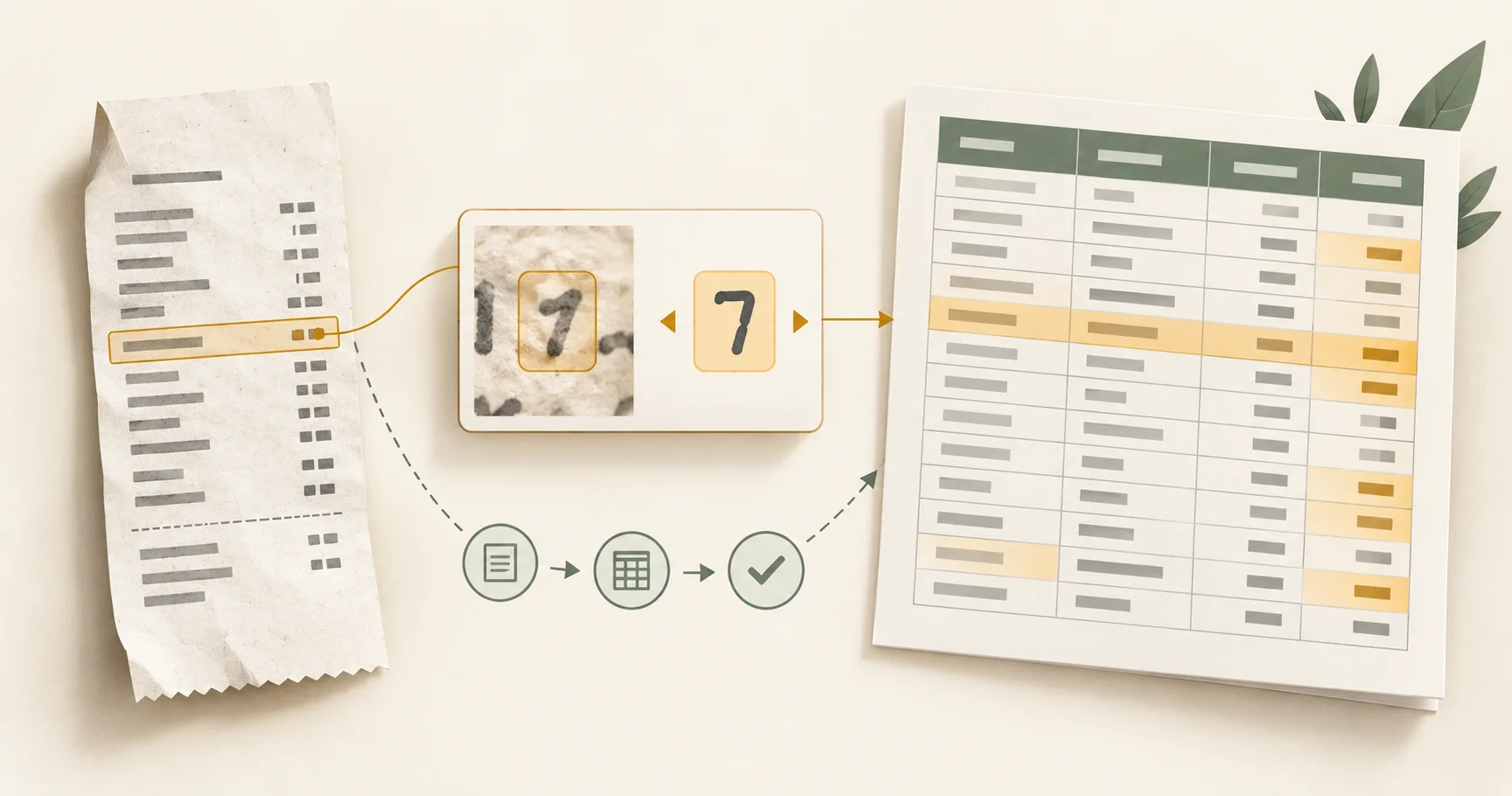
A photo of a receipt pasted into a spreadsheet is still a photo. You can look at it, but you cannot sort by date, add up totals or filter by supplier. For bookkeeping you want the supplier, date and amounts as ordinary cells, and you want to have checked each one against the receipt.
Receipt to Excel reads the text on each receipt, puts what it finds into fields you can correct, and exports a workbook or CSV once you have reviewed every receipt. Text recognition reads marks on paper, and sorting those readings into fields is a second guess on top. Neither removes the need to look at an unclear amount yourself.
This guide goes from phone photo to a checked spreadsheet. The examples are fictional, and nothing here decides how an expense should be treated in your accounts.
What the tool can and cannot read
It is built for printed receipts in English. Each image, or each page of a PDF, should hold one receipt. A photo of three overlapping receipts needs to be split into three photos first. Handwritten receipts and other languages will usually need typing in by hand.
You can add up to 10 files at a time, with no more than 10 PDF pages in total, each file 25 MB or smaller, as PDF, JPG or PNG. Scans and photos are read on your device and are not uploaded. If a PDF already has selectable text, that text is read directly, and you can switch to recognition if it comes out incomplete or garbled. If you already have the receipt text, for example from an email receipt, you can paste it instead.
Decide what one row should be
There are two common layouts and they answer different questions. A summary has one row per receipt. An itemised sheet has one row per thing bought. Decide which you need before judging whether the result worked.
For a monthly expense list, the summary is usually enough: file name, supplier, date, currency and total, plus subtotal, tax and tip where the receipt shows them. Collecting fields you will never use only makes the review longer.
For stock, project costs or anything that needs individual purchases, you also want item rows: description, quantity, unit price and amount. A receipt with several narrow columns is harder to read correctly than one printed total, so expect to spend longer on these.
The Excel download has both: a Receipts sheet with one row per receipt and an Items sheet with the item rows. The CSV has one summary row per receipt. Amounts in the workbook are real number cells, so they add up and sort as numbers. Nothing converts currencies or changes your accounting records.
Take a photo that keeps the detail
Lay the receipt flat and get the whole width in, with a little margin around the edges so the date and the last digit of the total are not cut off. Use even light and avoid glare across the amounts.
Look at the photo before you upload it. Can you read the total yourself? Can you tell a decimal point from a speck on the paper? If not, take it again while you still have the receipt.
Faded thermal paper is the hardest case. More contrast may help with some letters, but it cannot bring back what the photo did not capture. Mark an unclear reading for review rather than accepting a plausible number.
With a stack of receipts, try two or three first and look at the results before doing the rest. You will catch a repeated problem, such as the right edge always being cut off, while you can still fix how you take the photos.
Reading words is not the same as rebuilding a table
Recognition turns the image into characters and words. It can read the supplier and every number correctly and still put a number in the wrong field. Working out which values belong together is a separate step.
Receipts rarely have ruled tables. Description, quantity and price are lined up with spaces, a long description wraps onto a second line, and a discount sits under the item it applies to. If every printed line becomes a new purchase, you get extra rows.
That is also why a general PDF to Excel conversion gives different results from a receipt tool. A report exported from accounting software has real text and often drawn table lines. A scan has neither, and its columns only exist in the picture. The guide to converting a PDF to Excel covers those cases.
If you only need the words, Image to Text or PDF to Text is more direct. If you want a searchable PDF of the receipts, use OCR PDF. Pick the output for the job, not the file type you recognise. Most people with a shoebox of receipts want the fields, not a copy of the paper, and that is what this tool is for.
Check each field against the receipt
Each receipt opens next to its recognised text with a set of fields: supplier, date, currency, subtotal, tax, tip, total and item rows. Check what each field means before checking the spelling.
A date is not right just because it looks like a date. It needs to be the purchase date, not a return deadline or a loyalty scheme expiry. A date such as 03/04 could be March or April depending on where the receipt came from, so the tool leaves an ambiguous date blank and asks you to enter it. Look at the receipt and type the date you mean.
For the total, find the amount actually labelled Total. Receipts also print subtotal, amount tendered, change, savings and points. The largest number on the receipt is often the cash handed over, not the price.
Choose the currency yourself when the receipt does not make it plain. A dollar sign alone does not say which dollar it is, so the tool will not guess.
To fix a field, select the right words or amount in the recognised text and copy them into the field, or type the value. Read all fields again starts over and replaces your corrections, so use it only when you want a fresh reading.
Work through a fictional receipt
Imagine a stationery receipt: a notebook for $8.40, pens for $4.60 and a folder for $3.00. The items add up to $16.00, and the printed total is $16.00 with no tax or discount.
Suppose the notebook is read as $8.90. The items now add up to $16.50 while the subtotal says $16.00. The tool flags that the item amounts do not match the subtotal. That tells you to look at the receipt. It does not tell you which number is wrong.
Now suppose the receipt also says Cash $20.00 and Change $4.00. If $20.00 lands in Total, the record is wrong even though every character was read correctly. Reading the labels matters as much as reading the digits.
Last, the folder's description wraps onto a second line. It is still one purchase. Remove the extra item row so you do not export a folder and an empty purchase.
Check the sums without making things up
Where a receipt shows enough detail, compare the parts with the whole. The tool warns when subtotal plus tax and tip does not equal the total, and when the item amounts do not add up to the subtotal. Account for printed discounts, rounding and tax included in prices before deciding something is wrong.
A mismatch can come from a misread digit, a missed line or a misunderstood label. Several small errors can also cancel out and produce a believable total, so a matching sum is a good sign, not proof.
Do not work out a missing tax amount from a rate you know. The receipt may treat tax differently or include it in the prices. Leave the field empty if the receipt does not show it.
Leave tax and tip empty when the receipt does not show them. In the export an empty amount means not recorded, which is different from 0.00. A receipt that genuinely shows no tax should say 0.00 because the paper says so, not because a blank looked untidy.
If something cannot be read, say so. An empty field you can come back to is more useful than a precise looking number with nothing behind it.
Mark each receipt reviewed, then export
Before export, each receipt needs a supplier, a valid date, a currency and a total, and you have to tick the box saying you checked it against the source, including its currency, date, amounts and any warnings. Editing anything afterwards clears the tick, so the last version you exported is always one you looked at.
Open the downloaded file and spot check a few rows against the receipts. Pick the ones most likely to go wrong: a long supplier name, a date that could be read two ways, a receipt with several items.
Count the rows. If you added five receipts, you should have five summary rows. A receipt you removed from the export, or one that could not be read and was left unresolved, explains a gap only if you know it happened, so note it. Look for duplicates too, such as the same receipt photographed twice or added both as a PDF and as a photo.
CSV and Excel behave differently. A CSV is plain text, and the program that opens it decides what each column is, so dates and long reference numbers can change on import. The Excel file carries the cell types with it. Open whichever you use in the program you will actually work in and check a date column and a total.
If you need the receipt's layout too
There is a second export for a different job. Keep words in their source positions builds a worksheet that places each recognised word roughly where it sat on the receipt, as editable cells rather than a picture. You correct the text boxes against the receipt and confirm that review separately before you can download it. Fonts and spacing in Excel will not match the paper exactly, so look at the file before relying on it.
Keep personal details where they belong
Receipts can include names, card digits, addresses and what someone bought. Share only what the next person needs. The spreadsheet and the photos may need different handling even though they came from the same batch.
If a PDF of receipts needs details removed before sharing, Redact PDF removes them properly; check the result before sending. Hiding a column in a spreadsheet does not remove the data from the file.
If the receipts are going into an expense claim, putting a claim and its receipts into one PDF covers keeping them in order and under the size limit.
Common questions
Is a receipt picture inside Excel editable data?
No. A pasted image keeps the look of the receipt, but its amounts are not cells you can sort or add up. The receipt tool exports the supplier, date and amounts as cells, with amounts as numbers.
Can it read every faded receipt?
No. A blurred, faded or cropped photo may not hold enough detail. Leave uncertain fields empty or marked for review rather than filling them with a guess.
Why can the total be wrong when every character was read correctly?
The amount in the Total field may be the cash handed over, the change or a subtotal. Check the label printed next to the number, not just the digits.
Why is the date blank?
A date like 03/04 can mean March or April. When both readings are possible the tool leaves the date empty so you can enter the one the receipt means.
Templates for this
- Receipt GeneratorMake a receipt for a payment you received.
- Cash Receipt TemplateA receipt for a cash payment.
- Payment Receipt TemplateA receipt for a card or bank transfer payment.
KovaPDF on your computer and phone
Use KovaPDF on your computer, where many tools work with no internet, and on your phone. The same account works in both.