Converting files
How to convert PDF pages to JPG or PNG
In short
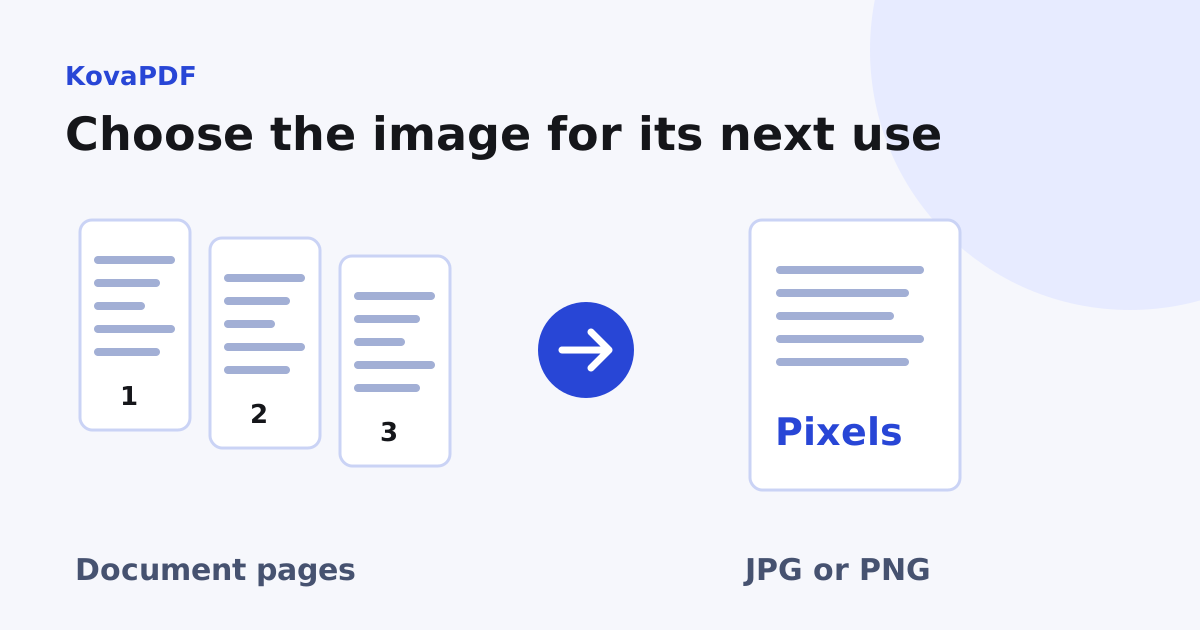
Render the pages you need as JPG for photographic content or PNG for crisp graphics and text. Choose the resolution for where the images will be displayed or printed. Rendering makes pictures of the pages, so keep the original PDF for text, links and document structure.

Am I rendering pages or extracting pictures?
Rendering draws the whole visible page into one image. It includes text, diagrams and photographs together. Extracting an embedded photograph is a different job: that can retrieve one picture without drawing the rest of its page around it.
Use PDF to JPG or PDF to PNG when you want complete page images. Keep the original PDF because the new pictures do not retain selectable words, clickable links, form fields or certificate signature structures as working document features.
Which image format fits the content?
Choose JPG when photographic content and a smaller delivery file matter more than exact edges. Choose PNG when line art, small type or repeated editing makes exact pixel preservation useful. PNG is not automatically larger: a mostly white page with a few dark lines can compress very efficiently.
Our KovaPDF render test used a text report on an A4 page. At 150 DPI, the JPG was 48,678 bytes and the PNG 12,401 bytes, both 1240 by 1754 pixels. The PNG was smaller for that page. A colourful photograph can give a very different result, so compare actual output sizes for your material.
How much resolution should I choose?
Think about the destination. A small on screen preview needs fewer pixels than a full page print. More pixels can preserve finer source detail, but they cost memory and may produce a much larger file.
| Render setting | Pixels in our A4 test |
|---|---|
| 72 DPI | 595 by 842 |
| 150 DPI | 1240 by 1754 |
| 300 DPI | 2480 by 3508 |
Doubling DPI doubles both dimensions, which roughly quadruples the pixel area. It does not create new information in a low resolution scan. For quality diagnosis rather than format choice, read PDF to JPG without losing quality.
How do I export the right pages?
- Select the original PDF and choose the output format.
- Set the page range before rendering a long document.
- Choose a resolution that suits the destination.
- Download and count the output images.
- Inspect the first, last and most detailed exported page.
If you only need one image for a slide or message, follow saving one PDF page as JPG. That avoids rendering and sorting a whole document for a single page.
What changes when the page becomes an image?
The words become coloured pixels. Searching or copying them later may require OCR. A signature image can remain visible while the original digital signature is no longer present as a verifiable structure. Do not use a page screenshot as a replacement for a signed original when evidence matters.
Check backgrounds and page edges too. A print oriented PDF may contain colour or transparency that appears differently when drawn onto a screen image. Review the actual exported picture, not only its thumbnail or filename.
Can I combine the images back into a PDF?
Yes, but that makes an image based PDF. It does not restore the original document features. If a batch of page images needs assembling, the ZIP image sequence guide explains order and missing-page checks. Use the original page based PDF whenever a round trip through pictures serves no purpose.
Common questions
Is page rendering the same as extracting an embedded photo?
No. Rendering draws the complete page. Extraction retrieves an image object that was already inside the document.
Is PNG always larger than JPG?
No. Our text page at 150 DPI produced a 12,401 byte PNG and a 48,678 byte JPG.
Does 300 DPI recover missing scan detail?
No. It draws more pixels, but cannot reconstruct detail that the original scan never captured.
Do page images keep working links and selectable text?
Those features become part of the picture rather than working document objects. Keep the original PDF.
KovaPDF on your computer and phone
Use KovaPDF on your computer, where many tools work with no internet, and on your phone. The same account works in both.