Word to PDF on iPhone
Pick the Word file from Files, tap Create PDF, save the PDF. Same pages, same text, and no Word app needed.
- Keeps your layout
- Works on any device
- Deleted after processing
- Fonts and images kept
- Wide .docx tables fit the page
- A4, Letter, Legal or A3
- Page setup for .docx and .odt
.docx · .doc · .rtf · .odt · .txt
Upload a Word document to turn it into a PDF
.docx, .doc, .rtf, .odt, .txt · your file is deleted as soon as the PDF is built
Drag & drop file here
or choose a file from your device
On your computer? Get the Windows appOn your phone? Get the phone app
Everything Word to PDF can do
Turn a Word document into a PDF and choose the page it prints on first.
Files it reads
- .docx, .doc, .rtf, .odt and .txt
- Embedded fonts, so type sets the way you saved it
- Charts, floating shapes and images rendered by a full office engine
- Right-to-left runs and inherited numbering resolved as written
The page you choose
- Page size: the document's own, A4, Letter, Legal or A3
- Portrait, landscape, or whatever the document already set
- Wide, Normal, Narrow or no margins at all
- A paper preview that changes shape as you choose
- Offered for .docx and .odt: a .doc, .rtf or .txt keeps the setup it was saved with
Wide tables fit
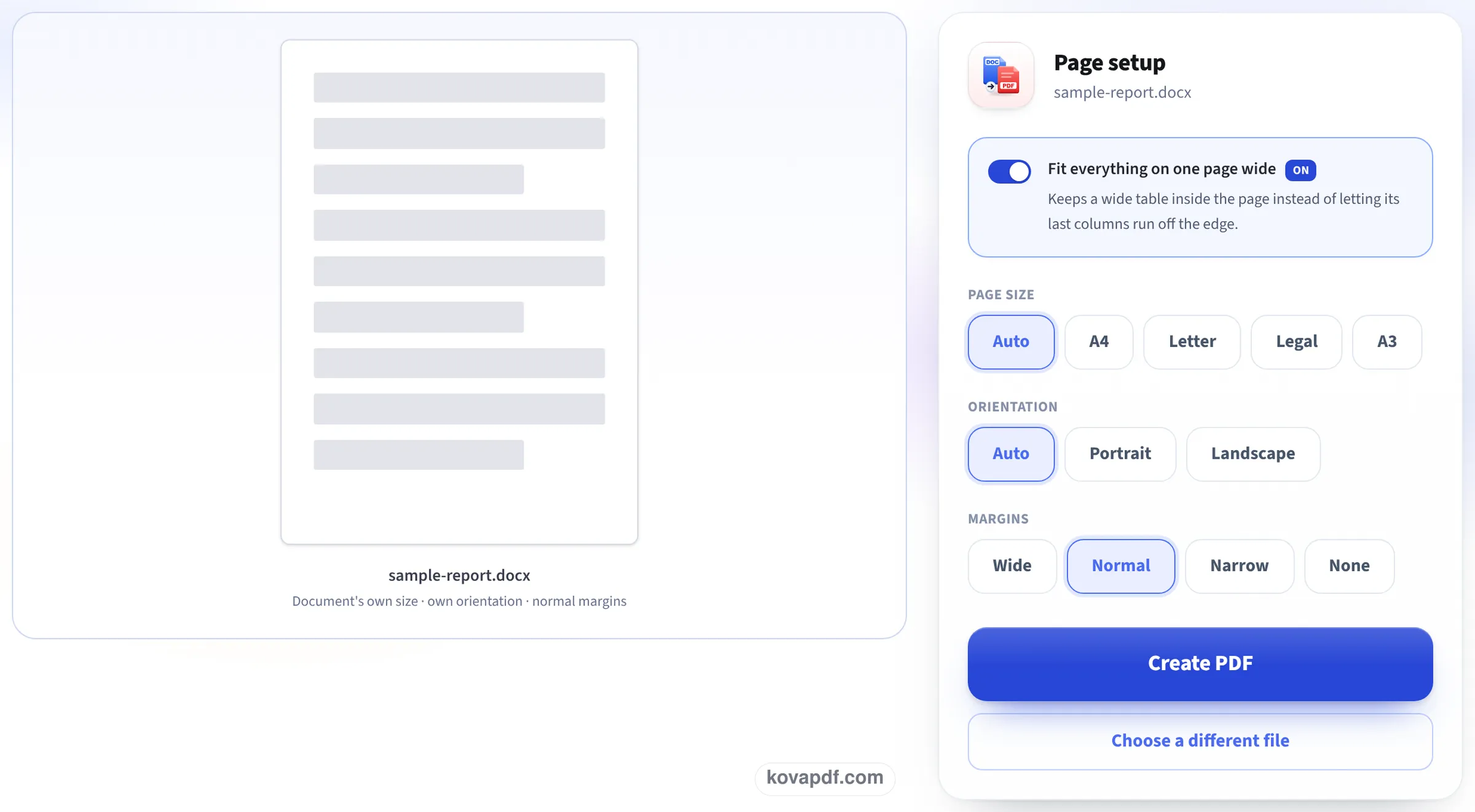
- Fit everything on one page wide, already on
- A table wider than the text column is scaled down to fit
- Every column stays visible, with its proportions intact
The finished file
- The page setup is written into the document before it renders
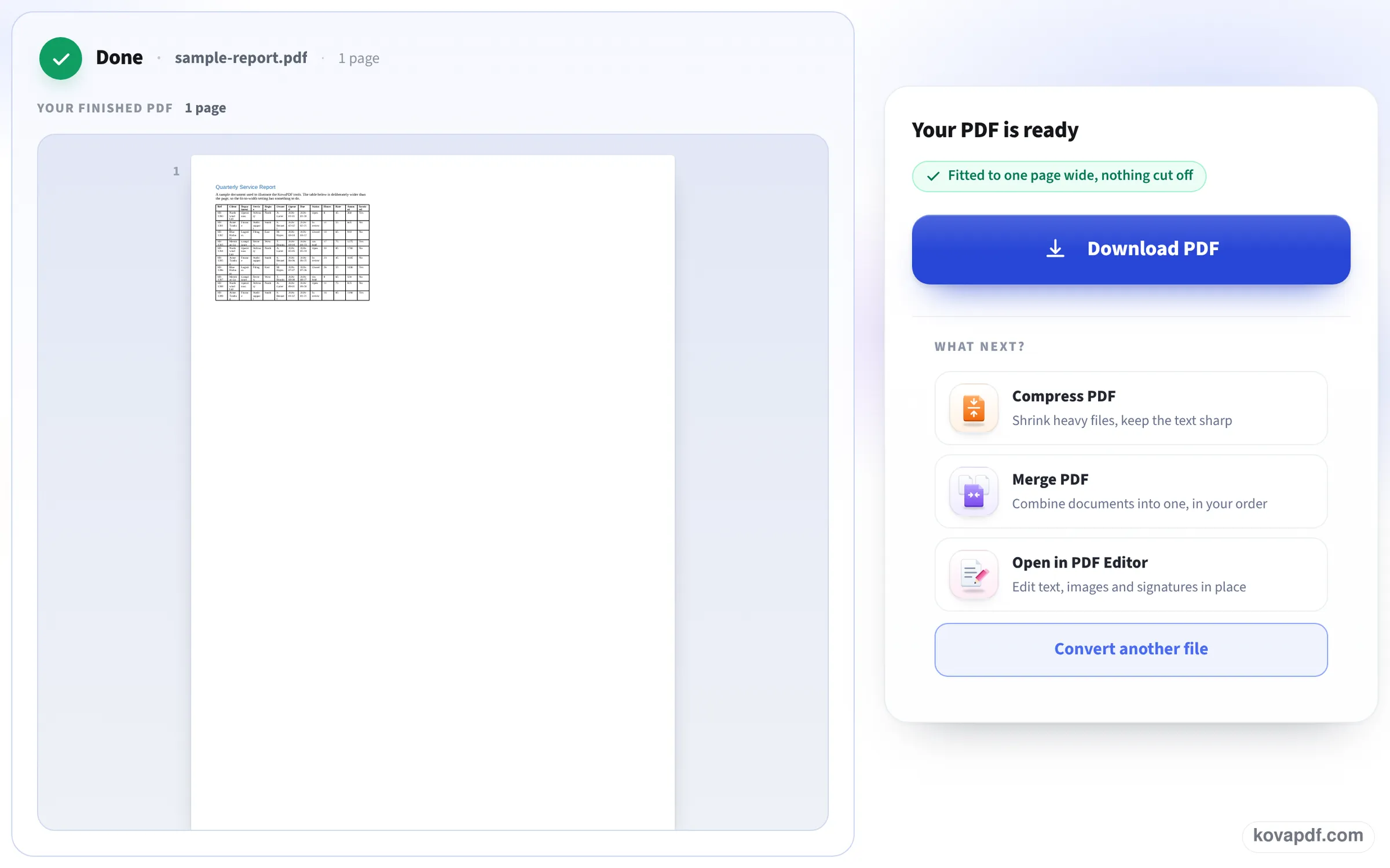
- The finished PDF shown page by page before you download
- Page count reported beside the download button
How it works
Word to PDF on iPhone in three steps
Tap the box
Choose the .docx (or .doc) in Files, iCloud Drive, or one saved from Mail.
Check the page setup
Auto keeps the document's own page size; choose Letter or A4 if you need one.
Create PDF and save
Tap Create PDF, then Download PDF. Safari puts it in Files, under Downloads.
Word to PDF on iPhone: a visual walkthrough
The three screens you go through, photographed on this page with our sample Word report. On a phone they are the same screens, stacked in one column.
Tap the box and pick the Word file
On an iPhone the box opens the Files picker, so a document in iCloud Drive, On My iPhone or one saved from Mail can be chosen directly.

Leave the page setup on Auto
The panel shows the file and its settings. Auto keeps the paper size set in the document, and fit to width keeps wide tables on the page; pick Letter, A4 or landscape only if you need to.
Save the PDF to Files
When the PDF is ready its first page is shown with the page count. Download PDF hands it to Safari, which keeps it in the Downloads folder in Files.
Three Word files, phone window and desktop window
We converted our own .docx files on this page in a 390 × 844 window, the size of an iPhone screen, and again in a 1366 px desktop window, then opened every PDF. Measured on October 24, 2026.
| Word file | Pages | Text | |
|---|---|---|---|
| Letter, 3 pages | 22.3 KB | 3, as in the document | All 931 words, selectable |
| Invoice with a table | 31.5 KB | 1 | Table kept with its lines; all 62 words |
| Report, 10 pages | 44.7 KB | 10 | All 2,140 words |
The phone window and the desktop window gave byte for byte the same size of PDF for each file. Each conversion took between 1 and 4 seconds from tapping Create PDF to the download being ready. Page size stayed Letter, as set in the documents.
The iPhone's own ways, and their catches
If the Word app is installed, its share menu can export a PDF. Without it, you can open the document, tap Share, then Print, and spread two fingers on the preview to make a PDF; that works, but the margins follow the printer settings and the result is easy to lose.
This page needs only Safari and lays the PDF out from the document's own page settings.
Tips
A few things worth knowing:
- Fonts the document uses but our server does not have are replaced with close matches; for a CV or a form where every line must stay put, check the PDF before sending.
- Track changes and comments: accept or remove them in the document first if you do not want them in the PDF.
- Need a smaller PDF for an upload form? Compress PDF on iPhone next.
Other Office files
Excel and PowerPoint files convert the same way on Excel to PDF and PowerPoint to PDF, and they work on the phone too.
Read next: Compress PDF on iPhone · Convert a photo to PDF on iPhone
Frequently asked questions about Word to PDF on iPhone
How do I convert a Word document to PDF on my iPhone?
Open this page in Safari, tap the box, pick the .docx in Files and tap Create PDF. Then Download PDF saves it to Files.
Do I need the Microsoft Word app?
No. The conversion happens on our server; you only need Safari.
Will the PDF look the same as my document?
In our tests the page count matched every time and every word was kept. A font our server does not have is replaced with a close match, so check documents where exact line breaks matter.
Where does the PDF go?
To Files, in the Downloads folder.
Is my document kept on your server?
No. It is deleted as soon as the PDF has been built.
Does it work with .doc files too?
Yes, older .doc files as well as .docx.
Word to PDF on iPhone guides and articles



Related tools
All PDF tools · 15 step-by-step guides · How your files are handled
Also: Word to PDF