Save PDF Page as Image
Page 1 is already typed in. Change it to the page you need and you get that one page as a JPG picture, not a ZIP of the whole file.
- Keeps your layout
- Works on any device
- Stays on your device
Choose the PDF with the page you want as a picture
Every page as PNG or JPG at 72, 150 or 300 DPI, or just the pictures inside · one PDF or many at once · your PDFs stay on your device and are never uploaded
Drag & drop files here
or choose a file from your device
Everything PDF to JPG can do
Save the pages of a PDF as JPG pictures, ready to share, post or drop into a slide. Free, online.
Which pages
- Every page, one page, or a range such as 2-5 or 1,4,9
- Only the photos inside the PDF instead, each at its own resolution
The JPGs
- 72, 150 or 300 DPI; 150 makes an A4 page about 1240 × 1754 pixels
- Small for photo pages: our photo page came out at 94 KB as a JPG, against 546 KB as a PNG
- Named page-001, page-002 and so on, in one ZIP when there are several
How it works
Save a PDF page as an image in three steps
Open the PDF here
Drop it on the box or click to choose it. Your browser draws the page; the file stays with you.
Type the page number
The Pages box starts at 1. Put in the page you want, for example 7. JPG at 150 DPI is set; switch to PNG or 300 DPI if you like.
Save the picture
You get one image file named after the PDF, ready to paste or attach.
Save a PDF page as an image: a visual walkthrough
How one page becomes one picture on this page, shown with our three-page sample agreement.
Choose the PDF
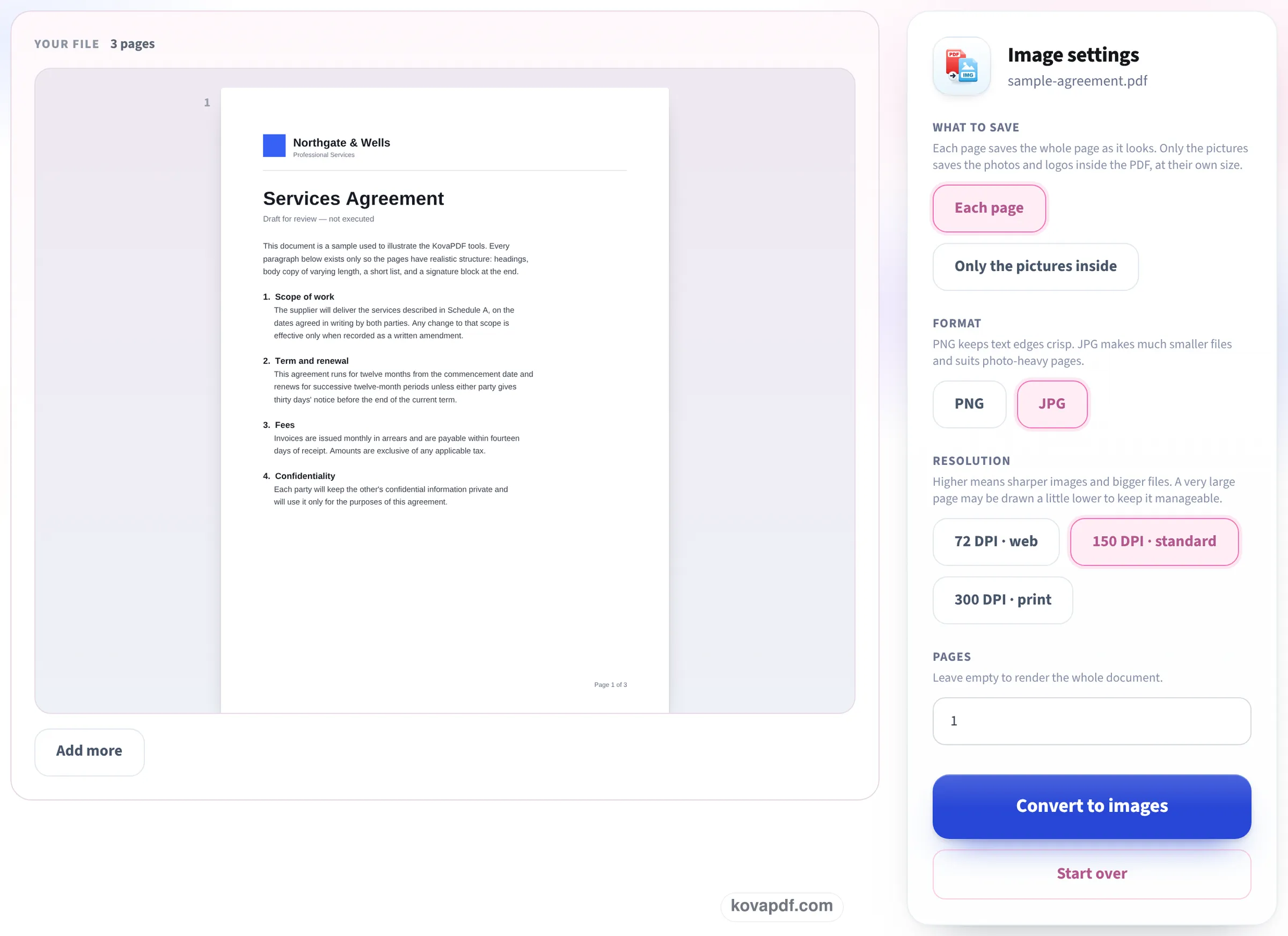
Click the box and pick the PDF, or drag it in from your desktop or Downloads folder. Nothing is uploaded: the page is drawn by your browser.

Pick the page and the format
At the bottom of the settings, Pages already holds 1. Replace it with the page you want. JPG and 150 DPI · standard are selected; PNG keeps text edges cleaner, 300 DPI makes a bigger, sharper picture.
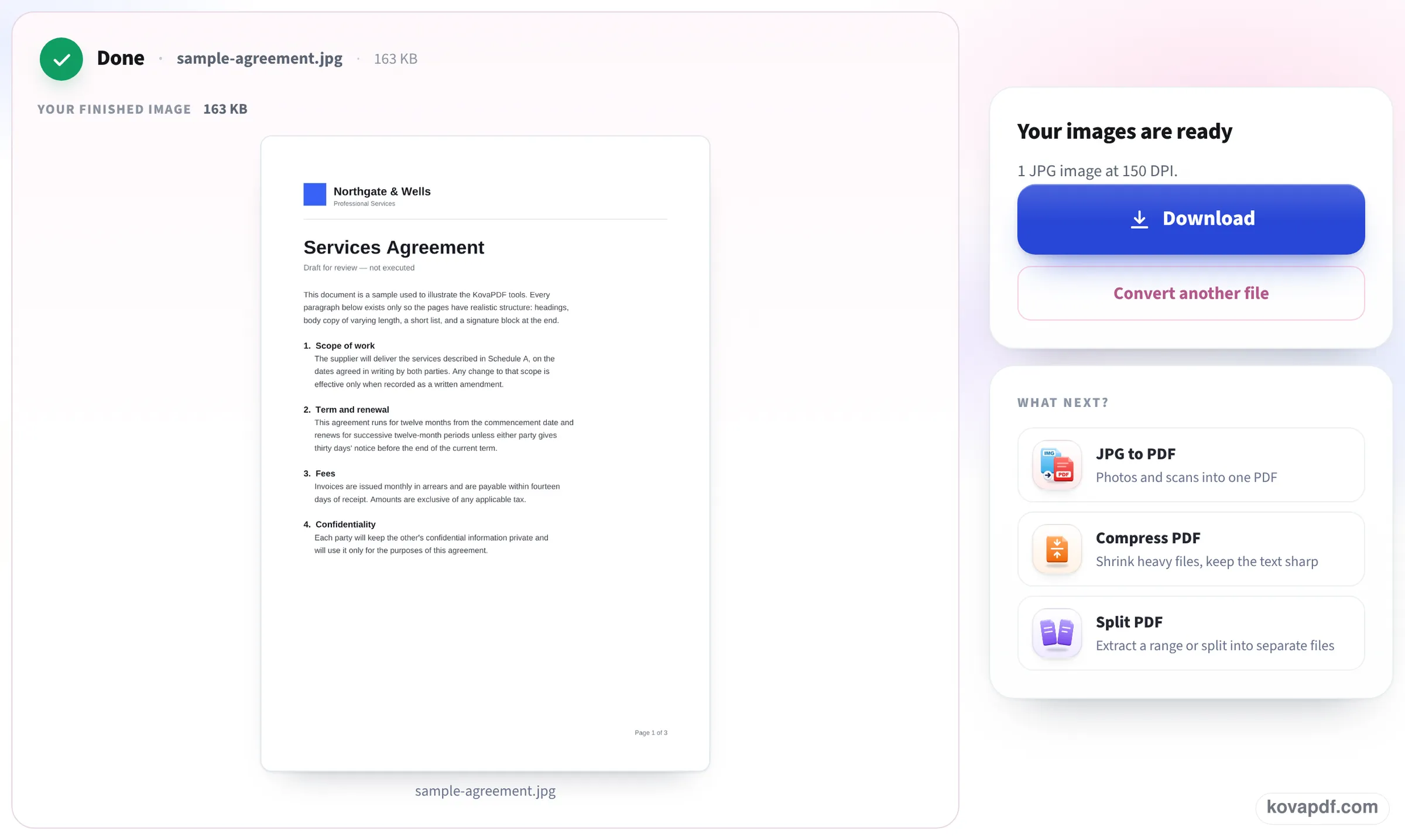
Download the one image
Press Convert to images. With a single page the finished screen shows the picture itself and its size, and Download saves one JPG, not a ZIP.
One page out of a 10-page report
We dropped our 10-page typed report and a 4-page PDF of phone photos on this page, typed the page number, pressed Convert to images, saved the download and opened it. For page 7 we also compared the picture with page 7 of the PDF to make sure it was the right page. Measured on October 24, 2026.
| Page asked for | Settings | File that came back | Pixels | Size |
|---|---|---|---|---|
| 1 (as the page opens) | JPG, 150 DPI | report-10p.jpg | 1275 × 1650 | 377 KB |
| 7 | JPG, 150 DPI | report-10p.jpg, matching page 7 | 1275 × 1650 | 381 KB |
| 7 | PNG, 150 DPI | report-10p.png | 1275 × 1650 | 354 KB |
| 7 | JPG, 300 DPI | report-10p.jpg | 2550 × 3300 | 992 KB |
| 2 of the photo PDF (A4 page) | JPG, 150 DPI | phone-photos-4heic.jpg | 1240 × 1754 | 297 KB |
| 2-4 | JPG, 150 DPI | report-10p-images.zip: page-002.jpg to page-004.jpg | 1275 × 1650 each | 1.14 MB |
Each text page was ready in about a second; the photo page took 3.3 seconds, because the photo inside had to be decoded first. None of the pictures carried any hidden data.
When we typed 17 by mistake, the tool refused with a plain message (this PDF has 10 pages, so none of the pages you asked for exist) instead of handing back an empty file.
Why not just take a screenshot?
A screenshot is only as sharp as your screen and the zoom you happened to use, and it catches the viewer's toolbars and page shadow with it. Drawing the page from the PDF gives a clean picture of exactly one page, edge to edge, at a resolution you choose. On a phone, where a screenshot of a whole page is tiny, the difference is bigger still.
JPG, PNG and which resolution
The right choice depends on where the picture is going:
- A slide, a Word file or a chat message: JPG at 150 DPI, as the page opens.
- A page of small print, a table or a diagram: PNG keeps the edges of letters clean, and on our text page it was even a little smaller than the JPG.
- A picture someone will print or zoom into: 300 DPI. It has four times the pixels and, on our page, close to three times the bytes.
- A page that is mostly a photo: JPG, which stores photos far more compactly than PNG.
When the picture is not what you wanted
If you need the photo or logo that sits inside the page rather than the whole page, choose Only the pictures inside: it saves those pictures at their own size. If you need the page as a PDF, not a picture, use Split PDF to save that page on its own. A page that is turned sideways in the PDF comes out sideways too; rotate it first with Rotate PDF.
Read next: How do I save just one page of a PDF as a JPG? · PDF to JPG high resolution · Extract pages from PDF
Frequently asked questions about Save a PDF page as an image
How do I save one page of a PDF as an image?
Add the PDF here, type the page number in Pages (it starts at 1) and press Convert to images. You get that page as a single JPG.
Why do I get a ZIP instead of one picture?
Because more than one page was asked for, or the Pages box was emptied, which means every page. Type a single number and the download is one image.
Can I save the page as a PNG?
Yes. Choose PNG under Format before you convert. PNG suits pages of text and diagrams; on our report page it was 354 KB against 381 KB for the JPG.
How big will the image be?
At 150 DPI a Letter page is 1275 × 1650 pixels and an A4 page 1240 × 1754. At 300 DPI the Letter page is 2550 × 3300.
Is my PDF uploaded?
No. The page is drawn by your browser on your own device, and the PDF never leaves it.
Can I do this on my phone?
Yes, the page works in the phone's browser. The picture lands in your downloads, from where you can share it or save it to your photos.
Save a PDF page as an image guides and articles


Related tools
All PDF tools · 15 step-by-step guides · How your files are handled
Also: PDF to JPG · PDF to JPG high resolution