DocHub alternative
Open your PDF in the signing editor, place your own signature and download the finished copy.
- Free to use
- Works on any device
- Nothing to install
- Draw, type or upload it
- Place it anywhere, any page
- Resize and move it freely
- No certificate needed
PDF · Word · JPG · PNG · WebP
Drag & drop file here
or choose a file from your device
Upload the PDF you want to sign
PDF, Word or image files
No internet? Get the Windows appOn your phone? Get the phone app
DocHub's own pages, in three facts
Prices checked: October 2026.
DocHub describes editing, annotating, signing and sharing PDFs from desktop or mobile.
Source: dochub.com, DocHub homepage
Its page lists document comments, roles, permissions and organizations.
Source: dochub.com, DocHub homepage
DocHub describes integration with a productivity workspace and reusable fillable templates.
Source: dochub.com, DocHub homepage
How it works
Sign PDF in three steps
Upload your PDF
Drag the .pdf onto the panel, or click it to pick one. A Word document or a photo of a page works too; it is turned into a PDF first. It opens with the signing tools beside the page.
Make your signature and place it
Draw it with your mouse or finger, type your name and pick a handwriting style, or upload a photo of your signature on paper. The paper is removed automatically. Add initials, your name, the date, a line of text or a tick in the same way. Drag each one into place, drag a corner to resize it, and use "Copy to all pages" for initials on every page.
Review and download
Review & download writes everything into the PDF itself and shows you the signed file before you download it; the name and date are saved as real text. This is a visible signature; for proof that the document was not changed afterwards, use Digital Signature with a certificate.
Sign PDF: a visual walkthrough
Draw, type or upload your signature and put it anywhere on the page. No account and no certificate needed.
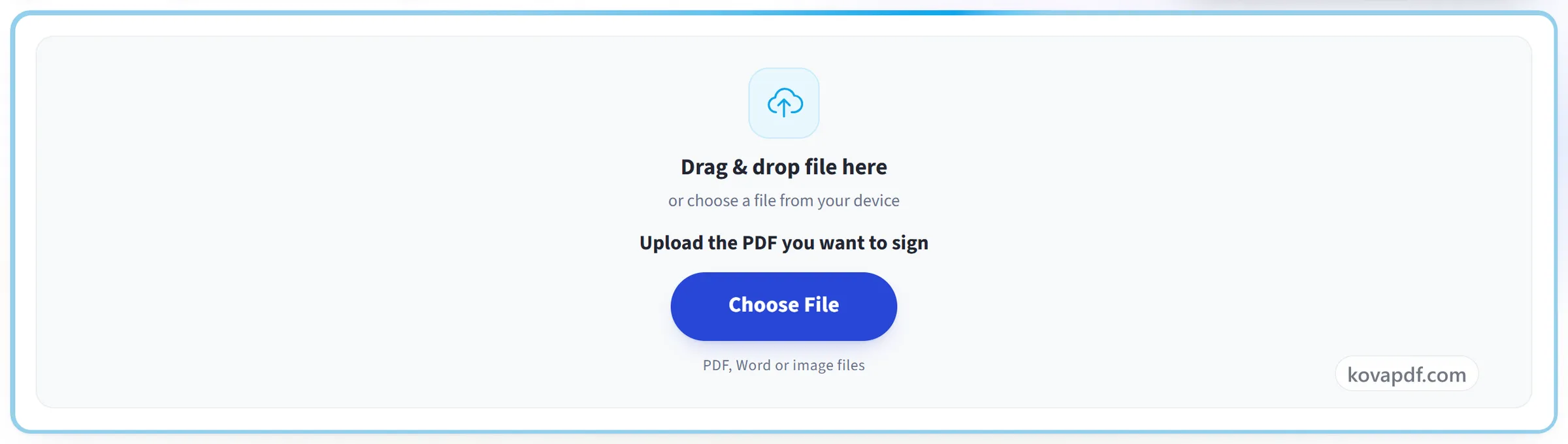
Upload your PDF
Drag the .pdf onto the panel, or click it to pick one. A Word document or a photo of a page works too; it is turned into a PDF first. It opens with the signing tools beside the page.
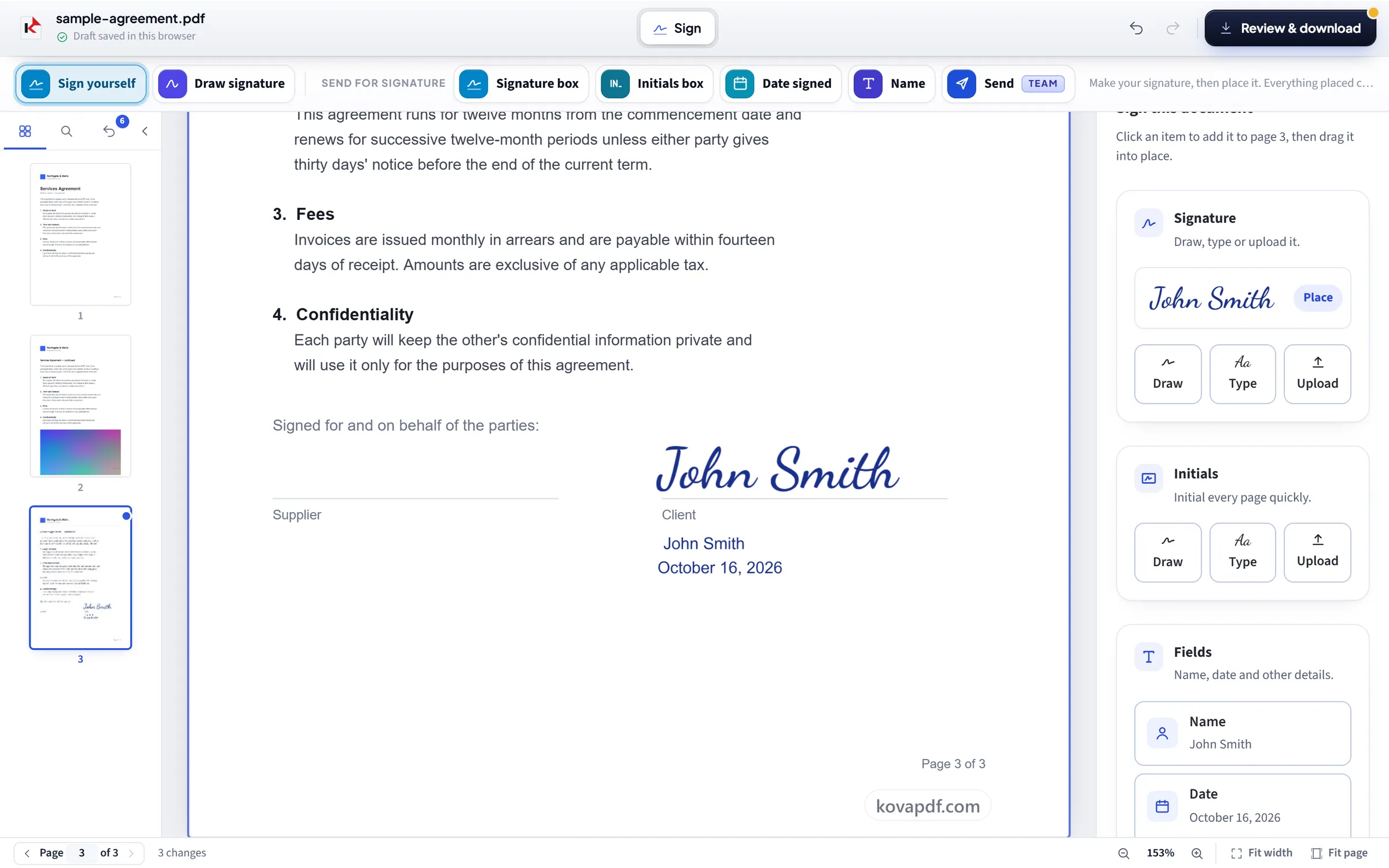
Make your signature and place it
Draw it with your mouse or finger, type your name and pick a handwriting style, or upload a photo of your signature on paper. The paper is removed automatically. Add initials, your name, the date, a line of text or a tick in the same way. Drag each one into place, drag a corner to resize it, and use "Copy to all pages" for initials on every page.
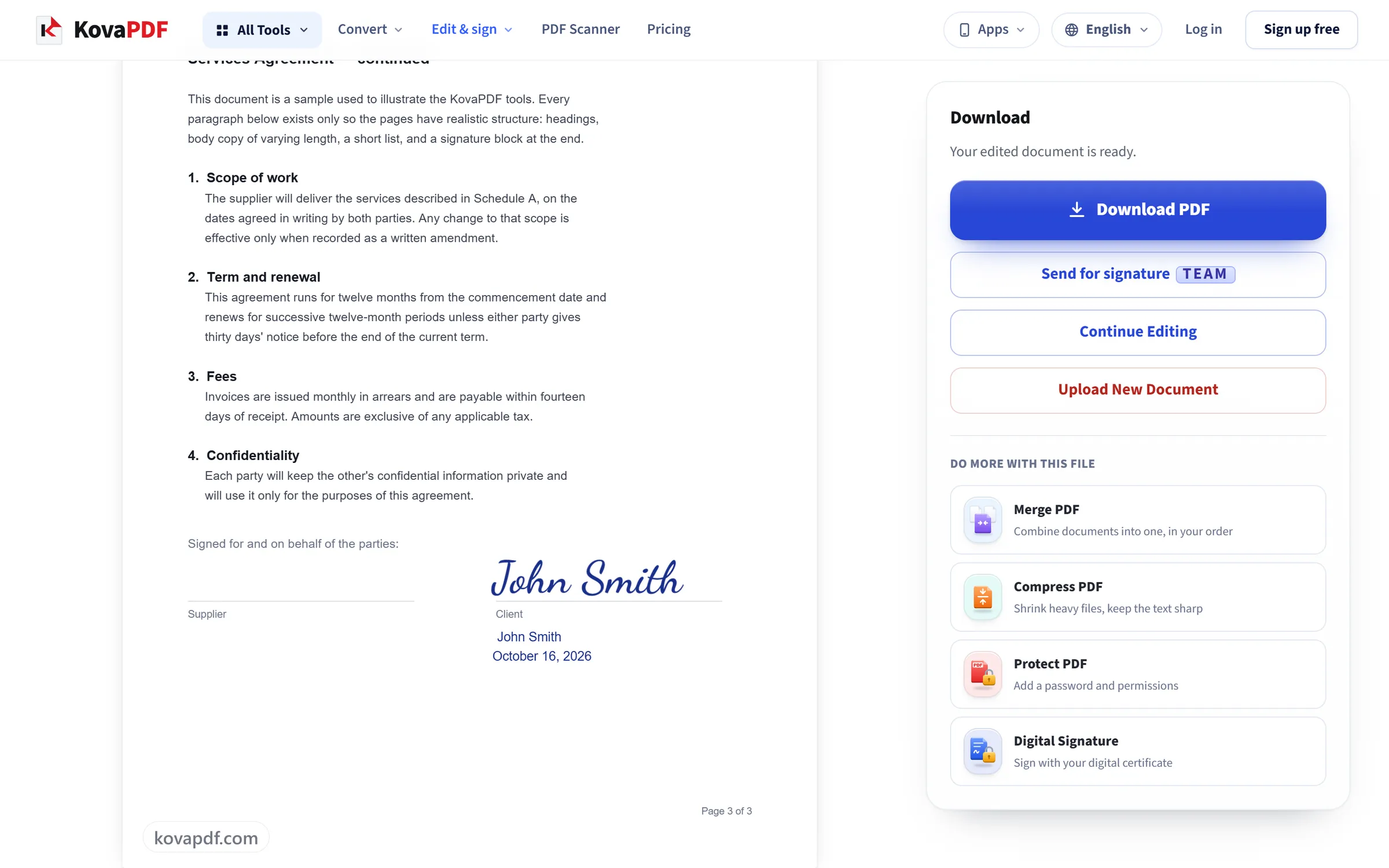
Review and download
Review & download writes everything into the PDF itself and shows you the signed file before you download it; the name and date are saved as real text. This is a visible signature; for proof that the document was not changed afterwards, use Digital Signature with a certificate.
Everything Sign PDF can do
Put your signature, your initials and the rest of what a form asks for onto a document, and drag each one into place. Free, in your browser, no account or certificate needed.
Making your signature
- Draw it with a mouse, a finger or a pen
- Type it in three handwriting styles
- Upload a photo of a sheet you signed
- Photographed paper is cleared away to transparent
- Blue or black ink
Initials and fields
- Initials, drawn, typed or uploaded the same way
- Your name, typed once and placed as often as needed
- A date from a calendar, in four formats
- Any other line of text a form asks for
- Check and cross marks
Placing what you add
- Drag to move it, drag a corner to resize it
- Copy the selected item onto every page
- Place a signature you made earlier again
What you get back
- Name, date and text saved as real, selectable text
- Signatures stay sharp transparent images on the page
- Start from a PDF, a Word file, an ODT or a photo
- Open the full editor once the signing is done
Compare the work you need to do
| Question | KovaPDF | DocHub |
|---|---|---|
| Main task | KovaPDFFill and sign your own file in the editor above. | DocHubEdit, annotate, sign and share PDFs online. |
| Review with others | KovaPDFWork on your own copy, then download it. | DocHubShared comments, document roles and permissions. |
| Reusable paperwork | KovaPDFSignature request templates are in the separate Request Signatures flow. | DocHubReusable fillable templates within the document workspace. |
Prices checked: October 2026.
Which one should you use?
 Where KovaPDF is better
- Only your own signature is missing. The editor above opens the PDF for signing without a KovaPDF account.
- You want a separate finished file. Place the signature, review the pages and download your copy.
- The job changes to collecting consent. The visible request link takes you to Request Signatures instead of confusing the two routes.
Choose DocHub if…
- Your team reviews documents together. DocHub offers comments, document roles and permissions.
- Shared forms are reused across an organization. Its page describes fillable templates and organization features.
- Editing belongs in your connected workspace. DocHub's homepage emphasizes integrated access to documents in that environment.
Prices checked: October 2026.
Start with who needs to sign
A DocHub alternative should make the next action clear. If the form only needs your own signature, use the editor above. If somebody else must accept the terms, use the request link near the heading. Those jobs produce different workflows and should not be presented as the same button.
DocHub's homepage emphasizes PDF editing, annotation, forms, collaboration and signing. It also collects signatures from other people. The editor is the right starting point here because filling and signing your own document is central to that product's everyday use.
Returning a completed form
In a fictional example, Theo receives a workshop attendance form from Harbour Clay Club. He opens its PDF above, places his own signature and checks the completed page before downloading. He does not need a KovaPDF account for this editing route. He returns the downloaded copy using the club's requested channel.
Theo should not assume that placing a visible signature creates the same evidence as receiving a private signing request. A typed or drawn signature records a mark on the page. A certificate based digital signature provides additional file evidence and needs a different process.
When collaboration is the larger job
DocHub describes comments, roles, permissions, organizations and reusable forms. If colleagues depend on those features while reviewing a document, test the review process before replacing it. A downloaded file may be the desired outcome for an individual, but it is not automatically a shared review workspace.
Use Sign PDF for the editor's own page. For somebody else's consent, Request Signatures requires a free sender account and never asks signers to register. E-sign PDF with no sign up explains that distinction.
Keep the untouched original if it already contains digital signatures. Editing a signed file can affect what those signatures cover. Read how to verify a received signed PDF before making changes to evidence you need to preserve.
Prices checked: October 2026.
DocHub alternative: common questions
Can I fill and sign a PDF without a DocHub account?
The KovaPDF signing editor above works without a KovaPDF account. Add your own signature and download the completed file.
How do I ask somebody else to sign?
Use the visible Request Signatures link. The sender needs a free account to send; recipients never need one.
Does this recreate DocHub's shared comments and permissions?
The editor here works on your document. DocHub's shared review, roles and organization features address a wider collaboration task.
Is placing my signature the same as digitally signing?
No. A visible signature mark and a certificate based digital signature are different. Choose the process the document requires.
Should I edit a PDF that is already digitally signed?
Keep its original download first. Edits may change what the signature covers. Check the original before deciding how to complete or correct the document.
Prices checked: October 2026.
Related tools and pages
DocHub is a trademark of its owner. KovaPDF is not connected with, or endorsed by, DocHub. The facts above come from DocHub's own public pages. This page compares products; it is not legal advice.