Adobe verify signature alternative
Check a signed PDF in your browser and understand which part of an unclear result needs attention.
- Secure & private
- Works on any device
- Nothing to install
- Every signature in the file
- Intact, or changed since signing
- Who signed, and when
- Trust reported separately
Upload a signed file to check it
.pdf, .p7m, .p7s, .m7m, .tsd, .tsr · checked, then deleted. Nothing is kept
Drag & drop files here
or choose a file from your device
On your computer? Get the Windows appOn your phone? Get the phone app
Trust your own certificate (optional)
Add a root or intermediate certificate (.cer, .crt, .pem, .p7b) to treat it as trusted for this check only. It is not stored.
Adobe Acrobat's own pages, in three facts
Adobe documents validating signatures from the Signatures panel and inspecting Signature Properties.
Source: helpx.adobe.com, Validate digital signatures
Its instructions include Show Signer's certificate and separate timestamp messages.
Source: helpx.adobe.com, Validate digital signatures
Acrobat supports trusted identity lists, certificate trust settings and organizational configuration.
Source: helpx.adobe.com/acrobat/using/trusted-identities.html, Manage trusted identities
How it works
Verify Signature in three steps
Upload the signed PDF
Drag the .pdf onto the panel, or click it to pick one. The check starts at once; nothing is kept afterwards.
Read the result
Each signature starts with one plain sentence: green if the document is unchanged since that person signed it. Below it, every check has its own line, and "Certificate details" shows who the certificate belongs to, who issued it and its fingerprint. "Not trusted" only means the issuer is not one we recognise. Normal for a company's own certificates.
If the file was changed after signing
The sentence turns amber and the changes are listed page by page. In this example, a comment was added on page 2. "Download the version that was signed" gives you the file exactly as it was signed. If there is no digital signature at all, the page says so and points out any signature picture it found. "Download report (PDF)" saves the whole result.
Verify Signature: a visual walkthrough
See whether a signed PDF is intact, who signed it and when, each answered on its own line.
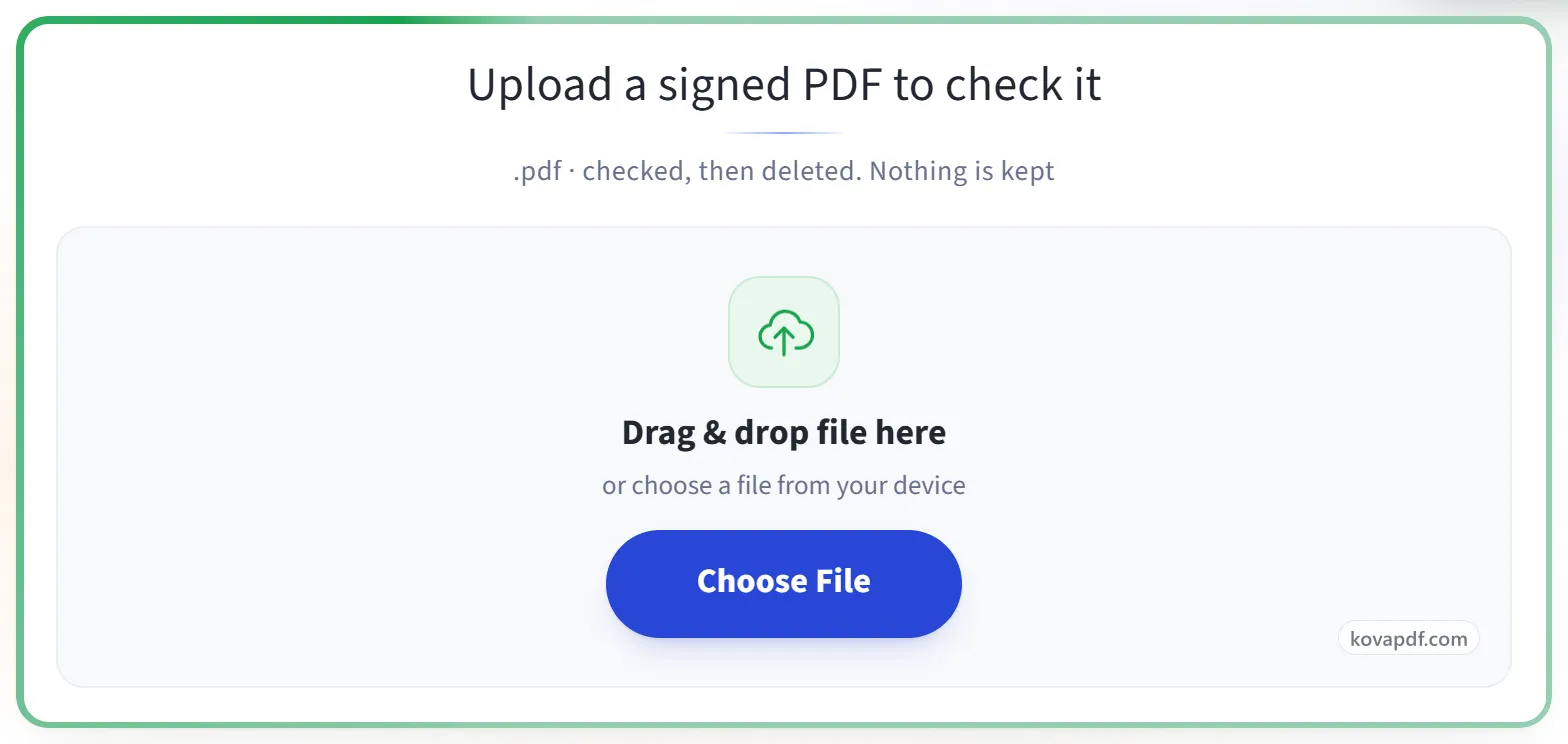
Upload the signed PDF
Drag the .pdf onto the panel, or click it to pick one. The check starts at once; nothing is kept afterwards.
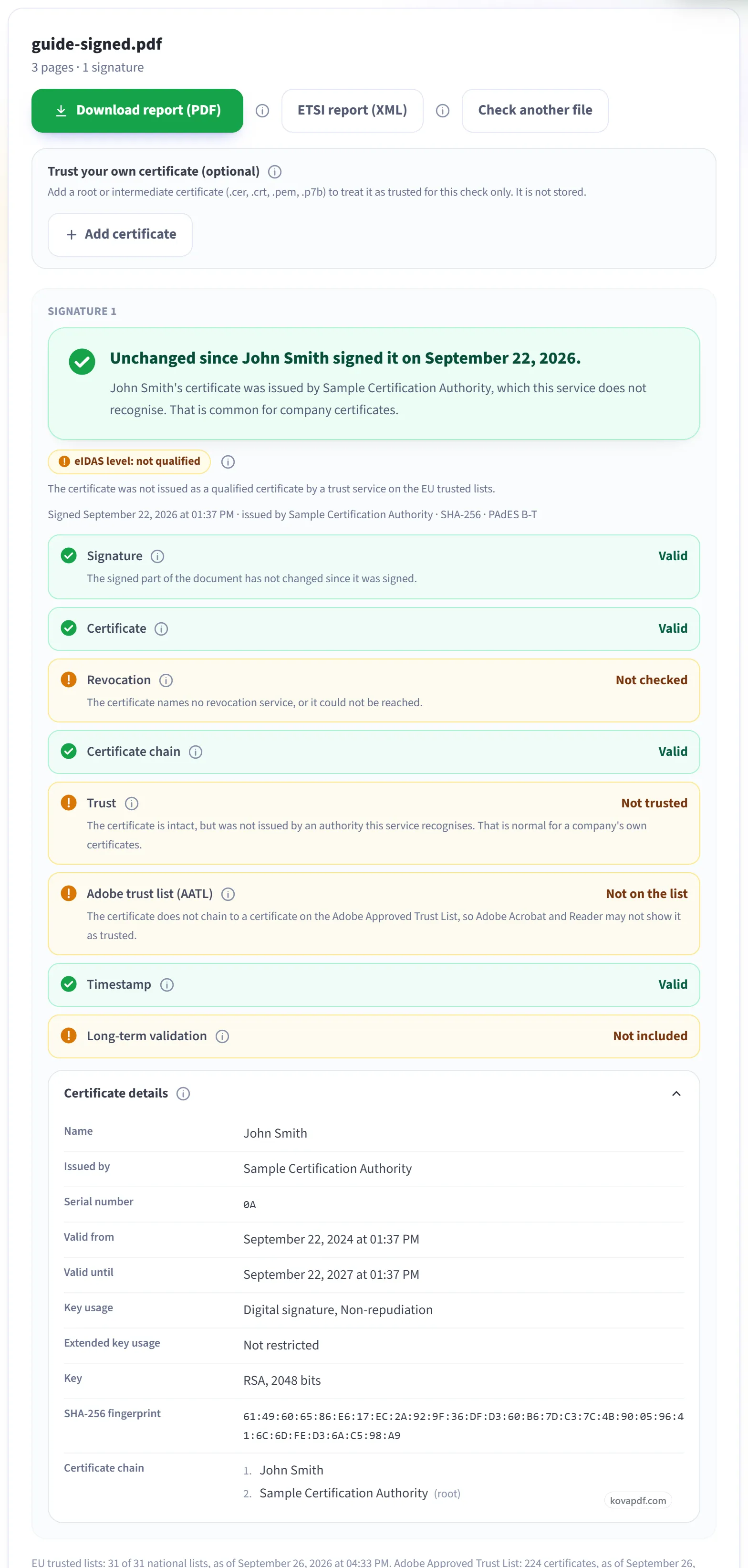
Read the result
Each signature starts with one plain sentence: green if the document is unchanged since that person signed it. Below it, every check has its own line, and "Certificate details" shows who the certificate belongs to, who issued it and its fingerprint. "Not trusted" only means the issuer is not one we recognise. Normal for a company's own certificates.
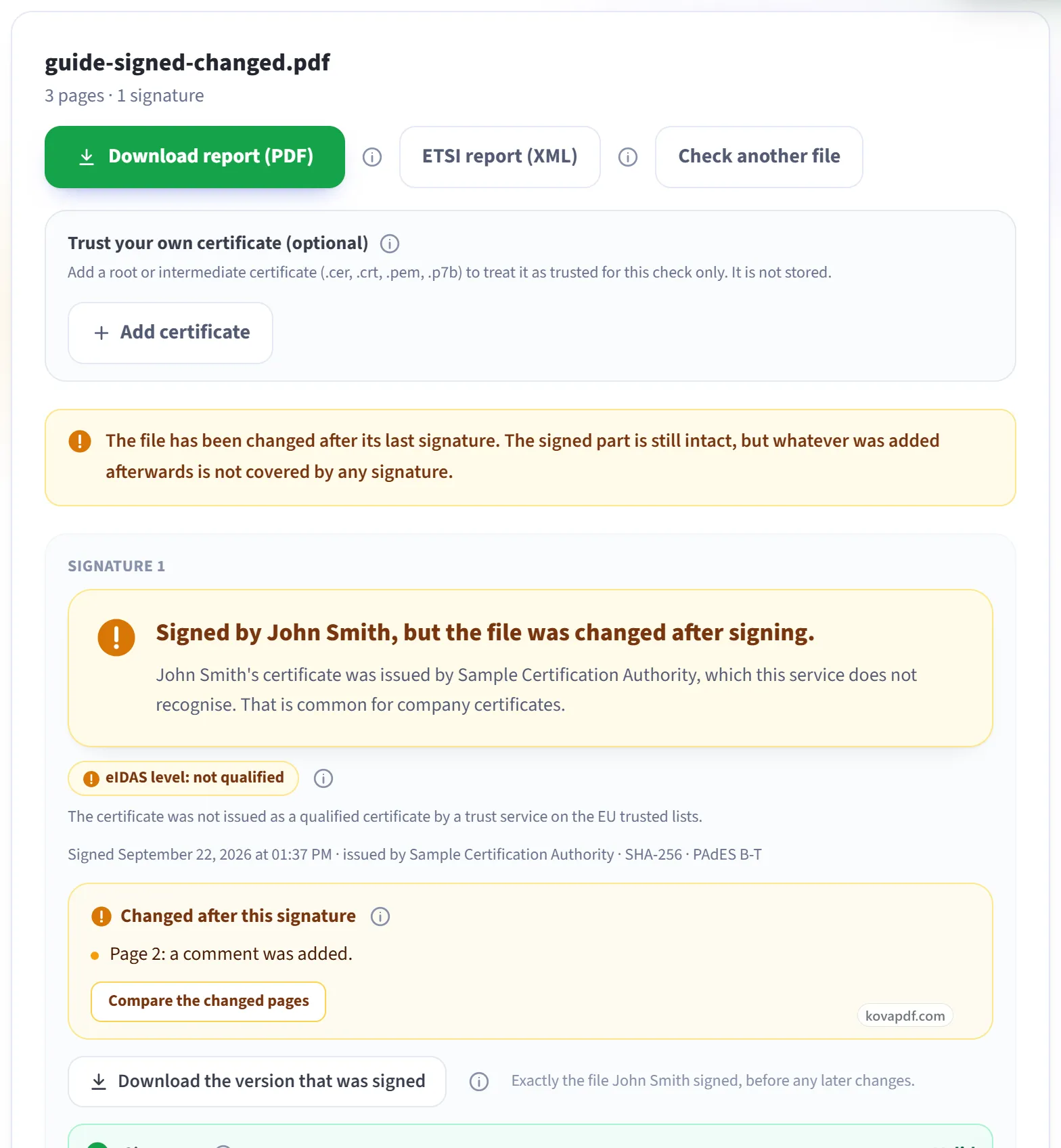
If the file was changed after signing
The sentence turns amber and the changes are listed page by page. In this example, a comment was added on page 2. "Download the version that was signed" gives you the file exactly as it was signed. If there is no digital signature at all, the page says so and points out any signature picture it found. "Download report (PDF)" saves the whole result.
Everything Verify Digital Signatures can do
Check every digital signature in a PDF: whether it still matches the document, who signed it, and whether their certificate can be trusted. Free, online, nothing kept.
Is the document intact
- Tells you plainly whether the document changed after signing
- Shows what changed, page by page, against the signed version
- Download the exact version that was signed
- Every signature in the file reported separately, in order
- Flags a signature image that has no real digital signature behind it
Who signed, and can they be trusted
- Full certificate details and the chain up to the root
- Revocation checked live by OCSP and CRL
- EU Trusted Lists: says whether it is a qualified signature or seal under eIDAS
- AATL: says whether Adobe trusts the issuer
- Add your own root certificate for a check we could not otherwise make
Time and long-term validity
- Timestamp checked, with the authority that issued it
- LTV and DSS data detected, so you know the signature survives certificate expiry
- Certification and permission rules (DocMDP) reported as the signer set them
Proof you can keep
- Download a PDF report of the whole check
- Download an ETSI TS 119 102-2 validation report in XML
- One plain-language verdict, with every fact shown on its own line
Compare how you investigate an unclear result
| Need | KovaPDF | Adobe Acrobat |
|---|---|---|
| Start a check | KovaPDFChoose the PDF in the browser tool above. | Adobe AcrobatOpen the PDF and use the Signatures panel or Validate all signatures. |
| Investigate trust | KovaPDFRead the trust result and optionally add a certificate for this check only. | Adobe AcrobatInspect certificates and the desktop application's trusted identity settings. |
| Understand time evidence | KovaPDFRead the timestamp result separately from the displayed signing time. | Adobe AcrobatInspect timestamp messages and verification preferences. |
Which one should you use?
 Where KovaPDF is better
- You need a browser check now. The working upload is on this page. You do not have to install a desktop reader to begin.
- You want the answers separated. Read integrity, certificate validity, trust and time evidence on their own lines.
- You need a temporary trust decision. An added certificate is used for the current check rather than becoming a desktop trust preference.
Choose Adobe Acrobat if…
- The document must stay in a desktop workflow. Acrobat's documented validation steps work in its desktop application.
- Your organization manages trusted identities. Adobe describes preconfigured trust lists and certificate trust settings.
- You need Acrobat's verification preferences. Its help explains certificate properties, timestamp messages and configurable validation preferences.
Unknown trust is a different problem from changed content
Being told to open a file in Adobe does not explain what its result means. Adobe's own instructions distinguish validation details, signer certificates and timestamp messages. Use the browser tool above if you need another way to inspect the PDF. Keep the original file while comparing results.
Suppose Leah at the fictional Elm Room Studio receives an approval signed with a company certificate. Her reader does not recognise its issuer. That alone does not show that the approval was edited or forged. It means the trust question still needs an answer.
Translate the result into decisions
Signature answers whether the signed portion still matches. A valid result can coexist with later additions. Read the changes section before assuming it covers the entire current file.
Certificate checks the certificate's dates and signing use at the relevant signing time. Certificate chain asks whether the certificates above it verify one another. Neither result by itself establishes that your organization accepts the root.
Trust reports recognised roots or a certificate you supplied for this check. Confirm a company certificate through a separate trusted channel before adding it. Adobe trust list (AATL) reports that particular list, which can explain why a desktop reader treats an issuer differently.
Revocation concerns a certificate cancelled before its expiry. Not checked is an unavailable answer, not the same as Not revoked. Timestamp distinguishes independent time evidence from a date supplied by the signing computer. None does not establish when the agreement actually happened.
Long-term validation can say Present (not checked). Treat that wording literally: the row reports evidence included in the file. Do not turn it into a guarantee that the file will validate years later.
Check the explanation beneath the colour
The overall assessment and findings explain missing evidence. An indeterminate assessment can accompany intact signed bytes. Certificate details shows the subject, issuer, dates, key information and fingerprint. Trust badges identify the source of a trust decision; they do not provide a new identity check on the person in front of you.
For Leah, the next useful action is to confirm the company certificate, not to erase the warning by accepting an unknown issuer. If her organization already distributes trusted identities in Acrobat, that existing desktop setup may be the right reference.
Use Verify Signature to inspect another original file. The signature result guide explains the terms. If the concern is an added comment or replaced page, use check if a PDF was modified after signing. Download the report when you need to record what the checker found.
Adobe verify signature alternative: common questions
Do I have to install Acrobat to start this check?
No. The tool above checks the PDF in a browser workflow. Acrobat remains useful when your organization relies on its desktop trust configuration.
Does Unknown or Not trusted mean the PDF is fake?
Not by itself. Check integrity, certificate chain and the evidence behind the issuer's identity separately.
Should I add every certificate until the result turns green?
No. Confirm the certificate and its fingerprint through a trusted channel. Adding a certificate changes the basis of trust for that check.
Why might Acrobat and this checker disagree?
Their loaded trust sources, verification preferences and available evidence can differ. Compare the detailed findings instead of comparing only the colour.
Does a signing date prove an independent timestamp?
No. Read the Timestamp row. A time supplied by the signing computer is different from verified independent timestamp evidence.
Related tools and pages
Adobe Acrobat, Adobe, Acrobat, Reader are trademarks of their owners. KovaPDF is not connected with, or endorsed by, any of them. The facts above come from each service's own public pages. This page compares products; it is not legal advice.