Save a web page as PDF
Paste the page's address and press Continue. You get the whole page as a PDF, with real text and working links.
- Keeps your layout
- Works on any device
- Deleted after processing
- A real browser engine
- CSS grid and flexbox intact
- Web fonts loaded
- A page, a file or a bundle
URL · .html · .zip
Turn a web page into a PDF
Paste the address of any public page. It is loaded and rendered exactly as a browser would show it.
Pages behind a login can't be reached, and addresses on a private network are refused.
Everything HTML to PDF can do
Render a web page, an HTML file, a site bundle or pasted markup to PDF with a real browser engine.
Four ways in
- Paste the address of any public page
- Upload an .html, .htm or .xhtml file
- Upload a .zip of a whole site with its CSS and images
- Paste markup straight into the box
Rendered by a browser
- Chrome lays the page out, so grid, flexbox and positioning hold
- Web fonts are given time to load before the page is captured
- Background colours and images kept, which printing normally drops
- The entry page is picked out of a site bundle for you
Which layout you get
- Render at Desktop HD, Desktop, Laptop, Tablet or Mobile width
- 1920, 1440, 1200, 768 or 375 pixels across
- A responsive site gives you the layout you picked
The paper
- A4, Letter, Legal, A3 or A5
- Portrait or landscape sheets
- Margins: none, small, normal or big
- One long page as tall as the document, for a screenshot-style capture
How it works
Save webpage as PDF in three steps
Paste the address
Copy it from your browser's address bar and paste it in.
Choose the page setup
The width to draw the page at, A4 or Letter, portrait or landscape, or one long page with no breaks.
Download the PDF
Every link still works and the text can be searched and copied.
Save webpage as PDF: a visual walkthrough
Saving a public web page from its address on this page, in three pictures: the address box, the page setup once the address is in, and the finished PDF.
Paste the web address
The tool opens on Web address. Paste the link and press Continue. HTML file and Paste code are there for a page you saved earlier or markup you wrote yourself.

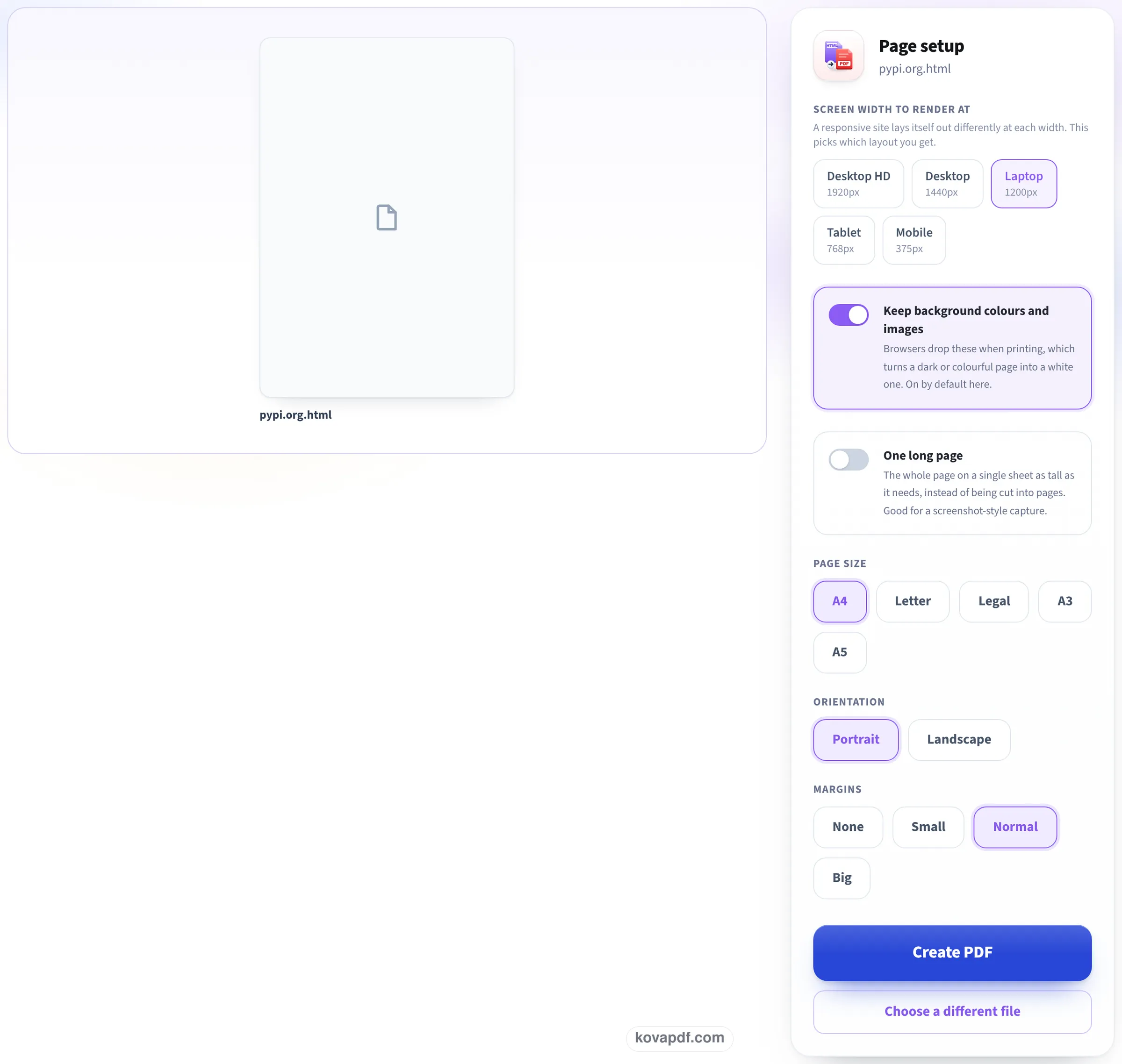
Pick the width and the paper
Choose the screen width the page is drawn at (Laptop 1200px unless you change it), whether to keep background colours, one long page or a paper size, the orientation and the margins. Then press Create PDF.
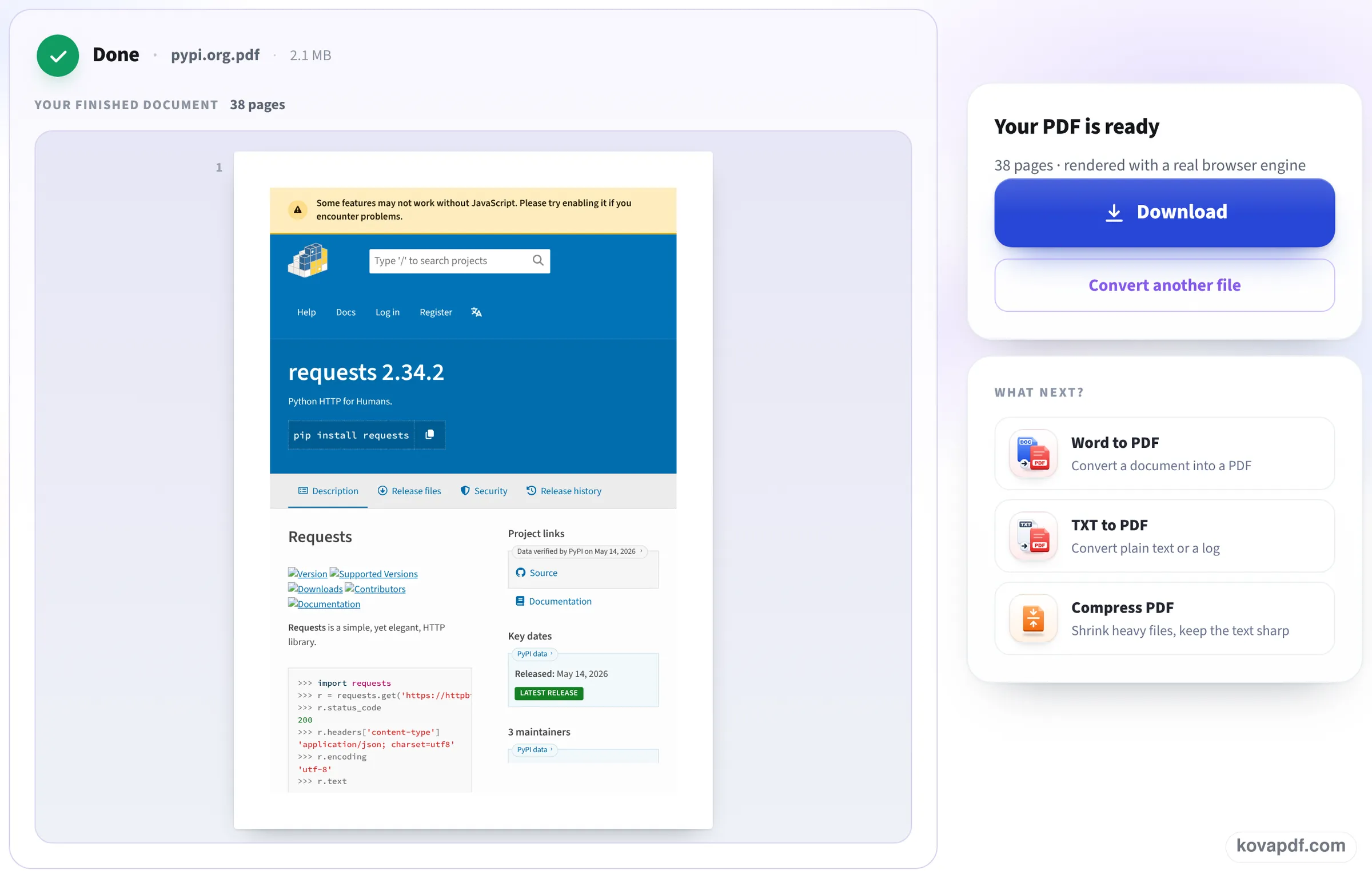
Download the saved page
Your PDF is ready shows the first page and how many pages the web page filled. Download saves it, with its text selectable and its links still clickable.
A real page, saved from its address
We saved a long public page (a software package listing with its full description and release links) on this page, in a 1366 px desktop window and in a 390 px phone window, with the settings the tool starts with, and opened the PDFs. Measured on October 24, 2026.
| Checked | Result |
|---|---|
| Pages | 38 A4 pages for the whole long page |
| Text | 19,641 characters, all searchable and selectable |
| Links | 816 links, all clickable in the PDF |
| Size and time | 2.13 MB, ready 6.1 seconds after pressing Create PDF (5.5 in the phone window) |
| Phone and desktop | The same 38 pages and the same text from both: the page is drawn on our server at the width you choose, not the width of your screen |
| One long page | A single page 12.5 inches wide and 316.9 inches tall, 2.43 MB |
Because scripts are off, the site showed its own "Some features may not work without JavaScript" notice near the top; everything else on it appeared. Sites that build their content entirely with scripts come out empty, and the tool says so instead of giving you a blank PDF.
Why not just press Print in the browser?
Print to PDF works, but browsers print pages the way their designers set up for paper, which often means missing backgrounds, cut-off sidebars and dozens of pages of comments. It also only works on the device you are on, one page at a time.
Here the page is drawn by a real browser engine at the width you pick, with backgrounds kept, then laid onto the paper size you choose. One long page is an option for pages you want to read like a scroll.
Pages that will not save
Some pages cannot be saved from their address:
- Pages behind a login: email, online banking, social media feeds. Use your browser's Print to PDF there.
- Pages built entirely by scripts, such as many web apps.
- Addresses on a private network, such as your router or an office intranet, are refused for safety.
- Saved the page as an .html file already? Use the HTML file tab, or upload a .zip of it with its pictures, instead of the address.
Good to know
The PDF shows the page as it was at that moment, which makes it useful as a record: a receipt, a booking, terms and conditions on the day you agreed to them. Keep the address and date with it.
Read next: Compress PDF for email · Convert PDF to editable Word
Frequently asked questions about Save webpage as PDF
How do I save a whole web page as a PDF?
Paste its address here, press Continue, pick the page setup and press Create PDF, then Download. The PDF has the whole page, not just the visible part.
Will links still work in the PDF?
Yes. In our test, all 816 links on the page were clickable in the PDF.
Can I save it as one long page without page breaks?
Yes. Switch on One long page and the whole web page becomes one tall PDF page; ours came out 316.9 inches tall.
Why did my page come out empty?
The page builds its content with scripts, which are switched off for safety. The tool tells you when this happens. Use your browser's Print to PDF for such pages.
Can I save a page I am logged into?
No. The page is opened by our server, which cannot see your logins. Use Print to PDF in your own browser for those.
Do I need a browser extension?
No. Paste the address here; nothing to install.
Save webpage as PDF guides and articles



Related tools
All PDF tools · 15 step-by-step guides · How your files are handled
Also: HTML to PDF