Remove PDF restrictions
If your PDF opens but printing, copying or editing is greyed out, the restrictions can be removed without a password. The file stays on your device.
- Free to use
- Works on any device
- Stays on your device
- A password you know, removed
- Or restrictions stripped
- Pages left exactly as they are
- Opens anywhere afterwards
Choose the restricted PDF
.pdf · your file stays on your device
Drag & drop file here
or choose a file from your device
Everything Unlock PDF can do
Remove a password you know from a PDF, or strip printing and copying restrictions from one that opens without a password. Free, in your browser.
Two kinds of lock
- Removes the open password from a file you have the password for
- Removes owner restrictions on printing and copying with no password at all
- Handles AES-256 and AES-128 encrypted documents
- Says which of the two locks your file carries
Being asked for a password
- You are asked for one only when the file genuinely has one
- A Show password switch, so you can check what you typed
- A restrictions-only file goes straight to the button
The unlocked copy
- Opens with no password afterwards, and prints and copies freely
- Every page carried across in its original order
- Title, author, subject and keywords kept on the new file
- The result screen says the page count and what was removed
- One unlocked PDF, named after your document
How it works
Remove PDF restrictions in three steps
Add the PDF
The tool checks it at once: restrictions only, or a password to open.
No password to type
For a file with restrictions only, nothing is asked. Press Unlock PDF.
Download the free copy
It opens, prints, copies and edits like any other PDF.
Remove PDF restrictions: a visual walkthrough
The pictures use our sample agreement saved with printing, copying and editing switched off but no password to open, the usual case for a secured statement or handout.
Add the secured PDF
Drag it onto the box or press Choose File. The file is checked in your browser; it is not sent anywhere.

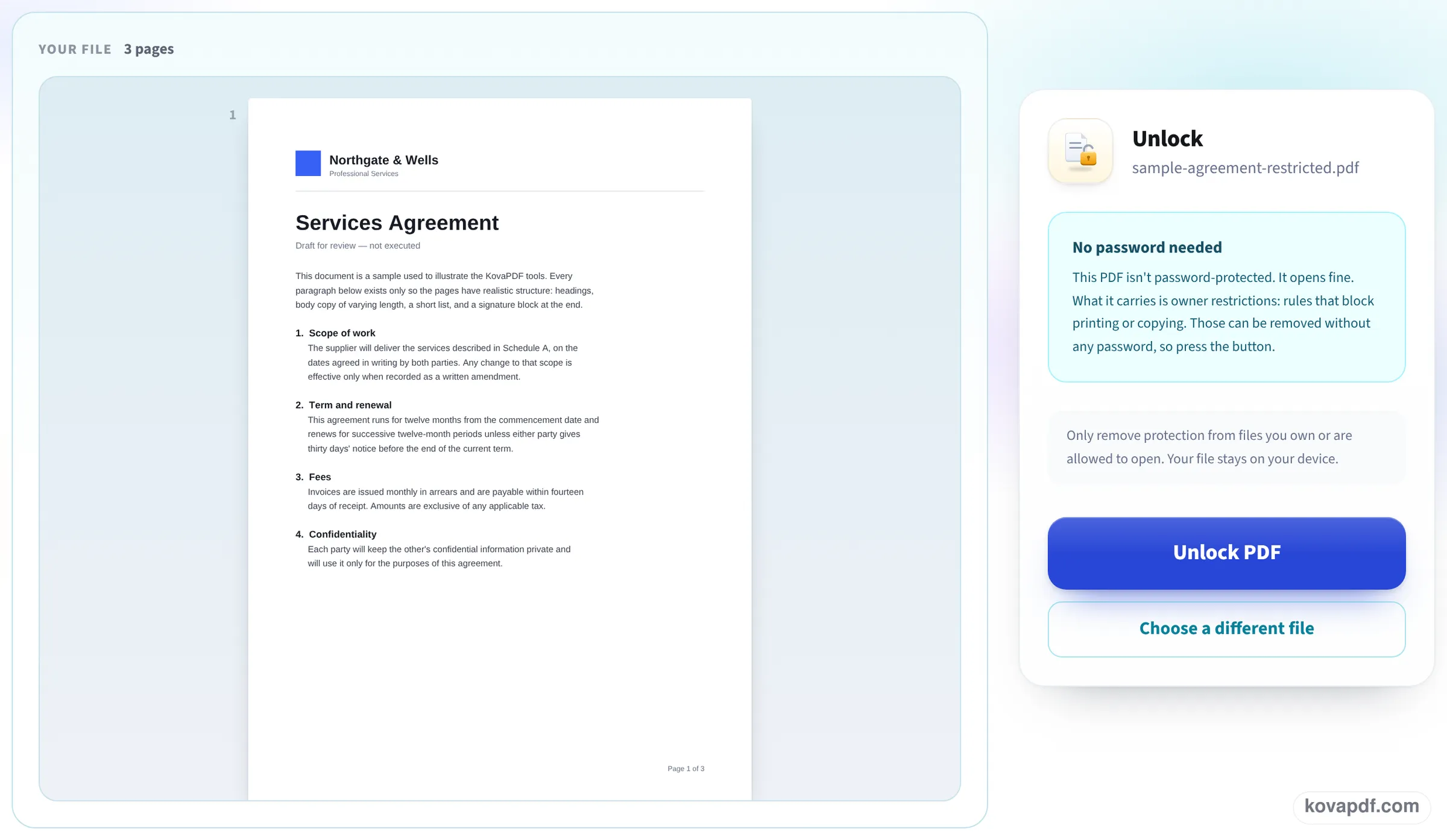
The check says no password is needed
The pages open on the left, which shows the file was never locked against opening. The panel on the right reads No password needed and explains that the file carries owner restrictions only. There is no box to fill in: press Unlock PDF.
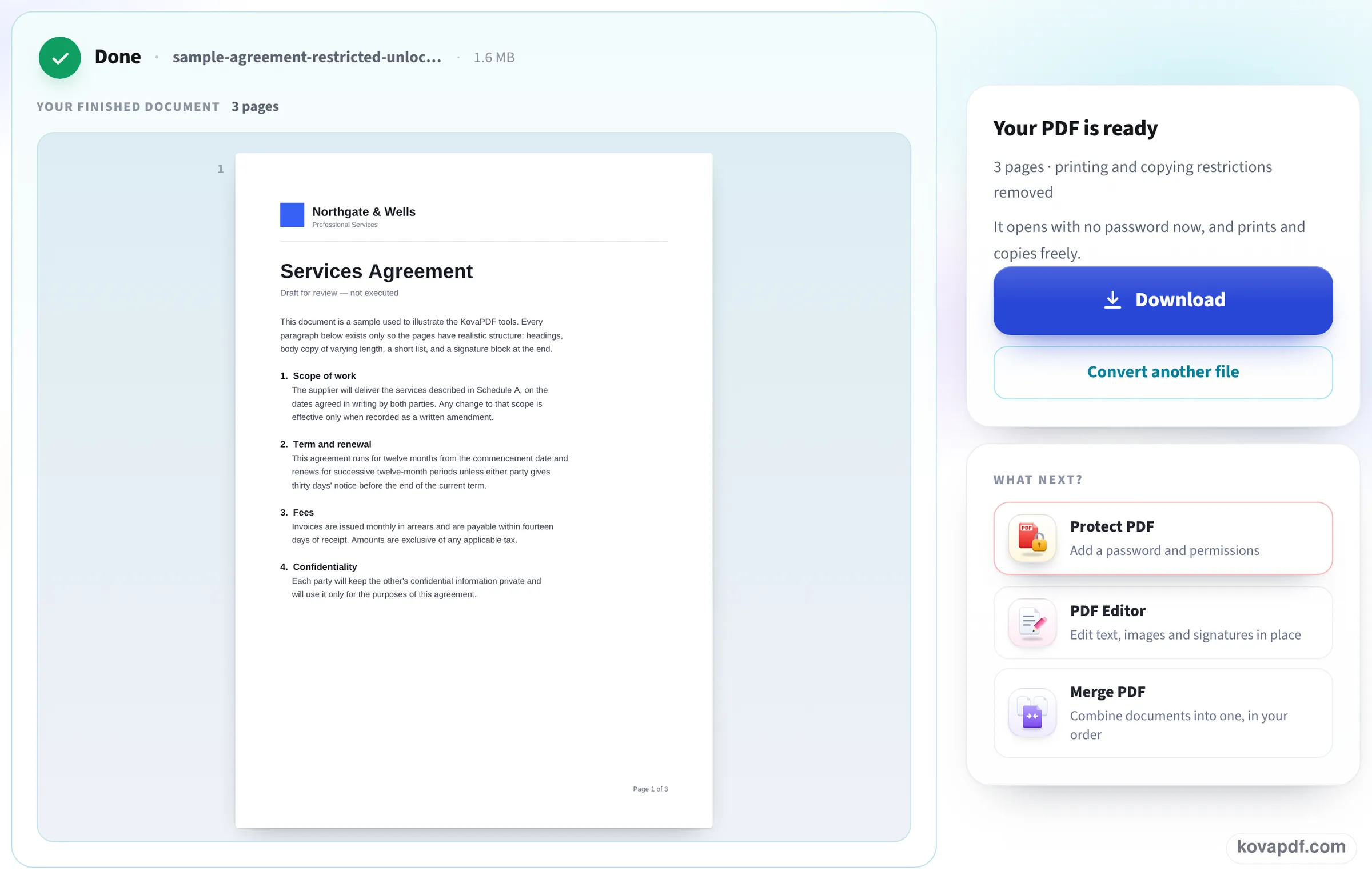
A copy without the restrictions
The result confirms 3 pages with the printing and copying restrictions removed, and that the copy prints and copies freely. Press Download to save it; the pages look exactly as before.
A restricted file before and after
On 24 October we made a copy of our letter with printing, copying, editing, form filling and comments all turned off (AES-256, owner password only), ran it through this page without typing anything, and compared the permissions and content of the two files. Measured on October 24, 2026.
| Before | After | |
|---|---|---|
| Opens without a password | Yes | Yes |
| Print, copy text, edit, fill forms, add comments | All blocked | All allowed |
| Encrypted | Yes, AES-256 | No |
| Pages and text | 3 pages, 1,071 words | 3 pages, the same 1,071 words, character for character |
| Size | 26.6 KB | 24.1 KB |
We also ran an invoice that needs a password to open (AES-128). Here the page asked for the password; typed once, it gave back a copy that opens with no password, every word of the invoice table intact (40.3 KB in, 36.9 KB out). Both runs were ready about a second after Unlock PDF was pressed.
How to tell what kind of lock you have
If the PDF opens without asking for anything, but Print is greyed out, text will not select or copy, or the title bar says SECURED, the file carries owner restrictions. These are rules stored in the file for readers to follow, and they can be removed without a password.
If the PDF asks for a password before showing anything, it is encrypted with an open password. Without that password the content cannot be read, by this tool or any other. With it, typed once, you get a copy that opens freely.
Why files come with restrictions
Restrictions are usually set without much thought, by the program that made the file:
- Reports and statements exported from online banking or billing systems, with copying turned off by default.
- E-books, course packs and handouts, where the publisher wants to discourage copying.
- Forms and contracts locked against editing so the wording cannot change.
- Documents secured years ago by someone who has since left, with nobody knowing the owner password.
Use it responsibly
Removing restrictions is for files you own, or files you are entitled to use in that way, such as your own statement you need to print or a form you need to fill in. It does not change who holds the copyright in a document, and it does not make it acceptable to copy someone else's work.
Read next: Password protect a PDF without Adobe · Copy text from a scanned PDF
Frequently asked questions about Remove PDF restrictions
How do I remove restrictions from a secured PDF?
Add it here. If it only carries restrictions, no password is asked: press Unlock PDF and download a copy that prints, copies and edits.
Why can't I copy or print my PDF?
Its maker turned those permissions off. Your reader is following rules stored in the file. Removing them gives you an ordinary PDF.
Can restrictions be removed without the password?
Yes, owner restrictions can: our test file had printing, copying and editing turned off and an owner password nobody typed, and it came back with all of them allowed. A password needed to OPEN the file is different and cannot be removed without it.
Is it legal to remove PDF restrictions?
For your own files, or files you have the right to print and copy, generally yes. Laws differ by country, and removing restrictions does not give you any right to copy someone else's protected work.
Will the content change?
No. Pages, text, pictures and links stay as they are. In our test the text was identical, character for character.
Is the file uploaded?
No. The check and the unlock run in your browser.
Remove PDF restrictions guides and articles



Related tools
All PDF tools · 15 step-by-step guides · How your files are handled